LaTeX/Advanced Mathematics

This page outlines some more advanced uses of mathematics markup using LaTeX. In particular it makes heavy use of the AMS-LaTeX packages supplied by the American Mathematical Society.
Equation numbering[edit | edit source]
The equation environment automatically numbers your equation:
\begin{equation}
 f(x)=(x+a)(x+b)
\end{equation}
|
|

You can also use the \label and \ref (or \eqref from the amsmath package) commands to label and reference equations, respectively. For equation number 1, \ref results in and \eqref results in :


\begin{equation} \label{eq:someequation}
6^2 - 5 = 36-5 = 31
\end{equation}

this references equation \ref{eq:someequation}.
|
|


\begin{equation} \label{eq:erl}
a = bq + r
\end{equation}

where \eqref{eq:erl} is true if $a$ and $b$ are integers with $b \neq c$.
|
|



Further information is provided in the labels and cross-referencing chapter.
To have the enumeration follow from your section or subsection heading, you must use the amsmath package or use AMS class documents. Then enter
\numberwithin{equation}{section}
|
to the preamble to get enumeration at the section level or
\numberwithin{equation}{subsection}
|
to have the enumeration go to the subsection level.
\documentclass[12pt]{article}
\usepackage{amsmath}
 \numberwithin{equation}{subsection}
 \begin{document}
 \section{First Section}

 \subsection{A subsection}
 \begin{equation}
  L' = {L}{\sqrt{1-\frac{v^2}{c^2}}}
 \end{equation}
\end{document}
|
|
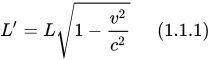
If the style you follow requires putting dots after ordinals (as it is required at least in Polish typography), the \numberwithin{equation}{subsection} command in the preamble will result in the equation number in the above example being rendered as follows: (1.1.1).
To remove the duplicate dot, add the following command immediately after
\numberwithin{equation}{section}:
\renewcommand{\theequation}{\thesection\arabic{equation}}
|
For a numbering scheme using \numberwithin{equation}{subsection}, use:
\renewcommand{\theequation}{\thesubsection\arabic{equation}}
|
in the preamble of the document.
Note: Although it may look like the \renewcommand works by itself, it won't reset the equation number with each new section. It must be used together with manual equation number resetting after each new section beginning, or with the much cleaner \numberwithin.
Subordinate equation numbering[edit | edit source]
To number subordinate equations in a numbered equation environment, place the part of document containing them in a subequations environment:
\begin{subequations}
\label{eq:Maxwell}
Maxwell's equations:
\begin{align}
        B'&=-\nabla \times E,         \label{eq:MaxB} \\
        E'&=\nabla \times B - 4\pi j, \label{eq:MaxE}
\end{align}
\end{subequations}
|
|


Referencing subordinate equations can be done using either of two methods: adding a label after the \begin{subequations} command, viz. \label{eq:Maxwell}, which will reference the main equation (1.1 above), or adding a label at the end of each line, before the \\ command, which will reference the sub-equation (1.1a or 1.1b above). As shown, it is possible to add both labels in case both types of references are needed.
/Override_subsystem=/index
Vertically aligning displayed mathematics[edit | edit source]
A problem often encountered with displayed environments (displaymath and equation) is the lack of any ability to span multiple lines. While it is possible to define lines individually, these will not be aligned.
Above and below[edit | edit source]
The \overset and \underset commands[1] typeset symbols above and below expressions.
Without AMS-TeX the same result of \overset can be obtained with \stackrel.
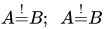
This can be particularly useful for creating new binary relations:
\[
 A \overset{!}{=} B; A \stackrel{!}{=} B
\]
|
|
or to show usage of L'Hôpital's rule:
\[
 \lim_{x\to 0}{\frac{e^x-1}{2x}}
 \overset{\left[\frac{0}{0}\right]}{\underset{\mathrm{H}}{=}}
 \lim_{x\to 0}{\frac{e^x}{2}}={\frac{1}{2}}
\]
|
|
![{\displaystyle \lim _{x\to 0}{\frac {e^{x}-1}{2x}}{\overset {\left[{\frac {0}{0}}\right]}{\underset {\mathrm {H} }{=}}}\lim _{x\to 0}{\frac {e^{x}}{2}}={\frac {1}{2}}}](https://wikimedia.org/api/rest_v1/media/math/render/svg/3213b86b001633ec5e465d855a6f4c1ae4811bbb)
It is convenient to define a new operator that will set the equals sign with H and the provided fraction:
\newcommand{\Heq}[1]{\overset{\left[#1\right]}{\underset{\mathrm{H}}{=}}}
|
which reduces the above example to:
\[
 \lim_{x\to 0}{\frac{e^x-1}{2x}}
 \Heq{\frac{0}{0}}
 \lim_{x\to 0}{\frac{e^x}{2}}={\frac{1}{2}}
\]
|
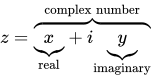
If the purpose is to make comments on particular parts of an equation, the \overbrace and \underbrace commands may be more useful. However, they have a different syntax (and can be aligned with the \vphantom command):
\[
 z = \overbrace{
   \underbrace{x}_\text{real} + i
   \underbrace{y}_\text{imaginary}
  }^\text{complex number}
\]
|
|
Sometimes the comments are longer than the formula being commented on, which can cause spacing problems. These can be removed using the \mathclap command[2]:
\[
 y = a + f(\underbrace{b x}_{
                    \ge 0 \text{ by assumption}})
   = a + f(\underbrace{b x}_{
          \mathclap{\ge 0 \text{ by assumption}}})
\]
|
|

Alternatively, to use brackets instead of braces use \underbracket and \overbracket commands[2]:
\[
 z = \overbracket[3pt]{
     \underbracket{x}_{\text{real}} +
     \underbracket[0.5pt][7pt]{iy}_{\text{imaginary}}
     }^{\text{complex number}}
\]
|
|

The optional arguments set the rule thickness and bracket height respectively:
\underbracket[rule thickness][bracket height]{argument}_{text below}
|
The \xleftarrow and \xrightarrow commands[1] produce arrows which extend to the length of the text. Yet again, the syntax is different: the optional argument (using [ and ]) specifies the subscript, and the mandatory argument (using { and }) specifies the superscript (which can be left empty by inserting a blank space).
\[
 A \xleftarrow{\text{this way}} B
  \xrightarrow[\text{or that way}]{ } C
\]
|
|
![{\displaystyle A{\xleftarrow {\text{this way}}}B{\xrightarrow[{\text{or that way}}]{}}C\,}](https://wikimedia.org/api/rest_v1/media/math/render/svg/bc62a1caab267f23ef304bd80a09643333fa002a)
For more extensible arrows, you must use the mathtools package:
\begin{gather}
 a \xleftrightarrow[under]{over} b\\
%
 A \xLeftarrow[under]{over} B\\
%
 B \xRightarrow[under]{over} C\\
%
 C \xLeftrightarrow[under]{over} D\\
%
 D \xhookleftarrow[under]{over} E\\
%
 E \xhookrightarrow[under]{over} F\\
%
 F \xmapsto[under]{over} G\\
\end{gather}
|
|

and for harpoons:
\begin{gather}
 H \xrightharpoondown[under]{over} I\\
%
 I \xrightharpoonup[under]{over} J\\
%
 J \xleftharpoondown[under]{over} K\\
%
 K \xleftharpoonup[under]{over} L\\
%
 L \xrightleftharpoons[under]{over} M\\
%
 M \xleftrightharpoons[under]{over} N
\end{gather}
|
|

align and align*[edit | edit source]
The align and align* environments, available through the amsmath package, are used for arranging equations of multiple lines. As with matrices and tables, \\ specifies a line break, and & is used to indicate the point at which the lines should be aligned.
The align* environment is used like the displaymath or equation* environment:
\begin{align*}
 f(x) &= (x+a)(x+b) \\
      &= x^2 + (a+b)x + ab
\end{align*}
|
|
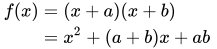
Note that the align environment must not be nested inside an equation (or similar) environment. Instead, align is a replacement for such environments; the contents inside an align are automatically placed in math mode.
align* suppresses numbering. To force numbering on a specific line, use the \tag{...} command before the line break.
align is similar, but automatically numbers each line like the equation environment. Individual lines may be referred to by placing a \label{...} before the line break. The \nonumber or \notag command can be used to suppress the number for a given line:
\begin{align}
 f(x) &= x^4 + 7x^3 + 2x^2 \nonumber \\
      &\qquad {} + 10x + 12
\end{align}
|
|

Notice that we've added some indenting on the second line. Also, we need to insert the double braces ({}) before the + sign, otherwise latex won't create the correct spacing after the + sign. The reason for this is that without the braces, latex interprets the + sign as a unary operator, instead of the binary operator that it really is.
More complicated alignments are possible, with additional &'s on a single line specifying multiple "equation columns", each of which is aligned. The following example illustrates the alignment rule of align*:
\begin{align*}
 f(x)  &= a x^2+b x +c   &   g(x)  &= d x^3 \\
 f'(x) &= 2 a x +b       &   g'(x) &= 3 d x^2
\end{align*}
|
|

Braces spanning multiple lines[edit | edit source]
If you want a brace to continue across a new line, do the following:
\begin{align}
 f(x) &= \pi \left\{ x^4 + 7x^3 + 2x^2 \right.\nonumber\\
 &\qquad \left. {} + 10x + 12 \right\}
\end{align}
|
|

In this construction, the sizes of the left and right braces are not automatically equal, in spite of the use of \left\{ and \right\}. This is because each line is typeset as a completely separate equation —notice the use of \right. and \left. so there are no unpaired \left and \right commands within a line (these aren't needed if the formula is on one line). You can control the size of the braces manually with the \big, \Big, \bigg, and \Bigg commands.
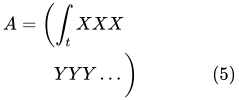
Alternatively, the height of the taller equation can be replicated in the other using the \vphantom command:
\begin{align}
 A &=     \left(\int_t XXX       \right.\nonumber\\
   &\qquad \left.\vphantom{\int_t} YYY \dots \right)
\end{align}
|
|
Using aligned braces for piecewise functions[edit | edit source]
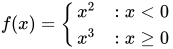
You can also use \left\{ and \right. to typeset piecewise functions:
\[f(x) = \left\{
  \begin{array}{lr}
    x^2 & : x < 0\\
    x^3 & : x \ge 0
  \end{array}
\right.
\]
|
|
The cases environment[edit | edit source]
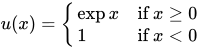
The cases environment[1] allows the writing of piecewise functions:
\[
 u(x) =
  \begin{cases}
   \exp{x} & \text{if } x \geq 0 \\
   1       & \text{if } x < 0
  \end{cases}
\]
|
|
LaTeX will then take care of defining and or aligning the columns.
Within cases, text style math is used with results such as:
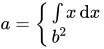
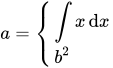
Display style may be used instead, by using the dcases environment[2] from mathtools:
\[
 a =
   \begin{dcases}
     \int x\, \mathrm{d} x\\
     b^2
   \end{dcases}
\]
|
|
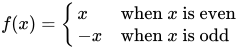
Often the second column consists mostly of normal text. To set it in the normal Roman font of the document, the dcases* environment may be used:[2]
\[
 f(x) = \begin{dcases*}
        x  & when $x$ is even\\
        -x & when $x$ is odd
        \end{dcases*}
\]
|
|
Other environments[edit | edit source]
Although align and align* are the most useful, there are several other environments that may also be of interest:
| Environment name | Description | Notes |
|---|---|---|
| eqnarray and eqnarray* | Similar to align and align* | Not recommended because spacing is inconsistent |
| multline and multline*[1] | First line left aligned, last line right aligned | Equation number aligned vertically with first line and not centered as with other environments |
| gather and gather*[1] | Consecutive equations without alignment | |
| flalign and flalign*[1] | Similar to align, but left aligns first equation column, and right aligns last column | |
| alignat and alignat*[1] | Takes an argument specifying number of columns. Allows control of the horizontal space between equations | This environment takes one argument, the number of “equation columns”: count the maximum number of &s in any row, add 1 and divide by 2. [1]
|
There are also a few environments that don't form a math environment by themselves and can be used as building blocks for more elaborate structures:
| Math environment name | Description |
|---|---|
| gathered[1] | Allows gathering equations to be set under each other. |
| split[1] | Similar to align, but used inside another displayed mathematics environment and only supports a single equation column (i.e. a single & symbol).
|
| aligned[1] | Similar to align, to be used inside another mathematics environment. |
| alignedat[1] | Similar to alignat, and likewise takes an additional argument specifying the number of columns of equations to set. It can stack inside alignat. |
For example:
\begin{equation}
 \left.\begin{aligned}
        B'&=-\partial \times E,\\
        E'&=\partial \times B - 4\pi j,
       \end{aligned}
 \right\}
 \qquad \text{Maxwell's equations}
\end{equation}
|
|

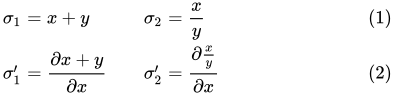
\begin{alignat}{2}
 \sigma_1 &= x + y  &\quad \sigma_2 &= \frac{x}{y} \\
 \sigma_1' &= \frac{\partial x + y}{\partial x} & \sigma_2'
    &= \frac{\partial \frac{x}{y}}{\partial x}
\end{alignat}
|
|
\begin{gather*}
a_0=\frac{1}{\pi}\int\limits_{-\pi}^{\pi}f(x)\,\mathrm{d}x\\[6pt]
\begin{split}
a_n=\frac{1}{\pi}\int\limits_{-\pi}^{\pi}f(x)\cos nx\,\mathrm{d}x=\\
=\frac{1}{\pi}\int\limits_{-\pi}^{\pi}x^2\cos nx\,\mathrm{d}x
\end{split}\\[6pt]
\begin{split}
b_n=\frac{1}{\pi}\int\limits_{-\pi}^{\pi}f(x)\sin nx\,\mathrm{d}x=\\
=\frac{1}{\pi}\int\limits_{-\pi}^{\pi}x^2\sin nx\,\mathrm{d}x
\end{split}\\[6pt]
\end{gather*}
|
|

Indented Equations[edit | edit source]
To indent an equation, you can set fleqn in the document class and then specify a certain value for the \mathindent variable:
\documentclass[a4paper,fleqn]{report}
\usepackage{amsmath}
\setlength{\mathindent}{1cm}
\begin{document}
\noindent Euler's formula is given below:
\begin{equation*}
 e^{ix} = \cos{x} + i \sin{x}.
\end{equation*}
\noindent This is a very important formula.
\end{document}
|
|

Page breaks in math environments[edit | edit source]
To suggest that LaTeX insert a page break inside an amsmath environment, you may use the \displaybreak command before the line break. Just as with \pagebreak, \displaybreak can take an optional argument between 0 and 4 denoting the level of desirability of a page break. Whereas 0 means "it is permissible to break here", 4 forces a break. No argument means the same as 4.
Alternatively, you may enable automatic page breaks in math environments with \allowdisplaybreaks. It too can have an optional argument denoting the priority of page breaks in equations. Similarly, 1 means "allow page breaks but avoid them" and 4 means "break whenever you want". You can prohibit a page break after a given line using \\*.
LaTeX will insert a page break into a long equation if it has additional text added using \intertext{} without any additional commands.
Specific usage may look like this:
\begin{align*}
 &\vdots\\
 &=12+7 \int_0^2
  \left(
    -\frac{1}{4}\left(e^{-4t_1}+e^{4t_1-8}\right)
  \right)\,dt_1\displaybreak[3]\\
 &= 12-\frac{7}{4}\int_0^2 \left( e^{-4t_1}+e^{4t_1-8} \right)\,dt_1\\
 &\vdots %
\end{align*}
|
|

Page breaks before display maths (of all various forms) are controlled by \predisplaypenalty. Its default 10000 means never break immediately before a display. Knuth (TeXbook chapter 19) explains this as a printers' tradition not to have a displayed equation at the start of a page. It can be relaxed with
\predisplaypenalty=0
|
Sometimes an equation might look best kept together preceding text by a higher penalty, for example, a single-line paragraph about a single-line equation, especially at the end of a section.
Boxed Equations[edit | edit source]
For a single equation or alignment building block, with the tag outside the box, use \boxed{}:
\begin{equation}
 \boxed{x^2+y^2 = z^2}
\end{equation}
|
|

If you want the entire line or several equations to be boxed, use a minipage inside an \fbox{}:
\fbox{
 \addtolength{\linewidth}{-2\fboxsep}%
 \addtolength{\linewidth}{-2\fboxrule}%
 \begin{minipage}{\linewidth}
  \begin{equation}
   x^2+y^2=z^2
  \end{equation}
 \end{minipage}
}
|
|

There is also the mathtools \Aboxed{} which is able to box across alignment marks:
\begin{align*}
\Aboxed{ f(x) & = \int h(x)\, dx} \\
              & = g(x)
\end{align*}
|
|

Custom operators[edit | edit source]
Although many common operators are available in LaTeX, sometimes you will need to write your own, e.g. to typeset the argmax operator. The \operatorname and \operatorname* commands[1] display custom operators; the * version sets the underscored option underneath like the \lim operator:
\[
 \operatorname{arg\,max}_a f(a)
 = \operatorname*{arg\,max}_b f(b)
\]
|
|

However, if the operator is frequently used, it is preferable to define a new operator that can be used throughout the entire document. The \DeclareMathOperator and \DeclareMathOperator* commands[1] are specified in the header of the document:
\DeclareMathOperator*{\argmax}{arg\,max}
|
This defines a new command which may be referred to in the body:
\[
 \argmax_c f(c)
\]
|
|

Advanced formatting[edit | edit source]
Limits[edit | edit source]
There are defaults for placement of subscripts and superscripts. For example, limits for the lim operator are usually placed below the symbol:
\begin{equation}
  \lim_{a\to \infty} \tfrac{1}{a}
\end{equation}
|
|

To override this behavior, use the \nolimits operator:
\begin{equation}
  \lim\nolimits_{a\to \infty} \tfrac{1}{a}
\end{equation}
|
|

A lim in running text (inside $...$) will have its limits placed on the side, so that additional leading won't be required. To override this behavior, use the \limits command.
Similarly one can put subscripts under a symbol that usually has them on the side:
\begin{equation}
  \int_a^b x^2  \mathrm{d} x
\end{equation}
|
|

Limits below and under:
\begin{equation}
  \int\limits_a^b x^2  \mathrm{d} x
\end{equation}
|
|

To change the default placement of summation-type symbols to the side for every case, add the nosumlimits option to the amsmath package. To change the placement for integral symbols, add intlimits to the options. nonamelimits can be used to change the default for named operators like det, min, lim, etc.
To produce one-sided limits, use \underset as follows:
\begin{equation}
  \lim_{a \underset{>}{\to} 0} \frac{1}{a}
\end{equation}
|
|

Subscripts and superscripts[edit | edit source]
You can place symbols in subscript or superscript (in summation style symbols) with \nolimits:
\begin{equation}
  \sum\nolimits' C_n
\end{equation}
|
|

It's impossible to mix them with typical usage of such symbols:
\begin{equation}
  \sum_{n=1}\nolimits' C_n
\end{equation}
|
|

To add both a prime and a limit to a symbol, one might use the \sideset command:
\begin{equation}
  \sideset{}{'}\sum_{n=1}C_n
\end{equation}
|
|

It is very flexible: for example, to put letters in each corner of the symbol use this command:
\begin{equation}
  \sideset{_a^b}{_c^d}\sum
\end{equation}
|
|

If you wish to place them on the corners of an arbitrary symbol, you should use \fourIdx from the fouridx package.
But a simple grouping can also solve the problem:
\begin{equation}
  {\sum\limits_{n=1} }'C_n
\end{equation}
|
|

since a math operator can be used with limits or no limits. If you want to change its state, simply group it. You can make it another math operator if you want, and then you can have limits and then limits again.
Multiline subscripts[edit | edit source]
To produce multiline subscript, use the \substack command:
\begin{equation}
  \prod_{\substack{
            1\le i \le n\\
            1\le j \le m}}
     M_{i,j}
\end{equation}
|
|

Text in aligned math display[edit | edit source]
To add small interjections in math environments, use the \intertext command:
\begin{minipage}{3in}
\begin{align*}
\intertext{If}
   A &= \sigma_1+\sigma_2\\
   B &= \rho_1+\rho_2\\
\intertext{then}
C(x) &= e^{Ax^2+\pi}+B
\end{align*}
\end{minipage}
|
|

Note that any usage of this command does not change the alignment.
Also, in the above example, the command \shortintertext{} from the mathtools package could have been used instead of \intertext to reduce the amount of vertical white space added between the lines.
Changing font size[edit | edit source]
There may be a time when you would prefer to have some control over the font size. For example, using text-mode maths, by default a simple fraction will look like this: , whereas you may prefer to have it displayed larger, like when in display mode, but still keeping it in-line, like this: .


A simple approach is to utilize the predefined sizes for maths elements:
| Size command | Description |
|---|---|
\displaystyle
|
Size for equations in display mode |
\textstyle
|
Size for equations in text mode |
\scriptstyle
|
Size for first sub/superscripts |
\scriptscriptstyle
|
Size for subsequent sub/superscripts |
A classic example to see this in use is typesetting continued fractions (though it's better to use the \cfrac command[1] described in the Mathematics chapter instead of the method provided below). The following code provides an example.
\begin{equation}
  x = a_0 + \frac{1}{a_1 + \frac{1}{a_2 + \frac{1}{a_3 + a_4}}}
\end{equation}
|
|
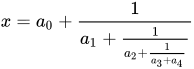
As you can see, as the fractions continue, they get smaller (although they will not get any smaller than in this example, where they have reached the \scriptstyle limit). If you want to keep the size consistent, you could declare each fraction to use the display style instead; e.g.
\begin{equation}
  x = a_0 + \frac{1}{\displaystyle a_1
          + \frac{1}{\displaystyle a_2
          + \frac{1}{\displaystyle a_3 + a_4}}}
\end{equation}
|
|

Another approach is to use the \DeclareMathSizes command to select your preferred sizes. You can only define sizes for \displaystyle, \textstyle, etc. One potential downside is that this command sets the global maths sizes, as it can only be used in the document preamble.
But it's fairly easy to use: \DeclareMathSizes{ds}{ts}{ss}{sss}, where ds is the display size, ts is the text size, etc. The values you input are assumed to be point (pt) size.
Note that the changes only take place if the value in the first argument matches the current document text size. It is therefore common to see a set of declarations in the preamble, in the event of the main font being changed. E.g.,
\DeclareMathSizes{10}{18}{12}{8}   % For size 10 text
\DeclareMathSizes{11}{19}{13}{9}   % For size 11 text
\DeclareMathSizes{12}{20}{14}{10}  % For size 12 text
|
Forcing \displaystyle for all math in a document[edit | edit source]
Put
\everymath{\displaystyle}
|
before
\begin{document}
|
to force all math to
\displaystyle
|
.
Adjusting vertical white space around displayed math[edit | edit source]
There are four parameters that control the vertical white space around displayed math:
\abovedisplayskip=12pt
\belowdisplayskip=12pt
\abovedisplayshortskip=0pt
\belowdisplayshortskip=7pt
|
Short skips are used if the preceding line ends, horizontally, before the formula. These parameters must be set after
\begin{document}
|
.

Notes[edit | edit source]