Blender 3D: Noob to Pro/Creating Pixar-looking eyes in Blender


 |
Applicable Blender version: 2.49. |

Note: This tutorial uses the same modelling and texturing technique described in the well-known MAX tutorial by Adam Baroody (http://www.3dluvr.com/rogueldr/tutorials/eye/eyes.html). The sole purpose of my tutorial is to make this technique more popular among the Blender users by explaining how to achieve the same result with Blender.
The goal of this tutorial is to make a Pixar-looking eye. One of the main reasons that Pixar's characters really convey life is in their eyes. They have depth, you can see how the eye not only shines but it "collects" light. You may think that you can't achieve this effect without raytracing but you're wrong. The secret of this depth is in the modelling of the eye. Let's see how it works!
Parts of the Eye
[edit | edit source]In this picture you can see the "ingredients" of the eye model. The blue mesh at the left is the cornea. Its shape allows for a small spot of specular light to appear on it even if the light is in a far side position. The mesh next to it is the iris. Now notice how it's a bit concave. That's the tricky part - the shape of the iris allows for a wide soft specular light to appear at the opposite side of the lamp direction. This fakes refracted light from the cornea and makes the illusion of "collecting" light and creates depth. The next mesh is the eye pupil - a simple circle.The pupil size is the same size as the iris hole. You can position it close to the inner side of the iris. And finally - the eyeball. It's a simple sphere with a hole in it.
I won't go deep into modelling of each element - it uses Blender's subdivision surfaces and it's quite simple as you can see.

Materials
[edit | edit source]Now let's look at the materials.
Sclera
[edit | edit source]To make the eye white, press NUM3 to go into side view and add a UVsphere with 8 segments and 8 rings. To create the hole at the front of the eyeball, delete the 8 triangular faces that make up one end of the eyeball. Ctrl+Tab+3 to go into face select mode, B for border mode and select the middle 8 triangles as shown below, press Delete or the X button and LMB on Faces.

The resulting hole will be ringed by 8 vertices (which you could subsequently extrude and use to help you model the sections below - just a suggestion for those who feel capable)
The eye white has white color and high values for Spec and Hard (depends on the lighting), as well as a moderately high Ref value (0.700 - 0.800). Optionally you can use a reflection map to make it look more wet but I usually don't do this.
(Noob note: Using a Phong specular shader turned to work quite well.)
(User: Make sure shadow buttons are off or it will black out the iris. Spec and Hard are located in the Shaders tab.)
Iris
[edit | edit source]- Loop select the opening of the eye (ALT+RMB click edge of opening).
- Duplicate the loop (SHIFT+DKEY). Move the new loop away from the eye a bit perpendicular to the opening.
- With the loop still selected, extrude (EKEY). Without moving the extrusion, press ENTER.
- Resize by half (SKEY then .KEY then NUM5 then ENTER).
- Move the inner loop back toward the eye a bit to form the concave shape.
- Create a new material and create a new texture called iris. Then hit F6 or click the spotty square icon
 to open the texture panel, choose Image as the texture type and then press Load Image button and use the image below.

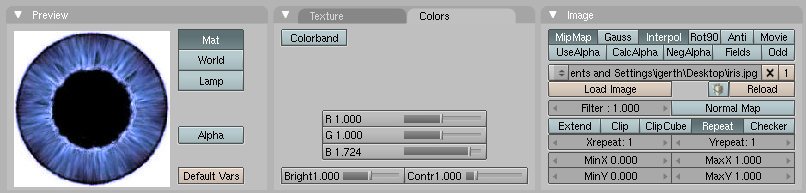
Here is the eye texture taken from the picture above:

Alternatively, you can create an image like this procedurally, using the technique described here.
All that is required now is a bit of tweaking of the texture size using the Xsize and Ysize values in the Map Input tab, and scaling the pupil hole size in Edit mode. Also please remember to change 'Projection' in the map input settings from 'flat' to 'cube'. You can tweak the RGB values and brightness/contrast of the image to achieve the appearance you want. Use a smaller value for Hard (about 50) otherwise you'll have a too shiny look instead of soft specular that fakes refracted light. The Spec value depends on the energy and distance of the light that illuminates it. Generally you'll need to take care that the refracted light on the iris should be no more than half as bright as the small specular spot on the cornea - otherwise you'll achieve the bad effect of two specular spots. Oh, another important thing - join the four meshes before tweaking the texture coordinates. Otherwise you'll have to do the job twice after you join them, because the texture space is changed. And activate shadeless button.
Pupil
[edit | edit source]The material for the pupil is a simple black color with the "shadeless" button on.
Cornea
[edit | edit source]The cornea uses a transparent material (alpha = 0.1) with Spec = .6, Hard = 255 and SpecTra = 1. "Ztransp" should also be turned on (found under Links and Pipelines tab). The cornea is simply a piece that fits exactly in the middle of the hole in the eye white. Make sure that the 'Traceable' button, under Render Pipeline, in the Links and Pipelines tab, is switched off.
Noob note: It may be helpful to turn off Shadebuff since you don't generally want the cornea to cast a shadow.
Lighting
[edit | edit source]The lighting is simple - move the eye to a new layer, create a new lamp and make the lamp affect only this layer. Position the lamp at a good angle so you have a small shiny spot of specular light on one side of the iris and a soft spot of "refracted" light on the other side. You can use a backlight to prevent the eyeball from being too dark at the non-illuminated part.
To move the newly created lamp to a new layer, press SHIFT+M and select the second blue button and press OK.
Note though that it is not mandatory to create a new layer; it's just meant to prevent cluttering in your main workspace. It's completely optional.
That's it! Now you're (almost) ready to start with character animation. You have a nice eye, now you only need a character for it!
Changing the Eye Color
[edit | edit source]You can change the color of the eye by either changing the cornea color, or by changing the iris color itself. Changing the cornea color might be like putting on colored contacts.
Changing the Cornea Color
[edit | edit source]To change the cornea color, do the following:
- In the mesh which is used to create Cornea set the value of the alpha slider to 0.2 (or more if you desire)
- Change the color of the mesh to whatever color you like
- Turn off traceble

- Render!

(and remember to smooth out everything by selecting the particular mesh going to edit buttons and clicking on set smooth)

.jpg)

Changing the Iris Color
[edit | edit source]To change the iris color you can either edit the iris image external from blender or you can modify the RGB values of the image when imported into Blender.


Troubleshooting
[edit | edit source]I don't know where is the "SpecTra" Value. I'm working on 2.46.
[edit | edit source]You can find "SpecTra" under "Mirror Transp"
My cornea isn't transparent. I don't know where Traceable is since I'm using 2.6x
[edit | edit source]This applies to 2.6. Something that doesn't seem to be mentioned in this tutorial (sorry if it is and I missed it) is the cornea's shadow settings. If it casts a shadow, it will block out everything inside the eye. So under the cornea's Material->Shadow settings uncheck the cast box. Another option is to leave the cast box in your cornea on, and change to shadow setting in your iris. Check the Receive Transparent, and that works just as well.
Useful Links
[edit | edit source]- Ira Krakow's Blender 2.49 Pixar Eye Tutorial
For rigging an eyeball, (making it stay in one place while turning to look at something) and other eyeball stuff, you can visit this site. This tutorial assumes you already have the eyeball made above or one of your own. Click. 5jun2009, the PDF shows no rigging, only creating an eyeball.(May 10th 2011, the site no longer exists.)