Computers for Beginners/The Basics
What is a computer?[edit | edit source]
A computer is an electronic device that accepts data as input, processes data into information, stores information for future uses, and outputs the information whenever it is needed.
Brief History[edit | edit source]

Computers, by a wider definition, have been around for thousands of years. One of the earliest computers was the abacus, series of beads arranged on metal rods. Beads could be slid back and forth to operate on numbers. This was a very rudimentary device and is not commonly thought of as a computer in modern times. Our idea of computers involves electricity and electronics.
Electricity makes computers much more efficient. The first computers used an incredible amount of electricity, which changed voltages in vacuum tubes to operate the computer. These computers were given instructions using punch cards, and were behemoths, taking up entire floors of buildings. Only the more privileged universities and government facilities had access to them.
In the 1960s, the vacuum tube was replaced by the integrated circuit and transistor. These greatly reduced the size and power consumption of computers. They were still very large by today's standards, but more institutions had access to computing power than ever before. At the end of the decade, the microchip was invented, which reduced the size of the computer even more.
By the end of the 1970s, computers were widespread in businesses. Using a computer involved typing on a terminal (a keyboard and monitor connected to a large central computer). Soon, parts became small enough to allow many users to have a computer at their home. Thus the Personal Computer, or PC, was born.
Since then, personal computers have become tremendously more efficient. They are much smaller, and yet have seen extreme performance gains. In addition to these improvements, computers have become affordable enough for many families worldwide.
Hardware/Software[edit | edit source]
Hardware is the stuff you can touch, as opposed to software which is abstract and exists only in a virtual world as computer code. Hardware is made of materials found in the universe and are subject to the laws of physics. Contrary to the former, software is bound only by the creator's imagination and the user's willingness to use the software.
The Insides[edit | edit source]
Inside the computer case are various components that allow the computer to run.
CPU[edit | edit source]

The Central Processing Unit, or CPU, does nearly all the calculating. It is the main microchip in the computer that distributes tasks to all other parts of the computer. When most people talk about the processor, or chip, it is actually the CPU they are referring to.
Memory[edit | edit source]
RAM (Random Access Memory), commonly called just memory, holds computer code that needs to be operated on quickly. This allows information held in memory to quickly interact with the CPU. The amount of RAM available is limited and therefore needs to be constantly cleared and refilled (don't worry; all computers do this automatically). RAM is just one part of the computer that determines your speed.
RAM is referred to as "volatile" memory because the information stored in it disappears when the power is turned off. Hard drives and flash drives, on the other hand, contain non-volatile memory, which is like paper: it can be destroyed or erased, but when properly taken care of, can last forever.
RAM is plugged into special slots on the motherboard. There is a large link (known as a bus) from the memory to the CPU. Each motherboard has a fixed number of slots for RAM - often 2 or 4 slots. Only certain types of RAM and sizes of RAM can be used with any motherboard. So before buying, check your motherboard details.
Hard Drive[edit | edit source]

The hard drive is the main storage area in the computer. It is usually where you put your data to be stored permanently (until you choose to erase it). It keeps data after the power is turned off. The official name for a hard disk is hard disk drive (HDD), but is almost always referred to as hard drive.
Virtually all of your data is stored on your hard drive. A hard drive is composed of disk(s), where the data is recorded magnetically onto the surface, similar to records, CDs, and DVDs. The size of the hard drive (today's are usually in gigabytes) is determined by how dense (small) the recording is. Many of today's major programs (such as games and media creating and editing programs like Photoshop) and files (such as pictures, music, or video) use a considerable amount of space. Most low-end computers, as of 2011, are shipped with a 160GB (gigabyte) or larger hard drive. In 2019, it is common to find desktop computers and laptops with 1000 GB (1 terabyte) hard drive or more. As an example, an average .mp3 file takes between 7.5 and 15 MB (megabytes) of space. A megabyte is 1/1024 of a gigabyte, thus allowing most new computers to store thousands of such files.
Users who wish to store a lot of media on a computer will want a larger hard drive. As will users who want to store numerous large programs, like modern games, or videos, which both require a lot of space. A full size film is over 4 gigabytes. Video games today are commonly downloaded but used to be distributed via DVD discs that store data, called DVD-ROM (read only memory, which can be read off the disk, but not modified). A DVD can be anywhere from 4.7 GB for a single layer disk to 8.5 GB for a double layered disk... and many large programs are already taking up more than one disk.
Another concern for users who want higher performance is hard drive speed, measured in RPM (rotations per minute). Most desktop hard drives today are 7200 RPM models. Lower end 4200 RPM models are not commonly seen in new systems (other than laptops). Higher end 10,000 RPM hard drives are generally seen only in gaming and other extremely high performance computers due to their cost. For example, a 1 TB 7200 RPM drive costs around $50 (as of January, 2017), while a 1 TB 10,000 RPM drive costs $120 or more (as of January 2017). A 1 TB SSD starts at about $250.
Hard drives are constantly increasing in size, both because technology allows, and because of demand for more storage space. For example, an Apple iMac in the late nineties shipped with a 4 GB hard drive, and sold for $1,300 US (although it should be noted that the cost alone is not indicative of the hard drive, or vice versa). A modern iMac sells for $1000 US and carries a 1 TB hard drive with a 21-inch screen and faster processor (January 2017). Compare to the original IBM PC, which carried only a 10 MB hard drive, or 10/1024 of a GB. The largest HDD in 2016 was more than 15 TB.
Many computers already have more than 2 terabytes, and within decades petabytes (thousands of terabytes) and even exobytes (thousands of petabytes) will not be unheard of.
SSD[edit | edit source]
The SSD, or otherwise known as a Solid State Drive, is a storage device using RAM modules instead of a spinning disk. It is like a Hard Disk Drive, but these storage devices are much faster than traditional Hard Disk Drives (HDDs) because they don't have to spin up. The SSD can have transfer speeds up to 10x as fast because of this. They are quieter and more expensive than HDDs
The Peripherals[edit | edit source]
Peripherals are hardware attached to a computer, but external to the main case that houses the CPU, Hard drives, and other such equipment. They are basically devices that allow people to communicate to the computer. It is generally a good idea, although not as important as it used to be, to add and remove hardware from the computer while it is turned off. Things such as USB storage devices and keyboards/mice can generally be inserted and removed at a whim with no consequence, however more advanced things such as printers should be installed according to the manufacturer's instructions, which may include shutting down your computer.
Keyboard and Mouse[edit | edit source]
The keyboard and mouse are basic input devices.
Keyboard[edit | edit source]

The keyboard has keys that, when pressed, send information to the computer. The keyboard is the most widely used device for interacting with a desktop computer. However, the touchscreen is the most common input for phones, tablets and some laptops. The most commonly used keyboard, by far, is the QWERTY layout, which almost all keyboards sold use. This is the same layout as most typewriters sold within the last century. The second most common, but a very distant follower, is the Dvorak Simplified Keyboard. While this is technically better, the industry and consumer market as a whole has mostly rejected it.
The QWERTY keyboard was designed to prevent typewriters from jamming while keys were being pushed at a fast rate. It did this by keeping keys as far apart as possible. The Dvorak keyboard layout was designed for computers, where this is obviously not a problem, and thus places the most commonly used keys where they are easy to reach, and because of that, quicker. However, because of the popularity QWERTY had, the Dvorak keyboard layout never became popular.
It is generally advised that you use a QWERTY keyboard, as even though Dvorak users gain significantly faster typing speeds, the rarity of the layout makes it hard for people who use Dvorak to use most other computers.
Keyboards vary in appearance. Those attached to a desktop computer are frequently large with an additional number pad built in on the right side, while laptop keyboards are attached to the computer and are often much smaller. Some keyboards also offer special buttons to play music, open common programs such as the web browser or email program. These multimedia keys tend to be put above the F keys and make the keyboard bigger as a result. Smaller keyboards combine keys or shrink the keys. They are commonly used as an accessory for a laptop - a small size makes them easier to travel with.
There are wired and wireless keyboards (and mice). Wired keyboards usually plug into a USB slot. Older style keyboards use the PS2 socket at the back of a desktop. (PS2 to USB adapters are available). Wireless keyboards work by Bluetooth, Infrared (IR) or Radio frequency (RF). Bluetooth is built into most laptops so a Bluetooth keyboard or mouse can connect with no extra equipment. Most desktops do not have bluetooth built in but a USB Bluetooth key can be used to add it. RF keyboards and mice need a receiver plugged into the computer, the transmitter is usually built into the keyboard or mouse.
Mouse[edit | edit source]

The mouse is an input device which is primarily used by physically moving the device across a surface. This causes a pointer symbol, called a "cursor", to move across the screen. The other input comes from pressing a button while the cursor is over an object on the monitor, or "clicking". All mice have at least one button, with the most common layout having three. Gaming mice may have 7 buttons.
- One button mice: The Apple mighty mouse is the only mouse known to most people which uses a single button. This button is usually activated by pushing on the front of the mouse, or pushing the entire mouse down. The "right-click" is done by pressing a "control" or "Ctrl" key on the keyboard while pressing the main button. These are only used with Macintosh OS, such as Mac OS X.
- Two button mice: The second most common layout, more common in older computers, which has a button on the left and right, usually for the index and middle finger. While less useful than a three-button mouse, they are, when teamed with a standard keyboard, capable of performing almost all computer tasks.
- Three-button mice: The most common layout, Fundamentally the same as a two button mice, but with a third button, the middle button, added between the "left" and "right" click buttons. While the mouse technically has three buttons,this may be confusing to some users, as the "middle"/"center" click button is also a scroll wheel. This design allows the user to scroll through documents, make selections, and do other tasks by moving a finger. The other way to is to press an arrow key or "Page up/Page down" key on a keyboard. The center button can also be press inwards to create a "middle click" button. The middle click is used in some programs to perform a simple function, such as the Firefox web browser, which uses the middle click to open a link in a new tab.
- Four (or more) button mice: Usually seen only on gaming and multimedia specialization mice. The extra buttons generally do not serve any native purpose, and rather are assigned a function to perform by the user. For example, a user who uses the mouse to play games might assign the additional buttons to switch between weapons in a shooter, or cast spells in a fantasy game.
There are two other major differences in mice, which is Optical/Laser mice, and Ball mice. This is how the mouse tells where it is, with the laser measuring the distance it crosses when it is moved, and the ball measuring how it rotates. The laser is generally more accurate and less of a hassle to use, and can be used on more surfaces, but the ball mouse is cheaper. Ball mice are rarely seen today.
The last important consideration when buying a mouse is size. You should always try to put your hand on a mouse and move it around, to see how well it feels in your hand. If it feels awkward, small, big, long, or short, look for something better! Not only will your hands thank you, but you will be more efficient.
Mice can be wired or wireless - see the above section on keyboards.
A trackball is very similar to a mouse but has a ball instead of the middle button. This ball allows you to move the mouse up, down or side to side. There are usually 2 or more buttons as well. Many users find they cause less pain than a traditional mouse.
A Touchpad is often found on a laptop instead of a mouse. This pad is found under the keyboard in most laptops i.e. closer to the body than the actual keys. Moving a finger across it moves the pointer. Multiple fingers can be used to send other commands e.g. two finger prolonged press opens up a page in a new tab.
Media Devices (Floppy, CD-ROM, DVD, USB)[edit | edit source]
These devices carry data, in the same way that a hard drive does, but are much more portable. They are the primary method of storing data outside of a computer, and the main method of transferring information between computers without the use of a network, such as the Internet.
There are three main types of these in use today:
- CD-ROM: mostly read only memory unless labeled "rewritable" - Capable of storing 700MB of data, CDs have been the most common method of storing data for most of the last decade or so. They are being largely replaced by DVDs and USB drives (see below).
- DVD: Capable of storing 4.7GB of data in their single layer form and 8.5GB in their double layer form, they are the most common method today for most store-bought programs, as well as videos.
- USB/Flash: While not usually used by commercial software, USB 'sticks' and Flash 'cards' have become popular ways of storing data because of their ease of use and low cost. While sizes range from 2GB on old units to 256GB on larger, more expensive modern units, the average stick today is 4 or 8GB, with an average 4GB USB stick costing about $15 US.
The floppy disk has been phased out.
Monitor[edit | edit source]
The monitor is the main method for the computer to produce output, in the same way a book has pages. A book filled with letters, but in a way you can't possibly understand or even see is of no use to you, and the same is true for a computer. While older monitors, CRTs, were rather bulky like TVs, newer monitors, or LCDs, are much more compact, and can be easily lifted.
For much of the history of computers, the most common monitors were CRTs, short for Cathode Ray Tubes. They work on the same principle as a television. They were generally heavy, had a lower image quality, and were in general less reliable than an LCD. They come in two forms, the normal version, which has a curved monitor, and "Flat Screen", where the display is completely level (although it still has the bulky back end). It is suggested that if you plan to remove a CRT, it is better for the environment to safely dispose of it (not just into a bin, an electronic waste bin), as CRT's contain high levels of toxic chemicals. The most common type of monitor today is an LCD, or Liquid Crystal Display, which is much lighter, although slightly more expensive. They have a smaller form, a higher image quality, and are overall better than CRT monitors.
Tip: To take proper care of your monitor, always be sure that the screen is not left on a static image for long periods of time. This can "burn" the image into the monitor, meaning that it will have a ghosting effect, even when that image is not displayed. This can not only be highly annoying, but in some cases, make it so the monitor needs to be replaced. To avoid this, either set a moving screensaver, which will trigger after a set amount of time, or simply turn the monitor off
Printer[edit | edit source]
If you have a printer attached to your computer you can print your information and keep a physical copy of data. Depending on what type of printer you have, you can print in color, double-sided or book form. The output quality of some printers goes from draft (to save ink) all the way to photo quality.
Printers come in all price ranges and in many types. The most common for home use are ink jets (bubble jets) and laser. There are specialized printers for data plotting (mapping), photos only, labels and more.
A lot of printers are "all-in-ones" which simply means they combine more than one function. They can be any combination of printer, copier, fax and scanner. If you are looking to buy an all-in-one make sure it has all the features you are looking for. You don't want to get it home and find out you still need a separate fax machine or scanner that you thought was included!
Software[edit | edit source]
What is Software?[edit | edit source]
Computer software, or simply software, also known as computer programs, is the non-tangible component of computers. Computer software contrasts with computer hardware, which is the physical component of computers. Computer hardware and software require each other and neither can be realistically used without the other.
Computer software includes all computer programs regardless of their architecture; for example, executable files, libraries and scripts are computer software. Yet, it shares their mutual properties: software consists of clearly-defined instructions that upon execution, instructs hardware to perform the tasks for which it is designed. Software is stored in computer memory and cannot be touched, just as a 3D model shown in an illustration cannot be touched.
At the lowest level, executable code consists of machine language instructions specific to an individual processor – typically a central processing unit (CPU). A machine language consists of groups of binary values signifying processor instructions that change the state of the computer from its preceding state. For example, an instruction may change the value stored in a particular storage location inside the computer – an effect that is not directly observable to the user. An instruction may also (indirectly) cause something to appear on a display of the computer system – a state change which should be visible to the user. The processor carries out the instructions in the order they are provided, unless it is instructed to "jump" to a different instruction, or interrupted.
Software is usually written in high-level programming languages that are easier and more efficient for humans to use (closer to natural language) than machine language. High-level languages are compiled or interpreted into machine language object code. Software may also be written in a low-level assembly language, essentially, a vaguely mnemonic representation of a machine language using a natural language alphabet. Assembly language is converted into object code via an assembler.
Types of Softwares[edit | edit source]
Application software uses the computer system to perform useful work or provide entertainment functions beyond the basic operation of the computer itself.
System software is designed to operate the computer hardware, to provide basic functionality, and to provide a platform for running application software.
System software includes:
- Operating system, an essential collection of computer programs that manages resources and provides common services for other software. Supervisory programs, boot loaders, shells and window systems are core parts of operating systems. In practice, an operating system comes bundled with additional software (including application software) so that a user can potentially do some work with a computer that only has an operating system.
- Device driver, a computer program that operates or controls a particular type of device that is attached to a computer. Each device needs at least one corresponding device driver; thus a computer needs more than one device driver.
- Utilities, software designed to assist users in maintenance and care of their computers.
Malicious software or malware, computer software developed to harm and disrupt computers. As such, malware is undesirable. Malware is closely associated with computer-related crimes, though some malicious programs may have been designed as practical jokes.
Nature, or domain of execution[edit | edit source]
Desktop applications such as web browsers and Microsoft Office, as well as smartphone and tablet applications (called "apps"). Server software Scripts, such as JavaScript scripts are pieces of software traditionally embedded in web pages that are run directly inside the web browser when a web page is loaded, without the need for a web browser plugin. Software written in other programming languages can also be run within the web browser if the software is either translated into JavaScript, or if a web browser plugin that supports that language is installed; the most common example of the latter is ActionScript scripts, which are supported by the Adobe Flash plugin. Web applications usually run on the web server and output dynamically-generated web pages to web browsers, using e.g. PHP, Java or ASP.NET, or even JavaScript that runs on the server; in modern times they commonly include some JavaScript to be run in the web browser as well, in which case they typically run partly on the server, partly in the web browser. Plugins and extensions are software that extends or modifies the functionality of another piece of software, and require that software be used in order to function; Embedded software resides as firmware within embedded systems, devices dedicated to a single use or a few uses such as cars and televisions (although some embedded devices such as wireless chipsets can themselves be part of an ordinary, non-embedded computer system such as a PC or smartphone). In the embedded system context there is sometimes no clear distinction between the system software and the application software. However, some embedded systems run embedded operating systems, and these systems do retain the distinction between system software and application software (although typically there will only be one, fixed, application which is always ran).
Microcode is a special, relatively obscure type of embedded software which tells the processor itself how to execute machine code, so it is actually a lower level than machine code. It is typically proprietary to the processor manufacturer, and any necessary correctional microcode software updates are supplied by them to users (which is much cheaper than shipping replacement processor hardware). Thus an ordinary programmer would not expect to ever have to deal with it.
Programming tools[edit | edit source]
Programming tools are software in the form of programs or applications that software developers (also known as programmers, coders, hackers or software engineers) use to create, debug, maintain (i.e. improve or fix), or otherwise support software. Software is written in one or more programming languages; there are many programming languages in existence, and each has at least one implementation, each of which consists of its own set of programming tools. These tools may be relatively self-contained programs such as compilers, debuggers, interpreters, linkers, and text editors, that can be combined together to accomplish a task, much as one might use multiple hand tools to fix a physical object, or they may be an integrated development environment (IDE), which combines much or all of the functionality of such self-contained tools. An IDE may do this either by invoking the relevant individual tools on behalf of the programmer, or by reimplementing their functionality in a new way. Almost all programming language implementations (a notable exception being Smalltalk) provide the option of using individual tools rather than an IDE, because some programmers prefer not to use IDEs for various reasons, and IDEs usually take longer to be developed to an "acceptable" standard than individual tools - indeed, initially, new programming languages (which are created every year) would not typically have IDEs available for them.
Setup and Boot[edit | edit source]
The first thing to do after taking your computer out of the box is to set it up. While many stores offer at home installation, this is generally unneeded for anyone able to operate a computer, as a computer can be hooked up with about the same effort as a television and components.
The basic parts are:
- The Case: Also known as the 'tower', or incorrectly as the 'CPU', the case is what stores all of the brains of the computer- the graphics card, processor, hard drives, etc. This is the most important and expensive part of your setup, and technically the 'computer' itself.
- The monitor
- The keyboard/mouse
You may want Speakers, microphones and webcams to be able to hear sound, input sound or input film clips.
Simply place the case wherever you wish to have it, plug the monitor's cable into the appropriate slot on the back of the computer (should have a monitor picture on the slot), place the monitor where you wish to have it, plug the monitor's cable into the monitor (the ends are usually a white (DVI-D) or blue (VGA, being phased out), plug the keyboard and mouse into the appropriate slots on your computer (USB), and lastly plug the power cable into the power supply on the back of the computer, and into a standard wall outlet. You should consider using a surge protector to protect the delicate electronics inside a computer from any power surge, or loss. You may also consider using a power backup, which will allow you time to shut your computer down safely during a blackout, or even continue to use it until the power is restored, in some cases.
You may have a laptop/notebook computer, which all of the components are integrated into a single compact source that you can carry in a briefcase/backpack. In that case you need only plug in your battery and power cord. Follow the instructions provided by the manufacturer of the computer for putting the battery in the laptop/notebook and plugging in the power cord.
Some additional models differ from the above two designs. For example, the iMac series of Apple computers have the internals and monitor housed in one case, with only the keyboard and mouse separate. Please refer to your instruction manual for setup instructions (Apple usually has very clear instructions). Note: Many of the instructions in this Wikibook require a Windows computer.
After everything is assembled, proceed to turn on your computer and your peripherals. It is important to turn the monitor and speakers on first so that you can hear and see any error sounds or messages. You should also pay attention to your computer, and be ready to turn the power off immediately if there are any problems, such as the fans not starting. Though you should be careful, as computer fans can be extremely quiet, if the fans do not start, immediately turn the computer off to prevent the CPU and other delicate components from overheating.
Operating Systems[edit | edit source]
The major software application on a computer is called the operating system. The operating system is like the driver of a car. While it might seem like it's only telling the car (computer) what to do, it is in fact also interfacing with the different parts of it, as well as taking any new input (say, a map, or instructions on where to go- which equates to other software) and performing these tasks to the best of its ability. Although many things are compatible across platforms, more involved programs, such as photo editing tools and games, will not work across all platforms, in the same way that if you started giving your cab driver directions in French, he'd probably tell you to get out, unless you were of course, in France!
An operating system, aka "OS", is the middleman between you and the computer. It creates an environment where the user can interact with the computer in an efficient manner.
There are three major OS that you should consider using for your first desktop/notebook PC.
- Windows: The most recent edition of Windows is Windows 11 previous versions are Windows 10, Windows 8, Windows 7, Windows Vista, Windows XP, and so on.
- Mac: The second most common OS in desktop systems, Mac OS X is comparatively compared to Windows, although its market share is increasing. Macs have been designed to be very easy for people to use, and are thus a good choice for a first system, as long as you don't mind not having as many software and games options as Windows users. Many Mac users are extremely loyal to the OS, due to the popularity of the iPod MP3 device, and various other Apple iDevices.
- Linux: While it is also rare compared to Windows, Linux does have its advantages. Linux is open source, which means that anyone can change the code around and redistribute it as they want, resulting in many different versions. Though it can be daunting, a Google search can help the average person decide which version of the OS would be best for them. There is a wide range of versions, called distros, ranging from one that's meant to fit on a 50MB business card sized CD to ones that are meant to be easier to use than Windows! Linux can be harder to use than Windows at times, especially because it is almost required that you use the command line occasionally, however users who are willing to put in the effort to search for a solution (usually quick and easy) and copy/paste the answer into the command line will generally appreciate it, with some being as devoted or more so than the aforementioned Mac users! Linux suffers many of the same downfalls as Mac, however, including a lack of commercial software, especially games. This is slightly remedied by the large amount of free, open source Linux games, and the WINE program, which can run many Windows programs, including games, under Linux, without having to emulate the Windows OS. While many 'hardcore' gamers are disappointed by the lack of games, even compared to the Mac, there are many games which are either native to Linux, or work well enough under WINE that most casual gamers will not have a problem. The most popular Linux distro, Ubuntu, has a clean interface and a thorough help system.
Basic Operating Tasks[edit | edit source]
Moving the Mouse[edit | edit source]
The mouse controls the movement of an on-screen pointer, called the cursor, that often appears as a small white arrow. When you move the mouse, the on-screen pointer moves too, usually in the same direction as the mouse. In other words, move the mouse toward you to move the on-screen pointer toward the bottom of the screen. Move the mouse away from you and the arrow moves to the top, and so on. You indicate to the computer what parts of the screen you want to interact with by placing the pointer over those areas on the screen.
Keyboard[edit | edit source]
The keyboard is used for inputting text into the computer. It is designed so that users can type all the letters of the alphabet without moving their hands. Many programs from word processors to media players utilize the keyboard.
- The numbers at the right of the keyboard can work in two ways. While in normal mode, the keys will function as another set of arrow keys, in num lock mode, they will instead be an alternate way of inputting numbers. This is mainly useful when putting in more than a few digits at a time, when using the numbers over the letters becomes more of a hassle than a time saving method.
- The keys labeled F1, F2, F3 ... at the top of the keyboard are the "function keys". F1 is usually assigned as a "help" key, which will open a help dialog when pressed. If you are having trouble with a program, or just want tips, reading these files can often be useful or insightful.
- "Ctrl" and "Alt" at the bottom means "control" and "alternative". These keys are normally used to type special symbols or for shortcuts. More on that below.
GUI (Gooey)[edit | edit source]
Almost all programs that you will be working with will have a GUI or Graphical User Interface. The GUI is the 'pretty' part of a computer ― the windows, buttons, scroll bars, and task trays. The GUI is really just a front for the command line, which is what does the actual process and such. While almost all Windows and Mac users do not need to worry about this, it is important for users of Linux to know, as they will use the command line for tasks which either cannot be done or are more efficient to do through the command line terminal.
Windows XP[edit | edit source]
Booting for the first time[edit | edit source]
Turn on the computer as described above.
The boring process of booting up will begin. Booting is just starting up the computer. (Remember to turn on peripherals first!). This may take a few minutes, so be patient. Your computer is testing itself and running a bunch of internal functions that you'll probably never have to worry about. You don't care what's happening inside when you turn on your TV. You just want it on. It's the same with the computer. Just let it do its thing!
If it is the first time booting up the computer running XP operating system, a prompt asking you to choose a user name and password will appear; you may enter up to five different users. Note: if you want the computer to just boot up straight into Windows XP every time you use it, you should create only one user and not enter a password. In Windows XP Home edition, different users have the same programs installed, but may choose different backgrounds for their desktop (more on this later), and have different program icons on it as well; if you have Windows XP Professional, the differences are much fewer. Passwords should be secure, but not as secure as if it were an online password, as you only need to prevent people accessing the actual computer itself- make sure if you choose a password you can remember and write it down, as this is one password you simply cannot afford to lose. DON'T ever tape your password to a keyboard or other part of your system. That's the first place everyone looks! There will be some questions that show up on the screen. Answer them the best you can and if you're not sure, use the default. You may be asked to activate your software if the installer has not done so. Microsoft requires you to activate XP. If you don't activate it will quit working and you'll have to install it all over. Activation is usually done over the Internet but can also be done by phone. The number will appear on the screen. Register it ASAP!
Running Windows XP[edit | edit source]
Now Windows XP has booted up, hopefully, and is running. You should now be looking at a rolling green hillside with a blue sky and clouds. This view is called the desktop, which makes sense. The rolling green hillside is called the background and can be changed to a variety of pictures installed with Windows XP, or to one you yourself load onto your computer. You'll probably notice a couple of pictures with words like "AOL Free Trial" or "Shortcut to...something" beneath them (don't panic if these particular ones aren't present). These are called icons and are linked to specific actions, usually opening a program (see below). You can create your own icons, as well as delete ones you do not want. Don't worry, this will be explained later. The blue bar at the bottom of the screen is called the taskbar. If you have a program open, it will be represented with a little icon and a name here. On the far left of the taskbar is a large green button which says START; this is logically known as the Start menu. If you left click (hereafter simply referred to as "click") it with your mouse, you will open a menu which contains links to almost everything in your computer (the first time you ever start Windows XP, the Start menu will automatically be displayed). On the far right of the taskbar, you will see a notification area known as the system tray. It contains both temporary and constant notification icons. Right now, it probably has only the clock and a button with a message, asking you to click it if you want to take the Windows XP tour. If you are unfamiliar with computers, it is highly recommended that you take the tour. If you wish to wait, you can take it later by clicking on the Start menu, clicking All Programs, clicking Accessories, and clicking Tour Windows XP (this type of menu action will from here on be represented as START -> All Programs -> Accessories -> Tour Windows XP).
Some useful keyboard shortcuts in Windows[edit | edit source]
The following keyboard shortcuts are used for frequently performed tasks and will speed up your computing. They normally work on all major platforms (Windows, Linux, Mac). (NOTE: When you are asked to press multiple buttons at once, you can first press the buttons Ctrl, Alt and Shift, and while keeping them pressed, press the remaining button. For example, to press Alt+Tab you first press and hold down Alt, then momentarily press tab, and then let go of the Alt key.)
- When filling out a form or a dialogue, enter the text, then press "tab" to get to the next text box or button. To go backwards, press Shift-Tab. Press "enter" to press a button. This will save you from taking your hands off the keyboard to use the mouse.
- To copy a selected text, or a selected file or folder, press "Ctrl+C"
- To paste the text or file into a new location, press "Ctrl+V"
- To select all the text (or items) press "Ctrl+A"
- To switch between open windows press "Alt-Tab"
- To log off from you session or to shut down the computer press "Ctrl-Alt-Delete"
- To select a piece of text or a list of files or folders, click the left mouse button on the starting position, then press and hold "Shift", then click on the end position, then release "Shift"
- To select text, files, or folders that are not contiguous (side-by-side or together), select the first item by clicking; next press and hold the "Ctrl" (control), click the next item, release the "Ctrl", repeat if necessary.
Launching and Working with Programs and Windows[edit | edit source]
Background Information[edit | edit source]
A program does something. Programs can process words, play music, and much much more. One simple program is called Notepad, and it is on many computers. Microsoft Word is a program, AbiWord is a program, and Mozilla Firefox is a program. They will be explained later.
Opening a Window[edit | edit source]
Now it is time for a tutorial.
- Left click on the Start Menu. It is in the lower left corner of the screen.
- Put the mouse over the words that say "All Programs" or "Programs" (This depends on if you have the classical start menu or not which will be discussed in a chapter about customization)
- More menus will come out of the arrow. Bring the mouse up to accessories and let it expand.
- Click on Notepad.
Another way to say steps 1-3 in a simple fashion is Start -> All Programs -> Accessories -> Notepad.
Modifying the Window[edit | edit source]
After doing this, many things happen. First of all, a window appears on the screen. Notice that there are three boxes in the upper right hand corner of the window. Here is what they do:
- Click the first box going from left to right. Oh no! It's gone! Don't be startled because Notepad hasn't been lost in oblivion. It's just been minimized.
- To get it back, look at the bottom of the screen. You will see a rectangular box that says "Untitled - Notepad". Almost every program will have this little box located in the task bar. When it is gone, the program's not running. Now, click on the box to see Notepad again.
- Click the middle square. Notepad now takes up most of the screen. This is called maximizing. Look at the icon that you just clicked. It has changed.
- To get it back to normal, click the same button. That is called restoring.
- Click the last square (with a big X on it) to close the window. It is gone for good and will never come back (until you do what you did in step one of Opening a Window again). This button is called the "X" button. If someone wanted someone else to press this, they could say "X it out."
Moving a Window[edit | edit source]
Now it's time to learn how to move windows.
- To begin, open Notepad again with your new skills.
- The place in the border where the three buttons are located is called the title bar.
- Click anywhere on the title bar except the boxes and hold the mouse button down.
- While still holding the button, move the mouse pointer. This is called "dragging". The window will follow the mouse and become an extension of your hand.
- When the window is in that perfect location, let go of the button.
Working with Multiple Windows[edit | edit source]
The great thing about computers is that they allow for multi-tasking. You can listen to your favorite tunes, write a book, get work done, chat with your friends, and check your e-mail all at the same time. This can be done with much ease if learned correctly.
Time to get busy.
- Open Notepad again.
- Open Wordpad, which is located in Start -> Programs -> Accessories -> Wordpad.
There should now be two windows on the screen. The Wordpad window is the active window. We know this because its titlebar is brighter than Notepad's. Also, Wordpad's taskbar rectangle is a different color than Notepad's. When a program is active, keyboard and mouse input will go to that program.
- Type "Hello." The text is in Wordpad's window because this is the active one. (If nothing shows up, then click in the part where you would type in the Wordpad program).
- To make Notepad active, click on its titlebar. If it is covered by Wordpad, move it out of the way (by dragging it). Notepad will come on top of Wordpad once it is activated.
- To make Wordpad active again, click its rectangle in the taskbar.
- Play with the two programs until you get the hang of working with multiple windows. Use the maximize and minimize buttons. Don't really click any of the buttons on the programs yet. You'll learn that soon enough...
Task Bar[edit | edit source]
There are a few more things you should know that you can do with the task bar to customize its appearance and behavior:
- You can lock it (preventing other alterations listed below)
- To check if the task bar is locked, hover the mouse over some part of the task bar not occupied by an icon, then click the right mouse button. A pop-up menu will appear, with an item "Lock the Taskbar" on it (among others). It can either have a checkmark next to it on the left, or not. If there is a check mark, the task bar is locked. If not, then it's not locked.
- To change the locked state of the task bar, click on the "Lock the Taskbar" menu item, and the state will change to its opposite - if it was locked before, clicking unlocks it; if it was not locked, clicking locks it.
- You can resize it (made larger, smaller, or even concealed, vertically)
- To do this, the task bar must be unlocked (see immediately above)
- Click and hold the thin border immediately above the task bar (you should see the cursor change to an up-and-down arrow), and "drag" it upward. You'll see that the task bar becomes fatter, giving it more room for program and quick-launch icons. Dragging it downward does the opposite. If you drag it all the way to the bottom of the screen, the task bar vanishes (except for its sizing border, which you can drag upward again to bring back the task bar.)
- You can also move it to the top, right, or left edge of the screen
- To do this, hover the mouse over some part of the task bar with no icon, then click the left mouse button and hold it down. Then move the mouse up, to the left, or to the right, and observe that the task bar will vanish from the bottom of the screen and reappear at the left, top, or right (according to which direction you dragged it.) When you release the mouse, the task bar will stay where you placed it.
- You can select which of its component tool bars are displayed on it
- (how-to goes here)
- You can resize (horizontally) the visible tool bars
- (how-to goes here)
- You can set other properties of the task bar, such as whether the clock appears on it, or whether the task bar auto-hides itself
- (how-to goes here)
Windows Gooey GUI[edit | edit source]
Menu Bar[edit | edit source]
- Open Notepad.
- Right under the titlebar, there will be a menu bar. There will be File, Edit, Help, and more.
- Put your mouse over the word File and click.
- A menu will pop up under the word and some choices will appear.
- Click Open.
- This will open up a dialog to open an existing text file. You don't have to open anything yet but you may if you want.
- Click Exit.
- This will close the program. It's another way of pressing X.
- Open up Notepad and explore the menus.
- Nothing will break. If you see something confusing, press cancel. Remember that a great way to learn about the computer is to do stuff on your own. Try opening up other programs from the menu and see what they do. Just try to get comfortable with using the computer.
Common Menu Bar Features[edit | edit source]
Most programs share at least some similar menu bar items. Below is an overview of basic buttons found in the menu bar. It is broken down the same way that the menu bar is. Try these out.
- File - Basic tasks like saving, opening, printing, and quitting are in the File menu.
- Edit - The Edit menu can do a number of things:
- Cut, Copy, Paste - This is the same thing as right clicking where the curser is and pressing cut, copy, or paste. That means also that it's the same thing as Ctrl-x, Ctrl-c, and Ctrl-v, respectively. To learn more about cutting, copying, and pasting, click here.
- Undo/Redo - If you ever make a mistake that's hard to fix, like deleting your 10 page paper, a great thing to try is Undo. Most of the time, programs will let you undo numerous times. Redo redoes what you undid with the Undo button. It's like pressing Back and Forward in a web browser. Also, Ctrl-z and Ctrl-y are for Undo and Redo.
- Find/Replace - Find and Replace are very useful tools, and they are incorporated into many programs. One example below will show how to use find, and the other will show how to use replace.
- Let's say that a woman is on a webpage about muffins, but the only thing that she cares about are blueberry muffins. In order to save time, she goes to Edit -> Find. Then, she types "blueberry". The computer shows her every time that the word "blueberry" is on the page. This also works on other things such as word processors.
- Another person writes a 5-page essay that was supposed to be in third-person. However, he has a whole bunch of "you"s in his paper. In order to fix that, the person goes to Edit -> Find/Replace. In Find What, he puts "you" (without quotes), and in Replace With, he puts "one" (without quotes). After clicking "find" and "replace" enough, all the instances of "you" were changed to "one", and whoever wrote the essay got an A+.
- View - Options in here can change the appearance of a program. Most of it depends on the program you're using.
- Toolbars - This lets you decide what toolbars to display if the program has a lot of them. An example of a toolbar is the one with the Save, Open, and New buttons.
- Help
- If you are wondering how to do something in a program, a good place to look is in Help. After opening the Help menu, you can find help by choosing "Contents" or "Help Contents" or "Online Help".
- About - A general description of the program you are using is in here. Another useful thing found in here is the version number of the program.
- Preferences
- Many options for customizing a program can be found in Preferences. It is a window that comes up and is usually organized with tabs. Preferences can usually be found in Edit -> Preferences or Tools -> Options.
Scroll Bar[edit | edit source]
When there is too much stuff in a program to be displayed on the screen, a scroll bar appears in the right hand side of the window. Using this scroll bar, one can go up or down through the text or whatever needs scrolling. Scroll bars can also appear on the bottom of a window to scroll left and right. You scroll by using the following methods:
- Click the squares with the arrow icons. Up is for up, and down is for down. Every time you click the arrows, the bar between them (known as the "scroll bar") goes up or down automatically.
- Click and hold the scroll bar and drag it. Dragging it down scrolls down the text, and dragging up scrolls up. Release the mouse when finished.
- There may be a small wheel on your mouse. This is called a "scroll wheel". It will most likely be between the two mouse buttons. You can use this to scroll up and down.
- The Page Up and Page Down buttons on the keyboard will scroll up and down in large increments.
- The arrow keys on your keyboard can sometimes be used for scrolling.
On some occasions, there will be scroll bars inside of scroll bars. This may be confusing, but you'll get the hang of it.
Linux[edit | edit source]
Linux is an operating system, much like Windows is. The word "Linux" comes from the name of its kernel, which was originally created by Linus Torvalds, while he was still in college. There are other important parts which define the operating system (at least in the sense of the term in which user’s programs are part of an operating system), so you may find other names for the same thing: "GNU/Linux" and "GNU". In its early stages, it had a command interface (that's where you HAVE to type exactly what you want the computer to do), but has now grown into fully featured OS used by enterprises, developers, and power-users at home.
Known worldwide as the core of the Open Source world, Linux is "free" (as in "freedom") by allowing the average user to observe and make changes to the source code of Linux as needed. That means if YOU want some kind of special functionality, YOU can implement it. You can also make copies of GNU/Linux and other free (as in freedom) programs, and give them to other people, while sharing a copy of Windows or Mac OS X is illegal in some countries. For that reason, Linux is as diverse as the humans that inhabit the Earth. Unlike Windows, where there are only a few choices of the OS, there exist literally hundreds of variations of Linux, each of which is created and maintained to perform a specific function for a community of users.
Installing an operating system[edit | edit source]
A computer needs an operating system to start running, like a car needs an engine to start moving. But installing an operating system is not for beginners, like installing a car engine is not for beginners. Many excellent car drivers have never installed a car engine.
Recent versions of Linux are widely considered the easiest-to-install operating system so far—some people say "a chicken could install Linux". However, installing any operating system is not recommended for beginners, and so is outside the scope of this book. After you finish this book, you may be ready to go on to a book that discusses booting a LiveCD or even installing an operating system, for example A Neutral Look at Operating Systems/Linux#Live CDs.
Gnome[edit | edit source]
K Desktop (KDE)[edit | edit source]
 |
A Wikibookian has nominated this page for cleanup. You can help make it better. Please review any relevant discussion. |
| A Wikibookian has nominated this page for cleanup. You can help make it better. Please review any relevant discussion. |
KDE is a Desktop Environment which basically is a style of your GUI for your open source operating system. The project was founded on the 14th of October 1996. It has many, many tools such as K3B, Koffice, and Kile. KDE is very user friendly. Some snapshots of KDE and some of its applications:
-
 KDE Snapshot
 -
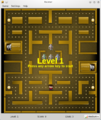 Snapshot of Kapman, a Pacman clone
 -
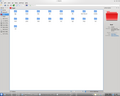 Snapshot of the Dolphin File Manager


