Blender 3D: Noob to Pro/Print version
 |
This is the print version of Blender 3D: Noob to Pro You won't see this message or any elements not part of the book's content when you print or preview this page. |
Unit 1: Knowing before Making[edit | edit source]


Blender is a powerful and complex 3D modeling and rendering package. However, before you can make anything, you need to understand several concepts used in 3D modelling and related fields. Examples include:
- Understanding the process of 3D modeling and rendering
- Understanding how the axis and 3D coordinates work in Blender.
- Understanding orthographic and perspective views.
- Local coordinates, parent objects, and child objects.
- Blender's user interface and how to navigate it.
- Viewing a scene from different camera angles
Don't be scared by their long names; a lot of these are actually pretty intuitive and easy to grasp. Of course, since you're not doing any actual modelling in this unit, you might be tempted to skip ahead, and that's completely fine! Just know that understanding these concepts well will help you a lot in the long run, and proceeding through tutorials in order will build a strong foundation for you to build on. Prior knowledge also plays a huge part in this, so if you're coming from other 3D software, you should already be familiar with these concepts.
That said, the actual fun (making stuff in Blender) comes in the next unit. However, keep in mind that Blender is not the kind of software you can jump into and experiment with. It's notorious for having a steep learning curve. It's less like exploring an unfamiliar city and more like flying a spaceship; if you hop into the pilot's seat without knowing the fundamentals, it's going to be near impossible to get off the ground.
Blender-specific terminology.[edit | edit source]
Like any subject, 3D graphics has its own words and terminology used to describe specific ideas. In this book, important words are highlighted and defined on their first use. If you've missed or forgotten the meaning of a word, try looking it up in the Glossary.
Things you'll need.[edit | edit source]
In order to follow the tutorials, you need a computer with Blender installed. You can download the latest Blender release here.
Depending on your system, you may also need the appropriate Python installation. Each version of Blender requires a specific version of Python, but it's usually packaged with Blender.
The Blender team has the Blender Long Term Support program which provides a stable Blender version with 2 years of support. During the 2 year support window, no new features, UI changes, API changes or other enhancements will be done; only critical fixes will be applied. This allows teams working on long-lasting blender projects to use a single supported version over a 2 year period. Long term versions are indicated below with the LTS suffix and a year indicating the last year of support.
| Blender version | Python version |
|---|---|
| 2.79 | 3.5 |
| 2.83 LTS 2022 | 3.7 |
| 2.90 | 3.7 |
| 2.93 LTS 2023 | 3.9 |
| 3.0 | 3.9 |
| 3.1 | 3.10 |
| 3.3 LTS 2024 | 3.10 |
| 3.4 | 3.10 |
| 3.5 | 3.10 |
| 3.6 LTS 2025 | 3.10 |
| 4.0 | 3.10 |
| 4.1 | 3.11 |
You can check Python version on Scripting workspace using:
import sys
print(sys.version)
Since Blender is open-source software, you can download the source code and build it yourself, but it's easier to download a pre-built binary. As of Blender 4.0, compiled releases are provided for the following operating systems:
- Windows 8.1, 10, and 11
- macOS 11.2 Intel or Apple Silicon
- Linux with glibc 2.28 or newer
Along with the website, many Linux distributions have Blender available in their package repositories, though it may be a slightly older version. You can use your system's package manager to download and install the package. It's also available on steam.
Windows users can also choose between an executable installer ("setup wizard") and a ZIP archive.
After the installation process is finished, Blender should appear in the Graphics section of your desktop environment application menu.
You may also want to download a 2D image editor, such as GIMP, Paint.NET, or Photoshop or a media player, such as VLC.
It's a good idea to have pencil and paper handy for sketching and taking notes. There's a lot to absorb. Taking notes as you go will pay dividends later.
Where to Go for Help[edit | edit source]
If you get stuck, you can ask for help from other Blender users in the appendices.
Additional Resources[edit | edit source]
Many modules have a section like this at the bottom, listing websites with information on the topics covered in the module.
What Blender Can Do[edit | edit source]
In this module, you'll learn what Blender does, both in terms of the product (images) and the process (3D modeling).
Blender is a free software package for authoring "three-dimensional" (3D) graphics (also known as computer graphics or “CG”), including still images, games, and video.
While the end-product of most Blender projects is a two-dimensional (2D) raster image on a flat surface (be it a monitor, movie screen, or sheet of paper) except for Head Mounted Virtual Reality applications, the images are said to be "3D" because they exhibit the illusion of depth. In other words, someone looking at the image can easily tell which parts are meant to be closer and which are farther away.
An Example[edit | edit source]
Here's a realistic still image that was created with Blender.

Look closely at the building.
- Because it is obscured by the building, you can tell that the tree-lined hillside is behind the building instead of vice versa.
- The way the top and bottom edges of the front wall appear to converge toward the base of the tree allow you to judge the angle between the front wall and your viewpoint.
- Your brain interprets dark portions of the wall as shadows, allowing you to estimate where the light is coming from, even though the sun is outside the frame of the image.
While an illusion of depth can be authored by hand with 2D graphics software (or a paintbrush!), Blender provides a much easier way.
It's likely that the lonely house never existed outside of the artist's mind. Instead of building a big set on a rural lot in Germany, waiting for the right light, and photographing it, the author built a scene in a virtual 3D world—one contained inside a computer. This is called CGI (Computer Generated Imagery). They then used Blender to render the scene (convert it into a 2D image). You can view more of what Blender can do at the Blender gallery: http://www.blender.org/features/
Steps in the 3D Production Process[edit | edit source]
To produce an image like the one above involves two major steps to start with:
- Modelling, which is the creation of your miniature 3D world, also known as a model or scene. This involves defining the geometry of the objects, making it look like they are made out of particular materials, setting up the lighting, and defining a camera viewpoint.
- Rendering, which is the actual generation of the image of the world from the viewpoint of the camera (taking a “photograph” of the scene, if you like), for your audience to enjoy.
3D is often used to produce not just single still images, but animations as well. This requires some additional steps:
- Rigging — setting up a rig, namely a way of deforming (changing the shape of) a character in various repeatable ways to convincingly mimic joint movements, facial expressions and other such actions of real-life people or animals.
- Posing — choreographing the positions of the objects and their parts in the 3D scene over time, using the previously-created animation rigs
- Rendering now involves creating a whole sequence of frames representing movement over time, rather than just a single still frame.
But that’s not all. There are frequently additional processes to embellish the results of the above, to make them look more realistic:
- Sculpting — a more organic form of modelling objects by shaping them as though they were made out of clay. This produces more complicated, irregular shapes which mimic real objects found in nature, as opposed to clean, simple, geometrical ones which mostly only exist in the world of mathematics.
- Texture painting — You’re probably familiar with programs that let you paint an image on a 2D digital canvas. Such programs are commonly used in 3D production, to create textures which are “wrapped” around the surfaces of 3D objects to give them a more interesting appearance. 3D programs also often allow direct painting on the surfaces of those objects, so the effect of the design can be observed immediately, instead of having to go through a separate paint-on-a-flat-surface-then-wrap sequence of steps.
- Physical modelling — simulating the behaviour of real-world objects subject to real-world forces, for example hard balls colliding, soft cloth draping itself over an obstacle under gravity, water flowing and pouring. Mathematical formulas are available for these that give results very close to real life, all you need is the computing power to calculate them.
- Motion capture, or mocap: producing convincing animations, particularly ones that look like the movements of real people (walking, running, dancing etc) can be hard. Hence the technique of capturing the motions of live actors, by filming them with special markers attached to strategic points on their bodies, and doing computer processing to track the movements of these markers and convert them to corresponding movements of an animation rig.
- Compositing — this is where 3D renders are merged together with real photographic/live-action footage, to make it look like a rendered model is in the middle of a real-world scene, or conversely a real live actor is in the middle of a rendered scene. If done with proper skill, in particular due care to matching the effects of lights and shadows, the viewer becomes unable to tell what is real and what is not!
And just to add another complication to the mix, there are two kinds of rendering:
- Real-time rendering is rendering that has to happen under tight time constraints, typically for interactive applications like video gaming. For example, most gamers expect the screen to be updated 60 times per second in order to render smooth motion and respond quickly enough to player actions. These time constraints impose major limitations on the kinds of rendering techniques that can be used.
- Non-real-time rendering is where the time constraints are not so tight, and quality is the overriding factor. For example, when producing a single still frame, it may not matter so much that it takes minutes or hours to do so, because the beauty and detail of the final image is worth it. When rendering a Hollywood-quality movie, it may still take hours per frame, but the use of a render farm of hundreds or thousands of machines, all working on different frames at the same time, allows the entire sequence to complete in just a few weeks.
But wait, there’s more: There are also some areas, which might be considered to be stepping outside of traditional 3D production work, where Blender provides functionality:
- Video editing — having rendered your animation sequences and shot your live-action footage, you will want to combine them in a properly-timed linear sequence to tell a coherent story.
- 3D printing — Many people are interested in creating physical objects using 3D printers. The shape data may be obtained from real objects with 3D scanning, or it may be created from scratch using 3D modelling, or you can even combine both processes.
Blender is a capable tool for every single one of these processes. There’s quite a lot there, isn’t there? But don’t be too intimidated: this Wikibook will take things step by step, and you will be able to produce some fun stuff from early on.
Additional Resources[edit | edit source]
 3D rendering at Wikipedia.
- Render farm at Wikipedia.
- Comparison of 3D computer graphics software at Wikipedia.
- Computer-generated imagery at Wikipedia.
- Depth perception at Wikipedia.
- Blender Art Gallery
- Blender Homepage

3D Geometry[edit | edit source]
If you haven't previously studied 3D graphics, technical drawing, or analytic geometry, you are about to learn a new way of visualizing the world, an ability that's fundamental to working with Blender or any 3D modeling tool.
3D modeling is based on geometry, the branch of mathematics concerned with spatial relationships, specifically analytical geometry, which expresses these relationships in terms of algebraic formulas. If you have studied geometry, some of the terminology will be familiar.
Coordinates And Coordinate Systems[edit | edit source]
Look around the room you’re in. The odds are it will have a cuboidal shape, with four vertical walls at right angles to each other, a flat, horizontal floor, and a flat, horizontal ceiling.
Now imagine there’s a fly buzzing around the room. The fly is moving in three-dimensional space. In mathematical terms, that means its position within the room at any given moment, can be expressed in terms of a unique combination of three numbers.
There are an infinite number of ways —coordinate systems— in which we could come up with a convention for defining and measuring these numbers, i.e. the coordinates. Each convention will yield different values even if the fly is in the same position. Coordinates only make sense with reference to a specific coordinate system! To narrow down the possibilities (in a purely arbitrary fashion), let us label the walls of the room with the points of the compass: in a clockwise direction, North, East, South and West. (If you know which way really is north, feel free to use that to label the walls of your room. Otherwise, choose any wall you like as north.)
Consider the point at floor level in the south-west corner of the room. We will call this (arbitrary) point the origin of our coordinate system, and the three numbers at this point will be . The first of the three numbers will be the distance (in some suitable units, let’s say metres) eastwards from the west wall, the second number will be the distance north from the south wall, and the third number will be the height above the floor.

Each of these directions is called an axis (plural: axes), and they are conventionally labelled X, Y and Z, in that order. With a little bit of thought, you should be able to convince yourself that every point within the space of your room corresponds to exactly one set of values, and that every possible combination of values, with , and (where is the east-west dimension of your room, is its north-south dimension, and is the height between ceiling and floor) corresponds to a point in the room.


The following diagram illustrates how the coordinates are built up, using the same colour codes that Blender uses to label its axes: red for X, green for Y and blue for Z (an easy way to remember this if you're familiar with RGB is the order -- Red X, Green Y, Blue Z). In the second picture, the x value defines a plane parallel to the west wall of the room. In the third picture, the y value defines a plane parallel to the south wall, and in the fourth picture, the z value defines a plane parallel to the floor. Put the planes together in the fifth picture, and they intersect at a unique point.

Another simple way to understand what the coordinates of a point say (x,y,z) means is, if one starts from origin and moves x, y, and z units of distance parallel to x, y, and z axes respectively, in any sequence, one will reach that point. Thus, for example, a coordinate of (3,4,5) means the point which is reached when one moves, starting from origin, 3 units of distance along x-axis, 4 units of distance along y-axis and 5 units of distance along z-axis.
This style of coordinate system, with the numbers corresponding to distances along perpendicular axes, is called Cartesian coordinates, named after René Descartes, the 17th-century mathematician who first introduced the concept. Legend has it that he came up with the idea after watching a fly buzzing around his bedroom!
There are other ways to define coordinate systems, for example by substituting direction angles in place of one or two of the distance measurements. These can be useful in certain situations, but usually all coordinate systems in Blender are Cartesian. However, in Blender, switching between these coordinate systems is simple and easy to do.
Negative Coordinates[edit | edit source]
Can coordinate values be negative? Depending on the situation, yes. Here we are only considering points within our room. But suppose instead of placing our origin in the bottom southwest corner, we put it in the middle of the room, halfway between the floor and ceiling. (After all, it is an arbitrary point, we can place it wherever we like, as long as we agree on its location.) If the X-coordinate is the distance east from the origin, how do we define a point west of the origin? We simply give it a negative X-coordinate. Similarly, points north of the origin have a positive Y-coordinate, those south of it, have negative Y-coordinates. Points above the origin have a positive Z-coordinate, those below it, a negative Z-coordinate.
Handedness Of Coordinate Systems[edit | edit source]
It is conventional for most Cartesian coordinate systems to be right-handed. To understand this, hold the thumb, index finger and middle finger of your right hand perpendicular to each other:

Now orient your hand so your thumb points along the X-axis in the positive direction (direction of increasing coordinate numbers), your index finger along the positive Y-axis, and your middle finger along the positive Z-axis. Another way of looking at it is, if you placed your eye at the origin, and you could see the three arrows pointing in the directions of positive X, positive Y and positive Z as in Figure 1, the order X, Y, Z would go counter clockwise.

Another way to visualize this is to make a fist with your right hand, with your curled fingers towards you. Stick out your thumb directly to the right (X). Now aim your pointer finger straight up (Y). Finally, make your middle finger point toward yourself (Z). This is the view from directly above the origin.
Axes Of Rotation[edit | edit source]
Consider a spinning sphere. Every point on it is moving, except the ones along the axis. These form a motionless line around which the rest of the sphere spins. This line is called the axis of rotation.
More precisely, the axis of rotation is a point or a line connecting points that do not change position while that object rotates, drawn when the observer assumes he/she does not change position relative to that object over time.
Conventionally, the direction of the axis of rotation is such that if you look in that direction, the rotation appears clockwise, as illustrated below, where the yellow arrow shows the rotational movement, while the purple one shows the rotation axis:

To remember this convention, hold your right hand in a thumbs-up gesture:

If the rotation follows the direction of your curled fingers, then the direction of the axis of rotation is considered to be the same as the direction which the thumb is pointing in.
This gesture is a different form of the right-hand rule and is sometimes called the right-hand grip rule, the corkscrew-rule or the right-hand thumb rule. From now on we will refer to it as 'the right-hand grip rule'.
When describing the direction of a rotating object, do not say that it rotates left-to-right/clockwise, or right-to-left/counterclockwise. Each of these on their own are meaningless, because they're relative to the observer. Instead of saying this, find the direction of the axis of rotation and draw an arrow to represent it. Those who know the right-hand grip rule will be able to figure out what the direction of rotation of the object is, by using the rule when interpreting your drawing.
Additional Resources[edit | edit source]
- the Geometry wikibook
- Analytic geometry at Wikipedia.
- Cartesian coordinate system at Wikipedia.
- Right-hand rule at Wikipedia.
- Rotation at Wikipedia.
Orthographic Views[edit | edit source]
Orthographic Views[edit | edit source]
An orthographic view (or projection) of a 3D scene is a 2D picture of it in which parallel lines appear parallel, and all edges perpendicular to the view direction appear in proportion, at exactly the same scale.
Orthographic views are usually aligned with the scene's primary axes. Edges parallel to the view axis disappear. Those parallel to the other primary axes appear horizontal or vertical. The commonly used orthographic views are front, side, and top views, though back and bottom views are possible.
Uniform scale makes an orthographic view very useful when constructing 3D objects, not only in computer graphics, but also in manufacturing and architecture.
Here's one way to think about the orthographic view:
Imagine photographing a small 3D object through a telescope from a very great distance. There would be no foreshortening. All features would be at the same scale, regardless of whether they were on the near side of the object or its far side. Given two (or preferably three) such views, along different axes, you could get an accurate idea of the shape of the object, useful for "getting the feel" of objects in a virtual 3D world where you're unable to touch or handle anything!
Example[edit | edit source]
Here is a drawing of a staircase:

and here are three orthographic views of the same staircase, each outlined in red:

The views are from the front, top, and left. Dashed lines represent edges that, in real life, would be hidden behind something, such as the left wall of the staircase. (Think of each view as an X-ray image.)
The leading edges of the steps are visible in both the front and top views. Note that they appear parallel and of equal length in 2D, just as they are in 3D reality.
Additional Resources[edit | edit source]
- Orthographic projection at Wikipedia.
Perspective Views[edit | edit source]
As you know, the main reason for modeling 3D objects in Blender is to render images that exhibit the illusion of depth.
Orthographic views are great for building a house, but seriously flawed when it comes to creating realistic images of the house for use in a sales brochure. While a builder wants blueprints that are clear and accurate, a seller wants imagery that's aesthetically pleasing, with the illusion of depth. Blender makes it easy to use tricks like perspective, surface hiding, shading, and animation to achieve this illusion.
How does perspective work?
The essence of perspective is to represent parallel edges (in a 3D scene) by edges (in the 2D image) that are not parallel. When done correctly, this produces foreshortening (nearby objects are depicted larger than distant ones) and contributes to the illusion of depth.
Perspective is challenging to draw by hand, but Blender does it for you, provided you give it a 3D model of the scene and tell it where to view the scene from.

|
Blender only supports 3-point perspective, not 1-point or 2-point. |
If you're confident you understand perspective, you can skip the rest of this module and proceed to the "Coordinate Spaces in Blender" module.
One-point Perspective[edit | edit source]

Drawing classes teach various kinds of perspective drawing: one-point perspective, two-point perspective, and three-point perspective. In this context, the word "point" refers to what artists call the vanishing point.
When you're looking at a 3D object head-on and it's centered in your view, that is an example of one-point perspective.
Imagine looking down a straight and level set of train tracks. The tracks appear to converge at a point on the horizon. This is the vanishing point.
The image on the right is a 2D image of a cubic lattice or framework. Like any cube, it has six square faces and twelve straight edges. In the 3D world, four of the edges are parallel to our line-of-sight. They connect the four corners of the nearest square to the corresponding corners of the farthest one. Each of these edges is parallel to the other three.
In the 2D image, those same four edges appear to converge toward a vanishing point, contributing to the illusion of depth. Since this is one-point perspective, there is a single point of convergence at the center of the image.
Two-point Perspective[edit | edit source]

Now the cube is at eye level, and you're near one of its edges. Since you're not viewing it face-on, you can't draw it realistically using one-point perspective. The horizontal edges on your left appear to converge at a point on the horizon to the left of the cube, while those on the right converge to the right. To illustrate the cube with a good illusion of depth, you need two vanishing points.
Three-point Perspective[edit | edit source]

Now imagine you're above the cube near one of its corners. To draw it, you'd need three vanishing points, one for each set of parallel edges.
From that perspective, there are no longer any edges which appear parallel. The four vertical edges, the four left-right edges, and the four in-out edges each converge toward a different vanishing point.
Additional Resources[edit | edit source]
- Perspective (graphical) at Wikipedia.
Coordinate Spaces in Blender[edit | edit source]

We'll start looking at how 3D scenes are represented in Blender.
As was explained in the "3D Geometry" module, Blender represents locations in a scene by their coordinates. The coordinates of a location consist of three numbers that define its distance and direction from a fixed origin. More precisely:
- The first (or x-) coordinate of the location is defined as its distance from the YZ plane (the one containing both the Y and Z axes). Locations on the +X side of this plane are assigned positive x-coordinates, and those on the -X side are given negative ones.
- Its second (or y-) coordinate is its distance from the XZ plane, with locations on the -Y side of this plane having negative y-coordinates.
- Its third (or z-) coordinate is its distance from the XY plane, with locations on the -Z side of this plane having negative z-coordinates.
Thus the origin (which lies at the junction of all three axes and all three planes) has the coordinates (0, 0, 0).
Global and local coordinates[edit | edit source]
Blender refers to the coordinate system described above as the global coordinate system, though it's not truly global as each scene has its own global coordinate system. Each global coordinate system has a fixed origin and a fixed orientation, but we can view it from different angles by moving a virtual camera through the scene and/or rotating the camera.
Global coordinates are adequate for scenes containing a single fixed object and scenes in which each object is merely a single point in the scene. When dealing with objects that move around (or multiple objects with sizes and shapes), it's helpful to define a local coordinate system for each object, i.e. a coordinate system that can move with, and follow the object. The origin of an object's local coordinate system is often called the center of the object although it needn't coincide with the geometrical center of the object.
3D objects in Blender are largely described using vertices (points in the object, singular form: vertex). The global coordinates of a vertex depend on:
- the (x, y, z) coordinates of the vertex in the object's local coordinate system
- the location of the object's center
- any rotation (turning) of the local coordinates system relative to the global coordinate system, and
- any scaling (magnification or reduction) of the local coordinate system relative to the global coordinate system.
For example, the teacup in Figure 1 is described by a mesh model containing 171 vertices, each having a different set of local (x, y, z) coordinates relative to the cup's center. If you translate the cup (move it without rotating it), the only bits of the model that have to change are the global coordinates of the center. The local coordinates of all its vertices would remain the same.
Coordinates of child objects[edit | edit source]


Any object can act as a parent for one or more other objects in the same scene, which are then referred to as its children. (An object cannot have more than one direct parent, but parent objects may themselves be the children of other objects.)
If an object has a parent, its position, rotation, and scaling are measured in the parent's local coordinate system, almost as if it were a vertex of the parent. i.e. the position of the child's center is measured from the parent's center instead of the origin of the global coordinate system. So if you move a parent object, its children move too, even though the children's coordinates have not changed. The orientation and scaling of a child's local coordinate system are likewise measured relative to those of its parent. If you rotate the parent, the child will rotate (and perhaps revolve) around the same axis.
Parent-child relationships between objects make it simpler to perform (and animate) rotations, scaling and moving in arbitrary directions. In Fig. 1b the teacup is a child object of the coordinate cross on the right. That cross is itself the child of an invisible parent. (It is both a parent and child.) In the cup's local coordinate system, it is not rotating, but as the cross on the right rotates around its Z axis, it causes the cup to rotate and revolve. In real animations, it will be much easier when the character holding the cup rotates, the cup changes its position respectively.
View coordinates[edit | edit source]

Taking the viewer of the scene into consideration, there is another coordinate space: the view coordinates. In Fig. 2 the viewer is symbolized by the camera. The Z axis of the view coordinates always points directly to the viewer in orthographic projection. The X axis points to the right, the Y axis points upwards (Fig. 3).

In fact you always work in view coordinates if you don't set it any other way*. This is particularly useful if you have aligned your view prior to modeling something, e.g. if an object has a slanted roof and you want to create a window to fit in that roof, it would be very complicated to build the window aligned to the local coordinate system of the object, but if you first align your view to the slanted roof, you can easily work in that view coordinate system.
(* In the Blender 2.6 series, the default has been changed to global coordinates. View coordinates remain as an option.)
If you work in one of the three standard views (Front/Top/Side) the alignment of the view coordinates fits the global coordinates. Therefore, it is quite natural to model in one of the standard views and many people find this the best way to model.
Normal coordinates[edit | edit source]

Although Blender is a 3D program, only objects' faces are visible. The orientation of the faces is important for many reasons. For example, in our daily lives it seems quite obvious that a book lies flat on a table. This requires the surface of the table and that of the book to be parallel to each other. If we put a book on a table in a 3D program, there is no mechanism that forces these surfaces to be parallel. The artist needs to ensure that.
The orientation of a face can be described with the help of the so-called surface normal. It is always perpendicular to the surface. If several faces are selected, the resulting normal is averaged from the normals of every single face. In Fig. 4 the normal coordinates of the visible faces are drawn.
This concept can be applied to individual points on the object, even if the points themselves have no orientation. The normal of a point is the average of normals of the adjacent faces.
UV Coordinates[edit | edit source]
In later parts (for example, talking about textures) you will come across coordinates labelled “U” and “V”. These are simply different letters chosen to avoid confusion over “X”, “Y” and “Z”. For example, a raster image is normally laid out on a flat, two-dimensional plane. Each point on the image can be identified by X and Y coordinates. But Blender can take this image and wrap it around the surface of a 3D object as a texture. Points on/in the object have X, Y and Z coordinates. So to avoid confusion, the points on the image are identified using U and V to label their coordinates instead of X and Y. We then refer to “UV mapping” as the process of determining where each (U, V) image point ends up on the (X, Y, Z) object.
User Interface Overview[edit | edit source]
Blender's user interface (the means by which you control the software) is not particularly easy to learn. However, it has improved over time and is expected to continue doing so. The current version of the Blender software is available for download from the Blender Foundation's website.
The tutorials in this section will familiarize you with the basics of the user interface. By the end of this section, you should be able to:
- resize, split, and merge any Blender window;
- change the type of any Blender window;
- access user preferences;
- access panels containing buttons and other controls;
- change the viewpoint of a viewport.
For those new to Blender, this is a fundamental section of the book.
Advice on Customization[edit | edit source]
Blender is a complex software package with many customizable features. You can customize the user interface to assign new functions to buttons and hotkeys. In fact, you can change almost anything to suit yourself. However, this complicates the giving and following of directions. It is recommended you adhere to the default screen arrangements of Blender in order to be able to follow the remaining parts of these tutorials. Blender ships with 4 to 5 screen-content arrangements which are suitable for almost any kind of job you'll want to use it for - from creating motion and animation to making games.
We recommend leaving Blender's user interface in its "factory settings" while working through the Noob to Pro tutorials. At the very least, wait until you've mastered the basics before you customize the interface — and we know you definitely will when you master it!
Keystroke, Button, and Menu Notation[edit | edit source]
As you read through these tutorials, you will encounter cryptic codes such as SHIFT + LMB and Timeline → End Frame. They describe actions you perform using the keyboard and mouse. The notation used in this book comes from the standard used by the Blender community. We will try to import those standards here to facilitate our studies.
If you're reading this book online, you may wish to print this page for future reference. In addition, or as an alternative, you can bookmark it in your browser for faster reference.
Hotkeys[edit | edit source]

Most computer keyboards have number keys in two different places. A row above the letters, and in a numpad (numeric keypad) to the right of the keyboard. While many applications use these two sets of keys interchangeably, Blender does not. It assigns different functions to each set. If you're using a laptop keyboard without a separate numeric keypad, this might cause some difficulty. You'll need to use your function key to do some things. It is possible to indicate to Blender the type of keyboard you are using, but we strongly recommend you use a standard external keyboard if you use a laptop for these tutorials as it will make your studies and usage of Blender much more straightforward and enjoyable.
This book often assumes your keyboard has a numpad. If yours doesn't, consult the tutorial on Non-standard Input Devices for alternative ways to access the numpad's functions.
Key Notation[edit | edit source]
| Notation | Corresponding key or action |
|---|---|
| Alt | The Alt key (known as ⌥ Option on Apple keyboards) |
| Cmd | The ⌘ Command key also known on other platforms as the ⌘ Windows key or ❖ Super key |
| Ctrl | The ⌃ Ctrl key (also known as the Control key) |
| Fn | The Fn key (also known as the Function key, generally found only on laptops) |
| Shift | The ⇪ Shift key |
| Enter | The ↵ Return key (also known as the Enter key) |
| Esc | The Esc key (also known as the Escape key) |
| F1 through F12 | The function keys F1 through F12 (often in a row along the top of the keyboard) |
| Space | The Spacebar |
| Tab | The ↹ Tab key |
| A through Z | The letters A to Z (on the keyboard) |
| 0key through 9Key | The digits 0 to 9, placed above the letters on the keyboard |
| Num0 through Num9 | The digits 0 to 9, placed on the numpad |
| NumLock , Num/ , Num* , NUM− , Num+ , NumEnter , and Num. | The NumLock, /, *, -, +, Enter, and . keys respectively, all located on the numpad. |
| Delete | The Delete key |
| Down Arrow | The ⇣ Down Arrow key |
| Left Arrow | The ⇠ Left Arrow key |
| Right Arrow | The ⇢ Right Arrow key |
| Up Arrow | The ⇡ Up Arrow key |
When a key is used in a module, it means press that key. For exammple:
- M means "press the M key"
- Num0 means "press the 0 key thats found on the numpad."
Combinations that involve holding down a key while performing another action are written with a plus sign (+). For example:
- Shift + Tab means "press Tab while holding down Shift "
- Shift + Ctrl + F9 means "press F9 while holding down both Ctrl and Shift "
Mouse Notation[edit | edit source]
Blender uses three mouse buttons and the scroll wheel, if you have one. If your mouse only has one or two buttons, consult the tutorial on Non-standard Input Devices for alternative ways to access the functions assigned to these buttons.
| Notation | Corresponding action |
|---|---|
| LMB | click with the Left Mouse Button |
| RMB | click with the Right Mouse Button |
| MMB | press down on (don't turn) the scroll wheel or Middle Mouse Button |
| SCROLL | turn the scroll wheel in either direction |
Mouse and keyboard actions are often combined. Shift + RMB means to click RMB while holding down Shift .
[edit | edit source]
Blender uses both pop-up and pull-down/pull-up menus. Many menus have sub menus (menus that are reached via another menu). If a menu item displays a triangle, that means it leads to a sub menu.

You can move through items in a menu by either:
- Moving the mouse pointer up and down
- Pressing Up Arrow and Down Arrow
You can enter a sub menu by either:
- Moving the mouse pointer to the right
- Pressing Right Arrow while hovering over a menu item that shows a triangle on its side.
You can leave a sub menu by doing one of the following:
- moving the mouse pointer to the left
- pressing Left Arrow
To initiate a menu action, you can:
- click LMB
- press Enter
You can escape from a menu by:
- moving the mouse pointer away from the menu
- pressing Esc
For each menu, Blender remembers your last choice and highlights it for you the next time you enter the menu.
Notation[edit | edit source]
Menu notation is fairly self-explanatory.
Shift + A Mesh → UV Sphere
Means:
- Press Shift+A
- In the menu that pops up, move through the items until Mesh is highlighted
- Enter the Mesh sub menu
- Move through the items until UV Sphere is highlighted
- Press Enter or click the left mouse button to initiate the action
Additional Resources[edit | edit source]
- the Blender Manual page on "keyboard and mouse" at http://wiki.blender.org/index.php/Doc:Manual/Interface/Keyboard_and_Mouse
Non-standard Input Devices[edit | edit source]
This module is applicable only to users with non-standard input devices. If you have both a three-button mouse and a keyboard with a numpad, you can skip this module.
Keyboards lacking a numpad[edit | edit source]
Most modern laptops have a pseudo-numpad, a set of keys in the main keypad which double as a numpad. The keys typically used for this purpose are:
| 7key | 8key | 9key | 0key |
| U | I | O | P |
| J | K | L | ; |
| M | ,Key | .Key | SLASH |
When used as a pseudo-numpad, these keys typically act as the following keys from a true numpad:
| Num7 | Num8 | Num9 | Num/ |
| Num4 | Num5 | Num6 | Num* |
| Num1 | Num2 | Num3 | NUM− |
| Num0 | NumENTER | Num. | Num+ |
The numpad functions of these keys can often be toggled with F11 or NUMLOCK on PCs or with F6 on Macs. Alternatively, you can often temporarily activate the numpad behavior by holding down Fn .
If your keyboard has the alternate labellings but you don't know how they work, consult your laptop owner's manual.
As a last resort, you can use the "Emulate Numpad" feature of Blender. This will allow you to use the normal numeric keys as if they were numpad numerics. Instructions for enabling this feature may be found in the "User Preferences Windows" module.
Blender uses the numeric keypad quite a bit. If you envision using your laptop for this kind of work, it may be worth investing in a USB Numeric Keypad. On eBay, prices for simple external numpads start around $10 USD.
Non three-button mouse[edit | edit source]
For single-button mouse users, make sure that Input for Blender 2.79 (under "User Preferences" on the left-most drop-down menu) → Emulate 3 Button Mouse is enabled.
On many computers with two-button mice, MMB can be emulated by simultaneously clicking LMB and RMB . On Windows machines you'll need to enable this in the mouse settings in the Control Panel. On a Mac, open the Keyboard and Mouse preference pane and enable Use two fingers to scroll. Alternatively, by selecting Emulate 3 Button Mouse under User Preferences, MMB can be emulated by simultaneously clicking Alt and LMB .
Recent IBM Thinkpad laptops allow you to disable the 'UltraNav' features of the middle mouse button in order to use it as a 'normal' third button. Alternatively, some laptops allow areas (called gestures) on the movement pad to act as MMB or RMB , and these can be set up in the Control Panel in the Mouse Pointer options, selecting gestures and editing features there.
Apple single-button mouse[edit | edit source]
| Notation | Single-button Substitute | Description |
|---|---|---|
| LMB | MB | the Mouse Button |
| RMB | Cmd + MB | Apple key + the Mouse Button |
| MMB | Alt + MB | Option (Alt) key + the Mouse Button |
While Mac OS X natively uses both the Ctrl + MB and Cmd + MB to emulate RMB , recent Blender releases for Mac OS X use only Cmd + MB for this purpose. This behavior is documented in the OSX Tips file that comes with the Mac version. You can also set the mouse to sense a right-click in System Preferences.
Note also that in the new, "unibody" design, the mouse button is under the trackpad, and the shortcut for RMB is clicking with two fingers simultaneously, which can be enabled in the System Preferences.
Laptops lacking a middle button but with a touchpad[edit | edit source]
Many laptops have touchpads. Touchpads, also known as trackpads or in some cases as smart-pads, can use gestures to give the effect of MMB . The default for an Elan® Smart-Pad is two-finger tapping equivalent to clicking a MMB . Dragging two fingers is the same as turning a mouse wheel.
Tablet PCs[edit | edit source]
To get the effect of MMB in a viewport, drag your pen around while holding down the Alt key.
Additional Resources[edit | edit source]
Operating System-specific Issues[edit | edit source]
This tutorial covers user-interface issues that are specific to particular operating systems or window managers. Read the section that applies to your computer; you may skip the rest.
GNU/Linux[edit | edit source]
Alt + LMB is used for changing the angular view on two angular axes of the 3D View window, if Alt + LMB moves the current window, then there's a conflict with your window manager. You can resolve the conflict or use Ctrl + Alt + LMB or MMB instead. (Also, you may have activated Compiz->Rotate Cube. Default configuration for rotating the Cube is also Ctrl + Alt + LMB ; you may have to change this binding to an alternative configuration.) If you are running KDE this can be resolved by: RMB on the title bar of the main Blender window → select Configure Window Behavior → go to Actions → Window Actions → in the Inner Window, Titlebar and Frame section → select the Modifier key to be Alt and set all the select boxes beneath it to Nothing. An alternate method within KDE might be to RMB click on the title bar of the main Blender window; then select Advanced → Special Application Settings... → Workarounds and then click Block global shortcuts with Force selected and checked.
In Gnome, Click System → Preferences → Window Preferences. Look for the last three options Control, Alt and Super. Select Super. Or in Xfce, click Whisker → Settings → Window Manager Tweaks, and in the Accessibility pane, change Key used to grab and move windows to Super. Now you can press and hold Cmd or ⊞ to drag windows around, and use Ctrl and Alt as normal.
KDE[edit | edit source]
Under KDE, Ctrl + F1 through Ctrl + F4 are by default configured to switch to the corresponding one of the first four desktops, while CTRL + F12 brings up Plasma settings. You can change these in System Settings.
Alternatively you can suppress global shortcuts while inside blender by adjusting the kwin rules for this application, which you can access with a RMB click on the title bar of the window and pressing more actions->add program rule.
Gnome[edit | edit source]
You'll want to disable the Find Pointer functionality in Gnome, which will impair your ability to use certain functions such as Snap to grid and the lasso tool. If your mouse pointer is being highlighted when you press and release Ctrl , go to: Mouse in Gnome's Desktop Settings and uncheck the box Find Pointer.
Ubuntu[edit | edit source]
As of Ubuntu versions prior to about 09.10 (“Karmic Koala”), there was a known incompatibility between Blender and the Compiz Fusion accelerated (OpenGL) window manager used in Ubuntu. By default, Compiz Fusion is enabled in Ubuntu, causing the problems to manifest themselves in Blender as flickering windows, completely disappearing windows, inconsistent window refreshes, and/or an inability to start Blender in windowed mode.
The fix for this is simple. Install compiz-switch (might be in universe). Go to Applications → Accessories → Compiz-Switch. This will disable compiz temporarily. Do the same to turn compiz back on when you're done using Blender.
This is no longer needed for current releases of Ubuntu.
Mac OS X[edit | edit source]
You may need to press Fn in order to use the F1 through F12 keys.
To expand a section in Blender, you would usually press Ctrl + UpArrow . On a Mac, if “Spaces” is enabled, you may have to use Ctrl + Alt + UpArrow .
Microsoft Windows[edit | edit source]
Two Ways to Launch Blender[edit | edit source]
Blender requires a console for displaying error messages, so if you launch Blender by means of an icon, two windows will appear: the graphical user interface plus a console window. Closing either window will terminate Blender. These windows are indistinguishable in the Windows taskbar in versions of Windows before Windows 7, which leads to confusion. Also, launching this way does not provide any way to pass command-line arguments to Blender.
Launching Blender from a command prompt is extra work, but it overcomes these issues:
- Start → Run...
- enter cmd
- enter cd c:\Program Files\Blender Foundation\Blender
- enter blender
Blender version 2.6 onwards doesn't have this problem, and hides the console window by default. You can show it by clicking Window > Toggle system console
Sticky Keys[edit | edit source]
Pressing Shift five times in a row may activate StickyKeys, an accessibility option which alters how the computer recognizes commands. If a StickyKeys dialog box appears, you should LMB the "Cancel" button.
If you don't need the accessibility features, you can disable sticky keys:
- Start → Control Panel (OR search for "Accessibility Options" on the Start menu/Search)
- double-click on Accessibility Options (Ease of Access Center in Windows 10)
- LMB the Keyboard tab
- for each of the options StickyKeys, FilterKeys, and ToggleKeys:
- clear the Use … checkbox
- LMB the Settings button
- uncheck the Use Shortcut checkbox in the settings
- LMB the OK button for the settings
- LMB the OK button for Accessibility Options/Ease of Access Center.
Multiple Keyboard Layouts[edit | edit source]
On systems with multiple keyboard layouts, pressing Shift + Alt can alter the layout. (For instance, it might change from QWERTY to AZERTY or vice versa.) Because of this issue, Noob to Pro avoids Shift + Alt hotkeys.
If you find your keyboard layout altered, press Shift + Alt again to change it back.
You can also disable the hotkey:
- Start → Control Panel
- double-click on Regional and Language Options
- LMB the Languages tab
- LMB the Details button
- LMB the Key Settings button
- LMB the Change Key Sequence button
- uncheck the Switch Keyboard Layout checkbox
- LMB the OK button
Additional Resources[edit | edit source]
- Input method editor keyboard shortcut (CTRL+SHIFT+0) switches the input language in Vista — Microsoft Support Knowledge-Base
- StickyKeys at Wikipedia.
Blender User Interface[edit | edit source]
 |
Applicable Blender version: 2.90. |
Here's a preview screenshot of Blender's interface, after a new installation.

For those familiar with older versions of Blender, this will look very different. The redesign makes it much easier to find things.
For a detailed rationale explaining the redesign, read this.
Why does Blender use its own windowing system instead of the operating system's?[edit | edit source]
Blender follows its own user interface conventions. Instead of making use of multiple windows as defined by your particular OS/GUI, it creates its own “windows” within a single OS/GUI window, which is best sized to fill your screen. Many people accustomed to how applications normally work on their platform of choice, get annoyed by Blender’s insistence on being different. However, there is a good reason for it.
The essence of the Blender UI can be summed up in one word: workflow. Blender was originally created by a 3D graphics shop for their own in-house use. Being a key revenue engine for them, they designed it for maximum productivity, speed and smoothness of operation. That means avoiding “bumps” that slow down the user. For example, windows never overlap, so there’s no need to keep reordering them. You don’t have to click in a window to make it active, just move the mouse. There is a minimum of interruption from popups asking for more information before performing some action. Instead, the action is immediately performed with default settings, which you can adjust afterwards and get immediate feedback on the results.
Blender may not be “intuitive” to start learning, in that you cannot simply sit down in front of it and figure out things on your own, especially from a position of knowing nothing at all. But once you have picked up some basic conventions, you will find it starts to make sense and then you will be free to experiment and discover things on your own.
"Save changes on exit" prompt[edit | edit source]
As of Blender version 2.79, you are prompted on exit when there are unsaved changes. You can change this behaviour in Edit → Preferences → Save & Load → Save Prompt.
Prior to that version, Blender was not asking about unsaved changes. Instead, Blender saved changes, when it closes, to a file called 'quit.blend'. The next time you use Blender, you had to select File → Recover Last Session to resume right where you left off.
Blender Windowing System[edit | edit source]
|
|
Applicable Blender version: 2.69. |
The Blender user interface may appear daunting at first, but don't despair. This book explores the interface one step at a time.
In this module, you'll learn about Blender windows:
- recognizing windows and their headers,
- the different types of windows,
- how to activate and resize windows,
- how to split and join windows.
You'll also practice launching and leaving Blender.
An Interface Divided[edit | edit source]
Blender's user interface is divided into rectangular areas called windows (or sometimes, areas). The overall arrangement of windows is called a workspace.
If you haven't already launched Blender, go ahead and do so. You should soon see something that resembles the following.
Blender has had some major changes to its user interface (UI) since version 2.4x. Some of these changes include moving buttons and changing the space bar hot key from the “add menu” to the “search menu” ( SHIFT + A is now the "add menu” hot key). This is important to know when trying to follow tutorials.
Other changes include the addition of the tool bar and window splitting widget. The shelf widget (indicated by a plus sign) opens hidden tool shelves. The object tool shelf can be toggled on and off by pressing T . The properties tool shelf can be toggled on and off by pressing the N . The split window widget allows you to split and join windows. Blender 2.69 is shown below.

- You may be running a different version of Blender - perhaps a newer version. The screenshot was made using the 2.69 release.
- If you're running an older version, you should probably upgrade. Download instructions are in the Introduction.
- The user-interface settings on your computer may have been changed.
- Try resetting the user interface with File → Load Factory Settings.
- To take a video in Blender, press Alt + F3 , and click Make Screencast. This will record what's on your screen until you click the red Close button on the info header. The screencasts will be saved in the tmp folder. In Microsoft Windows, the tmp folder is located at 'C:\tmp'.
Window Headers[edit | edit source]
Did you find all five headers?
Every Blender window has a header. A header can appear at the top of the window, at the bottom of the window, or it can be hidden. Let's take a closer look at the headers.

The header of the 3D View window is outlined in red. Note that it runs along the bottom of the 3D View window, not the top.
The header of the Properties window is outlined in blue.
The header of the Outliner window is outlined in white.
The header of the Timeline window is the one on the bottom (not outlined)
If you click with RMB on the header, a menu pops up which lets you move the header (to the top if it’s at the bottom, or vice versa), or maximize the window to fill the entire workspace:

To hide the header completely, move the mouse to the edge of the header furthest from the edge of the window (i.e. the top edge of the header if it is at the bottom of the window, or vice versa); it will change into a vertical double-headed arrow. Now click with LMB and drag towards the window edge, and the header will disappear. In its place, you will see the following symbol appear at the corner of the window:  . Click this with LMB to bring the header back.
Window Types[edit | edit source]
Blender has many types of windows (there are 16 of them in Blender 2.69) and a Console for the Python programming language. You've just encountered the Info, 3D View, Properties, and Outliner windows. The rest will be introduced as needed in later modules.
Every window header in Blender has an icon at the left end to indicate the window type. For instance:
 = Info
 = User Preferences
 = 3D View
 = Outliner
 = Properties


If you LMB on the icon, a menu will pop up. (If you don't know what LMB means, please review the Keystrokes, Buttons, and Menus Notation module.)

The menu can be used to alter a window's type. In this screenshot, the user is about to change the window into a Properties window.
|
|
Any window can be changed to any type. Blender doesn't mind if there are multiple windows of the same type. |
|
|
The workspace layout is saved along with the document. Anybody subsequently opening the document will see the last-saved layout. |
If you've changed any window's type, please change it back (or reload the factory settings with File → Load Factory Settings) before continuing with this tutorial.
The Active Window[edit | edit source]
The active window is the one that will respond if you press a key. Only one Blender window is active at any given time.
The active window is usually the one containing the mouse pointer. (Blender uses a "focus follows mouse" user interface model. When a hotkey fails to work as expected, it is often because the mouse pointer has strayed into a neighboring window.) To change the active window, simply move the mouse pointer into the window you wish to activate.
Practice changing the active window by moving your mouse between the 3D View and the Timeline windows. The Timeline window is directly below the 3D View header. At this point, it's worth mentioning that the header for the 3D View window and Timeline window is at the BOTTOM of its own window instead of the top as the name "header" implies.
|
|
When a window becomes active, its header gets brighter. |
Resizing Windows[edit | edit source]
Resizing windows is easy.
Dragging on a Border[edit | edit source]

Drag with the mouse to move the border up and down.
When the border is where you want it, release LMB .
Whenever you increase the size of one window, you decrease the size of another. That's because Blender has a non-overlapping window interface: unlike many other programs, it does not permit windows to overlap. Neither does it move windows; it just resizes them. If you find that you cannot increase the size of a window (e.g. the Info window) any further although there seems to be enough space to do so, it may be because you decreased the size of another window (e.g., the Outline window) to its minimum size (i.e, just the heading).
Maximizing a Window[edit | edit source]
Another way to resize a window is to maximize it. When Blender maximizes a window, it makes the window as large as possible. The previous window configuration is saved.
- To maximize the active window, press Ctrl + UpArrow , Ctrl + DownArrow or Shift + Space . On a Mac, if “Spaces” is enabled, you may have to use Ctrl + Alt + UpArrow .
- When a window is maximized, use Ctrl + UpArrow , Ctrl + DownArrow or Shift + Space to restore the previous (unmaximized) window configuration.
Practice maximizing and un-maximizing the 3D View and Timeline windows.
|
|
If you are running a version of Blender before 2.57, you cannot maximize a User Preferences window. |
Shelves[edit | edit source]
You will notice that the 3D View  window (the largest window in the screenshots above) has several buttons down the left side. This rectangular portion is called the Tool Shelf. This is like a window within a window - you can drag the boundary between it and the main part of the 3D View to resize.
If you drag all the way to the window boundary, the shelf will disappear. In its place, the following symbol will appear: . Click it to bring the shelf back.
Too Much To Fit[edit | edit source]
If a window or shelf contains too much information to fit within its display area, scrollbars will appear along the bottom or right edge. You can scroll the contents by dragging these with LMB ; alternatively you can drag with MMB directly within the contents.
A window header may also contain more than fits within its displayable area. There is no explicit visual clue for this (though some of the widgets at the right edge might not be visible), but if that happens, you can drag sideways within the header with MMB to scroll its contents.
Splitting And Joining Windows[edit | edit source]
At the top right and bottom left of every window, you will see something like this:  . If you move the mouse over the icon, you will see the pointer turn into a cross. At that point, you can do one of the following by clicking and dragging with LMB :
- Split the window into two copies horizontally by dragging horizontally away from the edge.
- Split the window into two copies vertically by dragging vertically away from the edge.
- Join the window to the adjacent one horizontally (getting rid of it and taking over its space) by dragging towards it.
- Join the window to the adjacent one vertically (getting rid of it and taking over its space) by dragging towards it.
Of course, the last two are only possible if there is in fact another window in that direction. Note: you can only join windows horizontally that are the same height, and windows vertically that are the same width.
The Default Workspace[edit | edit source]
If you look at the above screenshot of the default workspace, you will see the following window types:
- The menu bar at the top (outlined in green) is actually a window, called Info
 . In previous versions of Blender, you could resize this to reveal the User Preferences, but in 2.5x they have been moved to their own window type. Instead, all you can see here if you enlarge the window are some debug messages, which may be removed in a future version of Blender. As of 2.70, the debug messages are still present in this menu.
 - The largest window on the screen is the 3D View
 . This is where you work on your model.
 - The Properties
 window is the tall area on the right; this is where most of the functions are located for performing operations on models, materials etc. In previous versions of Blender this was called the Buttons window. Over time, it evolved into a disorganized area that made it difficult to find things. It has been cleaned up significantly in 2.5x. Note that it defaults to a vertical layout, rather than the horizontal one of previous versions. The new design prefers a vertical layout, which better suits today’s widescreen monitors.
 - The Outliner
 (at the top right) gives you an overview of the objects in your document. As your models get more complex, you will start to appreciate the ability to quickly find things here.
 - The Timeline
 (across the bottom) becomes important when you’re doing animation.


The default layout may not be optimal. For example, if you’re doing a static model or scene, not an animation, you can get rid of the Timeline. If you’re doing heavy script development, you’ll probably want the Console available to try things out. And so on.
Workspace Presets[edit | edit source]
In the Info window/titlebar, you will see a menu with an icon like this  . Clicking on it with LMB will show the following menu:

Selecting from this menu lets you quickly switch between various predefined workspace layouts, tailored to various workflows. Try it and see. You can return to the default layout by selecting “Default” (but note that any changes you make to the layout are immediately associated with the name being displayed here). The menu has a search box at the bottom. Typing text here will restrict the menu to showing items containing only that text. It might not appear to have much use, but in a complicated project that needs dozens of different layouts, the search function could become very useful indeed!
The name of the currently selected item appears to the right of the menu icon. In the illustration above, this is "Default". Blender allows you to rename the current menu item by clicking on it with the LMB and typing a new name, so take care not to do so unless you actually want to rename the menu item. For example, if you replace the name "Default" with "MyDefaults", you will subsequently see that "MyDefaults" appears in the list of menu items.
Note also the “+” and “X” icons to the right of the menu; clicking “+” creates a new entry which is a duplicate of the last-selected entry, while clicking “X” gets rid of the currently-selected entry. You will see these conventions appear consistently in menus elsewhere in Blender’s new, revamped interface.
One Document At A Time[edit | edit source]
Blender can only work with one open document at a time (this does not apply to blender 2.79, which allows multiple instances of blender to run concurrently). To save changes to the current document, select one of the Save options from the File menu (or press Ctrl + S to save under the last-saved name). To open a new document (actually load a copy of your last-saved user preferences), select “New” from the File menu (or press Ctrl + N ), and select “Reload Start-Up File” from the popup that appears, but be aware this will not automatically save any changes to the previous document.
Scenes[edit | edit source]
A scene is like a separate Blender-document within-a-document. Different scenes within the same document can easily share objects, materials etc. You can define them once and make different renderings and animations from them. You create, delete and switch scenes using the scene  menu in the info header. A new document starts by default with just one scene, called “Scene”.
Leaving Blender[edit | edit source]
To exit Blender:
- If there's a tool active, press Esc to exit the tool.
- Press Ctrl + Q . This brings up an OK? menu.
- Confirm Quit Blender by clicking LMB or pressing Enter .
|
|
In versions before 2.79, Blender will not prompt you to save your work. However, you can easily pick up where you left off by using File → Recover Last Session. |
Additional Resources[edit | edit source]
- YouTube video on Splitting and Joining Windows in 2.49 at http://www.youtube.com/watch?v=uYb1j8X-ulc
- YouTube video on Splitting and Joining Windows in 2.59 at http://www.youtube.com/watch?v=mGK1gwFhx9M
- the Blender Manual page on "window types" at http://wiki.blender.org/index.php/Doc:Manual/Interface/Window_types
- the Blender Manual page on "changing window frames" at system/Arranging frames http://wiki.blender.org/index.php/Doc:Manual/Interface/Window system/Arranging frames
User Preferences Windows[edit | edit source]

|
|
Applicable Blender version: 2.80. |
In this module, we'll take a closer look at the Blender Preferences window.
Accessing Blender Preferences[edit | edit source]
To open the Blender Preferences window click Edit → Preferences...
In Blender 2.79, you will find it under File → User Preferences...
Configuring Your Preferences[edit | edit source]
In order to get to modeling and rendering sooner, this tutorial will cover only a few of the many user-settable preferences.
If you ever need to restore Blender to its factory settings, click File → Defaults → Load Factory Settings
Save & Load → Auto Save[edit | edit source]
As the name suggests, Auto Save automatically saves the current .blend after a specified period of time. You can turn this on and off using the checkbox labelled "Auto Save". You can also adjust the amount of time between each save, by adjusting the "Timer (Minutes)" field.
System → Undo Steps[edit | edit source]
By default, Blender remembers your last 32 actions and allows you to undo them one at a time by either pressing Ctrl + Z or by selecting a frame under Edit → Undo History. However, you can change the number of Undo Steps stored to remember more or less actions, in case you want to conserve memory or simply stay on the safe side. You can also use the Undo Memory Limit slider to specify the amount of RAM (in megabytes) used for storing the undo levels. In case you're not too worried about memory, you can set the Undo Memory Limit field to 0 to remove the memory limit.
Input → Numpad Emulation[edit | edit source]
Blender uses numberpad keys (such as NUM7 ) to control the 3D View and ordinary numeral keys (such as 7 ) to change layers. If you are working on a laptop or if you find the numberpad inconvenient, you can select Emulate Numpad to reassign the 3D View controls to the ordinary numeral keys.
Input → Emulate 3 Button Mouse[edit | edit source]
Blender makes significant use of all three buttons on a standard computer mouse. If you do not have a mouse with three buttons, enabling this setting will let you perform MMB -related actions with ALT + LMB
Keymap[edit | edit source]
In Blender 2.79 and earlier, Blender used right click for selection. However, in Blender 2.8, this was changed to left click on default, along with some changes to keyboard shortcuts for efficiency. To stay compatible with different users' preferences, three keymap presets are provided on installation: "Blender", the new default keymap, "Blender 27x", which includes very few changes compared to earlier versions, and "Industry Compatible", designed to be used by those coming from other 3D software, such as Maya and ZBrush
Since much of this book was written before the 2.8 update came out, you may find pages that still use the old "right click to select" option, along with some outdated keybinds. If you're following a lot of tutorials for Blender 2.79 or earlier, you can go into Keymap and select Blender 27x under the presets list. You can always switch back if needed.
Additional Resources[edit | edit source]
- The Blender manual pages on Preferences
- The tutorial on Non-standard Equipment describes other workarounds for numpad issues.
Buttons Windows[edit | edit source]
|
|
Applicable Blender version: 3.3. |
The properties window lets you change many settings and properties relating to the current scene and selected objects. You can edit many options, including customizing materials and textures, controlling how your scene is rendered and at what quality, among many other things.
The properties window is divided into categories, which themselves group individual tabs. Each tab, in turn, groups a selection of properties and settings. For example, the World Properties tab, under the Scene category, lets you control the color and texture of the background of the scene (i.e. the sky), and allows you to add volumetric effects to the scene (i.e. fog or mist). Each tab has their own, unique, icon. Some tabs will even change depending on the type of object selected!
Active Tool and Workspace settings[edit | edit source]
Active Tool and Workspace settings[edit | edit source]
As the name suggests, this simply configures the active tool (for example, the move tool) and various workspace settings (such as switching to object mode when a workspace is opened).
Scene[edit | edit source]
Render Properties[edit | edit source]
This tab lists settings that control the how the resulting render of a scene is displayed, such as performance-related settings, color management settings, and effects like motion blur. These settings will change depending on the render engine used, which can also be edited from this tab
Output Properties[edit | edit source]
This tab controls various settings that determing the output of a render. This includes resolution, frame rate, file format, among other
Scene Properties[edit | edit source]
This tab lets you choose which camera to use for rendering, change the units and edit the gravity settings for the current scene.
You can also select another scene to be a “background” for this scene. That is, all renders of this (foreground) scene will also include the contents of the background scene, as though they had been copied into this scene. While the background appears in the 3D viewport when editing this scene, none of its contents are editable, or even selectable; that has to be done in the background scene itself.
World Properties[edit | edit source]
This lets you change the environment of the scene. In this tab, you can edit the background color and texture (i.e. the sky color), and add volumetric effects such as fog or mist.
Collection[edit | edit source]
Collection Properties[edit | edit source]
This tab lets you control various collection settings, such as whether its contents are selectable, or whether it can be seen in render.
Object[edit | edit source]
Object Properties[edit | edit source]
This tab lets you control general object properties, such as transformations (i.e. location, rotation, scale), parent-children obejct relationships, collections, and other. Note that even if you have multiple objects selected, these properties only control the active object, which is usually the last object selected.
Modifier Properties[edit | edit source]
This tab lets you add, edit, and remove modifiers. Object modifiers are operations that affect your object in a non-destructive way (i.e. it can always be reversed later). For example, adding the bevel modifier to a cube applies a bevel to the geometry of the cube, but you can adjust the bevel or remove the bevel whenever you like. Some object types, such as lights and cameras, can't have modifiers.
Visual Effects Properties[edit | edit source]
This tab lets you add visual effects to grease pencil objects, such as pixelation and blur effects. These effects treat the object like an image. Unlike modifiers, these can not be applied to the object.
Particle Properties[edit | edit source]
This tab lets you add particle systems to objects, which can let you create effects such as smoke, flames or sparks. Particles in Blender can also be used to generate hair or fur. Particles can be set to custom objects, to produce effects like blades of grass, water droplets on a wet surface, or even entire buildings to make up a large cityscape!
Physics Properties[edit | edit source]
This allows you to simulate real-world physics, such as simulating solid dice colliding with each other, or simulating how water in a cup reacts when you move it.
Object Constraint Properties[edit | edit source]
Constraints limit various object properties, such as the location, rotation, and scale of the object. These are usually to set animate objects, such as making the wheels of the bus rotate together.
Object Data[edit | edit source]
Object Data Properties[edit | edit source]
These control settings specific to the object type such as text font, lamp settings, and camera settings. This is reflected in the icon, which changes according to the type of object selected.
Object Shading[edit | edit source]
Material Properties[edit | edit source]
The material settings for an object control its appearance, e.g. its colour, whether it has a shiny or dull surface, how transparent it is, and so on.
You can also control the material of an object using shader nodes.
Texture Properties[edit | edit source]
Textures in Blender used to control the surface of an object, alongside the materials. Nowadays, it has been replaced by the shader nodes, and is only used for texture painting.
3D View Windows[edit | edit source]
|
|
Applicable Blender version: 2.70. |
3D View windows are used to visualize 3D scenes. You’ll do a lot of work in these windows, so you will need to learn your way around.
|
|
The 3D view only shows an approximation of the final appearance of the scene. The overall geometry should be correct, but don’t expect accurate rendition of materials, textures, lighting etc, since that can be very time consuming. The 3D view is designed to respond to your actions at interactive speeds. There are additional view options (wireframe, hiding etc) that make it easier to see which parts of the model you’re working on, have no effect on the final render. You can change your viewpoint at any time (which will be essential while working on your model/scene), while the viewpoint of the render is controlled by the camera position. |
In this module, you'll learn:
- to recognize 10 things commonly seen in viewports
- to tell which mode Blender is in
- how to change viewport options and viewpoints
- how to position the 3D cursor
You'll also learn the fundamentals of:
- visibility layers
The Viewport and its Contents[edit | edit source]
Aside from its header, the remainder of a 3D View window is its viewport. You use viewports any time you need an up-to-date view of the scene you're working on.
Viewports are busy places. Go on a scavenger hunt and see what you can find in a simple viewport.
- Launch Blender.
- Just so we're all looking at the same scene, load the factory settings using File → Defaults -> Load Factory Settings.
- Confirm the “Load Factory Settings” popup with LMB (or Enter ).
- If the NumLock indicator on your keyboard is unlit, press NumLock so that numpad hotkeys will work properly.
(If you're unsure what LMB means, please review the Keystroke, Button, and Menu Notation module.)
You should see something like this:

A Virtual Scavenger Hunt[edit | edit source]
Look at the default scene and find the following eight items:
- In the Center
1.  a solid gray cube with orange edges.
- This is the default cube, your first Blender object!
2.  Three arrows, one red, one green and one blue, their tails joined to a white circle
- This is not an object (part of your model/scene), but part of Blender’s user interface for manipulating objects. It is the manipulator, also known as the 3D transform widget.
- The arrows represent the directions of the X, Y and Z axes of the currently chosen transform orientation coordinate system. Initially this is the global coordinate system.
- The circle represents the center of the selected object (the cube).
- If you don't know what the "global coordinate system" is, please review the module on Coordinate Spaces in Blender.
- It's possible that a tool is active. Press Esc to cancel any tool action.
- Another possibility is that the manipulator has been disabled:
- Toggle it on or off with Ctrl + Space .
3.  A red-and-white striped circle with black cross-hairs
- This is not an object. It is the 3D Cursor, which indicates where newly-created objects will appear in the scene.
- The cursor is similar to the insertion point in a text editor, which indicates where new text will be inserted in a document.
- In the Lower Left Corner
4. 
- This is not an object. It is the mini axis, and its orientation matches that of the global coordinate system, with the usual conventions: red for X, green for Y and blue for Z. Think of it as a little compass, reminding you which way is left/right, front/back and up/down.
5. The notation "(1) Cube"
- This is not an object. It is object info, indicating that:
- You're viewing the first frame of an animation.
- and
- The current or most recently selected object is named "Cube".
- In the Upper Left Corner
6. The notation “User Persp”
- This is not an object. This tells you which mode the viewport is in. The first word will change if you select one of the perfect views or the camera view (see below), otherwise it just says “User”, and the second word is “Persp” or “Ortho” to indicate whether this is a perspective or orthographic view.
- To the Right of Center
7.  A black round thing that resembles a sun symbol
- This represents a lamp, a light source for the scene. (It is an object.)
8.  A pyramidal wireframe item
- This represents a camera, a viewpoint that can be used for rendering. (It too, is an object.) The camera is looking at the base of the pyramid. The solid triangle attached to one side of the base is to remind you which way is up in the image that the camera takes.
- On a small display, the camera might initially lie outside of the viewport and thus be invisible. In that case, SCROLL to zoom out until it becomes visible.
- Throughout
9. A dark gray background, divided into squares by lighter lines. This is the grid floor, which you can (but don’t have to) use as a ground plane for positioning your models.
- Each grid square is one blender unit (or BU) on a side. A BU can be whatever you wish, e.g. an inch, a centimeter, a mile, or a cubit. Blender lets you choose your scene scale in the Scene tab of the Properties Panel.
10. Three mutually perpendicular coloured lines associated with the grid floor: the red and green ones lying horizontally in the floor and the blue one running vertically. These are the global coordinate axes for orienting your scene. Red is the X-axis, green the Y-axis, and blue the Z-axis.
- In Blender 2.67a, you can't see the blue line for Z-axis here, but you can see it in Front or Side view.
Modes[edit | edit source]
Blender has many modes, i.e. settings that affect its behavior, and this is especially true of the 3D View window.
Sometimes it's not obvious which mode is active. This leads to mode errors where Blender will do something you didn't expect because you thought it was in one mode and it was actually in another.
The function performed by a hotkey or mouse button can depend on:
- what mode the user interface is in,
- whether the keyboard is in NumLock mode,
- which window is active,
- the mode the active window is in,
- which item or items are selected,
- whether you've initiated a hotkey sequence.
It helps to recognize the common modes and how to get out of them.
Object Mode vs. Edit Mode[edit | edit source]
The 3D View windows are normally in Object Mode. In this mode:
- The mouse pointer is the default arrow normally used on other programs.
- RMB is used to select objects in the scene.
- In versions 2.8 and above Use LMB to select objects in the scene
If there are objects in the scene, you can get into five other modes:
- Edit Mode: used to edit the shapes of objects
- The mouse pointer is a thin inverse-video cross.
- RMB is used to select vertices, faces or edges of the current object.
- Press Tab to enter/exit this mode.
- Sculpt Mode/Vertex Paint/Texture Paint/Weight Paint
- The mouse pointer is now a thin, orange (white in Texture Paint) circle.
These modes are also indicated by a menu in the 3D View header. You can use this menu to change modes.

These modes are a setting shared by all 3D View windows. In other words, when you change the mode in one window, any other 3D View windows change mode also.
Viewport Options[edit | edit source]
|
|
The options in this section only affect 3D View viewports. They do not affect renders. |
Solid vs. Wireframe[edit | edit source]
By default, the 3D View window draws objects using the Solid drawtype, in which surfaces are opaque. To toggle between Solid and Wireframe drawtype (edges only, no faces) for a particular viewport:
- Activate the 3D View window
- Press Z .
Alternatively, you can choose these and other drawtypes from the "Viewport shading" menu in the 3D View window header.
Orthographic vs. Perspective[edit | edit source]
By default, viewports draw orthographic views. To toggle a viewport between orthographic and perspective views:
- Activate the 3D View window.
- Press Num5 .
(If you're unsure what the difference is, please review the "Orthographic Views" module and the "Perspective Views" module.)
Note this perspective versus orthographic setting for the 3D viewport is completely separate from the similar setting in the camera properties. The former takes effect while you’re working on the model, the latter when you render.
So why have a separate setting for the 3D view? Because certain aspects of modelling are easier in one view than another. If the final render will be using perspective, then showing perspective in the 3D view naturally gives you a better idea of how the final render will look. But perspective foreshortening can sometimes make it hard to ensure the model has the proper shape, which is why there is the option to switch to orthographic view.
... you should activate the View Name option. This is enabled by default and causes the name of the current view ("User Persp", for instance) to appear in the upper left corner of every viewport. If there is no text, then you can enable it by:
- Accessing the User Preferences window.
- Click on the Interface tab.
- Enable View Name.
Changing Your Viewpoint, Part One[edit | edit source]
Each viewport has a viewpoint, which takes into account:
- the location of the viewer in the 3D scene (There doesn't need to be an object at that location.)
- the direction the viewer is looking
- the magnification (or zoom factor) used
Changing your viewpoint allows you to navigate your way through a 3D scene.
We'll start with three very basic techniques:
- Zooming
- Orbiting/View Rotation
- Perfect Views.
Additional techniques will be covered later in this module.
Zooming[edit | edit source]
Blender offers several ways to zoom in and out:
- Use SCROLL
- Click and drag vertically with Ctrl + MMB .
- Use Num+ and NUM− to zoom in and out in small increments.
Note the following limitations of Blender's zoom feature:
- If the viewport is in orthographic mode, Blender zooms as if looking through a telescope. You can increase the magnification, but the viewpoint's location doesn't change. For this reason, you cannot zoom into or through objects in orthographic mode.
- If the viewport is in perspective mode, Blender zooms to the center of the viewport. The viewpoint can pass through objects, but can't pass beyond this point, no matter what you do. Zooming only gets slower and slower and slower. If the center of the viewport is somewhere you don't expect, zooming may appear to be broken.
Orbiting and View Rotation[edit | edit source]
Let's fly around the default cube, viewing it from different angles. In this way you'll see that it really is a cube, centered on the origin, half above the X-Y plane and half below it.
- Activate the 3D View window by placing the mouse pointer inside it.
- Now you can:
- Click and drag with MMB to orbit freely around the center of the view.
- Use Shift + Alt + SCROLL to rotate the viewpoint vertically around the center of the view.
- Use Num2 and Num8 to rotate the viewpoint vertically around the center of the view in 15-degree increments.
- Use Ctrl + Alt + SCROLL to rotate the viewpoint around the Z axis.
- Use Num4 and Num6 to rotate the viewpoint around the Z axis in 15-degree increments.
If this is all very confusing for you, don't worry! You'll learn as you get more experience.
When you are finished flying around the cube, you can restore the original view by reloading the factory settings with File → Load Factory Settings.
You may have pressed number keys above the letters instead of the ones on the numpad. If you do, the default cube will vanish. This is because the scene consists of multiple layers. The default cube is in layer 1, and you've told Blender to switch to the layer of the number you just pressed. The selected object (the cube in this case) remains in layer 1, which is no longer visible. For instance, 2Key tells Blender to switch to layer 2. To switch to layer 1 again, press 1Key . You can view the different layers by clicking on the little squares on the layer map: 
|
|
The center of the viewport is not marked, i.e. it's difficult to tell where it is. This can cause unexpected behavior during rotation. |
Perfect Views[edit | edit source]
It's often useful to get a perfect view of a scene, i.e. to view it along one of the main axes, with the other two main axes oriented up-down and left-right.
| Hotkey | View | Axis Pointing Right | Axis Pointing Up |
|---|---|---|---|
| Num7 | "top" | +X | +Y |
| Ctrl + Num7 | "bottom" | +X | -Y |
| Num1 | "front" | +X | +Z |
| Ctrl + Num1 | "rear" | -X | +Z |
| Num3 | "right side" | +Y | +Z |
| Ctrl + Num3 | "left side" | -Y | +Z |
The following screenshot shows all three perfect views plus camera perspective for the Suzanne primitive:

This layout is used so often, it has a keyboard shortcut: ( CTRL + ALT + Q ).
Positioning the 3D Cursor[edit | edit source]
Positioning the 3D cursor is a very basic operation, yet one that many beginners find challenging. It touches on an issue common to all 3D graphics software: "How do you specify points in a 3D scene when we can only see two dimensions at a time?"
Basic Technique[edit | edit source]
- Go into either Object Mode or Edit Mode.
- Move the mouse pointer to the desired position (in any viewport).
- Click SHIFT + RMB .
 | This technique will fail if the 3D manipulation widget is enabled and your desired position is too close to it. Clicking LMB on or near the widget (the white circle with the colored arrows) will initiate a transform operation; the object's outline will turn white and the mouse pointer will begin dragging the object around. If this happens, press Esc to cancel the transform operation. |
| Clicking LMB in a viewport can only reposition the cursor in two out of three dimensions. (The cursor's projected distance along the central line-of-sight remains unchanged.) For this reason, any time you reposition the cursor this way you should immediately verify its position using a different viewpoint. |
Two Challenges[edit | edit source]
Challenge #1. Using only tools presented thus far, try positioning the 3D cursor on the virtual camera.
Try it!
When you're done, check your work by orbiting the camera.
Perhaps you thought you were done when you clicked on the camera. But the moment you changed your viewpoint, you probably found that the 3D cursor was actually behind (or in front of) the camera.
Hints:
- Try positioning the cursor in two different perfect views.
- Use orthographic, not perspective, view.
Challenge #2. Using only tools presented thus far, try repositioning the 3D cursor at the origin (that is, at the center of the cube).
As before, check your work by orbiting the cube. Don't spend too much time on this.
"I found that I would select the cube when left clicking on it in object mode, if the "Use 3d transform manipulator" button was enabled. To toggle this off, you click on the gray pointing hand in the 3d panel header, or (Ctrl Space)."
"When you want the cursor back into the cube, just select the camera with RMB, put the cursor into the cube following the steps above, and re-select the cube with RMB."
"I've discovered it helps a lot if you are in Object Mode and not in Edit Mode. I wrote the following before discovering this: The problem with this exercise, for me, is that left clicking on the cube selects the cube instead of moving the 3d cursor. If I click on the cube outside of its central white circle I can get the cursor to move there, but only to outside of this white circle, and even then this only works sometimes."
"I failed at this until I had zoomed in close enough to the cube. When I was too far zoomed out I kept selecting the cube rather than creating an edit point."
"I had the same problem and found it was because the cube was selected. I made sure I was in object mode, right clicked on the camera to select the camera instead of the cube, and I could then position the edit point in the cube. However, doing this messed up the next part of the tutorial because you cannot switch into edit mode with the camera selected! Perhaps the suggestion of trying to put the 3D cursor in the cube should be dropped as it raises too many questions at this stage."
"You can deselect all by pressing the AKEY or the select button in the 3D View."
"Use wireframe mode works better to get the cursor in."
"To get it back in the cube: 1) Make sure you're in object mode. 2) Select the cube. 3) Object > Snap > Cursor to selection (cursor refers to the 3D cursor here) so it puts it right in the middle of the cube."
"I think it's an essential point to note that in order to place the cursor inside the cube, the cube must NOT be selected. AKEY was probably the best way to deselect the object."
"If I remember correctly, undo history gets cleared when you switch between object and edit mode."
"I wasted a lot of time here. Thank you to the reader who suggested (on the 3D view header) Object > Snap > Cursor to selection. It was the only thing that worked to get the cursor visible again and placed where clicked."
"I missed the point of the exercise first time around. You can't set a 3D point on a 2D screen without technique. Orthographic views are crucial. I am just learning, but take that, at least, away from it."
"Positioning the 3D cursor in othographic views always made it snap to the cube surface, making it impossible to center precisely. Fix this by disabling "Cursor Depth" on the "interface" tab under "User Preferences".
"The phrase check your work by orbiting the camera needs additional clarification, such as a referenced section or the precise commands to use."
More Ways to Position the Cursor[edit | edit source]

Here's an easy way to position the cursor at the center of an object:
- Make sure Blender is in Object Mode, with the object selected.
- Move the mouse pointer to any 3D View window.
- Snap the cursor to the selected object using either:
- Shift + S → Cursor to Selected
- or
- Object → Snap → Cursor to Selected
Here's 2 easy ways to relocate the cursor to the scene's origin (0, 0, 0):
- Move the mouse pointer to any 3D View window.
- Press Shift + C to reset the cursor to the origin.
- Note that this also changes the view location, meaning that when you zoom in, you won't zoom in to the scene origin.
- A better way is to click Object → Snap → Cursor to Center
- You can also do this by Shift + S → Cursor to Center.
Changing Your Viewpoint, Part Two[edit | edit source]
Now you'll learn some additional techniques for obtaining the view you want:
- Panning
- Centering
- Jumping to the camera's viewpoint
- Zooming in on a selected area
Panning[edit | edit source]
When you orbited the cube, the viewpoint's position and direction both changed at the same time. You also can shift the viewpoint up-down or left-right without changing its direction. (This is similar to the side-scrolling effect in the classic Mario and Sonic video games.)
This is called panning, and it's an important skill to master. Try it now:
- Activate a 3D View window by placing the mouse pointer inside it.
- Now you can:
- Use Shift + SCROLL to pan up and down.
- Use Ctrl + Num2 and Ctrl + Num8 to pan up and down in small increments.
- Use Ctrl + SCROLL to pan left and right.
- Use Ctrl + Num4 and Ctrl + Num6 to pan left and right in small increments.
- Click and drag with Shift + MMB or Shift + Alt + LMB to pan freely in the viewplane.
You will likely find this to be a distraction in some cases. To move the viewpoint position back to the center, snap the cursor to the center, then click View → Align View → Center View to Cursor. You could also snap the cursor to the center then press Ctrl + Num. .
In versions ≥2.74 you can also use Alt + Home to center the view to the cursor.
Centering[edit | edit source]
When you zoom or rotate the view, you always zoom or rotate around the center of the view.
To make sure everything in your scene is visible:
- Press Home .
To center the view on an arbitrary point:
- Move the 3D cursor to the point of interest.
- Verify the cursor position from a second viewpoint.
- Press Alt + Home to center the view.
To center the view on an object in the scene:
- Make sure Blender is in Object Mode.
- Zoom out until the object is in the viewport.
- If any objects are selected, use A (or Select → Select/Deselect All) to deselect them.
- Select the object of interest by clicking RMB on it.
- Press Num. to center the view.
Jumping to the Camera's Viewpoint[edit | edit source]
To see the scene as the virtual camera sees it, press Num0 . Afterwards, you can rotate, pan, and zoom normally, but the virtual camera will not follow. To go back to your previous view, press Num0 again. (In the latest versions of Blender, the virtual camera can be made to follow all the changes made in viewpoint while in camera view by checking the option "Lock Camera to View" on the Transform panel. Hit N on your keyboard to bring up the transform panel. To disable this option uncheck "Lock Camera to View.")
Zooming into a Selected Area[edit | edit source]
Suppose you want to get an extreme closeup of a particular area. Because there's no center mark on the viewport, you might have to pan and zoom several times to get the desired view.
The shortcut for zooming to an area is:
- Activate a 3D view window that contains the area of interest.
- Press Shift + B . A crosshair appears in the viewport.
- Click and drag with LMB to draw a rectangle around the area of interest.
- When you release LMB , the viewport will zoom in on the area you selected.
[edit | edit source]
You can also change your viewpoint in the 3D view by “walking” or “flying” through it. To activate this, press SHIFT + F . By default in Blender 2.70, this puts you in “walk” mode. Earlier versions only offered “fly” mode. (In Blender 2.70 and later, you can choose which one you prefer in User Preferences, under the Input tab.)
In both modes, helpful prompts appear in the header of the 3D view window to remind you of the key functions while the mode is in effect. When you have reached the position and orientation you want, press LMB or ENTER or SPACE to end the navigation mode and stay there, or RMB or ESC to abandon the navigation mode and be teleported immediately back to your original position and orientation. (In 2.77+, pressing SPACE will teleport you to where the cross hairs point towards.)
Walk Mode[edit | edit source]
In this mode, you move the mouse to turn your view up/down/left/right, and W , A , S and D or the corresponding arrow keys to move forward, left, back or right, and E and Q to move up or down respectively. Hold a movement key down to keep moving. Movement stops as soon as you release it. Pressing MMB will “teleport” you close to whatever objects lie within the crosshairs at the centre of the view.
You can also use TAB to turn on gravity. Make sure there is a floor or other object under you to land on! With gravity on, you can no longer use the vertical movement keys, but you can use V to make jumps. Press TAB again to turn gravity off.
Fly Mode[edit | edit source]
In this older mode, moving the mouse to change the view works the same as in Walk mode, but the above direction keys ( W , A , S , D , E , Q and the arrows) apply “thrust” in the respective directions, so you keep moving after releasing the key. Press the key repeatedly to increase your speed in that direction, or press the key for the opposite thrust direction to reduce your speed. You can roll the mouse wheel up to apply forward thrust, or roll it down to apply backward thrust.
Your current velocity vector automatically changes direction with you when you turn. Thus, you can apply a single burst of sideways thrust while facing an object, then, without applying any additional thrust, keep turning to face the object, and you will go right around it.
Visibility Layers[edit | edit source]
Every object in the scene is assigned to one or more of 20 visibility layers.
Visibility layers have many uses:
- You can put scenery, characters, particles, and lamps in different layers, to help organize your scene.
- By changing which layers are visible, you can simplify your view of the scene and work with only one or two layers at a time.
- When rendering, only visible layers are included. You can use this to render your scene layer by layer, checking each layer separately.
- You can configure lamps to illuminate only objects in the same layer.

Right: Viewing all 20 layers.
In Object Mode, you can tell which layers are visible by looking at the twenty small boxes located in the 3D View header between the Transform Orientation menu and the "Lock" button. The top row of boxes represents layers 1 through 10, with 1 being the leftmost and 10 being the rightmost. Similarly, the bottom row of boxes represents layers 11 through 20.
Hotkeys[edit | edit source]
- To view just one of layers 1 - 9, press 1KEY .. 9KEY .
- To view just layer 10, press 0Key .
- To view just one of layers 11 - 19, press ALT + 1KEY .. ALT + 9KEY
- To view just layer 20, press ALT + 0KEY .
- To toggle the visibility of one of layers 1 - 9 without affecting the visibility of the other layers, press SHIFT + 1KEY .. SHIFT + 9KEY .
- To toggle the visibility of layer 10 without affecting the visibility of the other layers, press SHIFT + 0KEY .
- To toggle the visibility of one of layers 11 .. 19 without affecting the visibility of the other layers, press ALT + SHIFT + 1KEY .. ALT + SHIFT + 9KEY .
- To toggle the visibility of layer 20 without affecting the visibility of the other layers, press ALT + SHIFT + 0KEY .
- To make all layers visible at once, press ~ . Press ~ again to return to your previous layer visibility setting.
|
|
The hotkeys in this section will not work if you've enabled numpad emulation in the User Preferences window. See the "User Preferences Windows" module for more details. |
On the AZERTY keyboard layout, the standard number keys are the &é"'(-è_çà keys. Do not use Shift unless you want to toggle visibility as explained below.
Holding down Shift while selecting a layer (by keyboard or mouse) will, instead of making only that layer visible, toggle the visibility. In this way, you can select combinations or to hide particular layers.
The key to press to select all layers at once differs by keyboard layout. It is:
- ¬' (the key under Esc) on UK keyboards,
- `~ US,
- ö German, Swedish, Finnish and Hungarian,
- ¨ Swiss German,
- æ Danish,
- ù AZERTY,
- ø Norwegian,
- Ñ Spanish,
- ç Portuguese,
- " Brazilian Portuguese,
- ò Italian, and
- ё Russian.
After pressing the aforementioned key, holding down Shift while pressing it again will restore the visibility settings you had before you made all layers visible.
When only one layer is selected, new objects are automatically assigned to that layer. When two or more layers are visible, new objects are assigned to the most recently visible layer.
Count Your Polys[edit | edit source]
If you want to count the polygons in your scene, the data is available in the Info Header.

As you can see in the above image, this scene has 507 vertices and 500 faces (polygons).
What is a Mesh?[edit | edit source]
The most fundamental step in the 3D development process is modeling, which entails creating 3D models of objects.
Blender supports many modeling techniques. "Mesh modeling" is the most basic and common modeling technique.
In this module, you'll learn the parts of a mesh, and you'll construct 2D meshes on paper and using Blender. You'll also learn how to create, select, and grab vertices in Vertex select mode.
Definitions[edit | edit source]
A mesh is a collection of vertices, edges, and faces that describe the shape of a 3D object:
- A vertex is a single point. (The plural of vertex is "vertices")
- An edge is a straight line segment connecting two vertices.
- A face is a flat surface enclosed by edges. (Some other applications call these "polygons")
An Exercise[edit | edit source]
To give you a feel for how the components of a mesh fit together, you'll now draw a 2D mesh on paper.

- Get a piece of paper and a pen or pencil.
- Draw three dots that are a couple centimeters (about an inch) apart from each other.
- Each dot represents a vertex in the mesh.
- Connect two of the dots with a line segment.
- The line segment represents an edge in the mesh.
- Draw two more edges so that all three vertices are connected.
- You've drawn a triangle; fill it in.
- The area you filled in is a face.
- Now draw a fourth vertex (dot) on the paper.
- Connect the new vertex to two of the vertices you've drawn previously.
- You now have another triangle; fill it in to create the second face.
Could you imagine creating a mesh of faces in 3D space? That's what mesh modeling boils down to.
You can keep filling up the paper with more vertices, edges, and faces if you want. You may want to try and create something interesting (like a letter of the alphabet) with your triangles.
More about Meshes[edit | edit source]

The model is "(c) copyright Blender Foundation: apricot.blender.org".
Early versions of Blender supported faces only with three edges (triangles) or four edges (called quads). However, faces with five or more edges (so-called N-gons) are supported in Blender starting from version 2.63. Before Blender 2.63, for creating a new face you'd had to select 3 or 4 verts in order and then create the face, repeating the process for every new polygon needed. Version 2.63 and following versions with BMesh, you can create N-gons, regardless the number of verts.[1]
Examine a 3D video game or CGI character for a while. Believe it or not, it is made up of little faces joined together. With modern technology, of course, there can be a lot of faces, so they may be tiny and hard-to-see. Surfaces that appear curved are composed of very many individual flat faces.
When you edit objects in Blender, you'll see every vertex and edge. However, vertices and edges are never rendered; only faces are rendered. The purpose of vertices is to provide 3D control points for faces.
Another Exercise[edit | edit source]
While it's possible to construct 3D meshes vertex-by-vertex, this is rarely done. However, doing it once the hard way will help you appreciate the powerful modeling tools built in by Blender. Along the way, you'll learn about Edit Mode and the grab tool, both of which you'll need in the next module.
First, summon the default cube:
- Launch Blender.
- If the NumLock indicator on your keyboard is unlit, press NumLock so that numpad hotkeys will work properly.
- Load the factory settings using File → Load Factory Settings.
(If you're unsure what LMB means, please review the "Keystroke, Button, and Menu Notation" module.)
Because you loaded the factory defaults, the 3D manipulator will be enabled. For mesh editing, it helps to turn the manipulator off:
- Make sure the 3D View window is active.
- Press Ctrl + Space to toggle the manipulator on or off. You also could turn it on/off with the manipulator button on the 3D View header.
Because you just loaded the factory defaults, Blender should be in Object Mode with the default cube selected.
In order to modify the cube's mesh, you must put Blender into Edit Mode. (Edit Mode is a special mode for making changes to a single object.)
- Press Tab once to go into Edit Mode on the cube.
 |
 |
|
|
Tab puts Blender into Edit Mode only if it's in a different mode to start with. If it's already in Edit Mode, Tab returns it to whatever mode it was in previously. So pressing Tab a second time would put Blender back into Object Mode. |

Edit Mode has three (sub-)modes for selecting vertices, edges, and faces. Because you just loaded the factory defaults, you should be in Vertex select mode. In Vertex select mode, vertices show up as yellow, black, or white dots when they're selected and as pink dots when they're not. Because you just loaded the factory defaults, all eight vertices of the cube should be selected.
In Blender 2.59/2.60 the vertex(ices) that are either unselected/selected are the following colors: Unselected will be black; Currently selected will be white; Already selected (other than the current selection) will be orange. Also note that these colors correspond to edge selections as well.
To clear the boards for your first model, delete all of the cube's vertices:
- Press X
- A "Delete" menu will pop up. Choose Vertices.
Now you can repeat the previous exercise using mouse and monitor instead of pen and paper.

- Create a vertex by clicking with Ctrl + LMB .
- Create another vertex. Blender will automatically join the two vertices with an edge.
- Create additional vertices (and edges) by clicking Ctrl + LMB , but don't attempt to close a loop yet.
To create a face:
- Press A to deselect all vertices.
- Move the mouse to one of the vertices you want in the face.
- Click RMB (or Cmd + LMB ) to select the vertex.
- Move the mouse to another vertex you want in the face.
- Click Shift + RMB (or Shift + Cmd + LMB ) to add it to the selection.
- Continue adding vertices until you have three or four selected.
- Press F to create the face.
|
|
Pressing A performs a “deselect all” operation only if something is selected. If nothing is selected, it performs a “select all” operation. |
|
|
Pressing Shift + RMB does a "select" only if the vertex isn't already selected. If it is, it deselects the vertex. |
|
|
If you make a mistake, you can undo your work step-by-step by pressing Ctrl + Z . |

Create additional faces until all vertices belong to at least one face. Congratulations! You've just created your first 2D mesh in Blender.
You can reshape your mesh by moving vertices with the "grab tool".
To move one or more vertices:
- Select the vertices using RMB and Shift + RMB .
- Drag in the viewport with RMB (or press G ) to activate the grab tool.
The 3D View header will be replaced by numbers: "Dx: 0.0000 Dy: 0.0000 Dz: 0.0000 (0.0000)". You're now using the "grab tool" and can drag the vertex around using the mouse.
The grab tool disables most of the normal hotkeys, so it's important to know how to get out. You can exit the tool at any time using:
- LMB or Enter to confirm the changes
or
- RMB or Esc to cancel the changes.
If you're up for a challenge, try making your mesh 3D:
- Change the viewpoint, perhaps to one of the perfect views.
- Add vertices and/or move the existing ones around in the new view plane.
- When you're done, rotate to a new viewpoint to examine your work.
Now that you know how to create and grab vertices, you're ready for a quick lesson in extrusion and merging.
Additional Resources[edit | edit source]
- Polygon mesh at Wikipedia.
Quickie Model[edit | edit source]
|
|
Applicable Blender version: 2.57. |

In this module, you'll learn how to extrude and merge vertices of a mesh and how to save a model. This module also introduces the File Browser window type.
Your first model will be a house, which we will develop over the course of several modules. Here we will start with four walls and a pyramidal roof. Simple! Since you're going to use the default cube as a base, all you actually need to build is the roof!
Editing in Blender generally involves four steps:
- Selecting an object to edit.
- Activating Edit Mode on that object.
- Selecting part(s) of the object to act upon.
- Specifying the action(s) to be performed on those parts.
Bring up the Default Cube[edit | edit source]
- Launch Blender.
- Load the factory settings using File → Defaults → Load Factory Settings.
This should give you a perspective view of a scene containing three objects:
- a cube,
- a light source,
- a camera.
Setting up the Viewport[edit | edit source]
It will be easier to work on the roof of your house in a perspective side view:
- Press Num3 to switch to a "perfect" right side view.
|
|
Num5 puts the viewport into perspective only if it's not already in perspective. Otherwise, Num5 switches the viewport back to orthographic view. |
"Right Persp" will be shown on the top left of the 3D View. The "up" (Z) direction in the scene is now "up" on your monitor as well.
It will also help to zoom in a bit:
- Make sure the 3D View window is active (which means your mouse cursor is in it).
- SCROLL or press Num+ a few times until the cube is about 1/3 the height of the viewport.
Because you just loaded the factory defaults, the 3D transform manipulator will be enabled. For mesh editing, it will help to turn the manipulator off:
- Make sure the 3D View window is active.
- Press Ctrl + Space to toggle the manipulator on or off.
Press Tab once. This puts you into Edit Mode on the selected object, i.e. the cube.
|
|
If the lamp and/or camera were selected instead of (or in addition to) the cube, you wouldn't be able to enter Edit Mode. (Cameras and lamps are edited in a different fashion.) |
Here's how the cube should look at this point:

|
|
The Occlude Background Geometry button is only visible when Blender is in Edit Mode and the draw type is Solid, Shaded, or Textured. |
The default cube is constructed as a mesh. Now that you're in Edit Mode, you can access the individual vertices, edges, and faces that make up the mesh. The default cube consists of eight vertices, twelve edges, and six faces.
Adjusting the Height[edit | edit source]
Right now, all eight vertices are selected, so any vertex edits you make will affect them all. For instance, if you were to move a vertex, the other seven vertices would follow. In order to build a roof peak for the house, you need to alter just the four top vertices of the cube. To do that, you must change the selection so that only those vertices are selected.
- Turn 'Occlude Background Geometry' off, so you can see all vertices. Note, in newer versions, this button is called "Limit Selection to Visible." It is one of the buttons to the right of transform orientation which is to the right of the mode select which should be currently set to "edit mode".
- Deselect the bottom four vertices, one by one, using Shift + RMB .

The picture to the right shows the cube (in right perspective view and occlude background geometry "off") with the correct vertices selected.
|
|
Remember, if you make a mistake, you can undo your work step-by-step by pressing Ctrl + Z . |
Now you'll adjust the height of your house's ceiling. Activate the grab tool:
- Make sure Blender is in Edit Mode, with the relevant part(s) of the object selected.
- Make sure the 3D View window is active.
- Press G .
The 3D View header will be replaced by numbers: "Dx: 0.0000 Dy: 0.0000 Dz: 0.0000 (0.0000)".
You want to lower the ceiling without making the walls crooked. This is hard to do freehand, but happily the grab tool provides an option for doing just that.
With the grab tool activated:
- Press Z to limit movement to the global Z-axis.

When your ceiling is the height you want, confirm the grab with LMB (or Enter ).
Extruding[edit | edit source]

Now you're going to "add on" to your house by extruding. Extrusion begins by duplicating selected parts of an object. Then the new parts are pulled away from the old ones, with new faces and edges created as necessary.
To add an attic to your house:
- Make sure Blender is in Edit Mode, with the top four vertices selected.
- Make sure the 3D View window is active.
- Press E to activate the extrude tool.
- Restrict movement to the Z axis and move the mouse pointer upward.
- When the attic is the height you want, confirm the extrude with LMB or Enter .
- Keep the extrusion visible: you will need it for the next exercise.
|
|
At the end of this process only the four new vertices (the upper corners of the attic) will be selected. The others (including the four that were originally selected) will not be selected. |
|
|
If you cancel an extrude operation without confirming it, duplicate vertices and edges have already been created. If this isn't what you wanted, use Ctrl + Z to undo the duplication. |
Merging[edit | edit source]

You can change the roof from a flat one to a pyramidal one by merging the vertices of the roof:
- Make sure that you still have the extruded roof from the previous exercise visible.
- Make sure Blender is in Edit Mode, with the four top-most vertices selected.
- Make sure the 3D View window is active.
- Press W to bring up the Specials menu.
- Select Merge. (You can also access this by pressing Alt + M .)
- The Merge menu should pop up, select At center.
A message should appear on the Info header saying that 3 vertices have been deleted, this is because in order to merge four vertices into one, three vertices must be deleted.
Saving your Work[edit | edit source]

We will be developing the house in later modules, so save your work now. To save the current scene in a .blend file:
- Press F2 (or select File → Save As). The active window temporarily changes into a File Browser window.
- Navigate to the directory (folder) where you want to write the file by clicking LMB on directory names in the File Browser window. (Clicking on ".." will take you up one level.)
- If you wish to name the file something other than "untitled.blend", type a filename in the text box to the left of the "Cancel" button. (The .blend suffix will be added automatically.)
- Click LMB on the "Save As Blender File" button. As soon as the save operation is complete, the window will automatically revert to its former type.
Saving Further Changes[edit | edit source]
Once you have saved your work to a file for the first time, you can save subsequent changes to the same file name by pressing CTRL + S and confirming you want to overwrite the existing file.
Additional Resources[edit | edit source]
Quickie Render[edit | edit source]
|
|
Applicable Blender version: 2.63. |

If you haven't completed the "Quickie Model" module, do so now. You will need the resulting model for this module.
Now that you've created your first model, you'll probably want to try rendering it. Your first render, with a single light source and only nine faces, should finish quickly. However, as your 3D scenes become more complex, you'll find that rendering can take a long time.
In this module, you'll render your quickie model and save the result in various file formats. You'll also learn how to aim cameras and create lamps.
Rendering the Quickie Model[edit | edit source]
- Launch Blender and load factory settings.
- To load the house model from the previous module, select File → Open Recent, and select the file you saved. Alternatively, press F1 or select File → Open, find the file, and open it. As soon as the operation is complete, the window will load the quickie model that you created in the previous exercise.
- Press F12 or select Render → Render Image. This opens the Image Editor so you can watch the render progress.
- With the new Apple keyboard, use Fn + F12 to avoid the Mac Dashboard.
- With Macintosh OS X 10.5, use Alt + Fn + F12 .
- With Gnome, use Alt + F12 to avoid the Gnome Search Dialog.
|
|
You can stop a render in progress by pressing Esc any time the render window has the focus. Bear in mind this will stop the rendering of the current frame and abandon any partial results. Pressing F12 will start rendering the image from the beginning again. |
Seeing Your Render[edit | edit source]
By default, pressing F12 will switch to the UV/Image Editor window, and show your render there. You can switch back to the 3D view with F11 . Pressing F11 in the 3D view will switch you to the UV/Image Editor window without redoing the render, i.e. you will see the same image as last time.
Aiming the Camera[edit | edit source]
If you don't get a picture of the house, or if the picture is not framed well, try moving or re-aiming the camera:
- Press Esc to get back to Edit Mode, if needed.
- Press Num0 to take the camera's viewpoint.
- Press Shift + F to put the 3D View window into camera fly mode.
In camera fly mode, you can:
- Pan and tilt by moving the mouse pointer up, down, left, or right.
- Accelerate by SCROLL forwards.
- Decelerate by SCROLL backwards.
- Press any key or button to exit fly mode.
(It works differently in version 2.70 and later, more like a FPS game with possibility to slide and so on, buttons are regular FPS controls)
When you're done positioning the camera, try rendering again.
Lighting[edit | edit source]
If your cube is completely black, you may not have a lamp in the scene. Either the default lamp got deleted, or you're using a version of Blender that doesn't provide a default lamp.
To add a lamp:
- Make sure Blender is in Object Mode.
- Place the 3D cursor where you want the lamp to go; or add the lamp then immediately grab it, and move it somewhere else.
- Press Shift + A .
- In the popup menu, select Lamp → Point.
Saving the Render[edit | edit source]
This is old information and is no longer valid. Saving the scene (with F2 , for instance) does not save any renders. Saving renders is a separate step.
To save your current render :
- Make sure you are in the Image Editor. If not press F12 to render
- Press F6 . This temporarily changes the active window into a File Browser window. (in the older versions you use F3 but in the newer versions the button can be FN + S or SHIFT + S
- Navigate to the directory (folder) where you want to write the file.
- Type a filename in the text box (to the left of the "Cancel" button).
- To the left of the window, choose your preferred file type.
- Click LMB on the "Save as Image" button. As soon as the save operation is complete, the window will return to the Image Editor.
Renderer Selection[edit | edit source]

Blender offers a choice of different rendering engines for producing images. The menu for selecting from these appears in the Info window (the thin one that contains the menu bar at the top of the default layout). In most of these tutorials, you will leave this choice set at Blender Render. But it is worth knowing what other choices are available:
- Blender Render—the oldest renderer, commonly known as the Blender Internal renderer. Built into Blender right from its early days. Can still produce good results with the right tricks, but considered by the Blender developers to be antiquated and not worthy of continuing development.
- Blender Game—this is the renderer used by the Blender Game Engine. Designed to be fast enough for interactive use in a game, which means there are limitations in the quality of renders it produces. You also use this renderer to create rigid-body physics simulations.
- Cycles Render—for this and other choices, see Advanced Rendering.
Render Control[edit | edit source]

The top panel under the Render tab  in the Properties window shows 3 buttons and a menu. The first button renders a single frame, equivalent to F12 . The other two buttons are more relevant to animations.

The “Display:” menu controls what happens when you press F12 : the default “Image Editor” causes the 3D view to be switched to the UV/Image Editor showing the rendered image. “Full Screen” causes the UV/Image Editor display to take over the entire screen, while “New Window” makes it appear in a separate OS/GUI window (similar to how older versions of Blender used to work). Finally, “Keep UI” causes no changes to your window layout at all; you have to explicitly bring up the Image Editor with F11 to see the rendered image.
Render Image Dimensions[edit | edit source]

You can control the size of the image that Blender creates when rendering. This is specified in the “Dimensions” panel under Render properties. Apart from the menu at the top, the settings in this panel are grouped into two columns:
- The column on the left controls settings for a single image.
- The column on the right specifies additional settings for rendering a whole sequence of images as part of an animation. These settings will be discussed later.
At the upper left, under “Resolution:”, we have the dimensions in pixels of the image (the default settings are 1920×1080 as shown in the screenshot), plus an additional scale factor slider below (showing 50% by default). With these settings, the image will actually be rendered at (1920×50%)×(1080×50%) = 960×540. Having the scale factor is a convenience. Rendering smaller, lower-quality images is faster, which speeds up initial work on your model, but you'll want full quality for the final result. Instead of mentally having to work out numbers for render quality, you can simply set the resolution to full quality, and use the scale factor to reduce this to, say, 50% or 25% for interim work, then set it to 100% for the final output.
Image File Formats[edit | edit source]

You set the format and location for saving rendered images in the “Output” panel under the Render properties.
In current versions of Blender, the default format for saving rendered images is PNG. This is a lossless format which has the option for alpha transparency (which means the sky background is replaced by transparent pixels—enabled by clicking the “RGBA” button). This is a good format if you intend to do further work with the image (e.g. in an image editor like Gimp or Photoshop), but the files can be large.
JPEG is a lossy image format, which means it throws away information that the human eye doesn’t see. This produces much smaller files than PNG, and is adequate if you just want to upload the render directly for use in a Web page or other such document, but is not the best choice if you intend to do further processing of the image. It also doesn’t support alpha transparency.
To change the render file format:
- Switch to the Render tab in the Properties window.
- Look for the “Output” panel.
- Click LMB on the popout menu with the current file format.
- Select your preferred format.
Additional Resources[edit | edit source]
- the "Output Formats" module
- Tutorial on Using Multiple Cameras ← Pictures are missing from this tutorial
- Ira Krakow's Basic Blender Camera Positioning (Rigging)
Improving Your House[edit | edit source]
|
|
Applicable Blender version: 2.57. |

In this module, you'll refine the house model you created two modules ago. In the process, you'll learn how to access Blender's predefined meshes and how to set a pivot point. You'll also learn how to select, extrude, delete, and subdivide the edges and faces of a mesh model.
To begin, set up Blender as follows:
- Launch Blender and load the factory settings.
- If you have a numpad, make sure NumLock is on.
- Load the house model you created in the "Quickie Model" module.
- If the 3D manipulator is active, disable it.
- Adjust the viewpoint until you can clearly see two walls of the house and two sides of the roof.
Adding a Ground Plane[edit | edit source]
Your house needs some ground to rest on. You can model the ground as an object in your scene. Blender has many predefined mesh objects built in. Happily, one of these is a flat, square surface.
Recall that new objects are added at the 3D cursor. Before creating the ground, you should position the cursor at ground level:
- Select the house by clicking RMB on it.
- Enter Edit Mode by pressing Tab .
- Select one of the bottom vertices by clicking RMB on it.
- Bring up the Snap menu by pressing Shift + S .
- Choose Cursor to Selected.
- Leave Edit Mode by pressing Tab so your ground is created as a separate object.
|
|
There's an "Aligned To View" setting in the "Editing" tab of User Preferences which is off by default in Blender 2.5x. When this setting is on, the orientation of new objects depends on the current viewpoint. Pre-2.48a releases of Blender had "Aligned To View" on by default. If you've turned this setting on (or are using an old release) go to "top view" (by pressing Num7 ) before creating the ground object. |

Now create the ground object:
- Activate a 3D View window.
- Press Shift + A .
- Choose Mesh → Plane.

To enlarge (or scale) the ground object, use the scale tool:
- Make sure Blender is in Object Mode.
- Select the ground by clicking RMB on it.
- Activate the scale tool by pressing S .
- Type 7key to enlarge the ground 7x.
- Press Enter or LMB to confirm and exit the scale tool.
Scaling with a Pivot[edit | edit source]
Suppose you want to shrink the house by 50%. As you can probably guess, this would be done with the scaling tool. However, if you did so right now without the right pivot point, the reduced house would no longer rest on the ground (check this by selecting the house and scaling it to 0.2). Blender scales (and rotates) objects around a pivot point, which by default is located at the median point (geometric center) of the selected object(s).
In order to scale the house while keeping its base on the ground, you need the pivot point to be at ground level. Since the 3D cursor is at ground level, you can do this as follows:

- Make sure Blender is in Object Mode.
- Select the house by clicking RMB on it.
- In the 3D View header, click LMB on menu item "Object" and put the mouse cursor over Transform and select Origin to 3D Cursor from the pop-up menu. This can also be done with Ctrl+Shift+Alt+C, select Origin to 3D Cursor from the pop-up menu. (A.K.A. select "Object" which is just left of where you've been going into object mode/edit mode, as shown in the image. So Object>Transform>Origin to 3D Cursor)
The origin of the house is now at the center of the 3D cursor. If you scale the house, the place where the 3D cursor is located will remain fixed, and everything else will expand or contract from that point. The pivot is marked with an orange-filled circle. Do not mistake it for a selected vertex.
Edge Selection[edit | edit source]
It is often useful to select edges instead of vertices.
- Make sure Blender is in Object Mode.
- Select the house by clicking RMB on it.
- Press Tab to enter edit mode.
- Click LMB on the Edge select mode button in the 3D View header.
In Edge select mode, edges appear as orange or white line segments when they're selected and as black line segments when they're not.
Just as you selected vertices in Vertex select mode, you can now select (and deselect) edges in the same way as vertices. This is also the same for Face select mode.
It may be because those edges are doubled. This can happen if you cancel an extrude operation and forget to undo the duplication. Here's a solution:
- Switch to Vertex select mode.
- Activate a 3D View window.
- Select all vertices by pressing A once or twice.
- Press W to bring up the "Specials" menu.
- Choose Remove Doubles.
Extruding Edges[edit | edit source]
You can extrude edges in much the same way as you extrude vertices.

To add an overhang to the roof of your house, first move the pivot point to the peak of the roof:
- Switch to Vertex select mode.
- Select just the vertex at the peak of the roof.
- Press Shift + S to bring up the Snap menu.
- In the Snap menu, choose Cursor to Selected to move the 3D cursor to the peak.
- Use the "Pivot" menu (located to the left of the 3D Manipulator button) in the 3D View header to change the pivot to "3D Cursor".

Now extrude by scaling from that point:
- Switch to Edge select mode.
- Select just the four edges at the base of the roof.
- Press E to activate the extrude tool. The effect is that you have just made a copy of the four edges.
- Press S to scale the four edges uniformly from the pivot point.
- As you move the mouse pointer away from the pivot point, the roof of your house will expand.
- When the roof is the size you want, confirm by LMB (or pressing Enter ).
- Press CTRL + SPACE to toggle the manipulator on then make the overhangs slanted by holding LMB on the blue arrow that appears in the center of the house, and dragging down.

Face Selection[edit | edit source]
It is often useful to select faces.

- Make sure you're in Edit Mode on the house.
- Click LMB on the Face select mode button in the 3D View header.
In Face select mode, the center of each face is marked with a small square. Faces appear as orange or stippled grey areas with orange edges when they're selected (depending on which face is active), and as grey areas when they're not.
Just as you selected edges in Edge select mode, you can now select (and deselect) faces:
- If any faces are selected, press A to deselect all faces.
- If no faces are selected, press A to select all faces.
- To select a single face (and deselect the rest), click RMB (or Cmd + LMB ) on the center of the face.
- To toggle the selection status of a face (without affecting the rest), click Shift + RMB on the center of the face.

Use these techniques to select all three faces (two roof and one wall) on the +X side of your house, as shown.
- Remember that the positive direction of the axis is the direction the arrows point to.
Extruding Faces[edit | edit source]
Just as you extruded edges to grow the roof, you can extrude faces to grow the entire house.

To double the size of your house without changing the pitch of the roof:
- With the three faces on the +X side selected, activate a 3D View window.
- Press E to activate the extrude tool.
- Press X to extrude along the X axis
- As you move the mouse pointer in the +X direction, the +X half of your house will expand.
- Press 2 to expand by exactly 2 Blender units. (If you scaled your house earlier, you must change this value accordingly, e.g. scaling by 50% means you press 1 .)
- Confirm and exit the extrude tool by clicking LMB (or pressing Enter ).
Deleting Edges[edit | edit source]

If you look closely at the model, you'll notice an extra edge, inside the house, connecting the seams between the two halves of the roof. To delete this edge:
- Edit the house object in Edge select mode.
- Select just the edge you want to delete.
- Press X or Delete .
- When the "Delete" menu comes up, choose Edges.
|
|
Deleting an edge automatically deletes any face(s) that include that edge. |
Subdividing Faces[edit | edit source]
In order to add openings such as doors or windows to the walls of your house, you'll need to subdivide the wall (vertical) faces into smaller faces.

To subdivide each wall face into a 10x20 grid:
- Make sure you are not in wire-frame mode (otherwise the occlude hidden geometry button will not appear)
- Edit the house object in Face select mode.
- Select all six wall faces of your house.
- Press W to bring up the Specials menu.
- Choose Subdivide.
- Set the number of cuts to 9 in the Operator panel (also accessible through F6).
|
|
In some versions of Blender older than v2.70, there may be a bug that prevents the subdivide function from operating properly. |
You might be wondering why to make 9 cuts instead of 10, the reason is that in case of dividing a finite surface along one axis there will be always n-1 cuts to generate n single faces. Here the number of cuts is applied in 2 dimensions. So, if you count the number of faces on the subdivided walls, you will find a 10x20 grid. The reason why there are 20 faces instead of 10 lengthwise is because you doubled the size of the house along the X axis (lengthwise).


Now you can extrude windows and doors:
- Edit the house object in Face select mode.
- Turn on the "Limit selection to visible (clipped with depth buffer)" (for old Blender versions "Occlude background geometry") option by clicking LMB on the toggle button in the 3D View header.
- For each wall of the house:
- Go to the perfect view for that wall:
- Num1 for "front"
- Ctrl + Num1 for "back"
- Num3 for "right"
- Ctrl + Num3 for "left"
- Select faces where you want to create a window or door. An easy way to do this is by:
- Deselecting all faces by pressing A once or twice.
- Pressing B to activate the Border Select tool.
- Clicking and dragging LMB to delimit a rectangular area.
- After you release LMB , all faces in the rectangular area will be selected.
- Press E to activate the extrude tool.
- Extrude inward 1/10th of a BU by typing -.1 and confirming it with Enter or LMB .
- Go to the perfect view for that wall:
Final Steps[edit | edit source]
- Adjust the position of the lamp and aim the camera until you obtain a good render.
- Save your work!
Extruding a Simple Person[edit | edit source]
|
|
Applicable Blender version: 2.57. |

In this module, you will model a simple human figure. Along the way, you will practice using extrusion and learn additional ways to select vertices, edges, and faces.
Start a New Scene[edit | edit source]
- Start with the default cube (File → Load Factory Settings) and NumLock "on".
- Press Tab to edit the cube.
- Scale the cube down 50% by pressing S . 5KEY ENTER .
Selection Methods[edit | edit source]
Just as you did for the house model, you will begin by selecting the top four vertices of the cube. This section presents six methods for doing so.
Ease of selection depends partly on the viewport settings and viewpoint. For greatest ease, you want a view in which the parts you are trying to select are both visible and close together.
For clarity, use a view of the cube in which all vertices are visible:
- Go to right side view with Num3 .
- Disable the manipulator widget with Ctrl + Space .
- Make sure the Limit selection to visible option is "off".
The picture on the right shows the cube with the correct vertices selected.
To begin, make sure you start in Vertex select mode.
Border Select Tool[edit | edit source]
The border select tool selects things that lie in a rectangular region of the viewport.
- Activate (place the mouse pointer in) a 3D View window.
- Deselect all vertices by pressing A .
- Press B to activate the border select tool. Two dashed gray lines should appear, one vertical and one horizontal, forming a crosshair in the viewpoint.
- Click and drag LMB diagonally across the area you want to select. The area will be outlined in dashed gray lines.
- When you release the mouse button, the vertices inside the rectangle will be added to the selection.
Practice selecting the top four vertices this way. If you make a mistake, press A and try again.
Circle Select Tool[edit | edit source]
The circle select tool selects or deselects things that lie in a circular region of the viewport.
- Activate a 3D View window.
- Deselect all vertices by pressing A .
- Press C to activate the circle select tool. A dashed gray circle should appear. note: Prior to Blender 2.5 B B twice.
When this tool is active, you can do various things:
- To move the select area, simply move the mouse pointer.
- To resize the select area, use SCROLL or Num+ / NUM− ..
- To select all vertices within the circle, click LMB .
- To deselect all vertices within the circle, click MMB or Shift + LMB .
- To deactivate the tool, press Esc or RMB .
Practice selecting the top four vertices this way. If you make a mistake, press A and try again.
Lasso Select Tool[edit | edit source]
Like many graphics programs, Blender 3D has a lasso select tool.
- Activate a 3D View window.
- Deselect all vertices by pressing A .
- Click and hold Ctrl + LMB .
- Drag the mouse pointer in a loop around the vertices you want to select. As you drag, a dashed gray line will appear.
- You can deselect with lasso by pressing Ctrl + Shift + LMB .
- Release the LMB when you're done.
Vertex by Vertex Selection[edit | edit source]
You can select (or deselect) vertices one by one, as you did in the "Quickie Model" module.
- Click RMB on a vertex to make it the only selected vertex.
- Toggle the select state of additional vertices by clicking Shift + RMB .
Edge Select Mode[edit | edit source]
You can select (or deselect) edges one by one, as you did in the "Improving Your House" module.
- Click LMB on the Edge select mode button in the 3D View header.
- Select the top left edge of the cube by clicking on it with RMB .
- Toggle the select state of top right edge of the cube by clicking on it with Shift + RMB .
- Switch back to Vertex select mode by clicking LMB on the Vertex select mode button in the 3D View header.
After you switch back to Vertex select mode, all four vertices in the two selected edges are selected.
Face Select Mode[edit | edit source]
You can select (or deselect) faces one by one, as you did in the "Improving Your House" module.
- Click LMB on the Face select mode button in the 3D View header.
- Select the top face of the cube by clicking on its center dot with RMB .
- Switch back to Vertex select mode by clicking LMB on the Vertex select mode button in the 3D View header.
After you switch back to Vertex select mode, all four vertices in selected face are selected.
Extruding Limbs[edit | edit source]

The illustrations in this section are in front orthographic view, so:
- Use Num5 (or View → Orthographic) to switch to orthographic view.
- Use Num1 (or View → Front) to switch to front view.
Region Extrusion[edit | edit source]
- Make sure you're still in Edit Mode, with the top four vertices selected. (Only two will be visible in front ortho view.)
- Activate the extrude tool by using E (or Mesh → Extrude Region).
- Move the mouse pointer upwards. As you do, four new vertices will appear, each connected to one of the four that were previously selected.
The new vertices and their associated edges will move with the mouse pointer. You can lock them into place with LMB or Enter ).
Extruding a Leg[edit | edit source]

Suppose you want to extrude a region the same size as the default cube -- in other words, one Blender unit on a side.
- Undo your previous extrude by pressing Ctrl + Z .
- Activate the extrude tool again by using E (or Mesh → Extrude Region).
- This time, as you're moving the extruded vertices around, hold down the Ctrl key. You'll see that the new vertices will only move in multiples of a Blender unit. This is called snapping, and it makes it easy to extrude by exactly one blender unit. The size of the snapping depends on the zoom level; if you are zoomed out a long way from the object the snapping will be done in large increments and if you are zoomed in close you can snap in finer amounts.
Continue extruding until you have five cubes of equal size stacked atop one another. This will be one leg of your figure.
|
|
Another way to extrude by exactly one Blender unit is to press 1key while the tool is active. If you press 2key when no tool is active, Blender will switch to the second layer, and your (first-layer) object will disappear. To make it visible again, press 1key . |
|
|
If you are not using Front Ortho view, the blender unit will be much larger than the cube. Switching to that view will allow for the proper size, although you can manually enter the extrusion as 0.4 units. |
|
|
Don't extrude any cube more than a unit at a time. You'll want those extra vertices, edges and faces later in this tutorial. |
|
|
If the mesh gets too big for your view, you can zoom out using SCROLL or NUM− |
Extruding the Pelvis[edit | edit source]

- Press A until all vertices are deselected.
- Rotate the view (by dragging MMB ) so you can see all four vertices on the right face of the top cube.
- Select those four vertices.
- Extrude twice to the right.
Extruding the Rest of the Body[edit | edit source]
The same trick is repeated over and over to build the rest of our simple body.
|
|
To speed things up, you may want to switch to Face select mode. In Face select mode, you can select a face with a single click. |
- Create a second leg by extruding down four times from the last cube of the pelvis.
- Create the torso by extruding up five times from the middle cube of the pelvis.
- Extrude to each side from the next-to-top cube of the torso to create arms. (Making sure there are five on each side. Refer to the picture on the top of the page)
-
 Legs and Pelvis
 -
 Torso
Torso -
 Arms
Arms


To be safe, remove any double vertices you may have inadvertently created:
- In Vertex select mode, press A until all vertices are selected.
- Make sure that you are in Edit Mode, Press RMB to bring up the Vertex Context Menu.
- Scroll over Merge Vertices, and then select By Distance.
Now check your work:
- Return to Object Mode by pressing Tab .
- Make sure the viewport draw type is Solid. (Press Z if it isn't.)
- Rotate the viewpoint and examine the body from every side (it might be useful to return to perspective view for this).
This is easily fixed. To create a face:
- Press Tab to go back into Edit Mode.
- Select four vertices.
- Press F (or choose Mesh → Faces → Make Edge/Face from the 3D View header).
- Note that you can also make edges with this tool if you select two vertices.
Adding the Head[edit | edit source]

- Move the 3D cursor to a point above the neck by clicking with the LMB .
- Adjust the cursor position in orthographic top, front and side views ( Num7 , Num1 , and Num3 respectively) until the 3D cursor is about where the center of the head should be. It may help to use Shift + S → Snap → Cursor to Grid.
- Make sure you're in Edit Mode with a 3D View window active. (If you create the head in Object Mode, it will be a separate object from the body, and changes to the body later in this tutorial won't affect the head.)
- Create a sphere using Shift + A → Mesh → Icosphere.
- Leave the default settings for subdivisions and size in the bottom left of the screen. (Note: Your computer may slow down if you set subdivisions above 6)
You should now have a small sphere at the top of the body. To make it more proportional to the body, resize it using the scale tool:
- Make sure you're still in Edit Mode, with a 3D View window active and the head selected.
- If necessary change the pivot point to Median Point.
- Activate the scale tool by pressing S (or Mesh → Transform → Scale).
- Move the mouse pointer until the head is the size you want.
You may also adjust its position using the grab tool:
- Make sure you're still in Edit Mode, with a 3D View window active and the head selected.
- Activate the grab tool by pressing G (or Mesh → Transform → Grab/Move).
- Move the mouse pointer until the center of the head is where you want it.
|
|
If you deselect the head and then decide that you want to select it again:
|
Now check your work:

- Return to Object Mode by pressing Tab .
- Make sure the viewport draw type is Solid. (Press Z if it isn't.)
- Rotate the viewpoint and examine the body from every side. Make sure that the head connects properly to the neck.
Save Your Work[edit | edit source]
You will continue working on your simple person model in the next module.
To save the scene in a .blend file:
- Press ctrl + S (or select File → Save).
- Navigate to the directory (folder) where you want to write the file.
- Type a filename in the text box to the left of the "Cancel" button.
- Click LMB on the "Save Blender File" button.
Smoothing Your Simple Person[edit | edit source]
|
|
Applicable Blender version: 2.57. |

Few real-life objects have perfectly sharp edges. People, in particular, consist of mainly smooth surfaces. How does one model a smooth object using flat faces and sharp edges?
In this module, you'll learn how to smooth a mesh by using subsurfaces and smooth shading.
You'll need the simple person model from the previous module. If you haven't done it, either go back and do it now or download the pre-made model from Yosun Chang's website at http://www.nusoy.com/blender.
If the model doesn't look solid, your Viewport Shading setting may be set to Wireframe. To switch to Solid shading:
- Activate the 3D View window.
- Press Z .
Subsurfaces[edit | edit source]

So far, all the meshes you've created have had sharp edges, giving them a faceted appearance like that of a cut diamond. To model a smooth object (like a human body) you might think you need a huge number of vertices and faces. Subsurfaces partly solves this problem by automatically subdividing a mesh into a finer mesh suitable for smooth rendering.
You subsurface in Blender by adding a subsurf modifier to an existing mesh object. A modifier is simply an algorithm (automatic process) which can be added to an object. (Blender modifiers are analogous to Photoshop adjustment layers.)
To get started, make sure Blender is in Object Mode, with only the simple person object selected:
- If Blender is in Edit Mode, press Tab .
- To select the simple person, RMB on it.
To add a subsurf modifier to the selected object:
- Click on the modifiers tab (wrench icon) in the Properties window.
- Add Modifier → Subdivision Surface.
You could also add subsurf modifier by pressing Ctrl + 1Key .
The object's appearance should immediately become more faceted and more rounded. In addition, several subsurface controls will appear in the Modifiers tab.
|
|
The modifier has been added, but it hasn't actually been "applied" yet. (Applying a Blender modifier is analogous to flattening a Photoshop adjustment layer.) |
The model may include some double vertices. To get rid of these:
- Edit the model in Vertex select mode.
- Select all vertices.
- Mesh → Vertices → Remove Double
- Try again.
You need to look in to upgrading (or possibly even downgrading) your graphics drivers. Having the right graphics driver can avert many problems.
What just happened? The default subsurf modifier (one level of Catmull-Clark) subdivided each face of the object into four smaller faces that are progressively angled. This softened the sharp edges of the original model where faces met at 90-degree angles.
Controls[edit | edit source]
For this model, one level of subsurf isn't quite enough. To increase the number of levels to two, just increase the number in the text box directly underneath Subdivisions. The View setting controls the number of subdivision levels visible in the viewport. This is very useful when you have a high-poly scene, just decrease the number of visible subdivisions to speed up viewport action.
You can specify additional levels of subsurfing to be used during renders. For extra smooth renders, you might want three levels of subsurfing. Set this with the Render control immediately below the View control.
The Apply button applies the modifier to the mesh. Do not click it yet. We'll be playing with the model a bit longer before we apply the changes. While useful with some modifiers, applying a subsurf modifier produces a very complex mesh, and there's no need to do so here.
Remember that you can undo any accidental modifications with Ctrl + Z .
Blender can combine a series of modifiers by stacking them. For this reason, the Modifier tab includes buttons for arranging and removing modifiers.
You can hide edges created by the modifier by activating the Optimal Display toggle button. The effect is especially clear with the Wireframe draw type.
You can edit the mesh in modified form (without actually applying the modifier) by activating the Adjust edit cage to modifier toggle button, a small button with a triangle and vertices, to the left of the Up/Down arrows (the arrows are for changing the position of the modifier in the stack) in the Modifier panel. 
Try this out:
- Press Tab to enter Edit mode.
- Make sure Blender is in Vertex select mode.
- Note that the vertices no longer lie on the surface of the object.
- Activate the Adjust edit cage to modifier button.
- Now all vertices lie on the surface of the object, and you can adjust the (modified) vertices directly. However, any additional vertices created by the modifier cannot be directly edited without applying the modifier.
You will be editing the boxy version of the simple person awhile longer, so before continuing, deactivate the Apply modifier to editing cage during Editmode button.
Smooth Shading[edit | edit source]
Subsurfaces do a good job of smoothing out corners in meshes. Even with two levels of subsurfaces, however, the simple person does not look completely smooth; when viewed close up, it has a scaly appearance. This is because each face is flat shaded—shaded to resemble a flat surface—resulting in sudden changes in brightness at most edges. For a smooth object, you want smooth shading, which smooths out the changes in brightness.
- Go to Object Mode.
- Set the draw type of a 3D View window to "Solid".
- Select your subsurfed object.
- In the Toolshelf on the left, look for a caption called Shading. Under it should be a button called Smooth.
- All the mesh edges will be smoothed out, leaving no sudden changes in brightness. The faces blend smoothly into one another, making the edges nearly invisible. If the icosphere has not smoothed properly and is dimpled, enter Edit Mode by pressing Tab , select all vertices (A) and recalculate the normal direction (CTRL+N). This is also available in the Toolshelf under Normals.
- Click the other button under Shading in the Toolshelf, named 'Flat'.
- The edges will reappear. Now you know the difference between Flat and Smooth.
- Since the model looks better with smooth shading, click LMB on the "Smooth" button again.
Note that if you didn't have subsurf enabled, then the mesh wouldn't look much different. This is because smooth shading doesn't affect the mesh shape, it just changes how the computer draws the triangles.
Smooth shading also removes a lot of definition. A good way to get rid of this is simply to add a subsurf modifier like you just did. The modifier will not only require fewer vertices, but add definition.
-
 Flat Shading
 -
 Smooth Shading


Save your work. You will continue refining this model in the next module.
Additional Resources[edit | edit source]
- Flat shading at Wikipedia.
- Gouraud shading at Wikipedia.
- Phong shading at Wikipedia.
- Subdivision surface at Wikipedia.
- For more about modifiers, see the Blender Manual page on "The Stack" at http://wiki.blender.org/index.php/Doc:Manual/Modifiers/The_Stack
- For more about Blender subsurfaces, see the Blender Manual page on "Subdivision Surfaces" at http://wiki.blender.org/index.php/Doc:Manual/Modeling/Meshes/Subdivision_Surfaces.
Improving Your Simple Person[edit | edit source]
|
|
Applicable Blender version: 2.57. |
In this module, you'll edit a subsurfed mesh using the scale and grab tools, all the while improving your character.
You'll need the simple person model from the previous module. If you haven't done it, either go back and do it now or else download the pre-made model from Yosun Chang's website at http://www.nusoy.com/blender.
Widening the Torso[edit | edit source]
To be realistic, the simple person's torso needs to be three times wider. In order to keep the torso symmetrical, you'll expand it by scaling both sides from a central point.

Select the sides of the torso:
- Enter edit mode on the simple person.
- In the 3D View header, set Face select mode.
- From the 3D View header, choose Pivot → Median Point.
- In the 3D View header, make sure Proportional Edit button is off.
- Select the two faces on both the left and right sides of the torso, between the armpits and the waist.
|
|
 When editing in solid mode, the vertices, edges and faces on the back side of the model are, by default, invisible. This feature can be toggled by clicking LMB on the Limit selection to visible (called in older versions, "Occlude Background Geometry") button in the 3D View header. Toggle it on and off a few times and observe how the back faces appear and disappear. |
We will now scale the torso with the scaling tool:
- Activate the 3D View window and press S , X .
- Adjust the amount of scaling. Either:
- Move the mouse pointer until the torso is the width you want.
- or
- Press 3
- Confirm and exit by pressing Enter or clicking LMB .
|
|
Scaling faces causes adjacent edges and faces to move, due to their shared vertices. You cannot separate a face or edge from its vertices. |
Continue selecting different parts of the torso and scaling them to get more practice using the above scaling methods.
Bending the Arms[edit | edit source]

When you've got the basic shape of the torso, make the person hold up his hands. You'll do this by deleting the forearms and then extruding upward from the elbows.
Select both forearms:
- Enter edit mode on the simple person.
- In the 3D View header, set Face select mode.
- With the 3D View window active, press A until all vertices are deselected.
- Select the five faces at the end of the forearm.
Now erase them:
- Press X to open the Delete menu.
- Choose Faces.
The forearm will disappear, leaving a hole. Don't panic; we'll fix it later. Now to make the arm point upwards:
- Select the top face of the last remaining "arm cube".
- Extrude the region upward by two Blender units E , 2 and confirm with LMB or Enter .
The hole in the elbow is caused by a missing face. To fill in the missing face:
- Deselect all vertices.
- Select the four vertices surrounding the missing face.
- With the 3D View window active, create the face using either
- Mesh → Faces → Make Edge/Face
- or
- F
|
|
If a Make Faces menu appears when you try to fill the hole, it may be that you have some doubled vertices. You can remove doubles by selecting the whole mesh in edit mode, then pressing W and in the appearing menu "Remove Doubles" and try again. |
The new face should be smooth. If it isn't, make it so, using Mesh → Faces → Shade Smooth.

Go through the same steps (erase, extrude, and fill) on the other arm. Be sure to deselect all vertices in the first arm before selecting any in the other arm. If you have difficulty making the arms symmetrical, undo your work and go through the steps simultaneously on both arms.
Making Feet[edit | edit source]
To make feet for your simple person, you subdivide the ends of the legs and pull the front edges forward.
- Edit the simple person in Face select mode.
- Select the two bottom faces of the legs (front of the feet) by clicking RMB on the first and then Shift + RMB on the other.
- Subdivide both faces, either with:
- W Subdivide
- or
- Mesh → Edges → Subdivide
Each face gets subdivided into four smaller faces.
Now select the front edges and pull them forward:
- Switch to Edge select mode.
- Press A until no edges are selected.
- Select the four bottom front edges of the soles (two for each feet) (where the toes should be).
- Press G and limit movement to the Y axis.
- Move the mouse pointer until the feet are the length you want.
- Confirm and exit by pressing Enter or Space or clicking LMB .

Reshaping the Head[edit | edit source]
When you're satisfied with the torso and limbs, you should do something about that head. A bit too spherical, isn't it? You can elongate it by scaling along the Z axis.
When scaling the head, you want to make sure that it stays connected to the neck.
First, place the 3D Cursor at the base of the head, where it meets the neck. An easy way to do this is as follows:
- Go into Vertex select mode.
- Make sure the Limit selection to visible option is "off".
- Select the vertex at the base of the head using RMB .
- Snap the cursor to this vertex using Shift + S Cursor to Selected
Now select the entire head:
- Hover the mouse over a vertex/edge/face of the head
- Press L to select all parts linked to that part.
|
|
This works even when the head and body meshes overlap, so long as they aren't linked together anywhere. |
Tell Blender that you want to pivot around the 3D Cursor by changing the pivot point to 3D Cursor on the Pivot menu (the small button located to the left of the 3D Manipulator button).
Now scale the head along the Z-axis, using the scale tool ( S , scaling by 1.5 should be about right).

You'll need this simple person later, so remember to save your work!
Spinning a Simple Hat[edit | edit source]
|
|
Applicable Blender version: 2.57. |
In this module, you'll create a hat for your simple person. Along the way, you'll learn how to use the Spin tool and use layers.
Creating a Generatrix[edit | edit source]
For future convenience, you'll create the hat as a new object in the scene containing the simple person. If you haven't created the simple person, either go back and do it now or else download the pre-made model from Yosun Chang's website at http://www.nusoy.com/blender.
Start by changing layers to layer two, then add the basis for your hat:
- Make sure you're in Object Mode (so that a new object will be created).
- Click LMB on the second little square, this will make the viewport display layer two. (The top row is for layers 1 to 10, the bottom for 11 to 20, so layer 2 is immediately to the right of layer 1; layer 6 is across the space from layer 5.)
- Go to orthographic front view by pressing Num5 , then Num1 .
- Create a mesh circle at the cursor, by activating the 3D View window, pressing shift + A and choosing Mesh → Circle.
|
|
The new circle will probably look more like a line segment than a circle. If so, it's because you're viewing the circle edge-on. |
The new mesh object doesn't actually have to be a circle. You could use any sort of mesh object here because you're about to reshape it into a custom 2D mesh (called a generatrix) that describes the profile of your hat. More precisely, the generatrix describes one side of a vertical cross-section through the hat. You'll want your generatrix to have a slope; it should be higher on one side (which will become the top of the crown) than on the other (which will become the brim).
- The newly-created mesh should be selected. If it isn't, select it by clicking RMB on it.
- Press Tab to edit the mesh.
- Activate Vertex select mode.
- Press A until all vertices are selected.
- Press X to erase all vertices.
|
|
Some users are confused as to the purpose of creating the mesh only to delete it afterwards. The point of this process is to create a new "blank" object which you can then shape into a hat. |

Now draw your generatrix, starting with the brim and sloping upwards toward the top of the crown:
- Make sure you're still in orthographic front view.
- Press Ctrl + LMB to create the first vertex.
- Press Ctrl + LMB to one side of that vertex to extrude another vertex, connected to the first by an edge.
(If this doesn't work, make sure you are in vertex select mode.)
Keep adding vertices until you're satisfied with the shape of your generatrix. You can always undo using Ctrl + Z or go back and adjust the positions of particular vertices using the grab tool.
The mesh is then spun around an axis perpendicular to the viewplane. You want to spin around a vertical axis, so press Num7 to switch to top view.
Spinning the Hat[edit | edit source]

Now, let's actually spin the hat:
- Move the 3D cursor to the vertex you want to spin around by pressing LMB on it. You can also use the snapping tool for positioning the cursor more precisely by pressing Shift+S after selecting that specific vertex. Cursor to selected positions the cursor.
- Press A to select all the vertices. The Spin control only spins vertices that are selected.
- Press Alt+R to activate the Spin tool.
- The Spin tool is also available in the Tool Shelf under Add
If you spin the hat in front view, your hat will be flat. You have to spin the hat in top view.
- The Spin tool is also available in the Tool Shelf under Add
You should now see 90° of a generatrix! To spin your hat all the way round, press F6 or look in the Operator Panel just below the Tool Shelf. There should be an input slider named Angle, change this value from 90 to 360. There should also be a slider called Steps, increase the value from 9 to 15.
If your hat has a large hole in the center, you must have accidentally moved the 3D cursor away from the vertex you picked in step 1. Try again.
Remember that if you spin an object 360° there will be a double row of vertices at the row of vertices you spun. To fix this, press A to select all vertices, press W and select Remove Doubles. Note that this will only work in vertex select mode.
You may also want to merge the vertices at the top of the hat. Do this by selecting all the vertices at the top with C and pressing Alt + M → At Center. You may have to do this twice as some vertices might be beneath each other.
You have more than one 3D View window, so Blender is asking which window to perform the spin in. Click LMB on the window that is showing top view.
Smoothing Your Hat[edit | edit source]

You'll probably have noticed that normal hats aren't usually as faceted as yours! To change this, first press Tab to go back to Object mode then change the shading to Smooth (available on the Tool Shelf). If there are unexpected black marks, try recalculating the normals.
- Switch to Edit mode and open the Mesh menu in the 3D View Header.
- Normals → Recalculate Outside.
Next, add a Subsurf modifier to the hat and set the subdivisions to two, as you did in the "Detailing Your Simple Person 1" module.
- Click on the modifiers tab (wrench icon) in a Properties window.
- Add Modifier → Subdivision Surface.
Save your work. You'll need this scene for the next module.
Additional Resources[edit | edit source]
- Surface of revolution at Wikipedia.
- http://www.youtube.com/watch?v=-mPtxa_MEPA Ira Krakow's Hat Creation Video Tutorial, based on this page.
Putting the Hat on the Person[edit | edit source]
|
|
Applicable Blender version: 2.70. |
Once you're satisfied with the shapes of individual objects, you'll want to combine them into a coherent scene. You do this in Object Mode.
In this module, you'll learn how to move objects to and from layers. You'll also learn how to rename and parent objects, and you'll get an introduction to Outliner Windows.
You'll need the person-and-hat scene from the previous module. If you haven't done it, either go back and do it now or else download the pre-made model from Yosun Chang's website at http://www.nusoy.com/blender.
Adjusting an Object's Median Point[edit | edit source]

- Load the person-and-hat scene.
- Make sure Blender is in Object Mode.
- Switch to Layer 2, select the hat and press M . A dialog box will pop up for you to choose which layer to move it to. Either press 1 (the number on top of the keyboard, not the numberpad) or select the first box in the popup.
- Select the person you made earlier.
Just as you did in Edit Mode, you can specify the pivot for rotating and scaling objects in Object Mode. If you just finished the previous module, the pivot is probably set to "3D Cursor". If so, change it back to "Median Point".
In Edit Mode, the "Median Point" for pivoting is the geometric center of all selected vertices, edges, or faces. In Object Mode, however, it's the origin of the selected object's local coordinates, indicated by an orange dot. In other words, the origin might lie far from the object's geometric center.
You can use buttons in the Tools Shelf to reunify an object's origin with its geometric center:
- With Blender in Object Mode, click LMB on Set Origin in the Tool Shelf (under the "Edit" sub menu of Tools) and select Origin To Geometry (Blender 2.70: "Object" -> "Transform" -> "Origin to Geometry") to move the selected object's origin to its geometric center (without changing the object's appearance).
|
|
When more than one object is selected, Blender uses the average of their median points as the median point for pivoting. |
This can be useful when you want a better picture of your object. With the origin set to the person's geometric center, you can now snap the object with Shift+S to the 3D cursor. This will let you view more of the model at one time and make for a faster editing workflow.
Positioning the Hat[edit | edit source]

Once you have the hat properly oriented, move it into position on the person's head. The grab tool enables you to position objects in Object Mode in the same way you positioned vertices, edges, and faces in Edit Mode.
- Make sure Blender is in Object Mode.
- Click RMB on the hat object to select it.
- Activate the grab tool by pressing G .
As you move the mouse pointer, the hat will move around in the viewport. By default, the movement plane is perpendicular to the view axis, so the hat will move differently depending on which viewpoint you're working in.
Just as in the Edit Mode grab tool, you can:
- Restrict the direction of motion by pressing X , Y , or Z . Press once to move parallel to a global axis, twice to use a local axis. (Press the same key a third time to return to view-plane motion.)
- To restrict motion to the global X-Y plane, lock the global Z by pressing Shift + Z .
- Hold down Ctrl to restrict motion to discrete steps (typically one Blender unit).
- Hold down Shift to get finer control over the motion.
- Click LMB or press Enter to finalize the position and exit the tool.
- Click RMB or press Esc to return the object to its previous position and exit.
Use two different orthographic views to position the hat on the person's head. You will probably want to scale the hat to make it fit the person's head better. When you are doing this along the X or Y axis, make the changes symmetrical by specifying the axes you want scaling to be constrained to. This option is available in the Operator panel (just below the Tool Shelf) and also by pressing F6.
Parenting the Hat to the Person[edit | edit source]

Once you have the hat properly sized and positioned on the person's head, you'll want it to stay there. In order to maintain such a cozy relationship between two objects, you'd have to remember to select them both before rotating, moving, or scaling. A drastic solution might be to join them into a single object using Ctrl + J .
A better compromise is to Parent the hat to the person. Parenting creates a relationship between two objects, such that certain changes to one object (called the Parent object) automatically affect the other (called the Child object). Changes to the child, however, do not affect the parent.
Note that an object can have many children, but only one parent.
Since the person is bigger than the hat, it's logical to parent the hat to the person (meaning: parent = person, child = hat) instead of vice versa.
- Make sure Blender is in Object Mode.
- Click RMB on the hat object to select it.
- Click Shift + RMB on the person object.
- Both the person and the hat should now be selected. The order of selection is important here.
- Press Ctrl + P to parent the hat to the person.
- Select Object. The most recently selected object becomes the parent of all other selected objects.
|
|
Pressing P in the object mode instead of Ctrl + P will start the Blender game engine. To stop the game engine, press Esc . |
Now when you move the hat you will see a line from the hat to the person, indicating that the person is the hat's parent. And if you move the person, the hat will move with it.
You may get an error saying something like Loop to Parents, fix this by clearing all previous parents with Alt + P .
Renaming Objects[edit | edit source]

When you have multiple objects in a scene, it helps to give each one a name.
Click on the Objects tab in the Properties panel (the one with a box icon).
- Now select the hat by clicking RMB on it.
- At the very top of the tab you should see a dialog box with the name of your object
- The hat's name might be something like "Circle" depending on which mesh primitive you first built the hat from.
- Click LMB on the dialog box and type in a more descriptive name like "Hat".
You have now changed the name of the hat's object datablock. This name change will be reflected in the Outliner, which we will look at shortly.
Now select your person by clicking RMB on it and repeat the process, changing the name to something like "Person".
Outliner Windows[edit | edit source]

Once you give objects names, it helps to have a way to find objects by their name and parent. This is exactly what the Outliner is for and it comes in very handy when you are working with a large scene. The Outliner is usually just above the Properties panel. You may want to pull it down a bit to see it more clearly.
You'll notice that all the objects in your scene (Person, camera etc) are listed and that you can select these objects by clicking LMB on them. And if you click RMB on an object, a menu will pop up with options like Select, Deselect, Delete etc. If you select the Person and then click the "+" sign to its left, you will see that the Hat is listed below the person. This is because Blender lists all children objects beneath their parents.
On the right of each object there are a series of icons which represent the state of the object. For example, the eye icon means that your object is visible in the 3D viewport. You can turn off its visibility by clicking LMB on the eye, which will turn grey; click again on the eye to make it visible. If you hover the mouse over the icons a text box will pop up with a description of what that particular icon does.
Good on ya' mate![edit | edit source]
Congratulations!! You have now finished your simple character. Pat yourself on the back, and have a celebratory coffee! (Or pop!)
Additional Resources[edit | edit source]
- Outliner at http://www.blender.org/development/release-logs/blender-235a/outliner/
- Gestures at http://www.blender.org/manual/modeling/meshes/editing/basics/translation_rotation_scale.html
- Parents at http://www.blender.org/manual/editors/3dview/object/relationships/parents.html
Materials and Textures[edit | edit source]
|
|
Applicable Blender version: 2.57. |
In 3D graphics, materials and textures are nearly as important as shapes. Scenes would be boring if all the objects were gray.
The material system in Blender allows you to model a wide variety of materials and how they interact with light. The next few modules will introduce the available options.
|
|
Note that material and texture settings are renderer-specific. This page and the following ones describe settings appropriate to the Blender Internal renderer, which is the one selected by default when you open a new Blender document. Other renderers (both built into Blender and external) are available; you will learn about these later, in Advanced Rendering. |
Material versus Texture[edit | edit source]
A material defines the optical properties of an object: its color and whether it is dull or shiny. A texture is a pattern that breaks up the uniform appearance of the material. Very few objects in the real world have completely uniform surfaces. Instead most of them have patterning or variation in color: consider the grain in a piece of wood, the pile in a carpet, or the mortar in a brick wall.
Blender allows textures to influence materials in various ways, such as altering their colors. Multiple textures can interact with each other to produce interesting effects.
Note that textures have to be attached to materials to affect objects, you cannot apply a texture to an object without a material.
Other Material Settings[edit | edit source]
Additional settings you can specify for a material include shaders, ray-tracing and halo.
Shaders determine how the appearance of a material varies with the angle of the light: diffuse shaders give a non-shiny look, while specular shaders give a mirror-like finish. Blender's material settings always involve both kinds of shaders, but you can adjust a material's diffuse and specular colours separately to control their respective effects; if you set the specular colour to black, the surface will no longer produce reflections.
Ray-tracing is a technique for modeling the physical path of light through the scene. It is capable of producing exquisite reflection and refraction effects, including different degrees of reflectivity, translucency and transparency, and representing materials with different indexes of refraction. Blender provides two separate groups of ray-tracing settings, one for reflection of light and the other for its transmission through the material. You can control these settings on a per-material basis.
Halo rendering means an object no longer looks like solid matter, instead it appears to be made of bits of light. This can be used for real-world effects like fire, smoke and plasma, or to create fantasy effects with no connection to reality.
Note that reflections produced by ray-tracing are separate from that produced by the specular shader: the former are controlled by the material's mirror colour, while the latter is controlled by its specular colour.
Reflection is done in two different ways because, while ray-tracing produces the most realistic renders, it is also very CPU-intensive. It is therefore best to apply the ray-tracing effects when you're completely done with your modelling to help reduce high CPU usage. Enough practice with ray-tracing can also help you get stunning effects with just few clicks without you having to do much trial and error. You would do well to dedicate at least a few hours of your time to experimenting with it, so that in a future real production situation, you will be spared all that hassle.
Types of Textures[edit | edit source]
When you create a texture in Blender, you will see a popup menu listing a whole lot of different types for the texture. The Image or Movie texture type lets you use a scanned image to texture your object: for example, you can scan an actual piece of metal and use that to give your object a realistic metallic appearance, or use a photograph of an actual brick wall to texture the wall of a building model, and so on. You could even use a movie, which plays during the animation of the scene.
The other texture types are called procedural, which means the textures are generated according to algorithms built into Blender itself. These can be useful for simulating various effects when you don’t have an image of the real material handy; they can also be applied to augment the appearance in various ways. For example:
- using a “cloud” texture to “dirty-up” a material
- or
- using one texture as a stencil to create an amalgam of two other textures.
Additional Resources[edit | edit source]
- Diffuse reflection at Wikipedia.
- Ray tracing (graphics) at Wikipedia.
- Specular reflection at Wikipedia.
- Texture mapping at Wikipedia.
Quickie Material[edit | edit source]
|
|
Applicable Blender version: 2.59. |
In this module, you will create a new material called "Green Ooze". Along the way, you will learn how to alter the diffuse, specular, and mirror colors of a material.
Your First Material[edit | edit source]

The cube in the default scene (which you get from File → Load Factory Settings) has a simple grey color. Now click on the Materials context  in the Properties
  window.
The materials context contains various menus, but for now you only need diffuse, specular and mirror. The material is named and linked in the panel above the preview window. (Linking is a feature that allows materials to be shared between multiple objects (or datablocks). Changing a material affects the appearance of everything it is linked to.)
The first row of the window above the preview window indicates that:
- there is one material assigned to this object and its name is "Material".
The second row of controls indicates that:
- The current selected material's name is "Material".
- This material will only be saved if it's in use.
- It is not a "Nodes" material.
- Instead of being linked directly to an object, the current material is linked to a datablock.
To rename the material, click LMB on the name and enter the name you want.
To unlink the material, click LMB on the X button to the right of the material name ("Material"). Do this now. This deletes the link to the datablock, removing the material from the mesh. As a side-effect, most of the panels in the Material context disappear. You will see in a moment, however, that the material still exists. It hasn't been deleted; it is simply no longer in use.
At this point, you could click LMB the "New" button to create a new material, but instead we are going to reapply the old material:
- Click LMB on the
 button to the left of the "New" button.
 - You'll see a nifty drop-down list containing all materials you've created so far. Choose 0 Material.

Materials whose names are preceded by "0" in this list are not in use. By default, Blender doesn't save such materials when it saves the scene. Thus, you can delete a material from the list by saving the scene and then reopening it. You can override this behavior by toggling the "F" button "on" for unused materials you want saved.
Your materials will be much easier to find and manage if you give them brief, descriptive names you can recognize at a glance. Change this one's name to "Green Ooze". In addition, naming of your materials and other objects in your scene is useful when such components of your scene will be appended in another scene of a different Blender file. Naming your materials and other stuff in the scene will enable you to choose the right objects and materials you need whenever you wish to append just a portion of a whole bunch of work you did. For instance, you're working on a new Blender project, but felt the material you used in this Blender file is worth it. Instead of going through the pain of creating a new material (of course you guessed in the initial one in getting the right material appearance), you just append the material to your new work. Pretty simple! Make naming a habit, as it's much used in a production environment.
Specifying Colors[edit | edit source]
Simple materials are specified by three colors: diffuse, specular and mirror. Rectangular patches (swatches) of the colour in their own panel in the Material context allow you to see and change each of these. Diffuse color is the basic underlying color of the material, rendered by the diffuse shader. Specular color is for highlights (small bright spots on a shiny surface) as rendered by the specular shader. Mirror color is for true reflections rendered using ray-tracing.
There are many ways to define colours. Blender supports three:
- RGB: By specifying relative amounts of red, green and blue primary colours, by giving a number from 0.0 to 1.0 for each component. For example, (R, G, B) = (0, 0, 0) specifies black (no colour at all); (0, 1, 0) is full green; (1, 1, 0) (full red + full green) is yellow; (0.5, 0.5, 0.5) is 50% grey, and (1, 1, 1) is full white (maximum intensity of all components). Note that this is additive mixing of colours, which is what happens when you shine lights of different colours onto a white screen, not the subtractive mixing that takes place when you mix different-coloured paints or inks on paper or canvas.
- HSV: By specifying a hue (colour position on the rainbow) together with a saturation (strength of colour, from garish down to pastel, with zero giving shades of grey) and value (brightness). This is generally considered to be easier to use than RGB notation when you are trying to create new colours (as opposed to copying a colour spec from somewhere else), since it is easier to predict what the likely result will be. HSV is commonly represented on a colour wheel, where the hue is the angle around the circle, saturation the distance from the centre, and value controlled by a separate brightness slider (as shown below).
- By specifying a 6-digit hexadecimal number. This is just an alternative form of RGB notation, commonly used for colour specifications in Web pages.

If you click on any colour swatch, the colour picker will pop up, allowing you to change the values. This is the most intuitive way. The window that appears will look like this and will include the following (Figure 2):
- A color wheel to change the color as you want. In HSV mode, H corresponds to angle around this wheel, while S corresponds to distance from the centre.
- Three color sliders that will change if you change the color in the colorwheel. You can also change the values with the sliders.
- A slider that controls the intensity of the color. This corresponds to the V in HSV.
- A pipette capable of sampling colors from any Blender window or render window.
- Buttons that can change it to "HSV" or "HEX" mode.
- Alternatively you can specify hue, saturation and value components by clicking LMB on the "HSV" button and pushing the sliders around accordingly.
- You can also press the last button and enter the hexadecimal (or HEX) code. This is simply a different representation for RGB, where the hex digits represent rrggbb.
HSV is probably the most easily understandable way of specifying and experimenting with colours. However, as is common with most computer systems, all colours in Blender are represented internally as RGB.
If you want to get rid of the window just click LMB anywhere else.
|
|
Duplicate intensity sliders? There are two ways to control the intensity of the colour: there is the vertical intensity slider at the right of the colour picker popup, and there are also the intensity fields at the bottom of the Diffuse and Specular panels (above), the final intensity being the combination of both values. Why two different ways? Partly this is to allow a quick way to moderate or intensify the diffuse or specular components, without having to change the actual colour specification. But more importantly, this is to ensure that intensities are never set to 100%. The reason is that this can cause rendering calculation problems, leading to total light intensities accumulating to infinity instead of converging to a finite value. This is probably not a big issue with the Blender Internal renderer, but can become a problem with more advanced renderers. |
The most used method of creating a color of your own is using the color wheel, but because we want to be sure you will get the exact same color as us we will use the sliders. Use the above methods to set the diffuse color to R=0.149, G=1.000, B=0.446 (or use the HEX code: 6CFFB2). If you look in the "Preview" panel, you will see that the material is now bright green.
Most real-life materials (other than metals) don't alter the color of specular light. For this reason, Specular and Mirror are usually left at their default values (white). For green ooze, however, you'll disregard this rule-of-thumb:
- Click LMB the sample rectangle below the Specular window.
- Use the color selection dialog to adjust the specular color and watch the Preview panel to see how this color affects the sample sphere's highlight.
- Set the specular color to R=0.640, G=0.990, B=0.566 (or use the HEX code: D1FEC6).
With these values for Color and Specular, you should be able to get a good ooze later on. The Preview, Diffuse and Specular panel should now look like this:


As you can see, there are many other material buttons. Many of these will be explained in later modules. Suggestions for creating specific materials may be found in the "Every Material Known to Man" module.
Save this scene before proceeding. You will need it for the "Quickie Texture" module, in which you will perfect your ooze.
|
|
Copying/Pasting Colours: Quite often, you will want to duplicate or move a colour specified in one place to another. If the two colour swatches are simultaneously visible, you can use the eyedropper button in the colour picker. But if they are not, then the easiest way is to bring up the colour picker for the colour you want to copy, switch to the hex display, select the 6 hex digits, and copy them with CTRL + C . Then go to the colour you want to make the same, bring up its picker in hex mode, select the hex digits, and replace them with what you copied using CTRL + V . |
Additional Resources[edit | edit source]
- HSL and HSV at Wikipedia.
- RGB color model at Wikipedia.
- How to Assign a Different Material to Each Face of a Cube at http://www.youtube.com/watch?v=hCYViRJFf5w
Multiple Materials Per Object[edit | edit source]
|
|
Applicable Blender version: 2.81a. |

In this module, you'll create a beach ball with two alternating colours. Along the way, you'll learn how to apply multiple materials to a single object.
Many real-life objects have parts which are different colours, or are even made of different materials. One way to model such objects is to make each part a separate Blender object. However, Blender also allows you to assign different materials to parts of a single object.
Set the Scene[edit | edit source]
Begin by opening Blender and removing the default cube.
Now create a mesh for the beach ball:
- With the 3D View window active, press Shift + A ) and choose Add → Mesh → UV Sphere.
- Expand the "Add UV Sphere" panel in the bottom left of the screen, then specify 8 segments and 4 rings.
- The initial result will be crude, but meshes with fewer vertices are easier to edit.
Make the mesh rounder and more organic using automatic subdivision:
- In the "Properties" editor, select the "Modifiers" context (wrench icon).
- Select "Add Modifier" and click Generate → Subdivision Surface.
- For the number of subdivisions, set both the 'View' and 'Render' count to 2.
Get rid of that blocky look:
- Ensure you're in Object Mode.
- Click the object button at the top of the viewport.
- Select "Shade Smooth" from the list of options.
The ball is now round, but a bit prolate. To make it more spherical, scale it by about 1.1 along the X and Y axes. To select the X-Y plane, you select ′not Z′, by using the key combination Shift + Z . The complete sequence is, then, S , Shift + Z , 1.1 .
Colorize Time[edit | edit source]
Now you're ready to begin adding colors to the object:
- Press Tab to put Blender into Edit mode.
- In the Properties editor, select the "Material" button
 .
. - Press "+ New".
- A new material appears in the material slot list, and several additional panels appear below to edit the created material.
- In the "Surface" panel, click on the default white base color and change it to a nice yellow.
- At this point, the entire ball is yellow.

In the "Materials" panel click the "+" button (indicated by the red box in the picture, below) next to the material slot list to create a new blank slot. The "+ New" button will reappear (indicated by the blue box, in the picture below).

Click the "+ New" button and a new material will be created and assigned the empty slot in the materials slot list. Ensure that the new material is selected, then change the base color to blue. Nothing will happen to the beach ball, yet.
Now make a single blue stripe on the ball:
- All the vertices should still be selected from before; make sure the 3D view is active, then hit Alt + A to deselect them.
- Switch to front view with NUM1 , and to "Face Select" mode by selecting the face select button. Which is to the left of the "view" button in the top left of the viewport.
- Select a column of four faces that will make up one stripe of the beach ball (using SHIFT + LMB , or SHIFT + RMB depending on your selection key, on each face):
- In the "Material" property window, select the blue material slot in the list, then click the "Assign" button.

Rotate the view (e.g. NUM6 ) so you can skip past a yellow stripe adjacent to the blue stripe, and select the second column that will become a blue stripe. Work your way around the ball to do this three more times. (Remember we made the sphere with 8 segments; four of these are yellow, and four are blue).
Now you see the benefit of making a sphere with only 4 rings: more rings would have meant more faces in each stripe, and more clicking to select them.
For help with rendering your beach ball, see our Noob to Pro/Render Settings and Noob to Pro/Quickie Render
Image Textures[edit | edit source]
|
|
Applicable Blender version: 2.70. |
Image Texture Settings[edit | edit source]

To understand how the texture settings apply to image/movie textures, start with an example texture. A nice simple one is this checkerboard at right—don’t forget to download it in (or convert it to) PNG format, as Blender cannot use an SVG file as a texture.

Start a new Blender document. Note the default cube already has a a default grey material, called “Material”, and this already has a single texture, called “Tex”, of type “None”, which means it has no effect.
|
|
Before proceeding, go to the World |

Under the Texture  context of the Properties window, with Material Texture
  selected, change the texture type to “Image or Movie”. You will immediately see some new panels pop up in the texture context. Look for the Image panel, as at right. This initially contains a popup menu icon for selecting from any previously-loaded images (this will start out empty), a “New” button for using one of Blender’s predefined test textures, and an “Open” button for loading an image from a file.
Click the “Open” button, and select your previously-downloaded or converted PNG version of the example checkerboard texture.

Now a whole lot more settings will become visible. From the top, the panels are:
- Preview — gives you a simple display of how the texture looks.
- Colors — lets you make simple adjustments to the image brightness, contrast etc.
- Image — lets you choose from any already-loaded images, and shows you the pathname of the file the image was loaded from. Note the two arrows in a circle to the right of the pathname display: clicking this will tell Blender to reload the image from the file, which is useful if you make changes to it in an external image editor.
- Image Sampling — controls how the image can be interpreted in a different way from straight pixel values.
- Image Mapping — lets you crop the input image, and apply fixed numbers of repetitions to it along each axis, even before it goes through the usual texture-tiling repetition process.
- Mapping, Influence — these are more general panels that apply to all types of textures. They will be discussed in more detail shortly.
|
|
Image packing: the icon to the left of the image pathname lets you pack a complete copy of the image into the .blend file, so it no longer keeps reading the original image file. This can be useful if you want your .blend file to be self-contained, particularly if you want to send it to others. On the other hand, if your workflow depends on coordinating with someone else doing the image editing, it may be more convenient to leave it linking to a separate image file. |

If you render F12 now, you should end up with an image like this. Notice in the Projection menu (Texture → Mapping) the initial selection is “Flat”: this means that the texture X and Y coordinates go straight to object X and Y coordinates. Thus, the texture only appears on the top (and also bottom) of the cube, not on its sides. See also the three little popup menus just below the Projection menu, each containing the items X, Y and Z. These let you rearrange the object coordinates that the texture coordinates map to. If you change the first two, you can get the texture to appear on other pairs of sides of the cube, other than the top and bottom. The third menu (corresponding to the Z axis of the texture) has no effect (yet), because a flat image texture is only two-dimensional.

Now try changing the three “Size” fields in the Mapping panel: give them all a value of 3. This will uniformly shrink the texture pattern to one-third of its original size. Or alternatively, it will require three times the number of texture repetitions to span the same distance as the original.

Now let’s try the other Projection types. Here’s what “Sphere” looks like. Imagine the texture pattern as a flat sheet stretched and curved around, and its edges joined to form a sphere surrounding the actual object; then the sphere is shrinkwrapped down onto the object.
Note the top and bottom edges of the sheet shrink down to single points at the north and south poles; this is why the squares of the checkerboard pattern turn into triangles next to these points.
|
|
Z-axis now works: because these projection types other than “Flat” turn the texture into a 3-dimensional object, you can now use all 3 of the axis-rearrangement menus to reorient the texture in interesting, not to say confusing, ways. What happens when you assign the same texture axis to more than one object axis? |

Here’s a Tube mapping. Here the texture pattern sheet is rolled round into a cylinder, with only one pair of edges joined together, the top and bottom left open.

And lastly, here is a Cube mapping. Here 6 copies of the texture pattern are arranged parallel to the faces of a cube, before being shrinkwrapped onto the actual object. Which in this case, happens to be a cube.
Cube mappings are very commonly used in game engines, because they are just about the simplest way to wrap a texture around an entire object.

Making Your Own Texture[edit | edit source]
Procedural texturing is very powerful; however, sometimes it is difficult or impossible to generate the desired realism with them. Image texturing is there for you when you need it. To review, the basic idea is to take an outside image and wrap it around your model. You can use any texture, or a seamless one if you want it to repeat to get a tiled effect. The following shows how you create a seamless texture, and then how to apply any texture (seamless or otherwise) to an object.
The difference between 'tiled' and 'seamless'[edit | edit source]
In many cases a simple material will just not cut it for an object, and you will want to apply a texture to it. However, depending on the object, you may want to apply either a seamless or tileable texture. A seamless texture is an image that will, when applied to an object, spread evenly across the surface of the object without any visible borders or 'seams' even if the object is many times larger than the resolution of the image (also called 'procedural textures' in Blender). These can be useful in many situations; such as when you want a texture for a carpet to seamlessly repeat itself without having a huge resolution.
A tileable texture on the other hand, is an image that will repeat itself across an object, but with noticeable seams. Any image can be used as a tileable texture, but often they will only be used in specific instances such as a vinyl floor with a tiled pattern on it.
See Using Textures for more details on applying images as textures, and using them to affect many other surface attributes such as luminosity, reflectivity, translucency, displacement etc.
How to make a tileable texture with the GIMP[edit | edit source]

It is easy to create a tiling texture image with the GIMP. Start with the photo you want to use. Crop out any part you don’t want. Here’s an example random photo of some plants in my garden:

Go to Gimp’s “Filters” menu, and find the “Map” submenu. In here you will find the entry “Make Seamless”. Select it. That’s it:

Just to prove it works, here’s a (scaled-down) use of the result as a tiled fill pattern:
Other Image Texture Editors[edit | edit source]
- Wood Workshop A free utility (Requires Operating System: Windows 2000/XP) that generates surprisingly high quality tiling wood texture images. These textures can be exported as standard image files for use within Blender.
- MapZone A free utility for Windows (works perfectly in Wine) that generates node based procedural texture maps. Mapzone can export diffuse, normal and alpha texture maps as standard image files. It can also import SVG regions created with Blender's UV mapping tools.
Procedural Textures[edit | edit source]
|
|
Applicable Blender version: 2.70. |
Procedural Textures
Texturing objects can be broken down into two categories: procedural and image texturing. Procedural texturing makes use of mathematical formulas to generate textures. This is nice because it can be used to make relatively nice looking textures without external images which are very temperamental where you put them. Procedural Textures are all stored in the .blend file. These textures are obviously generated within Blender itself. Image texturing uses images created or captured outside of Blender, either from an image manipulation program such as the Paint.NET, GIMP or Photoshop, or captured on a camera. We have already learned about image texturing, so let's move on to procedural texturing.
Current Procedural Textures
Blender currently supports many procedural textures, including: Clouds, Marble, Stucci, Wood, Magic, Blend, Noise, Musgrave, Voronoi and DistortedNoise.
A Simple Wood Texture[edit | edit source]
Let's define a simple wood texture:
- Start a new Blender document containing the default cube.
- Select the cube (and nothing else).
- In the Properties window, go to the World tab
 and turn on Environment Lighting (you can leave its default energy at 1.0).
 - Go to the Materials tab
 , and rename the default "Material" to "Wood Material". Alternatively, delete the default material using the X to the right of the name field and add a new material.
Let's add some color and texture. You can see the results at any time by pressing F12 to re-render the scene.
Start by painting the cube a base color using the Wood Material's "diffuse" color:
- In the “Material” tab,
- Scroll down to the “Diffuse” properties panel and choose a darker brown color e.g. #A57E3F.
See http://en.wikipedia.org/wiki/HSL_and_HSV for where brown fits in the color wheel.
Next, let's add a texture to give the material some highlights.
- Switch to the “Texture” properties tab
 , and again rename the default "Tex" to "Wood Texture" or create a new texture. Notice at the very top of the "Texture" tab "Cube > Wood Material > Wood Texture"
 - Change the Type of the material to “Wood” using the pop-up menu.

The texture sample will show parallel alternating black and white bars that don’t look very woody at all. Never fear! The black regions will be the material's base "diffuse" color. The white regions are like "highlights" that will be painted over the base.
Let's make some improvements to the texture:
- While still in the “Textures” tab,
- Scroll to the “Wood” properties panel that appears, change the waveform from “Sine” to “Saw”.
- In the next row of buttons down, change the type from the default “Bands” to “Ring Noise”.
- Increase the Noise Size to 1.0.
Now the texture sample should show something resembling wavy tree-rings. If you hit F12 to render now, you will see these rings covering your cube, except a) the colour is wrong, and b) normal wood patterns aren't so nearly circular.
To make the pattern more elongated:
- Scroll to the “Mapping” properties panel,
- Change the Size X value to 2.0 and Y to 0.4. This squishes the pattern down along the X-axis, and stretches it out along the Y-axis, giving the elliptical tree-ring shapes you commonly see on wood planks and boards.
Hit F12 to render again, and the shape of the texture should be looking a lot more woody now.
The final step is to color the highlights in the texture:
- In the “Textures” tab,
- Scroll to the “Influence” properties panel further down,
- Click on the color swatch, and choose a nice brown colour.
For a nicer effect, I chose a very light brown e.g. #DEB887.
The result should look very woody indeed!

- Remember that you need to Render to see the wood grain on your object.
Quickie Texture[edit | edit source]
|
|
Applicable Blender version: 2.78a. |
Textures are laid on top of materials to give them complicated colors and other effects. An object is covered with a material, which might contain several textures: An image texture of stone, a texture to make the stone look bumpy, and a texture to make the stone deform in different ways.
A texture may be an image orTemplate:LCMS a computed function. What the texture does and how it is mapped onto your object is set in the material buttons. Some commonly used texture types are shown on the page Using Textures.
This tutorial uses the file from the Quickie Material tutorial. If you didn't do it before, go back and do it now.
Making It Mottled[edit | edit source]

Step 1: Adding Texture to the Material[edit | edit source]
- In a Properties window, switch to Texture
 context.
 - A default texture, Tex, should already be available and set to Type: None.
- If not, click one of the Texture Slots (the ones with chequered icons) and click the New button.
- Set the Type to Clouds.
- The Texture Preview panel will now reflect this change. However, said change will not be reflected in the 3D view window.
- You can do a quick render (F12) to see the change. However, you'll have to re-render every time you change a setting to see its effect.
- Otherwise you can click the Material button in the Texture Preview panel to see the changes to the material. (Click Both to see them side-by-side.)
- A better, albeit more resource intensive option would be to change the Display Mode to Rendered. (Shift+Z in the 3D view window or Selecting the Display mode from the 3D view Header.

Viewport Shading menu highlighting the Rendered option.

Step 2: Refining the Texture[edit | edit source]
- Once you use one of the ways to preview your work, you'll see Green and Magenta mixed in resembling a polished granite texture.
- This is the default colour for any generated texture. Now all you have to do is change it to black.
- But before that scroll down to the Mapping panel and make sure that Coordinates is set to Generated, Global or Object (for best results).
- Scroll down to the Influence panel, and click on the colour swatch and drag the reticule in the bar to the right all the way down.
- Now the texture should look more or less like green granite

Render result in 3D view.

Making It Bumpy[edit | edit source]

Step 1: Adding a second Texture to the Material[edit | edit source]
- In a Properties window, switch to Texture context.
- The Cloud texture you just created will be listed in a slot.
- To create an additional texture click a second texture slot and then click New button.
- Change the texture Type to Stucci.
- Now if you preview this texture you'll only notice a bit of magenta mixed in with the previous texture.

Step 2: Making the texture a Bump-Map[edit | edit source]
- Scroll down to the Mapping panel and make sure the Coordinates is set to Generated, Global or Object for best results.
- Scroll down to Influence panel uncheck Color and check Normal under Geometry, then set it to 4.
- If required, set the Method under Bump Mapping to a higher Quality.
The render result should look like the one on the right.
Now mess around with the various settings we discussed, Particularly the settings in Clouds/Stucci, Mapping and Influence panels. Also try the whole tutorial (Quickie Material & Quickie Texture) with a sphere and other shapes.
Some Closing words[edit | edit source]

The downside of bump-mapping, as you may have noticed, is that it only provides an illusion of depth/bumpiness. The edges will still be straight as in the render. For curved surfaces the outline will still look spotless while the centre looks deformed, plus shadows will still render smooth compromising the illusion. An alternative technique is displacement-mapping which actually deforms the mesh as per a texture to produce depth in the mesh, with the downside of creating a higher poly mesh.
With bump-mapping in general, you will get a greater effect on smoothly curved surfaces with high specularity as compared to flat surfaces with low specularity.
Halo Materials[edit | edit source]
|
|
Applicable Blender version: 2.76. |
| Due to a bug with flare in blender 2.75, this tutorial will not work in blender 2.75; Blender 2.76 will work instead. |
Introduction[edit | edit source]
Halos are a neat effect. Instead of giving a colour/texture to the faces of a mesh, like normal Surface materials do, the Halo material ignores the faces and renders representations of the vertices instead. This can produce all kinds of ethereal, even ghostly, fantasy effects, of objects that look like they’re made out of light rather than ordinary solid matter.
A halo material can also produce a flare effect. This is the “lens flare” that happens when a physical camera is aimed at a very bright light source; the spillage of light bouncing around inside the optics produces coloured rings and other interesting artifacts on top of the image. This has become such an accepted part of photography that computer graphics programs like Blender, which do not suffer the imperfections of physical lenses, go to a great deal of trouble to offer a realistic flare effect.
Flare effects can also be achieved using compositing node and a material with an "emit" value, such flares may in some circumstances render faster and be simpler to control. This works for the Blender internal render engine, as do flares generated with halos. This is done by opening the node editor (switching the 3d viewer tab to one of these for example) then clicking "compositing nodes" and "use nodes", "filters" can then be added to produce these effects.
This tutorial will show you how to create an image representing a flare effect in a picture of the Sun.
Setting The Scene[edit | edit source]
Open a new default Blender document. Get rid of the default cube. Insert a new UV Sphere mesh in its place, and set the number of segments and rings to 24 each. Also set Smooth shading. This will be your Sun. Create a new material for it, set the Diffuse colour to a suitable yellow. Under the Shading panel in the material settings, look for the “Emit:” slider and give it a value of 1.0 to make it look bright. Since the Sun emits its own light, you don’t need the separate default light, so get rid of that.
Go to the World properties tab  . In the “World” sub-header, click on the colour swatch labelled “Horizon Color” and assign a nice deep blue colour for your sky.
If you do a render now, you should see your bright yellow orb, but without any flare effect.
Adding The Flare[edit | edit source]
Now add a new Circle mesh; the default 32 vertices should be enough. By default it lies in the X-Y plane, which again is fine. Move it along the Y-axis a little closer to the camera (negative-Y direction), until it lies outside your Sun sphere, but still close to it. Scale its size down by 0.5. (It will probably be invisible when first created, because it is initially inside your Sun sphere, but it will be initially selected, so you can immediately press G Y and start moving the mouse without pressing any buttons, and make it appear from inside the Sun). Create a new material for it, and set the type to Halo.
In the Halo panel in the Material settings, increase the size to 3.0—this is the size of the fuzzy image that is rendered around each vertex, and this value is sufficient for them all to run together into a continuous ring. Reduce the Alpha to 0.05 to avoid overpowering the image with the halo effect.
Go further down the halo Material settings, and find the Flare panel (in Blender 2.75 you can check "Flare" but what settings you do, nothing will work). Check the title box to enable this. Set the number of Subflares to, say, 8 (this controls the number of separate halo reflections that will be generated, though you probably won’t be able to distinguish that many). Set the Boost to 10 to make the subhalos brighter than the original parent halo.
The Seed value in the Flare panel controls the particular flare pattern that you see; each number produces a different effect. I chose the value 3 for this example.
Where did the circle go? Like any object with a halo material, the circle object can be quite hard to see when it’s not selected. If you lose track of it, there are a couple of ways to find it again:
- Select everything with A . Now you can look for the ring of dots and RMB on it to select it exclusively.
- Use the outliner window at the upper right. You should see it listed here under its default name of “Circle”; click with LMB to select it, and you should see the ring of dots appear in the 3D view.
If the circle object is still inside the Sun, then wireframe Z or bounding-box view modes may be helpful to find it again.
The Final Result[edit | edit source]
Now hit F12 to render, and you should see something like this (the flare effect may not appear immediately with the rest of the image, give it a few more seconds to appear):

Exercises: Try different positions for the circle mesh; move it near to the Sun (even partly in it), far from it, move it around to different sides. How does this affect the flare pattern? Also try changing the size of the circle mesh.
A common pitfall in older tutorials (align to view issue)[edit | edit source]
For fast reference, Just Click after every new created mesh on "align to view" in the tool shelf.
After much struggling to follow many tutorials based on older versions of Blender, I have downloaded multiple versions to discover why the tutorials based on versions such as 2.43 don't work when attempted on updated versions such as Blender 2.48a and above. Newer versions such as 2.48 have added a new option to /not/ have added objects rotated to the current viewpoint. With older versions, being in top, front or side view would cause any newly added objects to face different directions on creation.

Newer versions of Blender introduced the ability to force all objects into the same global orientation; even worse, they set it up that way BY DEFAULT! This means that unless the user deliberately changes the settings in the new versions, many older tutorials will act as if they are broken.
Newer versions of Blender (such as version 2.48, or 2.49b ) can be set to act in the same way as the older versions, by setting the Align to view on the (i): USER PREFERENCES menu in the right way.
Making this simple changes will "unbreak" tutorials written under Blender version 2.43, by allowing new objects to be automatically oriented to whatever viewscreen orientation is selected in the active viewscreen.
Any time object rotations, lattices or whatever else end up completely out of alignment with what older tutorials say should happen, these steps are your first best fix for almost every such situation.
In 2.58 and 2.61
The settings mentioned above are found in "File->User Preferences" (shortcut: Ctrl+Alt+U) under the "Editing" tab. There's a drop-down called "Align To" where you can set "View" or "World".
Noob Note: What actually happens by default on newer versions of Blender is that the axis of rotation is perpendicular to the screen. It means that, instead of revolving around the vertical axis, the object will revolve in the plane of the screen. Another way to deal with this is to change the view just before performing the rotation (I used NUM1 view) and come back to NUM7 once done.
Noob Note: In version, 2.63 for Linux, after changing "Align To" to "View", when adding through "Add" menu, the mesh will still be aligned to "World". To get it aligned to "View" You have to add it with SHIFT-A.

Noob Note: In version 2.68a (unknown for older versions) there is a option to Align newly created mesh individually. When you create a mesh, (for ex. cylinder) there is a panel beneath the toolbox panel(left side of the 3D view) that shows up: Add "Mesh Name" (ex. Cylinder). Scroll down a bit and you'll see a check-box to enable "align to view". Checking it will align the mesh you added to the current view. Re-checking it after rotating the view around will align the mesh to new view.
Using Bones[edit | edit source]
|
|
Applicable Blender version: 2.70. |
Bones are a modeling tool that are especially important for animating characters. Bones allow you to move characters' limbs in a way that is much simpler than trying to re-arrange the vertices every time.
It works by associating a bone with particular vertices, causing them to move along with the bone when the position is changed in pose mode. Using bones is fairly simple once you get the hang of it, but, like many things in Blender, can be a little daunting at first sight.
Bones don't do much on their own; in fact, they turn invisible at render time. For this following module we'll use the character that we had made by the end of the module Putting Hat on Person. You will have to have completed all the modules in Section 2B. Note that while we will be using bones on a simple person, the process can be used with any creature or body type you imagine!
Laying down bones[edit | edit source]

Note: This just shows the basics of adding bones to an object. Go to the advanced animation page for a more comprehensive guide on this.
First of all, we'll need a model to put some bones on! For this tutorial, we're going to use a humanoid model. Open the model that you had created by the end of the Putting Hat on Person tutorial, or download a pre-made model from here.
Here's our setup, with Block Dude standing on a plane. You can add a plane by pressing Shift + A → Mesh → Plane. Scale the plane to an appropriate size and move it so that it is approximately underneath the person.
Noob note: You will be placing armatures ("bones") inside your humanoid, so you must work in "wireframe mode", not "solid mode". Otherwise, you will not be able to see the armatures when you place them. To toggle between "solid" and "wireframe", press Z . You may find it helpful to make the wireframe less complex by hiding the subsurface mesh. You can do this by going to the Modifier context panel  of the Properties window
  and deselecting the eye button.
Note: An alternative to working in "wireframe mode" is to turn "X-Ray" on for the armature. To do this, select the armature. In the properties panel under object there is a display menu. Click "X-Ray" in the second field of buttons. This will allow the armature to show through other objects.
Add a bone[edit | edit source]

Now, let's put some bones on Block Dude! In Object Mode press Shift + A → Armature → Single Bone.
What we are looking at is an armature. This is a single bone. Now, we need to put the bone in Block Dude! Move and rotate the bone so that it's in the middle of Block Dude's chest. If your bone does not have the correct length, then change the size of the bone by moving one of the ends of the bone: switch to Edit Mode, select one of the ends of the bone, then move it using G . Alternatively, you can scale it using S
Extrude a second Bone[edit | edit source]

To create a second bone starting from one of the ends of the first bone, switch to Edit Mode with the bone selected, select the end of the bone, then extrude E the end. A second bone appears, with its start point on the selected end of the first bone. Move the mouse to position the end point, then press LMB , Enter , or Space . Scale the bone as needed to fit it in his body, and continue adding bones by extruding the end points. These operate much the same way as vertices: you can extrude, rotate, move, and even subdivide. Your finished result should look something like this:
Name the bones[edit | edit source]

Now, just to make things easier, we're going to name the bones. For example, my bones are named "Right Forearm", "Left Forearm", "Right Upper Arm", etc. While in Edit mode, select the bone you want to rename. In the Outliner  , the bone you have selected will be visible with a circle around it
 .png) . You may need to expand the Armature Object
. You may need to expand the Armature Object  , Armature Data Object
  and any parent bones before being able to view the selected bone. In the Bone context panel
  of the Properties window click the name field to edit the name.
Noob Note: When you are naming the bones remember that if you are looking at the person from the front, your left is the person's right. To make the naming easier switch to viewing the person from behind using Ctrl + Num1 .)
Parent the bones[edit | edit source]
Now, we need to parent the bones to the mesh. Go back into Object Mode and select Block Dude (and the Hat, assuming you made one). Now, select the Armature as well, so that it is the last object selected, and press Ctrl + P . The Parenting Menu will pop up. Select Armature Deform → With Automatic Weights. The person (and hat) are now children of the armature.
Noob Note: The selection order is important in defining which object is the parent, so you cannot select both objects at the same time. You must select the armature last to make it the parent. Also please note if you have problems with deformation you need to rest the rest position of the bones this is easily achieved by going to pose edit mode select all bones and CTRL -A then apply pose as rest position .
Moving the Bones[edit | edit source]

To move individual bones, you have to go into Pose Mode. Select the Armature in Object Mode and switch to Pose Mode by pressing Ctrl + Tab or selecting the mode in the mode selection menu of the 3D Viewer. Try moving a bone around by pressing RMB (sic) to select it, and then hitting G or R to move it.
If you've done everything correctly, your mesh should move when you move the bones! If this doesn't happen, scale the bones up so that they fit better in the mesh, and scale up the bones until they do what you want (read comment in the parenting section above on adjusting the bones envelopes if you do not get an effect while moving/rotating the bones). With the bones now, you can put Block Dude into a lot of different positions without moving individual vertices.
To the right is an example of how you can move Block Dude with the bones.
Also while in pose mode if after a RMB (Right Mouse Button) click you can't move bones with G or R , check the "Move Object Centers Only" button (just to the right of the Rotation/Scaling Pivot button).
In-Depth Info on Selected Bone Topics[edit | edit source]
Add/remove mesh from bone control[edit | edit source]

Noob Note: If you've been adding bones to your simple person from the previous lessons, you will have likely noticed that the hat seems to stretch when you move the arms in pose mode. To fix this, you will need to remove the hat from the forearm vertex groups created in the Parenting step.
To manually change the mesh areas that the bones control, go to Object Mode and select the object you want to add/remove (if the mesh is inside the same object, then select only the areas of the mesh you want to work with in Edit Mode).
In this case, select the Hat.
Switch to the Object Data context panel in the Properties window and scroll to the "Vertex Groups" submenu.
Now pick the bone group from the dropdown above the Assign/Remove buttons, and then hit Assign (or Remove) as necessary. Usually vertices will be assigned to one group, but can be assigned to multiple groups. In this case, we want to remove the Hat from the Forearm vertex groups. Select the Forearm vertex groups and press the remove button, as pictured. With both of the Forearm vertex groups removed from the hat, it should be able to move properly with the rest of the armature.
Mesh deforms like it's far away from the bones[edit | edit source]
If the mesh is properly assigned to the bones they will move regardless of whether the bones are inside the volume of the mesh or not (HOW they deform WILL be affected however). The most common mistake in this step is creating and (more importantly) parenting the mesh to the armature while the armature is outside the mesh, which causes Blender not to assign vertices to any bone groups at all.
You can check this by editing the object (i.e. select the mesh and switch to Edit Mode, then un-select all vertices by pressing A until nothing is selected). Pick the Object data context then select a vertex group in the Object data tab', press Select. This will select the vertices associated with the bone group. If the wrong vertices appear selected, you need to assign them manually as explained above.
If there is no effect, in Edit mode select that bone (or bones) and choose Envelope display mode (Properties window , Armature context panel → Display → Envelope), then press Ctrl + Alt + S and increase its area of influence to cover all faces that should be influenced by the bone.
Mountains Out Of Molehills[edit | edit source]
|
|
Applicable Blender version: 2.75. |
Now that we've created our simple person, it's time to give him somewhere to go. In this tutorial we'll create a mountain range using a few simple, and handy tools.
Creating a simple plane[edit | edit source]

First we need a clean area to work with.
- Start off with a new project, using File → New, or hit Ctrl + N . If you have a default cube or plane just delete them now (select them with RMB and press X ).
Our first step is to create a large grid plane that we'll use for the ground and grow our mountains out of.
- Press NUM7 to enter top view. This way our grid plane will be lying flat when we create it.
- Press Shift + C . This sets the 3D cursor to (0,0,0) which will be the center of the grid we will add (or use - Shift + S → Cursor to Center).
- Now add the grid with Shift + A → Mesh → Grid. This will be our canvas.
- Now add more vertices to the grid. In the bottom of the toolbox window, change the number of X and Y subdivisions somewhere from 15 to 20.
- Change to Edit Mode using Tab
- Scale the grid plane up by about 15
- First put the mouse close to the center of the grid plane and press S and drag the cursor away and watch the numbers in the bottom left of the 3D View. Hold Ctrl while dragging to increment by 0.1 for a more precise measurement. Alternatively, to enter the exact amount yourself, press S , then simply type 15 and hit Enter .
First mountain[edit | edit source]
Now that we have the ground, it's time to start growing our mountains.
- Make sure you have nothing selected A .
- Select a random vertex with RMB . I usually start at the one that is 4 down from the top and 4 in from the left (the 4th vertex if you count the edges).
- Change to the side view with Num3 .

- Press O to change to proportional edit mode or use the button which shows a grey ring on the header of the 3D View. The button will change its color to blue. You can also use Space → Transform→Proportional Edit (By default this button is located just below the 3D view).
- Once you've turned proportional edit mode on, another button appears to its right, the falloff button. Select Smooth Falloff here. Alternatively you can use the menu on the header of the 3D View (Mesh → Proportional Falloff → Smooth) or, using Shift + O will cycle through all of the different falloff types while using the Proportional editing tool.
- Press G to grab the vertex. We should now have a circle surrounding the vertex, this is our radius of influence. Basically any vertices inside this circle will be affected by any changes to the vertex itself.
Noob Note: If you're having trouble seeing or changing the radius of influence, try saving your scene and restarting Blender.
- Use SCROLL or PgUp and PgDown to adjust the radius of influence to include just over 2 vertices on each side of our selected vertex. (Depending on your version of Blender, you may need to use LMB + SCROLL to adjust the radius of the influence. On Mac, use Fn + PgUp and Fn + PgDown ).

- Move the vertex up about 8 units on the Z-Axis. Do this by dragging the cursor up a little, and press the MMB ; this should restrain the movements along the Z-axis. Now use Ctrl to move it precisely. Alternatively you can use Z to restrain movements to the Z-Axis, type 8 and hit Enter . In older versions of Blender you may need to hit N before typing 8 .
Congratulations, we just created our first mountain. Now it's time to see what other things we can accomplish with the proportional editing tool.
Peaks vs. hills[edit | edit source]

The 2.37 and onward releases offer at least 6 types and 2 modes of proportional editing. The previous release only has 2 of these types: Smooth and Sharp Falloff. We'll take a look at the difference between these two now.
- Change to top view again with Num7 . You'll notice that now your "mountain" looks like a few differently shaded squares in the grid; you're looking down on shaded tiles, but in the Z axis, they're all still perfectly aligned with the original grid.
- Select another vertex away from the first. Let's say 4 from the bottom 4 from the right (counting the vertices on the edges).
- Change back to the side view with Num3
- Select Sharp Falloff from the menu on the bar of the 3D View. Alternatively, using Shift + O will switch from one to the next of the 6 proportional editing modes while using the Proportional editing tool.
- As before, move the vertex up 8 units on the Z-Axis (Note: The radius of influence will still be the same size as when we last used it).
- G
- Z
- Type Num8 and hit Enter

Now we can see the differences between the sharp and smooth falloff. The same number of vertices are affected in both cases; only the degree to which they are affected is different.
The different proportional editing modes can be selected from the box immediately to the left of the proportional editing type box. The mode box contains four options: Disabled, Enabled, Connected, and Projected (2D). "Disabled" means that proportional editing will not be used. "Connected" means that only vertices linked to the selected vertices will be affected by the radius of influence. "Enabled" means that all vertices will be affected.
Shaping the world[edit | edit source]

Now that we've created a couple of Mountains, it's time to see how we can use proportional editing to shape them.
- First make sure we're in side view ( Num3 ).
- Then on the smooth falloff mountain, the first one we created, select the vertex that is immediately down and left from the topmost point.
- Press R to rotate, scroll the MMB to change effective radius so it includes other points. Your screen should look like the photo to the right.
You can see the size of the proportional editing circle, and that there is only one vertex on the mountainside selected.
- Next hold Ctrl and rotate everything by -90. Alternatively, use R , N , and type -90 and press Enter . Your mountain should now look like this:
Noob note: be careful about the range of affected vertices. If the range is too small, then rotating will affect just the selected vertex. If the range is too large, it will rotate everything together. You can adjust the range by using SCROLL .

Notice that the vertex itself did not move; since it is at the center of the circle it had no effect. The adjoining vertices within the edit circle were rotated around it in decreasing amounts the further from the center they are. Try doing it again with a larger proportional editing circle. Feel free to play around with scaling or rotating from different view points (don't forget that you can also use G to move vertices vertically or horizontally).
Try viewing your world from top view while rotating with a large effective radius. You will see the nearby vertices move close to the full amount while vertices further away move less.
Smoothing things out[edit | edit source]

Now that we have a couple of budding mountains, you probably think they look kind of choppy. Sure they would be good if we were making an 8-bit console game, but we're working with 3D here, we want things to look sharper (or maybe smoother) than that. There are a couple of approaches to this. The first is to use more vertices when we create our plane. And I won't lie, it works. But it's also a HUGE resource hog. It would take your home computer hours of work just to keep things updated, let alone run it. So instead, we fake it. The easiest way to do this is to turn on SubSurfaces (we saw this in Detailing Your Simple Person 1.) For our purposes, let's set the subdivision (Levels) to 2. Also, ensure our SubSurf algorithm is set to Catmull-Clark (this is the default setting).
Now, you'll notice that with SubSurf on, we lose a lot of hard edges that we had, essentially we have no sharp corners any more. I don't know about you, but to me that doesn't make for a very interesting mountain range. So to restore our corners, we are going to use Weighted Creases for Subsurfs.
- First turn off proportional editing with O , and ensure we're in side view with Num3
- Next, while still in edit mode, change to Edge Select mode with Ctrl + Tab and select Edges. Alternatively press Edge Select Mode button at the bottom of the object window.
- In the Tool Shelf at left, select the Options tab, then under Edge Select Mode, choose Tag Crease.
- On our Sharp Falloff mountain, the second one we did, select the two edges on the right. (see image below)
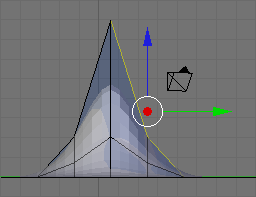
- Press Shift + E or Space → Edit → Edges → Crease SubSurf, then move the mouse away from the edge until the edge Crease reads 1.000 in the 3D viewport header. If moving the cursor there seems to be impossible, just hit 1 and enter.

As you move the cursor away from the edge you will notice two things. The first is that the edge becomes thicker as we move from it; this is showing how much of a crease we have (with Draw Creases turned on). The second is that you will notice the subsurfed mesh moving closer to the edge as the sharpness increases.
Naturalness[edit | edit source]
Press Ctrl + Tab to enter Edit Mode and select vertices. Then go into front view Num1 . Select the second vertex from the top in the centre of our Sharp Falloff mountain, then go into side view Num3 . Hold G and drag the vertex inwards, not too far or your mountain will come out of itself on the other side. Just bring it in enough to make a small indent.
Then grab the top vertex and pull it down a small amount. You will notice that there is a small "crunch" in your mountain.
Don't forget to select all with A , then W Shade Smooth button to smooth everything out.
OK, so your mountains are starting to shape up. But they still look a bit too neat. You could spend time moving each individual vertex but the chances are your model will still lack the natural feel. What we need is some chaos. Thankfully this is quite easy to accomplish. Firstly select the vertices that make up your mountains, all of them and a few around the base (box and circle select will make this easier). Select a few vertices between the mountains too. Next we use something called fractals. Fractals are chaotically (i.e. randomly) generated variables. In short you can use these variables to give your mountains a "wobbly" look.

In the Tools tab of the Tool Shelf, press Subdivide (under Mesh Tools), then look at the Subdivide submenu below. The value in the Fractal box is the strength of the fractal. 1 is very low and will barely change your model. 10 is very high and will twist your models into very odd shapes indeed. Have a play with different values until you find one that you like. Around about 4.0 should do it. Hit OK and presto, your mountains have been transformed from clinical neatness, to lumpy chaos.
- If you make too many fractals, your computer will slow down. However, the more you add, the more bumpy and realistic it looks!
Repeatedly using the fractal tool seems to rapidly multiply the amount of vertices on your canvas. I suggest using the tool once, and if the result isn't satisfying, undo the result ( Ctrl + Z ) and try it again with a different fractal strength. Helpfully, even after undo, your selected vertices remain selected.
Now go back into Object mode and view the result.
Modeling a volcano[edit | edit source]
|
|
Applicable Blender version: 2.75. |
In this module, you will create a volcano using the proportional edit fall-off tool. You should be comfortable with deleting and adding meshes.
Adding a Plane[edit | edit source]
Delete the basic cube. Add a plane, and S cale it up by 10. Rotate it so you see it in top-view (make sure it's in Orthographic view too).
Enter Edit mode and subdivide (with W ) 5 or 6 times. More subdividing will give you a "smoother" volcano, but it also needs more CPU power.
"Subdivide" divides every square in the plane into four new squares. So every time you press "Subdivide" you will have four times as many squares as before. "Subidivide Multi" will make x horizontal and x vertical lines through your existing squares, so the new number of squares is: (squares_old)*(x+1)2, where x is the number you enter.
Making the Mountain[edit | edit source]
In top view, select one of the points in the middle of the plane. With this point selected change to side view. Press the O , which enables the "Proportional Edit Falloff" tool in the Menu-Panel beneath the 3-D-Window. As seen in the previous tutorial Blender 3D: Noob to Pro/Mountains Out Of Molehills when you move a vertex while edit falloff is enabled, all vertices in a defined radius of the selected vertex will align with the selected vertex when its position is altered. How they are adjusted can be chosen in the tab on the right of the yellow dot. I propose using "smooth falloff".

Now grab the vertex with G . You will now see a gray circle. You can change its size with the mouse wheel. Every vertex inside this radius will be affected by the falloff. Change the size of the circle so almost the whole plane is in it.

Now move the vertex a bit upwards, as seen in the picture. Optionally you can lock the z-axis to make the volcano go straight up by pressing Z .

As you can see all the other vertices will shift upward. We could keep moving this vertex at the same rate, but that would cause the plane itself to rise and bend, and that's not very good. So press LMB to apply the changes, grab the same vertex a second time and repeat the previous exercise as before, except now choose a smaller radius for the circle, about half the diameter of the plane ( G → Z → scroll MMB ).

Repeat this two or three more times and you will get something like this:

Forming the Crater[edit | edit source]
Now we're going to create the "hole" on the volcano. First change the falloff to "root". Grab the vertex one more time, change the size of the circle so it's more or less as seen in the picture.

Grab this vertex down a bit, apply, grab it one more time with a smaller circle. You now should have something like this:

Just leave the border jagged and just smooth (Subdivision Surface) the whole volcano cause it is much more realistic. Go to Object mode, select the volcano, go to the "Modifier" menu in the "Properties" Header and just click on "Add Modifier" -> Subdivision surface (you can leave "view" on 1). Do not apply these settings yet.

First we'll do a test-render. Still in "Object mode" Delete the default Lamp point with "X" or "Delete" and place your 3D cursor behind the camera and press Shift + A -> "Lamp" -> "Point". With the Lamp Point still selected Click on The Lamp point Properties ("Data") in the "Properties" Header then change "Energy" to "10". Press F12 to enter Render, after adjusting the camera.

Finishing the crater[edit | edit source]
You can very easily make a nice looking crater. Just go into "Edit Mode", touch "Num1". Make sure "limit selection to visible" is off and "proportional editing" is on and set it to "sharp" falloff. Select about the upper vertices with "border select" (Press "B key").

After that, scale (press "S key") it 'till it's a nice crater with a circle as large as mine.

And that's it, you just created a nicer looking crater.


Adding Magma[edit | edit source]
Let's add some "magma" using lighting.
- Make sure you're in "Object Mode"
- Press Shift + S and choose Cursor to Center.
- Press Shift + A and choose Lamp → Point.
- In the Properties window, click the Data tab.
- In the colour box (white by default) in the Lamp section, change the color to reddish-orange. (Red: 1, Green: 0.1, Blue: 0)
- Set the Energy to around 7.
- Raise the light until it's just above the bottom of the crater ( G rab along the Z axis).
- If the ground level of your plane is reflecting light from the lava lamp this is because the bottom of your crater is above ground level of the plane you created; you'll need to turn on ray-tracing. in the object data menu for the light, open the Shadow menu and click "Ray Shadow"
- Alternate 1: Spot Lamp
- Change the light's type to Spot.
- Raise the light until it's covering most of the crater. If the light is not pointing down, R otate and angle it downwards.You can also scale the radius of the light by press S to fit the rim of the crater.
- Alternate 2: Area Lamp
- Change the light's type to Area.
- R otate along the Y axis: 180 degrees.
- Set Gamma to 2.
- Set Distance to around 5.
Experiment with the values and positioning to get something that works with your volcano.
It should now look like this:

Varying the Terrain[edit | edit source]
Next, let's set the volcano's material.
- RMB on the volcano plane.
- Select the "Material" button and press New.
- Change the Diffuse color to ashen gray. (Red: 0.260, Green: 0.230, Blue: 0.230)
- Select the "Texture" button and press New.
- Change the Type to Stucci.
- In the Influence panel, uncheck Color, and check Normal. Set the Normal slider to 0.5. This will render the texture as a bump-map.
(Note: In version 2.77 you may need to change the texture Mapping -> Coordinates option from UV to Generated before you see bumps appear.)
(Note: In version 2.78c you may need to change the texture Mapping -> Coordinates option from UV to Global or Object before you see bumps appear.)
Older versions:
Select the volcano and press F5. Keep Pressing F5 until the Materials Buttons (symbolized by a red ball) is highlighted. Then add a new material. You do this by clicking the Add New button in the Links and Pipeline Panel. Once you've done that, set the settings similar to the picture below. Now press F6, then add a new texture to the material. Choose a stucci texture, set the noise size to 0.15. Now switch back to the materials-window (F5) and click on the "map to" tab. Deselect the "col" button and select the "nor" button. This will render the texture as a bump-map on the volcano. Set the "nor slider" to 0.5, which should be the default. Switch to the "map input" tab and choose "tube".

If you now render you should get something like this:

This looks really smooth, like clay pottery. To get a more rough-looking volcano, try out these options:
- Option 1: Subdivide and increase the fractal. 5 should do the trick.

- Option 2: Decrease the texture's basis size (in the "Stucci" panel when you select the "Texture" button).
- Option 3: Proportional edit tool.
- Press O to turn on Proportional Editing mode. Select Random fallout.
- G rab the center vertex, and raise it along the Z axis.
Older versions:
Go into Edit mode, select all Vertices, and use the fractal (set from 15 to 30) to really get things looking rocky and mountainous. TAB (Edit mode) → F9 → AKEY to select all → Mesh Tools → Fractal → 15 - 30 (15-low, 30-high) → OK → TAB (Object mode) In Blender 2.5 you can use the random proportional edit tool: use NUM7 to switch into top view, grab the central vertex of your volcano using a large-radius random proportional edit, and pull it slightly into Z-direction.
(A note: Seems there is no need in subsurf at all since fractal tool will dramatically increase vertex quantity.)
Penguins from Spheres[edit | edit source]
|
|
Applicable Blender version: 2.75. |
Note: Some Pictures are outdated.
Setup[edit | edit source]
Start with the default scene: it should contain a selected cube. Delete this cube by pressing X → Delete.

Put the 3D cursor at the scene center by pressing Shift + C .
- Note: after deleting the cube you must be in Object Mode. If not, Press CTRL-Z and switch with TAB and redo the operation.
Creating the body[edit | edit source]

Noob note: to ensure that you don't become confused, make sure that your viewport is set up in the same direction you see in these pictures. The colored arrows are red, green, and blue and they control the x, y, and z axes, respectively.)
- We start by creating our main body from a sphere. Press SHIFT + A → Mesh → UVSphere, then choose 16 segments and 16 rings.
We're going to make it look like a penguin body:
- Press TAB to enter Edit mode
- press NUM1 to switch to the front view,
- with all the vertices selected (if not, A ), choose the scale tool ( S ),
- restrict scaling to the Z-axis ( Z ),
- and move the mouse away from the 3D cursor while holding down the CTRL key (this snaps the scale values to whole numbers),
- Note: Make sure the mouse cursor is not too far away from the sphere when hitting the S or else you may not be able to reach a 2.000 scale value. The scaling steps are proportional to the distance from the 3D cursor when calling the scale tool.
- the current scale shows in the lower left corner of the viewport, click when you've reached 2.000 LMB ).
- Note: You can also do this by typing in 2 after starting the scale and restricting movement to the Z-axis: S -> Z -> 2
This is our main body!
Shaping the head[edit | edit source]
We’re going to shape the penguin head from the top of the sphere.

Start by selecting the top-most single vertex as well as the top two smallest circle segments.
- Note: Selection has been explained in a previous tutorial. Here, the easiest methods are either box selection B ) in the front view NUM1 ) and Limit selection to visible off, or lasso selection ( CTRL + LMB ) in the top view ( NUM7 ) and Limit selection to visible on. You can also switch to top view, center your mouse on the topmost vertex and use the circle tool. Don't forget to deselect all first ( A )
- Noob note: You can also select the top vertex and press CTRL + NUM+ twice to select the circle segments.
- Noob note: Make sure the Limit selection to visible/Occlude background geometry button is in the right state each time you select vertices, edges or faces. When it's off, selection affects any item, visible or not.
Building the neck with the 3D transform manipulators[edit | edit source]
To turn on the 3D transform manipulator, either push down its button  or use CTRL + SPACE and choose Enable/Disable.
Moving the two selected circles up[edit | edit source]

Go to the front view ( NUM1 ). Drag the blue arrow while holding the CTRL key down to move the selected vertices 0.3 units up.
- Noob note: you may not be able to snap the extrusion lengths to tenths of units. CTRL snaps to the grid size by default: if you can only translate by one unit (1.0), zoom in until the grid divides itself into tenths (SCROLL). Some Blender versions allow to snap to one tenth of the current step by holding both the SHIFT and CTRL keys while moving the mouse.
- Noob note: instead of the Transform manipulator, you can use the G and constraint the movement to the Z axis ( Z ).
Rotating the neck[edit | edit source]

Now switch to the side view ( NUM3 ) and make sure that the rotation/pivot point is set to "median point" either by selecting it from the third drop down menu right of the "Mesh" menu, or by pressing CTRL + , . Choose the Rotate tool ( R ). Move the mouse with the CTRL key down to rotate the selection 30 degrees counter-clockwise. Use LMB to validate the rotation.

Select an additional ring of vertices by expanding the selection ( CTRL + NUM+ (Note: NUM+ Refers to the addition symbol on the NUM Pad, KEY+ will not do.). You can contract the selection by pressing CTRL + NUM− . Move these vertices an additional 0.3 units up, then rotate them as previously 30 degrees counter-clockwise in the side view.

Repeat those steps (selection expansion, translation and rotation) two more times and you'll end up with the body seen in the below.
That doesn’t really look like a penguin, yet!

Now move all of the selected vertices to the left 0.4 units by pulling the manipulator's green arrow (and of course holding the CTRL key down). This straightens out the neck as seen in the next picture.
- Noob note: you can also use the G and translate the selection by -0.4 as displayed in the bottom left corner of the viewport. Still do this in the side view ( NUM3 ).
- Noob note if you had to pull the red arrow, not the green one, then you probably didn't switch to side view, and modeled the neck in front view. If you realize here that you have this done from another view then press AKEY twice, then NUM7, then Space -> Transform -> Rotate and type 90 or 270
Creating the beak[edit | edit source]

Switch to the front view ( NUM1 ), and select the frontmost vertex (the one that originally was the top vertex of the sphere) with the RMB . Then switch to the side view ( NUM3 ) and translate this vertex to the left by 1.2 units using the manipulator's green arrow or the translate tool.
- Note: some Blender versions allow moving the vertices from the keyboard with the following sequence: G , Y , -1.2, ENTER .
The main body of the penguin is now finished. The next step is to create some flappers for the poor little guy.
Extruding the wings[edit | edit source]
We are going to create the wings by extruding faces on each side of the penguin.
- Noob Note: You can rotate the whole object by pressing A to select all of its vertex and then rotate it pressing R or using the Rotate Manipulator until the axis on your screen matches the axis on the example image. That way, also, you can practice a little more.

Choose the side view ( NUM3 ) and switch to the Face select mode ( CTRL + TAB → Faces, or click on the orange-sided cube icon in the toolbar).

Now, select two faces that will make up the penguin’s shoulder as shown on the right (either select the first one with RMB and the second one holding SHIFT , or use box selection ( B ) to select them both in a single operation).

Then switch to front view ( NUM1 ) and extrude the selection:
- choose E → Region,
- constrain to the X axis ( X ),
- hold CTRL to snap,
- and move the mouse to extrude the shoulder by 0.2 to 0.3 units.

We'll now extrude the bottom face of this new extrusion. Rotate the view to show it with:
- a MMB drag,
- or several presses on NUM2 ,
- or CTRL + NUM7 (bottom view).
Press the A to deselect all, and select the bottom face ( RMB ), switch to front view ( NUM1 ), extrude by 1.4 units down ( E and CTRL ).
Now do the same on the penguin's other side: use CTRL + NUM3 to view the left side (you can also rotate with MMB , or press NUM4 several times).
Smoothing the wings[edit | edit source]
We’re going to smooth out the shoulders and improve the wings. Though this can be done in many ways, we'll only use the merge tool.

Rotate your penguin so that you can see one shoulder from above. Then switch to Vertex select mode ( CTRL + TAB → Vertices). Press A to deselect all, then select the two shoulder vertices with RMB and SHIFT .
Press ALT + M , choose At Center from the popup in order to merge the two vertices at their center. Finally dismiss the message saying Removed 1 Vertices.

Repeat the steps with the two other vertex pairs shown on the right picture, and smooth the other wing. I’m leaving the middle segments for now, else the wing tips will be too pointy.
- Note: if you have troubles merging vertices, it comes from vertex duplicates in your mesh. You probably chose Individual Faces instead of Region when extruding the wings, which creates duplicate vertices and neighbouring faces. To clean up your model: select all vertices ( A ) and choose W → Remove Doubles.
You must do them one by one!
Or, Alternatively, change into Edge select mode ( CTRL + TAB → Edge), select the edges to smooth ( CTRL + LMB ), press ALT + M , choose Collapse

Finish off the wings by selecting the two backmost vertices of the wings, and moving them up using the blue arrow by 0.1 unit.

You should now have something like this:
Cutting the underside[edit | edit source]


We're going to cut the penguin's lower end, for it to stand up! Select the bottom vertices (bottom vertex and the first ring above it) as shown in the picture. There are many ways, this is left as an exercise.
Once they're selected, delete them ( X → Vertices). Now our penguin is hollow: select all the vertices around the hole, and fill it using ALT + F .
- Noob note: To quickly select all the vertices around the hole, you can enter edge mode CTRL + TAB -> "Edges", and then select one edge that goes around the hole. Now press CTRL+E -> "Edge Loop Select", which should select all edges around the hole. Now go back to Vertex select mode and continue with ALT + F .
- Noob note: For Blender 2.56 In vertex select mode and occlude on hold down ALT and select one of the vertices all the vertices in the ring will be selected.
Adding the feet[edit | edit source]

The next step is to provide the little guy with feet. To do this, we’re going to extrude two of the front faces:
- choose the front view ( NUM1 ),
- switch to Face select mode,
- turn on Limit selection to visible,
- and select the face to the left and right of the middle two faces of the penguin.

Then switch to the side view ( NUM3 ) and extrude the selection by -0.6 units ( E → Region, restrict to the Y axis: Y ).

Keep the selection and look for the Mesh Tools in the Tool Shelf. If you can’t see it, press T to make the Tool Shelf visible. Then click on the Subdivide button (under Add in the Tools tab). Or press W and choose Subdivide.

Switch to "Vertex Select Mode", Now select the three middle vertices (or two edges) vertically at the tip of each foot, and drag them along the Y axis by 0.3 units towards the penguin
- Note: if something goes wrong here, you may need to remove double first. As always, to move the vertices, either use the manipulator or G and Y sequence.

You should end up with what's shown in the right picture (minus the selection).

The feet look too thick, let's flatten them a bit. Switch to the front view ( NUM1 ) and select the two bottom vertex rows (Limit selection to visible off, use either the lasso or box selection).

Then choose the scale tool ( S ), limit its action to the Z axis ( Z ) and scale down by a factor of 0.4.
The feet still look rather peculiar, so please go ahead and move the vertices around on your own as you like.
Reminder: you can use the G and restrict movements to the X or Y axis using the X or Y . Try not to move vertices along the Z axis to keep the penguin's bottom flat.
Extruding a tail[edit | edit source]


To complete the penguin, we have to add a tail (the end of the tuxedo):
- go to the back view ( CTRL + NUM1 ),
- make sure you're still in Vertex select mode,
- and that Limit selection to visible/Occlude background geometry is on.
Select the three middle vertices in the second row up from the bottom. Then, switch to the side view ( NUM3 ) and extrude the edges 0.3 units away from the penguin and 0.08 units down ( E → Edges), so that the end of the tail is at the same level as the bottom of the penguin.
Noob Note: Or you can extrude the edges 0.3 units away from the penguin, then G Z -0.08, LMB or ENTER .
Press CTRL + S to save your work!
Subsurfing[edit | edit source]

Go to Object Mode ( TAB ), and make sure the penguin is selected. Then check for the Modifiers toolkit in the Buttons panel. Press Add Modifier → Subsurf (or Press SHIFT + O ).
Look at the penguin now, he’s much smoother. You can alter the levels of the subsurfing if you like, but I’ll settle for level one. Under the Links and Materials toolkit, you can press the Set Smooth button as well, which makes the penguin really slick.
- Note: you may see some weird effects at the bottom and the tail after subsurfing the penguin. If so, there is an issue with normals: they have to be all pointing outwards. This can be achieved by selecting all vertices in Edit Mode and recalculating the normals outside ( CTRL + N ). Click on the message to confirm. Note that CTRL + SHIFT + N will turn the normals inwards and that W → Flip Normals flips them.
- Question: The finished penguin looks fine in Object Mode, but when I render it, it looks odd. Quite patchy.
- Answer: Make sure you adjust the "Render Levels" parameter (directly under "Levels") to be greater-or-equal than "Levels".
Extra[edit | edit source]
The penguin can be colored or textured, but that will be part of later tutorials!
-
 This is what the penguin (sans tail) looks like, textured and ready. Orbisonitrum
 -
 The eyes are there, just not easily visible in the thumb. At the top of the white part, two faces on the chest were subdivided to give the white more of a curve at the top. The faces were selected that were going to be white, and the I used separate (P) to make them a different mesh. I used a white material for the chest, black for the body, and grey uvspheres for the eyes. Apparently, an easier way to colour the chest can be found at Multiple Materialsplease feel free to replace this with your own image of the penguin you made, with comments on how you put your own style into it
 -
 A pretty basic picture of a penguin. I subdivided the stomach and eyes, but then I also added some eyeballs by making a UVSphere, cutting the top of it off, and then placing it inside of my penguin's head. All the colors have specular colors, giving the penguin a slight blue glow under the black.


Die Easy 2 (Dice Modeling)[edit | edit source]
|
|
Applicable Blender version: 2.49. |
The previous Die Easy tutorial needed so many changes to adapt to Blender 2.44 that it was easier to start from scratch. This Die Easy 2 tutorial is heavily based on Die Easy and Die Another Way, and adds improvements.
In the following tutorial, you will use:
- polygon mesh
- face loop cutting
- subdivision surfaces
- subdivision creases
- bevel
- set smooth
- multiple materials
- extrusion
- merge vertices
Start with a beveled cube[edit | edit source]
Start with the default scene: Blender should be in Object Mode and in Top view, with the default cube selected.
- Go to Edit Mode ( TAB ). All the vertices should still be selected. (If not, press A to select all).
- Let's bevel the cube. The bevel option is in the modifiers context. Click on the modifiers icon (the little blue wrench on the side panel) and from the add modifiers choose Bevel.
- Noob note :- for anyone using v2.56 and below, Press W , select Bevel from the menu and click OK
- Set the bevel to 0.1 by typing .1 and pressing ENTER .
- Finally, Apply the modifier to your cube before proceeding.
(For Blender 2.63 : You should be in 'Object Mode' in order to Apply the Bevel Modifier.)
- For Blender versions earlier than 2.48 : in the Recursion: 1 OK dialog, Press ENTER (it will revert to the black on grey) and click on the OK button. (For Blender version 2.48 and above, skip this step)
- Note : The recursion levels go from 1 to 4. At 1 it seems to be crude but the cube will be subdivided later, so a higher recursion level is not required.

Divide the faces[edit | edit source]
A typical die face is made of a grid with 9 possible spot positions. The gaps between the spots usually measure half a spot (a spot radius). Using the spot radius as a unit, a die face will be conveniently divided into 10 equal parts through the length (that is, four gaps and three spots each two units long).


First division[edit | edit source]
- Make sure you're still in Edit Mode (else hit TAB ), that you're in Front view ( NUM1 ), and that the whole cube is still selected.
- To divide the faces of the cube into 10 vertical strips :
For v2.57 and above :
- Just use the loop cut and slide option by hitting CTRL + R in the tool shelf to the left and scroll the mouse wheel to scale up the number of cuts to 9.
For other versions of Blender :
- Press the K and choose Knife (Multicut) from the popup menu.
- A new popup asks: Number of Cuts: 2. Change the value to 9:
- click on the of word and type 9,
- or drag from the input field ( LMB ) until you reach 9,
- or use the right arrow.
- Then click on OK.
- A new popup asks: Number of Cuts: 2. Change the value to 9:

- To actually use the Multicut tool, draw one vertical cut through the cube: the knife icon traces a pink line. It doesn't have to be exactly vertical nor does it have to go through the cube center.

- Finally press ENTER and all the faces of the cube crossing the knife will be divided into 10 vertical strips.
Note: You can have a look at all the other faces by dragging with the MMB .
Noob Note: When you are cutting through the cube, make sure to cut the entire cube, including the beveled part of the cube. Otherwise your cube won't divide properly.
Remove extra cuts[edit | edit source]
To get each spot position to be a single face rather than four contiguous faces, the second, fifth and eighth cuts must be removed.
- Press the A to deselect all the vertices, switch to Edge select mode and make sure Limit selection to visible is off (in Blender 2.46 and above this button is called Occlude background geometry).


- Select an edge from the second cut, and choose Select → Edge Loop from the viewport menu. This automatically selects all the edges around the cube (in a loop).
Note: You can alternatively press the ALT key while selecting an edge from the second cut to select all the eges belonging to this cut around the cube.
For Linux users: If pressing the ALT key while selecting an edge from the chosen cut brings up a Linux menu, try hitting Shift + ALT instead.

- Press the X and select Edge Loop from the popup menu. The cube will look like this:
- Deselect all ( A ) and repeat the same actions to remove the fifth and eighth cuts:


Other divisions[edit | edit source]
For the horizontal cuts use the same steps as above, but horizontally!
Noob Note: Make sure the whole cube is selected when cutting.


- Now, if you rotate the cube around, you will see that the front and back faces ( CTRL + NUM1 to see the back face) are divided vertically and horizontally. But the four other ones were only divided once.
- To complete the divisions, go to the Side view ( NUM3 ), select the whole cube ( A ). Make the vertical cuts and remove the second, fifth and eighth cuts again:

Colouring the Cube[edit | edit source]

You need to be in object mode for this step. Select the Shading group from the header in the Button Window ( F5 ).
- edit Properties Window in ver 2.64
Change the name of the material (which for example defines colours) currently linked to the cube: in the Links and Pipeline panel, under the title "Link to Object", click on "Material" in the "MA:Material" box. "Material" will now be highlighted: delete it and type "DieWhite" instead, then press ENTER .

Now choose a color: go to the next panel (the one with two tabs, Material and Ramps), and make sure the Material tab is selected.

In the second group of buttons, click on the colour bar which is on the left of the Col button: it opens the colour selector.
Select the colour you want in the rainbow bar (bottom left of the popup), move the tiny circle in the colour window above it to adjust the shade. When done, press ENTER .
Note: you can choose any colour. In this tutorial we selected the white colour by clicking on the corresponding box available from the sixteen predefined ones (the two vertical rows in the middle).
Adding the spots[edit | edit source]

Go to the Front view ( NUM1 ) and set Face select mode. Also make sure that Limit selection to visible is enabled (in Blender 2.46 and above this button is called Occlude background geometry).
We will create two different kinds of spots.
First method[edit | edit source]

This one's from the Die Another Way tutorial.
We'll make the number five on the current face. Deselect all ( A ) and select a first spot (the one in the top left corner).
Extrude the face by hitting E and then ESC (do not click after hitting E ).
Collapse this face by using ALT + M and choosing At Center from the popup menu. This merges the four corners of the extruded face into its centre. Click on the message saying Removed 3 Vertices.

Repeat the same keystroke sequence on the four other spots: E , ESC , ALT + M , ENTER , ENTER .
Now choose the Vertex select mode and select five vertices, one at each spot center ( RMB for the first one, SHIFT + RMB for the subsequent ones). Then push the selection inwards using the G and constraining the move to the Y axis ( Y ). Move by 0.17 units to get the same die as shown in the picture below.

Second method[edit | edit source]
This method was suggested by Natume in the Die Easy tutorial and modified by another user.
Deselect all ( A ) and select the faces you want to create spots on ( RMB for the first one, SHIFT + RMB for subsequent ones).
Press the E to extrude them, if you selected more than one face a popup menu will give you two options: press ENTER to select Region (the choice doesn't matter), and then press ESC . Do not click after hitting E .
Divide the selected faces into triangles with CTRL + T (or SPACE → Edit → Faces → Convert to Triangles). [Noob note: In versions 2.63+, in the subdivide choices menu that pops up at the bottom of the tools menu, you must make sure that the check box for Quad/Tri Mode is checked or only the diagonal line will be divided and no triangles are created]

Deselect all ( A ) and change to Edge select mode. Select all the diagonal edges resulting from the above divisions, and subdivide them: W (or SPACE → Edit → Edges → Subdivide).

Now deselect all ( A ), go into Vertex select mode and select all five vertices of each spot face (for example, use circle select with B , B , and adjust the size of the circle with SCROLL , then click LMB to select; click RMB when the selection is complete). [Noob note: In versions 2.63+, C activates the Circle Select mode, B activates the Box Select mode]
Push the faces inward by 0.17 units ( G , Y ).
Third method[edit | edit source]
In the prior two methods you create indentations in the faces that are triangle ( mountain peak ) shaped, if you would prefer them to be square shaped ( or flat ) then simply select the faces (using face select mode) that will be used as spots and extrude them inward by the prescribed number of units (either .17 or -.17 depending on the side).

The other die faces[edit | edit source]
Now repeat the method to the other faces. Remember that adding two opposite face values (of the die) yields 7.
If you started with the Front view ( NUM1 ) and set 5 spots, the Back view ( CTRL + NUM1 ) will have 2 spots (the extrusion length will be -0.17 instead of 0.17).
If you then go to Side view ( NUM3 ) — the righthand side — and put 6 spots there (extrusion -0.17 along the X axis, X ), the lefthand side ( CTRL + NUM3 ) will have 1 (extrusion 0.17).
If you put 4 on the top (Top view NUM7 , extrusion -0.17 along the Z axis, Z ) then the bottom ( CTRL + NUM7 ) will have 3 (extrusion 0.17).
When all the spots have been created, the cube should look like this — the top lefthand corner is nearest, using the first method (named Alt-M)

using the third method (named Ctrl-T)

Subsurfing and smoothing[edit | edit source]

Leave the Edit Mode for the Object Mode ( TAB ) and select the Editing panel in the Buttons window (or press F9 ).
To turn on subsurfing, click on Add Modifier in the Modifiers panel (if you can't see the button, make sure the tab is selected) and select Subsurf from the popup menu.
The default value for Levels is 1 and for Render Levels is 2. For a nicer preview, change Levels from 1 to 2 by clicking once on the right arrow, and click on Set Smooth in the Links and Materials panel.
The cube will now look like this (Front view):


Subsurface creasing[edit | edit source]
On a die, the edges around the spots are usually sharp so we'll use subsurface creasing to do that.
Go back to Edit Mode ( TAB once or twice), and Edge select mode ( CTRL + Tab 2 ) either select every spot perimeter as shown below ( RMB for the first one, SHIFT + RMB for the others), or use circle select as described next

Using circle select[edit | edit source]
You should be in Edit Mode, be in "Edge select mode" ( CTRL + Tab 2 ), and have occlude background geometry turned on.
A once or twice to be sure everything is deselected.
B , B to TURN ON circle select mode.
Noob note: In Blender 2.5x circle select mode can be used by pressing C once.
MMW roll (don't press) middle mouse wheel to size the circle small enough to select single edges.
LMB about twenty times, as there are 4 edges around each of 5 "dots", so you will have to click 20 times with the left mouse button (once on each edge) to select them all. If you select an extra unwanted edge anywhere Then you can just click the MMB (My wheel rolls or presses in).
RMB to TURN OFF circle select mode.
Creasing the edges[edit | edit source]
Now move mouse pointer crosshairs (don't press any button here) near center of drawing.
SHIFT + E to turn on Edge Crease mode. The bottom bar changes to a "Crease" number.
Now move mouse pointer crosshairs (don't press any button here) away from center of drawing. Watch the Crease number change as you pull out. It maxes out at 1.000.
LMB When you get the crease you want the left mouse button locks it in place.
A once, or twice, to deselect every thing.
Finished on this side. View a different side and do it all again.

- Note: the N shows an information box (with the perimeter edges still selected). The last line says: Median Crease W: 1.000, if the value is less than 1.000 it means that an edge has been missed. You can update the crease values by clicking on the arrows. Click on the X in the top right corner to dismiss the dialog.
- Noob Note: setting the value of the subsurf creasing affects the subsurf modifier. You will not actually see the creasing effect unless the object has the subsurf modifier active. Try adding the subsurf modifier to the object then set the creasing to one so that you can see the effect it actually has on the object.
Now crease the spots on the five other sides of the die. You should end up with:


Colouring the spots[edit | edit source]
Creating a new material[edit | edit source]
Go to the Editing panel ( F9 ) in the Buttons Window.
The Links and Materials panel should be showing (in the right column) DieWhite and, under it, 1 Mat 1:

To add another material, click on the New button (right under 1 Mat 1). This label changes to 2 Mat 2, and DieWhite changes to DieWhite.001.
Note: if your Blender version is older than 2.44, there's an additional step. Go to the Links and Pipeline panel (Shading or F5 ), click on the 2 button right after the MA:DieWhite input and choose Single user in the popup menu.
user request: please provide instructions for 2.45, 'Links and materials' panel has been replaced with 'Links and Pipeline' panel. 'ADD NEW' from dropdown initially containing 'MA: Material' does not increment the '1 Mat 1' fields leaving no clear way to add more than one material to an object. -- Answer from another user: You're looking at the Shading panel ( F5 ), you need to switch to the Editing panel ( F9 ), there you'll find the buttons just as described here.
Set the colour for this new material: click on the white square on the left of 2 Mat 2 (in the Editing panels) or on the left of Col (in the Shading panel). To get the same colours as in this tutorial, choose black. Press ENTER to confirm your choice.
In the Links and Pipeline panel (Shading or F5 ), change the material name from DieWhite.001 to SpotBlack.
Selecting the spot faces[edit | edit source]
Now go into Edit Mode, choose Face select mode and make sure Limit selection to visible is on.
Version 2.46 The "Limit Selection To Visible", is now "Occlude Background Geometry". It remains the button to the right of "Face Select"
Starting again with Front view ( NUM1 ) use circle select ( B , B — use SCROLL to reduce the size of the circle to less than the spot size so you don't select the outside faces) to select all the inside faces of each spot.
Press RMB to finish, select the Back view ( CTRL + NUM1 ), use circle select again and select the spot faces there, do the same with the other four die faces.
Note: you can't change to a different face without stopping the circle select tool ( RMB ). You will have to click RMB , change to another face, and start circle select again ( B , B ).
This is what you should see when you have selected all the spots:


The selected faces internal to the spots are more visible in the Alt-M version as the spots created in Ctrl-T are more cylindrical; the Alt-M spots look more like hemispheres.
Assigning the new material to the spots[edit | edit source]
Now that all the spot faces are selected, you can assign the SpotBlack material to them.
Go back to the Editing panels ( F9 ) and, in the Links and Materials panel make sure the material SpotBlack is selected. If it isn't, you can select it by clicking on the right arrow or the 1 on the right of 2 Mat 1, which should update to 2 Mat 2. Now click on the wide Assign button below and the spots will change to black (or the other colour you chose).
Here are the finished results:


Afterword[edit | edit source]
Here's an external link to a tutorial showing a completely different way to create a die:
The most efficient and easy tutorial can be viewed at:
Die Another Way (Dice Modeling for versions under 2.44)[edit | edit source]
|
|
Applicable Blender version: 2.49. |
Video Tutorial[edit | edit source]
A video tutorial has been created for this chapter in Blender 2.48a.
It is compressed and packaged in the Theora (.ogg) video format and requires a player that is able to decode this codec in order to play it, such as the VLC player which is available as a free download for Windows, Mac, and most Linux distributions. Firefox 3.5 is also able to stream Theora video.
For best results, it is recommended that you save this file to your computer for viewing, rather than streaming it inside a web browser, since it is 1020 x 746 pixels.
Introduction[edit | edit source]
In the following tutorial you will be creating a die. You will use:
- polygon mesh
- face loop cutting
- subdivision surfaces
- subdivision creases
- bevel
- set smooth
- multiple materials
- extrusion
- merge vertices
- remove doubles
- constraints
There are two methods to create the circles for the die: subdivide first, or manual sizing. In either case, start with the default Cube.
Subdivide First[edit | edit source]
The die needs to have a 3x3 matrix for the coloured dots (pips). A quick way to do this is to simply Subdivide the cube twice before doing anything else. The disadvantage may be that the spaces for the pips may not be exactly the size that you want. If not, see the next section: Manual Sizing of Pips.
Manual Sizing of Pips[edit | edit source]
Step 1[edit | edit source]
Hit tab to go into edit-mode and select all faces to prevent bevel
messing up normals. Hit WKEY → Bevel, Recursion → 1 (you'll see why
later) then choose bevel size (hit spacebar for manual input). Bevel of 0.150 is ok.
Note: If you have chosen to subdivide the die twice, jump to Section "Creating Pips" and put bevel of 0.17 in order to have pip's edges length 0.34

Step 2[edit | edit source]
In editmode, go to the Editing tab (F9) and look at the Mesh Tools 1 panel (Mesh Tools More in some versions). Turn on Edge Length and note the length of one of the sides of the square faces. This should be 1.7 if the above settings were used.
Button "Edge Length" may be outside the screen so you may need to close another set of buttons before you can get to it.
Or, you can use MMB to scroll over to see the Mesh Tools 1 panel (in later versions: Mesh Tools More) with "Edge Length" button on it.
Or, you can zoom in and out in the menu window with CTRL and NUM+ or NUM-
Or, you can press HOME when button window is focused to see all buttons.

Step 3[edit | edit source]
A typical die has a grid of 9 possible positions for the pips and
the gap between the pips is the pip radius (or half the diameter). So, there are
conveniently 10 units on each edge of the square faces, where the gaps
use 4 of the units and the 3 pips use two each. This means the gaps are of
size 1.7/10 = 0.17 and the pips (1.7x2)/10 = 0.34.
Step 4[edit | edit source]

Now it's time to subdivide the surfaces of the die according to the mathematics above. We'll do that using "edge loops" - additional edges you can add to existing objects.
- Select axis aligned view: NUM1
- Enter loop cut mode: CTRL+RKEY (OR KKEY→1KEY OR KKEY→Loop Cut OR CTRL+EKEY→Loopcut OR CTRL+EKEY→NUM5)
- Select loops' placement: move the mouse around until you see a purple line going the right direction.
- Enter the number of loops: 9KEY (OR NUM9 OR SCROLL up 9 times OR NUM+ 8 times)
- Add the loop: LMB (OR ENTER etc.) on one of the big faces
Noob: What's "the right direction?" What should this thing look like after applying the loop/cut? HELP!
Another Noob: It sounds like you have version 2.44 or later. You should do the tuturial "Die Easy"(seriously, it is).
Now we just have to get rid of the 2nd, 5th and 8th loops to make the undivided spaces for the marks.
- Select edge select or vertex select: CTRL+TAB→NUM2 (OR CTRL+TAB→Edges OR CTRL+TAB→NUM1 etc.)
- Deselect all edges with AKEY
- Choose a loop to remove (using the BKEY to enter box selection mode and drawing a box around the one you want; this will get the whole loop, all the way around the cube).Spoiler: you can also use Alt-RMB on an edge to select a loop (or select the edge and click Select --> Edge loop).
Noob: It seems that I could not remove multi loops at the same time, since the error message kept bumping out. Another Noob: That happened to me when I tried to remove them all at once, but it worked fine when I removed one at a time.
- Remove loop: XKEY→7 (OR XKEY→Edge Loop)
Change views with NUM3 and NUM7 and repeat steps as necessary. When you're done, your die should look like the one pictured to the right.
Creating Pips[edit | edit source]
The die needs the pips added. Everyone knows how the pips on a die look, right?
Extrude and Merge[edit | edit source]
(Note: This is Step 10) Select one of the faces where a pip would go and extrude the face by hitting EKEY and then ESC. Do not click after hitting EKEY. This actually replaces the first face with another one even though it looks like nothing has happened. Merge the second face by using ALT + MKEY to merge the 4 corners into the centre. It will tell you Removed 3 vertices. [User Note: To clarify, pressing ESC when extruding does in fact extrude the face as per usual, but by a distance of zero. This creates four new, infinitely narrow faces around the original square face. These four faces then get 'dragged' into the middle when the four vertices of the original square are merged into one. Test this by extruding by say, 0.01 (instead of pressing ESC), and you'll see the result is almost the same.][User Note: on my computer hitting ESC after the EKEY seemed to cancel the extrude and to get the correct result I had to hit the "ENTER" key after the EKEY] You should get the following:

Do this for the configuration of the dots on that side. So for
example, 5 would look like this:

Notes :
- You could create this pip spot on all 9 spots and copy this side of the die to the other six. The amount of time spent doing all of that may be just as long as doing each side individually. You would need to delete the other 5 faces, copy the dented face 5 times, place each face precisely by rotating and moving, and remove doubles.
- (User comment) I accidentally selected some pip faces from the opposite side of the die (the side behind the side I was looking at). To prevent this, I selected Limit selection to visible (Occlude background geometry in 2.47)
: which should be the second button from the right in the header of the 3D View.
- Noob, 19th Oct 2008: You can save time by selecting all the 'pip faces' and extruding them simultaneously, ESC-ing immediately after you do so, like above. You'll still need to merge the four corners of each extrusion one-by-one, though, or you'll get some odd results.
- Noob, 28th Dec 2008: You can save more time be extruding all faces simultaneously, as above, and then selecting "Collapse" rather than "At Center" while merging.
- Noob, 02/02/09: I tried with the "Collapse" trick as well but all I got were just black squares.
- Noob, 19/02/09: I got the black squares as well, but it is just a display problem. Press Tab twice (going to Object mode and back to Edit mode) and they are gone.

Create Pips[edit | edit source]
(Note: This is Step 11) Select one of the edges of the pips to check the size is 0.34.
Remember the pip radius was 0.17. We need to use this value to lower
the centre point of the pips. Select all the 5 centre points at
once to save time and move them inwards by 0.17. The side I put the 5
pips on here was the top so I move the vertices inwards by pressing GKEY, ZKEY, -0.17 and hitting ENTER. I then get this:

(user comment) According to step 4 we are still in front-view (NUM1), but then the ZKEY modification gives undesirable result, changing view to top (NUM7) does the trick! This applies to blender version 2.44.
- (response) Actually, at the end of step 4 it states to change to side and top view (NUM3 and NUM7) as necessary, so really there is no official view the tutorial left the user in. Also, in this step, the writer mentions they put 5 pips on the top.
- (user comment) using YKEY instead of ZKEY is also fine.
- (user comment) Depending on which axis it's supposed to be moved, use the ZKEY,XKEY and YKEY after the GKEY accordingly.
- (user comment) Pressing ZKEY twice should move them along the normal, which should work no matter which faces are selected.
- (user comment) I noticed a shortcut: When you extrude, extrude by -0.17 and then do the Merge -> Collapse. Then the point is already inside.
- (user comment) I just noticed something different. If you extrude and collapse, after applying the subsurf, you got sharp edges of the pips than the pips I got in this tutorial way.
- (user comment) In blender 2.49a there is an issue where when "Occlude background geometry" is on, sometimes you'll click a vertex and have a far away vertex clicked instead. Rotating the camera usually helps, and if you find your vertex isn't selected, but you know you clicked, clicking again will deselect whatever vertex you selected. Also a big issue with the extrusion - as with escape, right clicking to exit extrusion also creates an "unseen extrusion" . The "unseen extrusion" can be noticed - there's black dots in the middle of your square edges. This is caused by the 0-width faces being selectable (and therefore having a dot in the middle). I had to completely do-over my model because Remove Doubles _did not_ remove the extra vertices. This became noticeable when I would extrude and it would only extrude vertices.
- (user comment): Don't collapse the vertices! In that case, the pits will be rendered badly. Collapsing removes four vertices, merging at the center removes three vertices --> so there is a difference!
- (user comment): You can just have the pivot be Individual Centers and scale to zero, then you can remove doubles and it works out fine. That's the fastest way I can think of doing this.
Smooth Out[edit | edit source]
TAB out of Edit Mode. If you haven't done this already, hit Set Smooth in the Editing panel and turn on subdivision surfaces
It should look something like this:
In present versions, you just need to use "Add Modifier" on the Modifiers tab (in Edit-mode), to add a SubSurf modifier. (Or press SHIFT+OKEY)
In the image below Levels is set to 3.

Make Sharp Edges[edit | edit source]
On a die, the edges of the pips are usually sharp so we'll use
subsurface creasing to do that.
Go back into editmode and with the edge select mode on, select all the
perimeters of the pips like so (it may help to turn off subsurf for
the moment):

Press SHIFT+EKEY to enable creasing and move the mouse until the display
says crease is at 1. (to see the effect, you must have the subsurf modifier
turned ON). After pressing SHIFT+EKEY, you can then set
crease values in the information box that you get by pressing NKEY when
objects are selected. This can be useful to check if all the edges have
the right crease because it gives you the average crease value and if
it is less than 1, there is an edge wrong.
Newbie Note: Trying to crease all 6 sides of the die at once using
SHIFT+EKEY and moving the mouse doesn't crease all sides of the die.
Better to use NKEY, or do one side at a time.
Repeat[edit | edit source]
Repeat steps 10, 11 and 13 (that is Extrude and Merge, Create Pips and Make Sharp Edges) for all the sides of the die. REMEMBER, a die is
numbered so that opposite sides add up to 7. In my example, that means
I put 2 on the bottom etc. Once you finish, if you turn on subdiv level 2,
you will get something like this:
[User Note: Do you mean subsurf instead of subdiv?]
- Noob note: On the side with 6 pips, I had a hard time getting the creases to work. It turned out to be because I selected in vertex mode when I selected the edges for creasing, and I tried to crease all 6 pips at once. This put crease values on the short vertical edges between the pips, which messed things up.

- User Shortcut: To do them all at once with no repeating. However, order of operation has to change to make it work:
- In Face Select mode, select all pip faces on all sides.
- SHIFT+EKEY to crease the edges. (needs to be done before extruding, since extruding changed the selection)
- EKEY -> Individual Faces then type -0.17 to extrude all faces inward.
- ALT+MKEY -> Collapse will merge all the extrusions to their respective centers.
(noobie) Some of my pips are square and I tried everything. What should I do? (noob reply) Maybe you had the vertex at the center of pips selected while creasing.
Camera Setup[edit | edit source]
You can make a test render now to see that the pips are the right size and that the bevel is right. So, turn the subsurf level for the rendering up to 3. To help position the camera so that you centre the die, you can make the camera look at the die by adding a track-to constraint to it. I prefer to track an empty though, because it is more flexible.
Make an empty by going into top down view (NUM7) and hitting
SPACE → Add → Empty.
(Noob note: If you can't find "empty" in the list, make sure you are in Object mode.) It's always best to go into one of the set
orthographic views so as to align new objects to the axes. If you add
something misaligned, just go to the object menu then clear/apply > clear
rotation (or ALT+RKEY). Because the empty was created at the origin, you
might not be able to see it as it is inside the die. Hit ZKEY to enable
wireframe mode and select the empty. Just move it outside the cube
until we get the constraint set up.
To add a track-to constraint, select the camera first then SHIFT+RMB
the empty and press CTRL+TKEY and choose "TrackTo Constraint" from the list. Move the
empty back inside the die. You can edit constraints in the object tab (F7).
Add a couple of lamps (both intensity 1) to get the scene like this or feel free to experiment with a more advanced lighting setup:
Another way to position the camera is by selecting it and then looking
through it as you move it. Look through the camera by pressing
NUM0. Use the GKEY to pan across and rotate around the local axes
of the camera by pressing say RKEY,XKEY,XKEY to rotate in X-axis. To zoom in and out
press GKEY, ZKEY, ZKEY and then move your mouse forwards or backwards. Another useful keystroke (for pre-2.43 especially) to know is that when you are in camera view, pressing Gkey and then MMB, movement will be constrained to the way you are facing. The mouse wheel zoom moves your view towards and away from the camera, without actually moving the position of the camera.
You can also move the Camera in free "Fly" mode by going into the Camera view (press NUM0) and then Shift+F. Now you can "Fly" through the scene and use this setup the camera angle. Make sure that you keey the flying velocity very low by using the scroll wheels or -/+ buttons or the camera will be simply out of control.
Render[edit | edit source]
To render, set the size of the image you want. 800x600 is a decent
size so put these settings in the format panel in the Scene tab (F10).
In the render panel, make sure 100% is selected. If it's 50%,
the render will come out as 400x300. For preview renders, don't turn on
OSA, which is anti-aliasing because it slows your renders down
significantly. Try to only use it for a final render.
Another important point is to set the image format. This is done in the
format panel. The listbox has a number of image types. I find
that png is generally the best because it is lossless and offers the
highest compression among the lossless formats. It also supports an
alpha channel for transparency. When rendering an animation, it is
better to render as an image sequence than as a movie because it is
easier to edit these and repair broken frames. Quicktime supports
loading of image sequences and you can save as a movie using
a wide range of compression formats.
To save the render, go to the file menu → save image (Or press F3) and type in the
full name of the image including the extension e.g. die.png.
The output should now be looking something like this:

[user note] To get such a nice render I had to bump the render level of subsurf up to 5, otherwise I get artifacts around the pips
[user reply] If OSA is on for the final render, you'll get a nice render result as shown by the above figure with subsurf level 3.
[user note] If you set smooth on the whole shape, you'll get artifacts around the circles.
[user reply] To avoid artifacts around the circles, you'll have to turn on Auto Smooth
Color[edit | edit source]
Multiple Materials[edit | edit source]

.
.
To give it some colour, we will need to use multiple materials
because a typical die has pips that are a different colour from the
die itself.
In the Buttons Window  go to the Editing panel
  (F9) again and make sure the die is selected. In the Links and Materials subpanel there is a section for materials (the right; the left one is for vertex groups) and the box left of the question mark should read "0 Mat 0" (the first number is the number of material links for this object; the second number is the number of the currently selected material link).

The die may have more than zero materials if you had assigned materials to the object already. By pressing the New button add enough materials to make 2 in total.

Go back to the Shading panel  (F5) and there is a box at the very top of the Links and Pipelines subpanel with the number 2 beside it. If there is no such subpanel select Material buttons
  (cycle shading buttons using F5 too). Click this number and select Single user in the dialog to make the two materials you've just created independent. Use the arrows on the left side of the box to switch materials.

Note: If you do not see a 2 to the right of the material name, that means the material is already a single user material. To change it back you can click the button labelled F, but for this example, you do not want to do that.
Note: There should be at least two materials now. One has the materials initial name the other has a number appended to its name (e.g. Material and Material.001).
Use the Material subpanel to make material 1 bright red by just picking red in the colour picker (the rectangle to the left of the Col button) or by setting the RGB sliders (right of the Col button). Make material 2 white by doing the same. Or pick whatever colour you prefer and material settings.

--MSK61 (talk) 11:27, 17 March 2008 (UTC): The colour picker is to the left(not right) of the Col button, while the RGB sliders are to the right(not left) of the Col button.
Note: It is possible that the two materials were not automatically linked to the material links of your die. If so use the Links and Pipeline subpanel to link the materials to the respective material links. First select the link then the material.
Note from noob: Using white as a colour will not let you spot a change in colour, since the default colour is white. For test purposes I recommend you choose another colour (e.g. blue), so you can avoid getting confused.
Note from another noob: Actually (at least in blender 2.49), the default color is grey. To choose a white color, set all colors (R,G,B) up to 1.000.
Assign Materials[edit | edit source]
These colours need to be assigned to the right parts of the die.


Go into Edit Mode and turn off subsurf to make selecting easier. Do this in the Editing panels (F9) Modifiers subpanel. Right after the subsurf modifiers name there are three buttons (darkgrey). Press the rightmost to deactivate the modifier in the edit mode.
To make the die red[edit | edit source]
- Select the entire die (AKEY).
- Click the Editing button (F9).
- In the Link and Materials panel, on the right-hand side you will see "2 Mat X" where X is either 1 or 2. Click the left/right arrows until you see the adjoining square to the left turn red. As you click on the arrows, notice that the label above "2 Mat X" changes from "Material" to "Material.001". These are the names of the materials that you created in the Shading (F5)->Links and Pipeline panel.
- Click the Assign button (in the Material column, not the Vertex Groups column). The Assign button associates the selected faces with the selected material.
The entire die should now be red.
To make the pips white[edit | edit source]
Use the same method as above, but with only the inner faces of the pips selected and with the colour white.
There are a variety of ways to select the inner faces of the pips:
Pip Selection Method 1[edit | edit source]
Note: Here you may find Lasso Select useful.
- Make sure you are in Edit Mode
(TAB)
- Select Face select
: CTRL+TAB→3KEY
- Select Limit selection to visible
- Go through the axis align views and select the faces:
- Align view: NUM1 (CTRL+NUM1, NUM3, CTRL+NUM3, NUM7, CTRL+NUM7)
- For each view, lasso select the pips' faces: hold CTRL and drag LMB around the pips' middle vertex (no need to press SHIFT, Lasso Select automatically adds the new faces to the previous selection).
- If all went well you should be able to read Fa:84-449 in the User Preferences right after the Blender version number. (84 = 4*(1+2+3+4+5+6))


Pip Selection Method 2[edit | edit source]
Press CTRL+ALT+SHIFT+3KEY and every triangular face will be selected.(Every pip + The 8 corners of the dice. Just deselect the 8 corners and you're good to go!) ;-) Similarly, you can select quad faces using the 4KEY.
Pip Selection Method 3[edit | edit source]
You can also use circle select to easily select the desired faces. Enter circle select mode by hitting BKEY twice. The circle can be made bigger or smaller by using the scroll wheel. Drop out of the mode (RMB) to rotate the cube and drop back in as above. Selected vertices are added to those already selected like with lasso mode but without the need to keep holding the control key or draw an accurate lasso)

Turn subsurf back on (Modifiers panel→subsurf modifier→enable in edit mode) and render F12 with OSA (only put it up as high as you need for the resolution of the image you are rendering).
(Note: in Blender 2.44 you should use the Assign button in the editing panel (Link and Materials))
(another noob says: don't be fooled (as I was!) by the fact that there are TWO Assign buttons in this tab, you want the big one on the right under materials, not the small one on the left under Vertex groups!!)
Pip Selection Method 4[edit | edit source]
That's the easiest way: 1- select one of the triangles (the face) 2- Shift+Gkey, then choose perimeter or press 4NUM.
Extra[edit | edit source]
The reason I modelled the die this way is because it is also very easy
to change the sizes of the components e.g. the bevel and the pip size.
You do this by selecting the vertical or horizontal segments and just
scaling them in one axis. Here we will reduce the pip size and the
bevel by half.
Go into front view (NUM1), turn off clipping (i.e., allow selection of invisible vertices) and select a line containing pips (i.e., Select vertices mode (CTRL+TAB+NUM1), and box select a thin vertical line of vertices to the left of a row of pips, then box select another thin vertical line of vertices to the right of that row of pips, making a total of 64 vertices). Then just scale in one axis e.g. SKEY, XKEY, 0.5. Remember to
have your pivot point set to median:
Do this horizontally and vertically around the die. You should need to
scale 9 times for the pips and 6 times for the bevel:
(Noob note: I find this confusing. what is a line containing pips? does this mean a loop line? Using alt-RMB no longer works to select a loop, but selects a single edge.)
(Noob response: he meant a pair of loops of vertices adjacent to a row containing pips. alt-RMB no longer seems to select complete loops - it works until it hits a pip and then it stops - but the box selection can be used.)
(Another Response: Any time you change the geometry of a shape you effect how the automated tools will work. Many dont work at all once you get to complex organic shapes, so its best to not rely on them too heavily.)
You may need to add extra geometry once you are satisfied with the
sizes of the dots and the bevel so that the edges of the die don't look
warped due to the subdivision. You can use face loop cut again for that
and add extra lines in the middle of the gap segments.
Model a Silver Goblet[edit | edit source]
|
|
Applicable Blender version: 2.75. |
Basic Shape[edit | edit source]

At first glance, the goblet looks like it is composed of cylinders. However, while it is possible to model the goblet with a cylinder mesh, it is easier to make a goblet by using cubes. Cubes make the goblet faster to make and it makes fewer vertices to track. Now, lets start making the basic shape of the goblet.
Start with the default cube and go to Edit Mode ( TAB ). Toggle off "limit selection to visible". Move to the side view ( NUM3 ). Toggle to ortho view. Box select ( B ) the top edges of the cube. Extrude ( E ) upward about one grid square. Hold down CTRL while extruding for incremental movement; by default movement should be restricted to the Z-axis (normal to the selection); if necessary, press Z to toggle this effect. This extrusion is called E1. Repeat 2 more times for extrusion 2 and 3 (E2 and E3).
Now Extrude a longer piece upwards, for the Goblet's stem, of 10 grid squares (E4). Next we will define the area for the 2 top knobs and the bottom of the glass by Extruding upwards 5 more times at 1 grid square each (E5-E9). Next do another upward Extrusion of about 10 grid squares (E10). This is the actual glass itself.
Inflate the Glass[edit | edit source]

Now, let's begin to inflate the glass. First, clear all selections by hitting the A . Make sure you are still in the side view ( NUM3 ). Box select ( B ) the bottom most cube (all 8 vertices, not just the bottom 4). Then expand it outward by scaling ( S ), then pressing SHIFT + Z to lock/prevent any scaling in height along the Z-axis and finally pressing 4 to quadruple its size. Next, deselect all vertices ( A ), select ( B ) the 4th pair of vertices (E2), scale them ( S ), lock scaling ( SHIFT + Z ) and triple the vertices in size ( S and 3 ).
Do the same for E5 and E7 (the 7th and 9th pairs of vertices, respectively). Then expand ( S and SHIFT + Z ) the top, Goblet rectangle (E9 and E10) to 6 times its current size ( 6 ).
Make the cup's interior[edit | edit source]


Last is the cup's interior. Once again, you should still be in the side view ( NUM3 ). Box select ( B ) the very top most vertices of the Goblet (E10). Once selected, get a better view by changing to 'Orbit Up' ( NUM8 ). With the top surface selected, initiate an Extrusion ( E ), followed by a termination with the ESCAPE . It will appear as if nothing has happened, but new, overlapping edges have been created and are now selected (this also creates E11). Next Scale ( S ) the selected vertices to 90% of the original size ( .9 ). This creates the inside lip of the cup. Now, Extrude ( E ) the interior lip, along the Z-axis downward ( -10 ) to create the bottom interior of the Goblet (E12). Finish off by selecting all, and then a 'Remove Doubles' ( W → Remove Doubles), for good measure. It should look something like this.
Smoothing and Defining[edit | edit source]
Time to take the mesh and turn it into a proper goblet. Add a subsurf modifier with 3 view subdivisions to the mesh. Change to Object Mode ( TAB ) and select smooth shading. The cube-looking mesh will now look like an object that was created from a cylinder. This has removed all our crisp edges, but our globlet is looking very unstable! Let's rectify things by flattening the bottom.
Noob Note: If your goblet has a bulge in it after applying the subsurf, go to Edit mode ( Tab ), select all ( A ), press W , and select "Remove doubles". (If a menu for boolean operations appears when you hit the W , then you're not in Edit mode; change immediately to Edit mode and try the W again.)
Select the four edges that surround the small circle at the very bottom (the very lowest set of edges) and press SHIFT + E to enable creasing. Now drag the mouse up and down to select the level of the crease. When you're satisfied, hit LMB . Repeat the process for other edges you want to be sharp. I've turned on Draw Creases under Mesh Tools 1 to illustrate which edges have been creased (highlighted yellow) in this example.
That concludes the creation of the goblet. Save the scene for use in the lighting tutorial.


Quick links for the impatient[edit | edit source]
To jump to the relevant lighting section, go to Blender 3D: Noob to Pro/Light a Silver Goblet.
What about applying glass look already? Take a sneak peek at Blender 3D: Noob to Pro/Spin a goblet#Material.
Model a Silver Goblet Another Way[edit | edit source]
|
|
Applicable Blender version: 2.75. |
Preliminaries[edit | edit source]
This is a version of "Model a Silver Goblet" but starting from a cylinder rather than a cube.
Start Blender or start a new scene ( Ctrl + X ) and delete the default cube.
Change to Top view ( Num7 ), make sure you're in Object mode and add a cylinder ( Shift + A Mesh > Cylinder): in the popup menu, change the number of vertices from 32 to 16, the Radius from 1.000 to 1.800, the Depth from 2.000 to 0.100 and leave "Cap Ends" as it is.
Change to Front view ( Num1 ).
Description of the modeling steps[edit | edit source]
The steps in this tutorial are almost all made up of "extrude" and "scale": so, to avoid repeating key sequences every time,
- extrude
- means
- make sure "Limit selection to visible" is off

Shows "Limit selection to visible" icon - box select the top vertices of the cylinder: press B , click and drag LMB to make a rectangle around the top vertices
- press E , press Z and type in the amount of the extrusion and press Enter ; you can move the mouse instead but it is quicker and easier to type it in.
For example, the following keystroke sequence extrudes by 1.5:
B , click and drag LMB to make a rectangle around the top vertices; E Z 1 . 5 Enter .
- scale
- scaling is by default restricted to the X-Y plane; although the numbers in the bottom left corner of the 3Dview show Z changing, in fact only X and Y change, and by equal amounts.
- press S , type in the value and press enter — you can use the mouse instead but it is quicker and easier to type in the number.
Creating the Goblet[edit | edit source]

This diagram shows the connection between the E-numbers and the goblet construction.
- E1: Deselect all vertices ( A ), Box-select the top vertices (B-key), and extrude by 0.2: you may need to zoom in ( SCROLL ) to do this as it's quite thin. Scale to 0.1.
- E2: Extrude by 0.2, scale by 2.
- E3: Extrude by 0.2, scale by 0.5 to make the lower knob.
- E4: Extrude by 4 to make the stem.
- E5: Extrude by 0.2, scale by 2.
- E6: Extrude by 0.2, scale by 0.5 to make the upper knob.
- E7: Extrude by 0.2, scale by 8 to make the base of the cup.
- E8: Extrude by 4, if you wish to make a flared cup, you can scale by 1.5.
- E9: Extrude by 0.0, scale by 0.9 to make the rim of the cup. (This will create a new ring of vertices and then move them in towards the centre.)
- Now go into Wireframe mode ( Z ) so you can see inside to guide the next few steps.
- E10: Extrude by -3.9, that is, downwards. and scale by 0.69: you can do this last scaling with the mouse, if you like, to get the edges of the inside of the cup and the outside parallel.
- E11: Extrude by 0.0, scale by 0.0 to make the inside of the cup. Press W Remove Doubles to merge the centre vertexes.
You now have a goblet, the base of the inside of the cup is the face of the last extrusion, is circular and flat as it derives from a cylinder.
If you haven't already saved your work-in-progress, now would be a good time.
Subsurfing and smoothing the goblet[edit | edit source]
The last step is to subsurf and smooth: go into Object mode and enable Solid mode again ( Z ).
Select the Editing panel from the Buttons window ( F9 ) and, in the "Modifiers" panel, click on "Add Modifier", select "Subdivision Surface" from the popup menu and, in the Subsurf display, increase "View subdivisions" from 1 to 2.
At the bottom right of the "Links and Materials" panel, click on the "Shading: Smooth" button. At the bottom of the cup you will see fluting — this is an artifact caused by smoothing and subsurfing triangles on a curved surface. Here it adds to the appearance, don't you think?
In Blender v2.78, the "Smooth" button is located in the "Tools" menu under the "Edit" tab.

Flattening the base of the goblet[edit | edit source]
The base of the goblet is curved due to the subsurfing, so needs to be flattened.
Go into Edit mode, deselect all, box-select the lowest set of vertices, then crease (remove the subsurfing) by pressing Shift + E then 1 enter .
The final result should look something like this:


Save the scene for use in the lighting tutorial. To jump to the relevant lighting section, go to Blender 3D: Noob to Pro/Light a Silver Goblet
Light a Silver Goblet ( Early look at lighting )[edit | edit source]
|
|
Applicable Blender version: 2.75. |
Note that the images are outdated.
Techniques[edit | edit source]
You should know how to:
- Perform actions discussed previously in the tutorial.
This section will recap or introduce:
- Reflective material
- Positioning camera and light
- Editing the World colors
Objects in the Scene[edit | edit source]
Create the goblet discussed in Model a Silver Goblet or load it if previously made. If you haven't already made the goblet, feel free to try the tutorial using a sphere or something else instead and you will still get a good outcome. In Object Mode with NUM 7 view, add a plane mesh. Scale the plane to a very large size and make sure the goblet is sitting comfortably on top of it.
Select the camera and move it so that the goblet, and its reflection in the plane will be seen or else if you want. You can see the numerical location of the camera by bringing up the Transform Properties window by pressing NKEY in the viewport. In my example where 0,0,0 is the bottom center of the goblet, the camera is located at 27, -21, 19 XYZ with a rotation of 63.5, 0.62, 46.7.
Create a Sun with Shift+A → Lamp → Sun. And (in the lamp properties "Object Data") set "energy" to "0.5", and place it above the goblet. Move it at around 80 points on the Z-axis. It is very important that you place the lamp on the right spot cause it will give your goblet anon 100 times more true to nature when you will give your goblet a silver texture. You can try placing a point or another lamp but it's very difficult to get a realistic image then. If you choose a different lamp click on the World button in the "Properties" header (the section where you can edit the sky). Check the Environmental Lighting box. Set energy to "0.800".
The rendering of this scene yields:
 Old Picture.
Adding the Atmosphere[edit | edit source]
In Object Mode, select the goblet and go to the "Material Properties". If no material is linked to the goblet, add new material. Rename the material 'cup' or something similar. The area of interest is the Mirror window. Highlighted below are the mirror options we'll be playing with. Press the Mirror button to make the material act like a mirror and reflect light.
Move the "Reflectivity" slide to 0.85 or type it in after LMB on the number. This is how reflective the surface will be. A low number of 0.00 means that it reflects little while a high number of 1.00 reflects everything.
Also change the Fresnel slide from 0.0 to 1.4. This will increase the power of the Fresnel function. What this means is the color of the material will be strong because the light source is taken into consideration. If the Fresnel wasn't used, the object would appear dark because the light source isn't directly calculated in the mirror. Also, change the color of the goblet to white. Using a light color will give your goblet an interesting patina if you so choose.


Next, select the plane and modify the material, add if it is not there. We want the plane to be dark and shiny. Set Diffuse and Specular to near black for the color. For reflectivity, turn on Mirror to about 0.15 Reflective and ignore Fresnel this time.

There is only one more thing to do before rendering the scene: change the world. Under the "Properties" Header is the "World" panel. Here you have Paper Sky, Blend Sky, and Real Sky buttons. There are also options for changing the color of the horizon (Horizon color), zenith (Zenith color), and ambient (Ambient color). We're interested in these two windows at the moment.
Using Real sky and Blend sky will affect the way the horizon and zenith interact. Experiment with them to see what they do in the preview. In this example, Real and Blend are turned on.
The Paper button works a little differently in that what you see in the preview will essentially be the background of your render. This effect is most noticeable when your camera is rotated. Despite the camera rotation, the preview would still be 'wallpapered' on the render.
For our world, set the color close to black for the horizon, zenith, and ambient.

That was the last step! Make sure the camera is in the right spot and render the scene. Here is the output of this example

Creating a metallic texture for the goblet:[edit | edit source]
The metallic look can be achieved by these steps:
- Materials > Diffuse. Set color Hex value to: C7C8CB or you can set it completely black for dark metal. Set intensity to "0.8".
- Materials > Specular. Set color to white(Hex: FFFFFF). Change Intensity to "1.000", left of the color-swatch, set the specular shader to CookTorr. Also change the Hardness to value around "16".
- Materials > Mirror. Make sure the Mirror check-box is checked. Set Reflectivity to 1.000 and color to white(Hex: FFFFFF). Make sure that under "Gloss" the "Amount" is set to "1.000".
- (not compulsory but it may be required) Use the texture from this earlier tutorial: Procedural Wood Texture on the planes that are below and behind the goblet as in the picture below. It will give you a much better contrast.

Notes:
Problem: When I render I see brown where I have used "Shift-E" and "G" and I followed everything. Answer: Please remember, the author did say play with the settings a bit, this tutorial should be used as a guide. We are learning how to use all the tools that Blender has to offer, that is the important thing. It is up to us to experiment more with the settings set forth in these tutorials. If the settings in these tutorials do not give us the same results, that is OK, we should be changing them anyway to express ourselves! Also remember, NEVER strive for PERFECTION, but ALWAYS strive for EXCELLENCE. Perfection only leads to frustration, and it is frustrating enough, at times, to learn something new. Have fun learning, I know I am.
Noob Question: I managed to get it looking like the first picture above. How do I get it to look like the second?
Pro Answer: Change the reflection settings. a higher depth and a larger raymir value will make the goblet more "mirror" like as in the 2nd picture. the other settings should be left alone, or you can experiment with them to achieve the effect that you want. lighting is also important. the object that is to be reflected has to be illuminated as well as the object that is doing the illuminating. Different lights (don't use a hemi if you want it to be realistic) at different angles will give you a more realistic effect.
Noob Note: On the answer above, I didn't manage to do it with any of the things the pro said in the answer here, I found out that the key is to change the color of the material which is white (or close to white) in the upper picture. In the lower picture the color is set to black (or close to black). This eliminates the "un-metallic" whitish sheen that the goblet in the upper picture has.
Noob Note: I don't know about those using lower versions but those using v2.5x have a choice of different shaders both for diffuse and specular colours. I strongly suggest that for the same object one should try playing around with the shaders. They can create different effects. for eg. here if you change the diffuse shader type to oren-nayar and the specular shader type to wardiso, the goblet will have a glossy , finished look.


Simple Vehicle[edit | edit source]

The idea of this tutorial is to learn to face a complex project. A vehicle is a nice object to use to test yourself and find new problems.
First, we must understand that a project does not reproduce the real world; a project shows an idea or thought and will result in a final image or video. Whatever does not appear in the final result is unnecessary to include in the model.
What vehicle should we make? Let's go with the classic jeep. This will allow for a lot of doodads.
Let's decide what objects of the jeep model will need to be made - body, wheels, seats, and a rocket launcher for good measure. Objects we can ignore include the engine, which remains hidden under the hood. There are many additional objects you can make such as a steering wheel to customize your jeep.
Simple Vehicle: Wheel[edit | edit source]
|
|
Applicable Blender version: 2.75. |
There are 2 tutorials for the tires. This and the next tutorial: this is the basic tutorial but the next tutorial is more complicated and you can end up with one of the four different versions.
Techniques[edit | edit source]
You should already know how to:
- Make a mesh
- Navigate the viewport
- Extrusion
- Create, edit materials
This section will recap and introduce:
- Forming faces
- Subsurfing
- Merging vertices
- Object naming
For our premise, envision jeep tires. They're not too sleek but rather rugged for all kinds of terrain. We need a tire that can handle any obstacle in its way.
During this tutorial we will be primarily using orthographic view. Feel free to switch to perspective view (NUM5) from time to time to see how things are developing. You may also want to rotate in the XY plane using scroll MMB or NUM2/NUM4. Switch back to orthographic view (NUM5) to edit.
Model the tire[edit | edit source]
Hit NUM1 to set front view (XZ coordinates), then delete the cube.
Create the outside of the tire[edit | edit source]
Add a cylinder Shift+A > Mesh > Cylinder then in the tool shelf use 32 vertices, set the radius to 4, depth to 3, choose Cap Fill Type: "Nothing", and click on "Align to view". By default, objects are aligned to the global space axes. The "align to view" option rotates the cylinder so that it is aligned to the view space.
Create the inside of the tire[edit | edit source]
Switch to orthographic mode (NUM5 to toggle) and then go into Edit Mode.
Select all vertices, hit the E Key and directly after that the ESC key to make the new faces, then Alt+EKEY and choose "Individual faces" and extrude the individual faces into the circle.
You may either type in -1.2 and hit enter, or hold SHIFT CTRL and move the mouse to extrude the faces until the sides come in -1.200 units. Now select all with the AKEY and remove doubles by pressing the WKEY -> Remove Doubles.


Subsurf the tire[edit | edit source]
Now it's time to make the tire look like a rugged tire.
Return to Object Mode, and apply a subsurf modifier (use the Modifier menu in the properties header - it looks like a wrench) click on "Add Modifier" and select Subdivision Surface - select VIEW level 1 or 2. The tire will now look like a bead necklace.
Crease the edges[edit | edit source]
A little creative use of creases will restore our tire.
Switch back to orthographic mode (NUM5 to toggle) if need be then go into to Edit Mode. Check that Limit Selection to Visible is off (that is, so you can see the extra edges and vertices).
Enter Edge Select mode
Bring up the circle selection tool (AKEY to unselect all, then CKEY).
Use the scroll wheel to change the circle selection size to be in the center of the tire, between the inside and outside edges. This will select all of the inside edges, as well as the triangles on the side of the tire, as in the picture below. Then hit Enter
Now press SHIFT+EKEY to Crease these edges - type 1.000, and press ENTER, or hold CTRL to pull in steps till you see 1.000 in the status bar at the bottom of the view window.


Model the hubcap[edit | edit source]
The tire is almost done. Let's add a simple hubcap to it.
Create a cylinder[edit | edit source]
Be sure you're in Edit Mode.
Hit AKEY, once or twice till all the wheel's vertices are selected.
(The scene should be in front orthographic view - hit NUM1 for front view, NUM5 for orthographic if not).
Press SHIFT+SKEY, from the popup menu, choose "Cursor to Selected", to put the cursor at the center point of the existing tire.
Hit Shift+A => cylinder with 32 vertices, radius of 1.9, depth of .5, choose Cap Fill Type: "Nothing", and click on the checkbox of "align to view".
Turn orthographic view off: NUM5. Hit NUM7 for top view.
Hit GKEY, then YKEY, then type 2.2, and hit ENTER to move the hubcap into part of its eventual location and a place we can work on it.

Create the outside of the cap[edit | edit source]
In top view, hit AKEY once, so that nothing is selected.
Zoom in with the MMB till the hub cap fills most or all of the view.
Switch to Vertex select mode. Make sure "Limit selection to Visible" is off (that is, so you can see the extra edges and vertices).
Hit BKEY for box select, then holding the LMB, drag the box to enclose the vertices along the top edge of the hubcap.
Hit SKEY, then SHIFT+YKEY to only move in the XZ axis, then type in .35, and hit ENTER
Hit GKEY, then YKEY to only move the Y axis, then type in .35, and hit ENTER

Create the Axle Cover[edit | edit source]
We'll merge these vertices together to create a flat surface.
Hit Alt+EKEY, on the popup select Edges only, then hit ESC, to create the edges we will need.
Hit ALT+MKEY on the popup pick At center. Blender will reduce the 32 vertices to 1.
Hit NUM3 for side view.
Hit GKEY, then YKEY, to only move the Y axis, then type in -0.4 and hit ENTER.


Final sizing of hub cap to tire[edit | edit source]
The final mesh editing is to scale the hub cap to a size that is slightly larger than the hole of the tire.
Hit NUM7 for top view, NUM5 for orthographic if needed.
Position the mouse over the hubcap, and press the LKEY to select the entire hubcap.
Hit SKEY, then SHIFT+YKEY to move only the XZ axis, then type 1.48, and hit ENTER
Hit NUM3 for side view.
Hit GKEY, then YKEY, to move only the Y axis, then type -1.11 (use -0.77 if you want your hubs sticking out) and hit ENTER.
Renaming the Wheel[edit | edit source]
The last thing to do is to rename the wheel so we can find it easier later.
Enter Object mode and select the wheel only.
In the outliner window you'll see the tire called "Cylinder". This name was created because we started with a cylinder mesh.
Click on the name with the right mouse button and click on Rename - rename the object to something like 'wheel'. Save your file where you'll find it later and continue to the next step.
Extra[edit | edit source]

Change the materials to make it look like a tire. As you have seen in previous tutorials, one object can have multiple colors/textures.
If you'd like to review how to do this, then refer to the materials section for an explanation on how to, or to the Blender manual: Multiple Materials
Simple Vehicle: Seat[edit | edit source]
|
|
Applicable Blender version: 2.75. |
Techniques[edit | edit source]
You should already know how to:
- Make a mesh
- Navigate the viewport
- Extrusion
- Subsurf
- Crease edges
This section will recap and introduce:
- Loop Cut and Slide (Loop Subdivide)
- Small, consistent vertex movement
The design will be an all-terrain bucket-type seat.
Extrude the Seat[edit | edit source]

Start in NUM1 view of the default cube and rename it.
Extrude the cube multiple times to make your basic shape. In this example a 3x3x1 block composes the body with one cube coming out the top for the headrest, and the bottom cube's front faces extruded out to create the seat.
Noob Note: best practice is use "Face" selection mode, select the face, or faces you want to extrude with the RMB , then hit E , select an axis to move on by pressing the X , Y , or Z keys, and pull with CTRL held down.
Add cushion seams[edit | edit source]

Noob Note: Before starting on this, you'll need to make sure you don't have any unnecessary faces inside the seat, or else you'll get strange cushion seams.
To add a little texture to the mesh, we'll add some cushion seams. Use Loop Cut and Slide ( CTRL + R and you'll see the pink selection loop. You can use the NUM+ key to increase the number of loops made at the same time. Use mouse wheel or press NUM+ 3 times to form 4 loops and LMB the center column of blocks. You may also find it easier to add them one at a time in the correct place, than inserting them and then moving them.
(To get multiple Loops instead of pressing NUM+ just press the number of loops you want in this case NUM4 , this is a fast easy way to achieve this.) You can use a mouse-wheel as well. Finally pres "Enter" 2 times.
Noob note: If the loop comes up with green lines rather than purple you have gone one step too far, just press ESC and try again. When you see the purple lines use your MWH or the NUM+ button.
Position the cushion seams[edit | edit source]

Go into ZX view ( NUM1 ) and make sure the view is orthographic ( NUM5 to activate/deactivate orthographic view). Place the 3D cursor on one of the sides of the head rest ( LMB , or SHIFT + S to move cursor).

The idea is to move the 4 loop cuts just created away from center to the sides. Set the pivot to 3D cursor and select the two closest loop cuts. Scale ( S ) it down on the X axis ( X ) to 0.3. The goal will be to have the loop closer to the cursor to go into the cushion to become a seam. Now, do the same thing for the other side of the head rest.
Noob note: The easiest way to select the two closest loop cuts is to first select ( RMB , SHIFT + RMB ) one edge of each loop, and then go to Select Edge Loop ( SPACE -> Select -> Edge Loop). Or hold down ALT when selecting one of the loop's edges. This should select the entire loop. In order to select more than one loop, hold down SHIFT as well.
Noob2 note: in Ortho view with 'Limit selection to visible' disabled, just box-selected with one drag of the mouse.
Add Depth to the seams[edit | edit source]

In overhead view ( NUM7 ), select the vertices in vertical parts of the two front facing seams of the seat back, grab them ( G ), move only along the Y axis ( Y ), and type in .05 ENTER .

Switch to NUM3 view and move the vertices in the horizontal parts of the same two seams, grab them and move them down by moving them -0.05 along the Z-axis.
Noob Note: I've found that an easier way to do this is selecting each loop of the seam one by one and scaling to .95 (make sure the pivot is set to "Bounding Box Center)
Subsurf the seat[edit | edit source]

Add a "Subdivison Surface" Modifier to the object. Hit in the Tool shelf: "Smooth" under "Shading" Not Necessary: Select the edges between the back and seat and crease (' SHIFT + E ) them. Crease any edges you feel like to create your perfect jeep seat. Noob note: it's best to be in Edge select mode when creasing
A subsurf level of 2 or 3 looks best, and don't forget to change the render level to 3 or 4.
Select all ( A ) then either hit the "Set Smooth" button at the bottom of links and materials, or hit W and select "Set Smooth" for a much smoother subsurf.
Noob note: If your seat is noticeably misshapen after adding the subsurf modifier, you may just have to delete internal faces in your model. TAB into edit mode, and hit Z to get into wireframe mode. Click the face select button and look for faces that are totally inside the model. There will probably be a couple vertical faces (in YZ-plane) under the seams in the seat. I found a few elsewhere, also. Deleting all these cleared everything up.
Noob note 2: Another way to remove the extra faces (which can cause the "seams" to be very deep) is to go into edit mode, select your whole seat ( A ), then hit ( W ) and select "Remove doubles" from the menu. This is much quicker than finding them individually, and should solve the problem.
Noob note 3: The problem may also be solved by going into edit mode, using A to select all, and using SPACE > Edit > Normals > Recalculate Outside ( CTRL + N ).
Resize the seat[edit | edit source]

Next, resize the seat's height and width.
Note: Be sure to change the rotation/scaling pivot back to center point!
To make the whole seat narrower in width, select all A twice, then hit S , followed by X then type 0.8 and press ENTER .

To make the seat back a bit narrower in thickness, select around the seat back (in vertex mode) with the circle select C . Once you have it completely selected on all of the sides, hit S , lock axis with Y , and type 0.75, and hit ENTER .
Final touches[edit | edit source]
This final seat renders to:

Leathery look[edit | edit source]
To give the seams a leathery cord look, Hit A twice to select all, then W and choose Subdivide Fractal on the popup menu (in 2.6x select Subdivide and then press F6 and choose 1 for fractals); just keep the defaults and the seams will look like a bunch of vines until you render it and they look like leather seams, and set in "Material" in the "Properties header" diffuse color to deep black.
More concave[edit | edit source]

Also the seat can also be made slightly more concave to look like it would hold a person better.
Simple Vehicle: Rocket Launcher[edit | edit source]
|
|
Applicable Blender version: 2.75. |
Techniques[edit | edit source]
You should already know how to do:
- Previous Simple Vehicle techniques
This section will recap and introduce:
- UVspheres
- Changing object's center
Overview[edit | edit source]
Two assumptions are going to be made here. One is that the rocket will not be launched in the future (use separate objects if you want to do that). The other is this is going to be a simple design.
If you want to add options to your gun (think sight, trigger), go for it!
Create the Launcher[edit | edit source]
Start a new file and delete the default cube.
Add a cylinder[edit | edit source]
In NUM1 view, add a cylinder mesh with 24 vertices with "Cap Fill Type" at "Triangle Fan" and set it to "align to view". We'll use 24 because the default 32 is overkill and will only increase rendering time. Rename and elongate the cylinder along the Y axis("S key" then "Y key" then "6key" ). This will be the length of the launcher (minus the rocket).

Hollow the cylinder[edit | edit source]

Circle Select ( C ) the vertices at one side, then extrude (' E ) them, and press ESC to create a copy of the vertices.
Scale ( S ) them by 0.7.
Do the same at the other side.
Extrude at one side the inner circle vertices ( E ) then "Enter", then press "N key" and change the value at "Z" in 1.2 or -1.2 dependent on what side you take. Then press hit "A key" 'till you have the whole cylinder selected then press "W key" and say "Remove doubles".
Create the rocket[edit | edit source]
For the purposes of this tutorial we will add the rocket on the left end of the launcher.

For a one piece rocket + launcher[edit | edit source]

Select the inner ring of vertices using circle select ( C )
Extrude ( E ) the "edge" along the Y axis ( Y ) press "Num1" then "S key" then "0.95" select the all the faces second from the outside and press "X" then "Only Faces". Select the inner ring vertices then "E key" "Y key" then "0.5".
Extrude the "edge" along the Y axis with 1.5, and scale the new edge by 1.5.
Extrude the "edge" along the Y axis with 1.
Extrude the "edge" along the Y axis with 3, and scale the new edge by 0.2.
Extrude the "edge", hit ESC , and merge ( ALT + M ) at the center to form the face for the nose
For fun you could extrude the left end of the rocket with -11 in the cylinder and then "F key". you can separate the objects by pressing "P key" after selecting the objects you want to separate. you can manually delete the edges that stayed at the cylinder.
For a two piece rocket and launcher[edit | edit source]
- Method 1: create a cone, rotate it, then extrude and scale to get the rocket shape.
- Method 2: create a cylinder, scale it along the Y-axis, then extrude one side, scale to about 1.3, then extrude two more faces, scaling the first about 0.3 and merging the vertices of the second at center.
- Method 3: Create a UV sphere with 4 rings, and model it - much in the same way as the penguin - into a rocket.
Create the mount[edit | edit source]
Having a launcher is nice, but we'll need to affix it to the jeep somehow. Let's add a mount to the tube.
Make sure you're in edit mode, not object mode!
Add a cylinder[edit | edit source]

Add a cylinder with 24 vertices with "Cap Fill Type" at "Nothing", since we won't be seeing the ends.
Scale to about 0.55, then move it to the bottom of the tube.
Add a UVsphere[edit | edit source]

The easiest way to have a wide range of motion for the launcher is to use a ball joint. We can simulate one by just adding a UVsphere. The default 32 segments and 12 rings will be fine. This creates a smooth sphere.
You can think of the number of segments as being the wedges visible when the sphere is viewed as you added it. The number of rings then could be described as the depth of the sphere from that same view.
Resize and place the sphere at the new cylinder arm.
Reposition the center point[edit | edit source]
This next step will be important for continuing the tutorial. Get the 3D cursor to as close to the center of the sphere as possible. While the sphere is still selected after creation, you can press SHIFT + S and snap cursor to selection, putting it in the exact center of the UV Sphere.
Switch to Object Mode. In the "Tool shelf" under "Tools" you'll find the button "Set origin", click this and click on "Origin To 3D cursor" This should move the large pink dot where the cursor is located. This will give it a new center of gravity around the ball joint, making it easy to manipulate later.

Subsurf[edit | edit source]
Be in edit mode!
Apply subsurf, level 2
Select everything ( A twice), and hit the set smooth button ( at the bottom of the links and materials panel).
This makes the ends of the rocket launcher tube too rounded, as real ones are squared up.
Square up the tube edges on the right side[edit | edit source]
On the right side (without the rocket sticking out) be in Face select mode

RMB on one of the faces in the outer ring, then circle select ( C ), and select all the faces at the end of the launcher tube. You can also do a lasso selection by CTRL + RMB in face selection mode.
Crease the edges of the faces by hitting SHIFT + E and set it to 1.0.
Squaring up the tube edges on the left side[edit | edit source]

Now do the left side exactly like the right side.
Noob Note Be sure to deselect everything on the other side first ( A )!!
Squaring up the rocket[edit | edit source]

RMB on one of the faces in the middle surface, then circle select ( C ), and select the faces all the way around
Crease the edges of the faces by hitting SHIFT + E and set it to 1.0.
Final touches[edit | edit source]
Apply materials or additional items to the object and save for later use.
Do not forget to name the rocket for later use.
Simple Vehicle: Body[edit | edit source]
|
|
Applicable Blender version: 2.75. |
Techniques[edit | edit source]
You should already know how to:
- Make a mesh
- Navigate the viewport
- Extrusion
- Form faces
- Name objects
This section will recap and introduce:
- Deleting and creating edges
- Subdividing
- Merging vertices
- Loop subdivide
- Adding unconnected vertices in one object
Planning[edit | edit source]
The jeep is being designed to include the back, flatbed, door holes, dashboard, window, and hood. The window is extruded straight up (older jeeps' windshields aren't slanted), and I decided to add a lower back to later hold the bumper/lights if you want to add them.
Building the Jeep[edit | edit source]
Extrude the Chassis[edit | edit source]
Start a new file.
Change to front view ( NUM1 ), switch to EDIT mode, and deselect all ( A ).
.jpg)
Be in Face select mode
Starting from the default cube (#1), box select ( B ) on the right edge to select the right face, and extrude ( E ) 2 units (#2) to the right along the X axis (should default, otherwise X ). Continue with three more extrusions to the right along the X axis of 1 unit (#3), 1 unit (#4), and 2 units (#5).
deselect all ( A ).
Now starting again from the default cube (#1), box select ( B ) on the left edge to select the left side face, and extrude 1 unit (#6) to the left in the X axis
deselect all ( A ).
box select ( B ) on the bottom edge of block #6 to select the bottom face, and extrude 1 unit (#7) down in the Z axis.
deselect all ( A ).
Finally box select ( B ) on the top edge of #4 the second block from the right to select the top face, and extrude up 2 units (#8) in the Z direction.
Widen the chassis[edit | edit source]

Now to widen the jeep body.
Switch to top view ( NUM7 ).
deselect all ( A ).
set "Limit selection to visible" off Increase the width of the existing boxes (#1) with one square (#2) by box selecting ( B ) everything (since you're in face select mode it will select all the faces of the starting chassis), now Scale ( S ) 2 times on the Y axis ( Y )
And select all faces on one side and extrude along the Y Axis 1 unit. do the same on the other side
This should give you the figure that is shown to the right.
Noob note: holding CTRL as you do the above moves and extrusions will lock it to grid steps
Noob note: You might want to save your job here and rename it before carrying on as the options below are easier if you can revisit this stage.

Flatbed and Doors[edit | edit source]
Our jeep design will have somewhat of a cheat - no actual door.
There are now a few different ways of doing this (thanks to reader submissions)! Try each one and study the results, as they will teach you about the issues you will encounter when you start making models of your own design;
Method 1 is the simplest of them, but teaches you the least in dealing with mesh trouble.
Method 1[edit | edit source]
Make the jeep bed[edit | edit source]

In NUM7 view
Be in Face select mode
Turn occlude background geometry (now called Limit selection to visible) on. It's the button with the spotty-box icon to the right of vertex, edge, and face select buttons.
Select ( RMB , then SHIFT + RMB ) the top faces where the flatbed and then doors should go. You should now have four faces selected, two large ones for the bed, and two small ones for the doors.

Extrude ( E ) the "region" -2, on the Z axis ( Z ).
Make the no-door holes[edit | edit source]


Now in front view ( NUM1 )
Be in Edge select mode
Select ( RMB ) the top edge of the door face, and delete ( X ) the "edge". Next, do the same to the corresponding door edge on the other side.

Be in Face select mode
Select the faces in the bottom of the door wells, and extrude them up 0.5 along the Z axis.

Select the bed panels, and extrude them up .1 along the Z axis ( leaving them on top of each other will cause problems with rendering engines down the road )

Noob Note: Be very careful as you extrude the parts up, since they are on top of each other, it's easy to select the face on the outside, rather than the one on the inside. Once you've done the extrusion, check the normal lines by hitting the draw normals button in the mesh tools more panel (if you can't see it, hover and scroll with the MMB). If you don't get good normals, then hit undo, then reselect the faces, and try again until you get the correct face being extruded (50% chance of getting the wrong face pulled up). Or select the faces with a wrong normal and hit the Flip Normals button in the Mesh Tools tab.
Finally, select the whole body and remove doubles, ( A ) to select all then ( W ) to bring up the specials menu. On the special's menu, hit "remove doubles".
Note: removing doubles every couple of steps is a good habit to get into, and will save you time down the road.
Method 2[edit | edit source]
Make the jeep bed[edit | edit source]

be in Top view ( NUM7 ), and Face select Mode.
Select the two faces in between the bumpers and windshield ( RMB , then SHIFT + RMB ).
Now delete both faces ( X ->"faces").
Note: you could also be in edge select mode, and delete (xkey) the edge between the two faces, for the same end result.

You will now add outer faces around the hole we just opened in the model, by selecting two vertices at the top of the model, and two from the bottom of the model.
Be in vertex mode
Deselect all ( A twice)
Starting at vertex A, circle select ( C ) vertex B, C, and D,

Next create a face ( F ); do this same procedure 5 more times at the vertx groups show in the pictures.


Issues with exposed inside faces (Normals)[edit | edit source]

Now that we have gotten the new outer faces in place we can't see into the model any more but we still have a big problem, the floor is actually the outside face of the bottom of the model, this is not good because you should never leave exposed inside faces (the other side of outer faces) on a model.
Exposed inside faces are invisible when looking through them when you apply textures and render it, since nearly all rendering engines completely ignore inside faces ( A common problem with many sketchup models, ah the irony! ).
You can tell a face is an inside face, by the fact that if you turn on show normals, and show vnormals, on the mesh tools more panel, the outside faces and vertices will have blue lines shooting out of them, while inside faces will not.
Understanding this now will save you lots of wasted hours in the future trying to fix your normals.
Press NKEY and go to "mesh display" and click on the cube with the face highlighted. Look closely at the exposed interior faces in the floor of the truck bed, they don't have blue lines popping out in the inside, only on the outsides.
Now select textured from the box where you pick wireframe, or shaded, and the exposed inside faces will become invisible when viewed from the inside, but look great when looked at from the outside.
In newer versions it is no longer invisible, and it seems to work but it still has no normals, and it is still important to know.
Add the floor of the bed[edit | edit source]
Lets make a floor for the bed now.

Be in Face select mode
Select ( RMB ) both faces of the truck bed,
Extrude ( E ) pick "region" from the popup, and move up along the Z axis ( Z ), by about 0.2.
With the two faces selected, hit mesh -> normals -> flip to make their normals correct for their new position
Now rotate the model till you're looking at it from the bottom, as you can see there is now a hole that needs some extra inside faces removed, and new faces added to compete the bottom.

Select each extra face on the sides, and delete ( X ) the "faces" as shown in the photos.

Change to Vertex select mode
Select ( RMB ) corners a, b, c, d, and create a face F , then do the same for c, d, e, and f.

Recheck the normals, and make sure you only have outer faces on the outside of your model.
Make the door holes[edit | edit source]
Method 2.2 is easier!
Method 2.1 Subdivision[edit | edit source]

To cut out one door, select the four vertical edges where the door will go.

Use the subdivide command ( W ) to cut the edges in half. You'll notice that the subdividing will also affect the adjoining faces.

Select the two edges at the top of the door panel and delete them, removing the top half of it.

Change to Vertex select mode
Now build up faces by selecting the groups of vertex's as shown in the photo, and creating a face ( F ). Do the same thing for the other side, removing/adding edges and creating new faces.

If you want to clean up the look of the sub divided faces in the model
Change to Face select mode, and select the faces that are going to be combined.
Press F and a little window will appear titled 'Make Faces'. Click on 'Make FGon' to merge the faces. (As you may have guessed, if an FGon face is created and you want to later undo it, select the 'clear FGon' option in the Make Faces window.)
Note: to merge an Fgon to a flat face, select it and hit CTRL + J
Pro Note: You don't even have to make an FGon. Just select the door-to-be, Tris and Quads both, and hit CTRL + J .
Noob Note: Q. What is an FGon??
A. It is a fake polygon, a way to hide triangles and quads on flat faces.
Method 2.2 Multicut[edit | edit source]

Be in frontview (NUM1).
Select the top edges where you want the doors
Multicut (KKEY), enter two in the popup, draw a line along the axis of the cut, as shown in the photo, and hit ENTER .

Then move the newly created edges down and towards the sides.
method 2.3 (Noobie)[edit | edit source]
Select top face of where door is going to be
    E  to extrude, pick "Region" from the popup menu
    Z  to lock in Z direction
   hold CTRL to snap to whole BUs and move down one BU
Select 2 top edges that look like they have no widths
X to erase, pick "Edges" from the popup menu
Two faces will be missing. For each individual missing face, Select top and bottom edges
F to fill in the missing face.
Resizing the bed and windshield[edit | edit source]
Go ahead and resize the widths of the bed and windshield.
As a precaution, Remove doubles before starting!

To narrow the width of the window, change to Edge mode and select the edges shown in the picture, then move ( G ) along the X axis.

To narrow the width of the side, change to Edge mode and select the edges shown in the picture, then move ( G ) along the Y axis.

Always move as many vertices or edges at the same time to not only work faster but to make sure they are moved equally. The use of circle select, loop select, and SHIFT while moving vertices is very helpful in fine movements.

If you want an object to come to a point such as a wedge from a cube, merge vertices.
In this example, the lower back area will be modified. Select two vertices to join together and press ALT + M . Select the option for your merging. 'At First' or 'At Last' will probably be the option that will work here.
Play around to see what each merge option does. After the merging, Blender will tell you how many vertices were removed.
Be certain to "remove doubles" ( W ), as merging creates lots of them. ( You can also find it on the menu Mesh ==> Vertices ==> Remove doubles)

Extrude the bed surface upward. This is only useful in hiding the tires that we'll add later in the tutorial. Alternatively, you could make two boxes to hide them.
A Touch of Detail[edit | edit source]
Adding an Engine Hood[edit | edit source]
Method 1[edit | edit source]

Let's add some detail to the model - how about the hood? First thing to do is add some edges to the front of the jeep. Press CTRL + R to enter Loop Subdivide. A pink loop will appear around the mesh. Put the cursor over the area to get the example picture to appear.

When the loop is in the right place, LMB click. The place to put the actual cut can now be selected. Do this twice - once for each side. Move and align the resulting edges to form an angle to the front and bring the window vertices in.
Extrude the hood surface up a small amount. We don't want it too high, just high enough to catch the light.
Zoom in and select the top-front hood edge created from the extrusion. Drag it out along the X axis. Select the now diagonal face of the hood extrusion. Extrude from it. The result will come out of the surface at a diagonal angle. Take the resulting vertices and move them close to the front of the jeep.

Using the additional lines from the loop subdivide you can improve the shape of the window
Method 2[edit | edit source]
Another way to raise the Jeep hood. It doesn’t require loop cuts, so is a bit simpler.

Step 1. Make Inner Square.
Switch to Top-view ( NUM7 ), or slightly rotated off for easier viewing.
Face-select the top square of the hood.
Do E -xtrude, then hit <esc>. NOTE: this WILL make a new surface, hitting ESC doesn’t cancel the extrude, just makes its location to be exactly on the old surface.
Do S -cale and type 0.9 and hit <return>. Now you will see the new surface as a smaller square (or really rectangle) on top of the jeep hood square.
Noob Note: What I had to do is S -cale on Z and type 0.9, otherwise the New Surface For the hood would end up shooting through the Windshield.

Step 2. Shape Hood.
Still in Top-view NUM 7, deselect all.
Box-select the right two vertices of the new square, towards the front of the jeep.
Do S -cale on Y, and type 0.8 and hit <return>. Leave the two vertices still selected.
Do G -rab on X, and type 0.2 and hit <return>.
Face-select the resulting quadrilateral.
Switch to Side-view NUM 3.
Do E -xtrude on Z and type 0.2 and hit <return>. I used 0.2 to exaggerate the screenshot a bit, you probably want 0.1 instead.
Now you should have a raised hood on the front of the jeep.
Method 3[edit | edit source]
Another way to extruding the Hood of the jeep including a lip that comes over the front.

Step 1: In face select mode ( CTRL + TAB ->faces), select the top of the hood and press E to extrude it. Only extrude it a small amount.

Step 2: Staying in Face select mode, here is the tricky part. Select the small face on the front of the hood you just extruded. Then, hit E then ESC . This creates a duplicated face on top of the one you selected. Do not click or move the mouse between these two keystrokes.

Step 3: Now deselect the selected face by hitting AKEY. Then enter Edge select mode ( CTRL + TAB ->edges) and select the top edge of the face you just deselected.

Step 4: Hit NUM1 to go to the side view. Now using the red X arrow pull the edge out a little further than you pulled up the hood itself then hit LMB .

Step 5: Now rotate just enough so you can see under the wedge you just made. Go back into Face select mode ( CTRL + TAB ->faces) and select the face on the underside of it.

Step 6: Go back into side view with NUM1 . Now hit E to extrude the face a little with the mouse. When it's a good size hit LMB .

Step 7: Now make sure the "Select only visible" button is turned off ("Occlude background geometry" in later versions) and go into Vertex select mode ( CTRL + TAB ->vertices). Play around with the vertices pulling them a little closer to the front of the jeep. It's best to select using the box select ( B ) or the Lasso ( CTRL + LMB ).

The end result should be an extruded hood with a lip.
Add a Fender[edit | edit source]

In the topdown view ( NUM7 ), add a plane. Extrude an edge twice to result in three connected planes.

Pull the sides down to form a trapezoid shape and reduce the width.

Once it is in the desired shape, select the three faces and duplicate it. Press SHIFT + D and all selected vertices, edges, and/or faces will be duplicated. The copy will automatically be grabbed for moving.
Move the duplicate to the jeep body and repeat the duplication two more times for a total of four fenders.
Noob note: A good idea is to first position one fender, then copy it and restrict movement to x or y-axis. Then copy both fenders and move the two new copies along x or y-axis. Much simpler than trying to position four fenders individually.
Add a rocket launcher mount[edit | edit source]

We'll move on to making a tripod support for the rocket launcher.
Add a cylinder mesh with 12 vertices then scale and size it so that it looks like a tube. Once you have it to a size you like,
Duplicate it twice for a total of 3 cylinders.
Rotate two of the cylinders in the NUM1 view by LMB clicking on the white circle that appears when the cylinder is selected in rotate mode.
The picture on the left is an example of the end result.

Change to overhead view ( NUM7 ) and put together the three cylinders so the tops come close together. Now all three can be selected and moved or rotated accordingly.

Move the tripod onto the jeep flat bed. The final steps are to select your materials and rename the object (described in the wheel section). This will complete our simple jeep model.
Subsurf[edit | edit source]
Since we expect a jeep body to have squared up edges, we won't subsurf this part of the model.
Optional Activities[edit | edit source]
Feel free to add anything you see fit such as bumpers, guard rails, doors, steering wheel, lights, etc. You can either have them on the same object or separate objects (useful if you want to move them around).
Simple Vehicle: Some Assembly Required[edit | edit source]
|
|
Applicable Blender version: 2.75. |
Techniques[edit | edit source]
You should know how to:
- Do everything discussed in previous tutorials
This section will recap and introduce:
- Append a file
- Duplicate an object
Overview[edit | edit source]
The objects for the simple vehicle have been made if you have followed all the previous Simple Vehicle tutorials. Putting it all together will come very easy now.
Appending the File[edit | edit source]

If you have the jeep body file open, keep it open. Otherwise, open the file for the jeep body.
In Object Mode, go up to File > Append (Append or Link in later versions), about 3/4 of the way down the menu. The Find file window will appear. Go to the location where the jeep seat was saved. When the .blend file is clicked, you'll go into it as if it is a directory.
Here we have the categories of Camera, Lamp, Material, Mesh, Object, Scene, Text, and World. We are interested in the seat object, so click on Object. Now there are three items: Camera, Lamp, and Seat. That is, it will say Seat if you named your object Seat. This is why it is useful to rename your objects, materials, etc. If you forgot to rename the object, it will be called Cube (default for our starting mesh).
Noob note: You must be sure you're appending, and not linking! If you try to duplicate it, and you get an error, then it's probably linked, there will also be "li" to the right of the ME: object name button. Ways to be certain you're appending are: when selecting the file, look at the bottom for the append/link options and make sure "Append" is selected; In the file menu, don't choose "Append or Link (Image Browser)", you need to use the option above it.

What should happen after selecting Seat and the button 'Load Library' is the seat will pop into our file where the 3D cursor was.

It will definitely need to be scaled, rotated, and/or moved to the right position. One way to do this is to rotate the seat about the Z axis -90 degrees by pressing R Z 9 0 NUM− .

After placing the seat in the jeep body, let's make another so we have a seat for the driver and passenger. Still in Object Mode with the seat selected, duplicate it ( SHIFT + D ) and slide it over. After duplicating it, it will automatically go into grab mode. If you RMB or ESC , it will still be duplicated - just sitting on top of the original.
Noob note: Duplicate appended objects in object mode, not edit mode, as they are separate objects and do not share the same edit mode space (each appended object has its own edit world, unless you join them together)
Rinse and Repeat[edit | edit source]
Append the file again to place the wheel object and rocket launcher in the file. Scale, rotate, move, and duplicate each object accordingly. Depending on the position of your camera, you may or may not have to make all four tires. Remember that the only important parts to draw are those that will be seen!
Set the ball over the tripod. The fun part is rotating the rocket launcher since the center of it has been moved to the ball joint.

Parenting[edit | edit source]
Be sure to parent each item to the jeep chassis, by selecting the item, lets say the tire, then also selecting the chasis ( RMB then SHIFT + RMB ) and then CTRL + P , and select "make parent" from the popup menu.
Final things[edit | edit source]
The last thing is to apply materials to your objects!
You can apply material in either object, or edit mode. As you might have noticed when you select something in object mode the entire object is selected, in edit mode on the other hand individual faces can be selected, and painted.
Make the windshield look like glass[edit | edit source]
You have to create a new material and assign it to the appropriate faces.
In edit mode, select the faces you want (make sure you select both sides of the windshield including: front face, back face, and top face).
On the Editing section F9, under Links and Materials, click the 'New' button under Materials then click the 'Assign' button. This assigns the new material to the selected faces.
You can then go into the Shading section F5 and adjust the material to be glass, by setting the alpha to .20, and hitting the ray transparency button. Three more ways of making a material that looks more like glass are shown in Material Glass.
Make sure you are editing the correct material (if you have just the one texture on the jeep, the default name for the new material should be something like "2 Mat 2").
Noob note: Glass is only transparent when you render it. in order to render it you will need to position a few lamps around the jeep, and move the camera around so that it can see the jeep (view->camera).
Extra[edit | edit source]

Other possible ideas


Additional Tutorials[edit | edit source]
Append and Link Video Tutorial: http://www.youtube.com/watch?v=69ZBlDrOlIY
Modeling a 3D Parachute in Blender[edit | edit source]
|
|
Applicable Blender version: 2.67. |
Remove the default cube[edit | edit source]

When you first open blender you will see the default Blender user interface (UI) layout and the default cube.
Delete the cube by selecting it with RMB and then pressing X .
Add a cylinder[edit | edit source]

Switch to Side view ( NUM3 ).
Add a Cylinder with SHIFT + A → Add→ Mesh→ Cylinder. At the bottom of the Tool Shelf change “Cap Fill Type” to “Triangle Fan”.
Press TAB to switch to Edit mode. The cylinder should now look like the picture at right.
Remove the bottom row of vertices[edit | edit source]

Next you will want to delete the bottom row of vertices. To accomplish this go into side view by pressing NUM3 .
Ensure that you are in Vertex select mode (that the leftmost of the group of 3 icons is selected; click on it if not).
Press A twice to deselect everything.
Press B , and box select the bottom row of vertices, and press X to delete and then confirm.
Note: you must have limit selection to visible off, the button to the right of the group of three icons for selection. If you wish to do the selection with it ON, you will have to change your perspective so as to be able to select all lower vertices.
Note: Instead of all of the above, you can also just add a circle with fill type 'triangle fan'
Extrude and scale to shape[edit | edit source]

Be in Vertex-select mode (as above).
Select all the vertices around the outside of the circle. The centre vertex must not be selected. You can do this conveniently in a number of ways; why not practise them all:
- Starting with no vertices selected, use A to select all vertices, then SHIFT + RMB on the centre vertex to deselect it. Or
- Starting with no vertices selected, ALT + SHIFT + RMB (loop select) on one of the outside edges or vertices to select the entire loop of them. Or
- RMB on the centre vertex to select only it, then use CTRL + I to invert the selection.
Now switch to edge-select mode by CTRL + TAB and selecting Edges.

Press E to extrude ("region") the selection and Z to constrain to the Z axis.
Drag the edges a small ways down then click LMB to release.
As this makes a right-angle at the sides and parachutes don’t have straight edges, we need to scale the selection outward.
Press S and move the mouse away from the model, you will see that the edges get smaller and bigger.
Scale them out a small ways then left click to release. You will want to practice a little with the scale amounts till you can make a realistic parachute shape.

Continue extruding and scaling till you have a shape like the one shown on the right.
When you're done making a nice shape, be sure to select all ( A twice), then W and pick “Remove Doubles”.
Make the top more rounded[edit | edit source]

Be in Vertex mode.
Select the center vertex in the middle of the original top half of the cylinder, use circle select to get it, otherise you will be RMB a number of times to find it, and move G it up along the Z axis.
Select all A , and then W and Remove Doubles, in case any were created.
Extrude the parachute straps[edit | edit source]

Now go into top-view by pressing NUM7 . Here you will select ~4 edges at opposite sides of each other.

Go back into side-view NUM3 and extrude downward by pressing E and then Z .
Merge it together[edit | edit source]

All that remains to finish your parachute is to press ALT + M then choose “At Center” which will merge all selected vertices.
A alternate way to make the parachute top is to create a UV sphere, and cut it in half.
Model a Low Poly Head[edit | edit source]
|
|
Applicable Blender version: 2.75. |
Overview[edit | edit source]
This tutorial is designed to teach users to make a low-poly animesque head in Blender.
What you need to know:
- Basic Blender controls
Add a plane[edit | edit source]
Noob Note: Using triangles on a subsurfed model may result in "peaks" appearing in some areas. To reduce this problem, merge as many triangles into quads as possible.

Start with a new file, and delete ( X ) the default cube.
Be in Front view ( NUM1 )
Add a plane ( SHIFT + A -> add-> mesh-> plane)
Click on "Align to view" in the settings at the bottom left side.
Make a pointed chin[edit | edit source]

Switch to Edit mode
Be in Vertex select mode
Select the bottom two vertices ( SHIFT + RMB ) and press W to bring up the vertex menu. "Select Merge", then "At Center", or just hit ALT + M and choose "At Center".

Now you have a pointed chin.

Select the top two vertices (use the B )

Re-arrange them so they make more of a chin shape by pressing the G to move and Z to constrain the movement to the Z-Axis.
Noob Note: Move it down; don't scale it out.
Extrude the face[edit | edit source]

Now extrude ( E ) "edges only", along the Z-Axis ( Z ) so that you have another area.

As a precaution, remove doubles. (WKEY)
Scale it ( S ) so that it's not so cubic.

Now extrude along the Z-Axis again ( E then Z ) and scale ( S ) it down a bit.

One last time... (E) (Z) (S)
Make the facial features[edit | edit source]

Select the middle vertices (BKEY) or (RMB) and press (WKEY) to bring up the specials menu. Subdivide it once.
Note: In newer versions you have to check the checkbox: "Quad/Tri Mode" in the lower left corner.

Now select at first the pair of vertices above and subdivide once.

Now subdivide 2 times with the pair of vertices below the center line.

Yours should now look like this one on the right.
Eyes[edit | edit source]

Select and subdivide here, so you can make the eyes.

And rearrange the vertices so they make eye shapes.
Nose[edit | edit source]

Now select the middle vertex here (right mouse button).
Extrude it along the Y-Axis (EKEY) (YKEY) and move your mouse around to change how far it moves.

Select these three vertices ('SHIFT+RMB) and press (F) to make a face.

Now do the same to the other side, and you will have the nose's base.

Select these vertices (SHIFT+RMB) and make a face (F).
Do this to the other side.

Now you have a nose.
Remove interior nose faces[edit | edit source]

Rotate the camera (CTRL+NUM1) so you are seeing the back.
Be in Face select mode.

Select (SHIFT+RMB) the faces behind the nose.
Delete (XKEY) them (on the popup pick "Faces").
Smooth the mouth region[edit | edit source]

Be in Vertex select mode
Select the vertex at the bottom of the chin, and the one at the bottom of the nose.
Subdivide them.
Make the head[edit | edit source]

Be in Edge select mode
Select all the edges on the outside (shown with blue lines in the photo).

Move (GKEY) the vertices back, along the Y axis (YKEY), a bit to give the face more smoothness

Be in Vertex select mode
Rearrange the chin, by moving (GKEY) the bottom vertice along the Y axis (YKEY) till it looks right.
Make the back of the head[edit | edit source]

Be in Edge select mode
Now select the edges all around the back of the head, using (BKEY).
Extrude these along the y axis (EKEY) (YKEY)

Ta da!

Now select a set of 4 back vertices that form sort of a rectangle and press (FKEY) to make a face.

and so on....

and so on....

now select and subdivide these once (W)

and these points too.

Now select the middle and move it back (G) (Y).
Finishing it up[edit | edit source]

And here it is with sub-surfacing. You have finished. Hit (F12) to see the final render.
Building a House[edit | edit source]
|
|
Applicable Blender version: 2.67. |
In this tutorial, you will learn how to make a simple toy-like house with a fence around it. You will learn how to use array modifiers to replicate the palings of the fence, saving you from duplicating them one by one.
This tutorial is based on Bart Veldhuizen's "Building a House" from Tutorial #01 published by NaN in 1999 which is also available in a PDF at http://download.blender.org/documentation/BlenderTutorialGuide1.tar.gz (a tar.gz containing BlenderTutorialGuide1.pdf) or http://download.blender.org/documentation/BlenderTutorialGuide1.zip (a ZIP file containing the same PDF).
Permission was asked to use it and Ton Roosendaal said "Be assured that everything that was produced by NaN now is open and free content for everyone to reuse, including the tutorial “Building a House”."
Setting the Scene[edit | edit source]

Start a new document ( CTRL + N ). Split the view into four views as at right, by pressing ALT + CTRL + Q . This gives you a standard set of views: top, front, side and camera, the first three orthographic and the last one in perspective. You can switch back to the single 3D view at any time by pressing ALT + CTRL + Q again.
Leave the default cube, it will be the walls of the house.
Make the Roof[edit | edit source]

Ensure you are in object mode ( TAB switches between object and edit mode)
Now, in the Front view window (lower left)
Press SHIFT + D to duplicate the cube, grab mode is automatically selected, press Z to restrict the move to the up-down axis and move the cube to rest on top of the original (pressing CTRL while moving will snap it to the grid and make it easier to position accurately.) Press ENTER when it is in place.
You can see how useful this four-paned window is; it shows you exactly what's going on.
Note: It helps to simply grab one of the arrows, press Z and then press 2 on the key pad, this will move the block 2 units in the z direction. the standard starting cube is 2 units tall.
|
|
Make sure you are duplicating the cube in Object mode, not Edit mode, so the roof ends up as a separate object. |

The top cube is going to become the roof and needs to be given a triangular cross-section.
Select the top cube (if it is not already selected) by clicking RMB on it
Press TAB to go into Edit Mode (check the box in the middle of the 3D window header)
Press A to deselect all the vertices.
In the top view, select the top four ( RMB the first one and SHIFT + RMB the rest). You can check in the other views that only those four are selected.
Note: another way to do this is to have "limit selection to visible" turned off, and then press the B for, border select, and make a box around the top vertices. (it helps to view it from one of the sides, by pressing either the 1 or 3 keys)
Another Note: Or, with 'limit selection to visible" turned on, press C for circle select and turn the mouse key to make the circle large enough to enclose all four vertices before you press LMB .
Make the Apex of the Roof[edit | edit source]

Now press S for scaling and X to limit the scaling to the X-axis (left to right). You could try to move the mouse back and forth to bring the top vertices together, but you will have a hard time lining them up exactly, so it's best to just type in 0KEY (zero) followed by ENTER to set scaling to zero.
Now it looks like there are only 2 vertices where there were 4, but in fact there are still 4, even though 2 of them are occupying exactly the same positions as the other 2. With these 4 still selected, bring up the vertex specials menu with W and select “Remove Doubles”. You should see a message briefly flash up at the top right saying “Removed 2 vertices”. Now there really are only 2 vertices where there previously were 4.
|
|
“Remove Doubles” is a handy function to use after complicated mesh edits. It helps reduce complexity in your mesh structure. |
Form the Eaves[edit | edit source]

The roof needs to project over the walls of the house to form the eaves. To do this, we will scale it, but only along the X- and Y-axes, not the Z, so it doesn’t become taller.
Select all the vertices in the roof object by pressing A once or twice.
Press S to scale, followed by SHIFT + Z to scale uniformly along all axes except Z, and scale to about 1.1. Confirm the operation with LMB or ENTER in the usual way.
Naming the Roof and House Objects[edit | edit source]
In a complex project with lots of objects, it can be helpful to keep them straight by giving them names. This is less of an issue in a simple tutorial like this one, but for practice, let’s give names to your objects anyway.
Go to the Object context  in the Properties window, and at the top you should see an editable field containing the name of the currently-selected object. The walls of the house should be called “Cube”, and the roof should be called “Cube.001” (note the automatic addition of a numeric suffix to keep the names unique). Try changing these to, say, “House” and “Roof” respectively.
Object Name Versus Mesh Name[edit | edit source]
If you look in the Mesh Data context  , you will also see a name like “Cube” or “Cube.001”. This is a separate name for the object-type-specific data (the mesh data, in this case), quite independent of the object name. Don’t worry about this name for now; you will learn about its significance later.
Colouring the House[edit | edit source]
The roof now needs to be given a different colour to the default grey. Select the Materials Context  in the Object Properties window. In the list at the top, you should see a single entry, called “Material” (the name of the initial default material). Below that is an editable field containing the name, and immediately to its right should be a small box with the number “2” in it. This number indicates that the same material is being used in two places—in this case, we know the other place is the object representing the walls of the house. Click on this “2”, and that will force a new copy of the material to be made (leaving the house walls with the original); the number will disappear, and the material name will change to “Material.001” to be different from the original.

Change this material name to “RoofRed”, to make it clearer what it is for. Next, find the panel “Diffuse” further down, showing a swatch of the diffuse (non-reflective) colour, which is initially white. Click on this to bring up a colour picker, and choose some suitable shade of red for the roof. (Notice that when using shades of red, the white to black slider on the right actually creates shades of brown from the red.) As you do this, the 3D view should instantly update to show your new colour being applied to the roof of the house. If you want to exit the colour picker and leave the colour unchanged, press ESC ; otherwise, to confirm your choice, simply move the mouse outside the picker window, and it will close, leaving your last-chosen colour in effect.

Follow a similar procedure to choose the colour for the house walls: click the “House” object with RMB in one of the 3D views, go to the Materials Context in Object Properties, change the material name from “Material” to something more appropriate (here I’m choosing “HouseSandy” because I’m going to give the house walls a sandy-yellow colour), click on the colour swatch in the “Diffuse” panel and choose a suitable colour for this material.
Noob Note: I have found it very useful, when I re-name anything, to type my new name in ALL CAPS. This makes it easier for me to pick out what I have done.

Your house should look like this now.
Make a Chimney[edit | edit source]

Go into Object mode, if you're not already in it. ( TAB flips between object and edit mode.)
Go to the Front view (lower left window).
Click LMB to position the 3D cursor on the right-hand side of the roof, this will select the spot where the chimney will be created.
Press SHIFT + A to Add → Mesh → Cube from the popup menu — a bit large, isn't it?
Scale it along the X and Y ( S , SHIFT + Z ) to about 0.2.
Now grab it ( G , X ) and move it into position looking at the front view (lower left window). (Feel free to use the mouse wheel to zoom in the view to make things easier to see.)
When this is correct, move it into position along the Y axis ( G , Y ) looking at the top view (upper left window).
You can check the side view (lower right window) and the camera view (upper right window) to see that it looks OK.
Name and Colour the Chimney[edit | edit source]
In the Object context in the Object Properties window, change the name of the chimney object to "Chimney".
Next in the Materials Context in the Object Properties window, you will notice there are no buttons, and there is an icon  , and next to that a button with the word "New" in it. You can now choose to have the chimney a different colour to the roof or the house or reuse one of these colours.
If you want a new colour, the "New" button, and it will create a new material with a default name and settings. You can rename this and give it an appropriate colour.
If you want to reuse the same colour, you can click on the icon and select from the available materials, namely "RoofRed" and "HouseSandy".
Adding a Window[edit | edit source]
Make the Window Frame[edit | edit source]

Be in Object mode.
Using the front and top views, click LMB to place the 3D cursor where you want the window to go: use the top view to place it against the front wall, and the front view to place it a little to the left and up from the centre of the wall. (Of course, it’s easy enough to reposition the window after you’ve created it, so exact initial placement is not critical.)
In the front view (lower left) add a plane: SHIFT + A Mesh → Plane). This will initially be laying flat, facing upwards instead of forwards; to fix this, just rotate it 90° about the X-axis: R X 9KEY 0KEY ENTER .
Scale S it down to 0.4, and press ENTER
To give it a rectangular shape, scale the plane by about 0.8 along the X-axis S X 0KEY .KEY 8KEY .
Move it into position ( G ), using the top and front view, on the left hand side of the house a little higher than midway.
Be in the Side View window (lower right).
Move the plane along the Y-axis ( G , Y ) until it is just in front of the house. You may want to zoom in ( MW ) to see better.
Now, still in Side View,
Switch to Edit mode ( TAB )
Extrude the plane towards the house ( E , -0.07) until it is embedded in the wall.
Make the Window Sill[edit | edit source]

To make this box into a window frame will require a larger view: move the mouse into the Side View window and zoom in with the mouse wheel.
Deselect all ( A ) and select the outer (leftmost in the right view) vertices using box select ( B ).

Press E and immediately (without moving the mouse) press ESC . This will extrude, but leave the newly-created vertices on top of the previous ones.
Scale the newly created vertices by 0.9 ( S 0KEY .KEY 9KEY ENTER ).

Extrude again inwards to most of the depth of the box about -.03 to -.05 along the Y axis, depending on how you have your window into the wall( E , Y , -.03, ENTER ).
This screenshot shows a side view in wireframe mode (use Z to switch wireframe mode on and off).
|
|
The outer panel of the window that you just made cannot be inside the wall, you will see this best on the side view. (if the outer face of the window pane is inside the wall you either won't see any paint/texture you apply, or it will half show up.) |
Name and Colour the Window Frame Object[edit | edit source]
Change the name of the window object, as you previously did for the rest of the house pieces. It will be initially called “Plane” (because that is the kind of mesh object you started with); change it to “WindowFrame”. Also give it a new material, and make it white. Change the material name to “WindowFrame”.
Make the Window Glass[edit | edit source]
The glass of the window has to have a different material from the frame. There are two ways to achieve this: make them separate objects, or make them the same object, with different materials assigned to different faces. We will do the latter.

Deselect all ( A )
Be in Edit mode .
Switch into Face select mode ( CTRL + TAB -> faces) select mode (you've been in Vertex select mode up to now)
RMB on the face in the center of the window frame, to select it.
In the Materials Context, click the "+" button next to the list of materials, and where that was previously showing just the “WindowFrame” material, you should see a new blank item appear. The rest of the window will go blank, but the “New” button will appear; click this to create a new material. Give it a colour reminiscent of glass; I chose to colour it light blue (“87ceeb” SkyBlue).
Now to connect the new material to just that one face, press the Assign button just under the material list.
|
|
The material Assign, Select and Deselect buttons only appear in Edit mode. |

|
|
Patience, Grasshopper. A simple blue rectangle may not look very much like glass. But don’t worry: in later lessons, as your skills improve, you will learn how to make a material that looks like real glass. |
Note: If you do decide to make the windows with real glass material, as explained in previous lessons, make sure you use the materials on both faces in the front and back of the window. Also use loop cuts or knife to cut out a hole in the wall in place of the window. And add a point light inside the house.
Adding a Door[edit | edit source]

Add the door using the same method:
Be in Object mode
Deselect all,
Create a plane, rotating it to face forward as necessary ( R X 9KEY 0KEY ENTER ) to align it with the front wall of the house.
Scale the plane down by .7 and then again by .5 along the X axis.
Move it into position using Front view and then move it against the wall of the house in Side view.
Change the Object name to “Door”. Create a new material for it; change the material’s name to “Door” and choose an appropriate colour for it.
Building the Fence[edit | edit source]
The fence will consist of long sequences of identical palings. Creating them one by one would be a long, tedious process—which is something the computer, not a human, should do, right? In fact, even creating just one paling and making duplicate copies would be a long, tedious process. Which is where the magic of modifiers comes in.
Blender’s array modifier lets you make any number of copies of a single object, all neatly arranged in a row or in various other ways. Being a modifier, the copying only happens at render time, so there is still only a single object to edit while modelling: change that, and the change is automatically propagated to all the copies.
Make a Paling[edit | edit source]

Be in object mode, with nothing else selected.
Add a plane, orient it vertically ( R X 90 ENTER ), scaled to 0.4 and then 0.1 along the X axis in Front view.

Switch to edit mode. Ensure you are in vertex select mode ( CTRL + TAB -> "vertex"), in case you were still in face-select mode from making the window (above).
To give it some thickness, go into Side view and extrude it to 0.05.

The pointed top is made by going back into Front view,
Selecting the top vertices and extruding them by 0.07 (along the Z axis is selected automatically),

Scaling them to 0 along the X axis and then removing the doubled vertices ( W , "Remove Doubles": it should say "Removed 2 vertices").
In Top view move the paling to the intersection of two grid lines at a suitable distance from the house.
In Front view again, check that the bottom of the paling is level with the bottom of the house.
Change the name of the object and the mesh to "Paling", create a new material for it called "Paling" and make the colour white.
Duplicate the Paling[edit | edit source]

Be in Front view, as the flat face of the paling is along the X axis and it is easier to create the front fence first.
Change to Object mode. Select the paling. Find the Modifiers Context in the Object Properties window. Click the “Add Modifier” button, and in the menu that pops up, select “Array”. You should see a second copy of the paling appear next to the first.

Look at the checkboxes: “Relative Offset” should be checked, “Constant Offset” and “Object Offset” should not be checked. Under “Relative Offset”, there are values for X, Y and Z; these are the distances between copies, relative to the dimensions of the object. Change the X value to something like -2 (the negative value causes the duplicated paling to appear on the other side, away from the gap we want to leave in front of the door). Now increase the number under the popup that says “Fixed Count”, and watch the line of duplicates lengthen until it reaches the point that you want to be the corner of the fence line—a count of about 12 did it for me.

Now type ALT + D to make a duplicate of the row of palings, followed by X to constrain its movement to the X-axis (parallel to the row of palings). Move the duplicate row to the end of the existing row so it looks like a continuation of it. Now type R Z -90 ENTER to rotate it so it lies parallel to the side of the house. Increase the array count for this row to something like 24 so it extends all the way past the side of the house to a suitable corner point.

Again, type ALT + D to duplicate this second row, this time followed by Y to constrain its movement parallel to the side of the house. Move the duplicate so its looks like a continuation of the same row. Rotate it parallel to the back of the house by typing R Z -90 ENTER . Adjust its array count as necessary to get the right length.

Once more, type ALT + D to duplicate this third row, followed by X to constrain its movement parallel to the back of the house. Move the duplicate to the end of the row, and rotate it to be parallel to the side of the house with R Z -90 ENTER . Give it the same count you did to the array on the other side, so its length will be the same.

One last time: ALT + D to duplicate, Y to ensure it only moves parallel to the side of the house, move to the end of the row, rotate into position with R Z -90 ENTER . You’ll probably find it’s so long it runs into the original row of palings you started with on the other side of the front of the house; reduce its array count to something like 8 and you should end up with a nice gap in front of the door.
Noob Note: I encountered a problem when rendering the fence. It became grainy, and when I say grainy, there are random clusters of black all over every rendered post. Some had few of this 'grain' while others were almost black. I have environment lighting at 1 and it's still goofed up. Would this be due to hand-sizing them instead of putting in all of the above values?
Noob Answer: I don't think hand sizing would make any difference. The first thing I would do is go back into edit mode on the original paling and select all vertices. Then I would hit 'W' and click remove doubles. After that, recalculate the normals by holding 'Ctrl' and hitting 'N'. Those operations typically fix common rendering issues for me, hopefully it will work for you too.
Alternate Noob Solution: I encountered this problem and it turns out it is caused by having more than one copy of the fence in the exact same place. Try moving the affected fence pieces, to find the duplicate then delete it. Remove doubles did not work for my instance of the problem.
Make the Horizontal Bars (Left Side)[edit | edit source]

The fence needs horizontal bars to hold the palings in place: be in Front view
LMB below the middle of the left-hand fence.
Create a plane, rotating it to the vertical as necessary ( R X 90 ENTER ) and scale it to the length of the fence.
Scale it again to 0.05 along the Z axis and move it into position. ( if you keep CTRL pressed while you move it, it will snap to the grid.)
Go into Edit mode ( TAB )
In Side view move it so it is against the back of the fence and extrude it by -0.04 along the Y axis.
Go into Object mode ( TAB ). Give the horizontal bar the same material you previously created for the palings.
Duplicate it ( ALT + D ) and move it (keeping CTRL pressed) along the Z axis ( Z ) to make the bottom bar.
Make the Horizontal Bars (Right Side)[edit | edit source]

To make the bars on the right-hand part of the fence: In Front view, select both the horizontal bars you just created: RMB on one, then SHIFT + RMB on the other (you may need to zoom in to be able to select them without accidentally including the rest of the fence). Duplicate them with ALT + D . Move your duplicates along the X-axis X until they are horizontally centred around middle of the right-hand fence; now scale them horizontally S X until they are the right size.
You could have done the bars one by one, but it’s quicker to do them both at once, don’t you think?
Put the Horizontal Bars Around The House[edit | edit source]
Select the two horizontal bars you created above for the front fence (make sure you don’t select anything else, like the palings). Press ALT + D to make a duplicate, then R Z to rotate the duplicate about the Z-axis, type 90 for the angle and press ENTER to confirm the rotation. In the top view, move the duplicate ( G ) you just made so it’s against the side fence. Keep scaling it along the Y-axis ( S Y ) and/or moving it along the Y-axis ( G Y ) until it’s the right length and position.
Having done the side of the house, press ALT + D to make another duplicate of the horizontal bars, and R Z 90 ENTER to rotate it into the right alignment for the back fence. In the top view, move ( G ) it against the palings. Now keep scaling and moving it along the X-axis until it has the right length and position.
Having done the back of the house, do the other side: another duplicate of the bars, rotate 90° around the Z-axis, move against the palings, move and scale until they’re the proper length in the right position.
Again, another duplicate, rotate and move/scale into position against the palings on the other side of the front of the house.

Your house should now look like this.
The Ground Plane and a Path[edit | edit source]

Make the Ground[edit | edit source]
In Top view put the 3D cursor somewhere near the middle of the plot, (click LMB )
Create a plane
Be in camera view (bottom right-hand window)
Scale it to extend just past the boundaries of what the camera sees (10.0 seems a good number).
Go back into Object mode and change its (object, mesh) name to "Ground",
create a new material for it, rename it "Grass" and select a suitable green from the colour selector ("00cd00" green3).
Check in Front view that it is level with the bottom of the house and fence and move it (along the Z axis) if necessary.
Make the Path[edit | edit source]

For the path: Go into Top view, create a plane.
Scale it to fit the gap in the front fence with some space on either side and position it just outside the fence.
Check, in Front view, that it lines up with the door and is level with the bottom of the house.
Scale it along the X axis to the same width as the door.

Be in Top view, Select the two vertices closest to the fence, and extrude E away from the house Y to make a suitable width for the footpath outside the fence.

Of those four vertices just outside the fence, select the left two and extrude a suitable distance to the left, and then the right two and extrude a suitable distance to the right, to make the path passing the house.
Give the Path Some Thickness[edit | edit source]
The path is still just a flat plane. Let’s give it some thickness, so it rises slightly above the ground.
Go to Object mode. Make sure the path is still selected. Go to the Modifiers Context , click Add Modifiers, and look for Solidify. The default thickness (the top-left editable field) is 0.01; change this to -0.01 so the path protrudes above the ground rather than into it.
Improve the Lighting[edit | edit source]

If you were to try to render now, you will probably find that most of your beautiful house is lost in gloomy shadow. To fix this, let’s add a bit more light to the scene.
In the top view, find the existing default Lamp object. Duplicate it a couple of times, and position your copies around the house to give it a more even lighting.
Check the Camera View[edit | edit source]

Before doing the render, check your camera is properly positioned to capture the beauty of your work. In the camera view (top-right quadrant of the split view), you should see something like this; note the passepartout (darkened area) outside the rectangle denoting the visible area of the scene that will be rendered. If you RMB on the rectangle, you can reposition the camera from side to side or up and down with G , or do G Z Z to move it closer to or further away from the scene.
Pro tip : To adjust camera view, select camera view by 0 , then Ctrl + F to enter "Fly" mode. Then, use FPS control to move the camera (WASD keys to move around, mouse to change direction and Q or E to acsend or decsend.
Final Render[edit | edit source]
Now hit F12 , and hopefully you should see something like this!

Pipe Joints[edit | edit source]
|
|
Applicable Blender version: 2.75. |
How to model pipe joints.
T joint[edit | edit source]
Start in top view, and delete the cube.

- Add a cylinder object (Add->Mesh->Cylinder)
- 16 Vertices, Depth 4, Cap Fill Type Nothing (For recent versions of Blender create the cylinder then press F6 to get these options)
- Switch to front view (View->Front or NUM1 ).
The X axis now points to the right. We will work along the X axis from now on.
- Change to Edit mode ( TAB ).
- Create a Loop Cut in the middle of the cylinder ( CTRL + R ).
Make sure that the 3D cursor is placed in the middle of the cylinder ( SHIFT + S )
- Switch to right view ( NUM3 )
- Box select ( B ) the 7 vertices at the front
- Rip the mesh with V .
Tap on Proportional editing and set it to connected O , and select Falloff Type to inverse square SHIFT + O .
- There will be 7 overlapping vertex pairs: 7 vertices linked to the top half of the tube, and 7 vertices linked to the bottom half of the tube.
- Either the upper middle vertex or the lower middle vertex should be selected. Depending on which set of vertices is now selected you will need to grab at the Z-axis by 1 (upper) or -1 (lower) G Z NUM1 make the circle that indicates how round your hole will be larger 'till you get a beautiful half circle.
- Once you have grabbed the first, deselect ( A ), then select the other middle vertex
- grab at the Z-axis the selected vertex by +/- 1 BU. The pipe should now be straight again thanks to the rotations.
Set "proportional editing" off
- Box select B the vertices of the gap and extrude "edges" E along the X axis.
- Pivot -> Median Point (CTRL+,KEY)
- To flatten the front: scale at the X axis by factor 0. ( S X NUM0 ).
- Add the Subsurf modifier in combination with Set Smooth, LoopCuts,
- Use Edge Crease to get a nice transition. In Edge Select Mode select the edges around press SHIFT + E and move the mouse until you're done.
Six-cylinder joint[edit | edit source]

Be in Object mode (have nothing else selected)
Add a cube.
Switch to Edit mode
- (1)
- Select all A , then Subdivide the cube once ( W , NUM1 ),
- Select the 12 vertices in the middle of the cube's edges.
- (2)
- Scale by factor 1.4142 (press S and type in the factor with the keypad) .
- (3)
- Select all vertices, and Extrude "Individual Faces" ( ALT + E -> individual faces),
- Select all vertices, W and Remove Doubles.
- (4)
- Select the center vertex of each tube, and delete them ( X ) to open the ends.
- (5)
- Select the original vertices in the middle of the object and delete them.
- (6)
- Clean your mesh as described above.
Three-cylinder joint[edit | edit source]

This is very similar to above, only the selection for scaling is different.
- Select the middle vertices at the edges where the cylinders shall come from. Additionally select the middle vertices at the faces that shall be kept free. You have to select 12+3=15 vertices.
- Scale your selection by 1.4142.
- Select the faces that shall be extruded.
- Extrude->Individual Faces (5)
- Select all, then Remove Doubles.
- Delete the inner vertices (6, 7).
- Select 3 vertices (which were middle of faces that were kept free) and 1 corner vertex in middle of the free faces (8).
- Make sure your 3D cursor is at the origin (and that you added the cube at the origin)
and switch to 3D Cursor Pivot (.KEY in v2.49b), then scale (SKEY), and type in 0.7071 (inverse of square root of 2, or Sin(45 degrees) or Cos(45 degrees)) and ENTER (9).
- Make sure you switch back to Median Point Pivot (SHIFT+,KEY) to straighten out pipe ends (10).
Clean your mesh as described above.
If your joint looks odd, it might be because of some edges in the mesh. Delete those by selecting it and delete (XKEY) edges (not vertices).
T-joint with smaller diameter[edit | edit source]


We're going to create a structure like in Fig. 4a and extrude the inner circle. To do that we place a circle with Retopo ("Snap during transform") on the cylinder and join both objects afterwards.
- Add->Mesh->Cylinder
- 8 vertices (of course you can use more vertices if you like)
- No Caps
- Depth 4
- Noob note: More vertices in your cylinder will mean more intuitive work and figuring [more loop cuts, face making, etc.] later on when retopo-ing. First, follow the tutorial, then try to do a more advanced model with more faces / vertices when you understand the tool. If you have trouble getting really nice geometry, do a search for some tutorial videos. There are many really helpful ones.
- Add->Mesh->Circle (Noob note: To make sure you create these as separate objects, be in Object Mode (not Edit Mode).)
- 8 vertices
- No fill
- Rotate the circle by 90° at the Y axis (R->Y->90).
- Move the circle in front of the cylinder(G->X->2).
- Switch to side view (Num-3).
- Scale the circle to the diameter of the smaller cylinder.
(Noob note: I felt this was a little unclear. What the author means is, scale the circle down until it is the size of the diameter of the smaller cylinder you are going to create from it later by extrusion. Scale it so it fits (straight backwards from view) inside the two closest faces of the cylinder as per Fig. 4a if you wish to follow the tutorial. )
- Switch to edit mode, select all vertices of the circle.
(Noob note: To recap: you should be in edit mode for the circle, with the all of it selected, with the cylinder object directly behind it in from your viewpoint in orthographic mode.) Make sure that you don't work in Wireframe view.
- Click on Snap during transform, that is the icon of the magnet in the 3D view header, select "Face" and after that a third box will appear, select there "closest". After that, push: "num3" and then "G key" and reposition it a little. After that you will see it lies perfectly around the cylinder.
(Noob note: What "retopo" (Snap during transform) does [in this case]; is project the selected topography of an object in edit mode directly backwards from your selected view point onto the topography of another [separate] object. So you must be lined up view-wise for this to work. It is necessary to press the Enter key for the "Snap during transform" to take effect even if I've selected it with the LMB .)
If the vertices of the circle are not adjacent to the cylinder but have jumped to wrong places undo the last step (Ctrl-Z), deselect and reselect all vertices and try again. This does help (strangely). Snap during transform works with limited accuracy, if the vertices don't fit perfectly you have to move them by hand.
- Change to object mode, select additionally the cylinder and join both objects (Ctrl-J).
Now you work best in Wireframe view.
- Add three loop cuts (Ctrl-R->3)
- Delete the middle vertex.
- Connect the free vertices (F).
- Select the circle.
- Extrude and clean up.
Aligning Vertices with a Guide Image[edit | edit source]
|
|
Applicable Blender version: 2.75. |
Note: Some pictures are outdated.
This tutorial is about using guide images to place vertices in their proper places in 3D space. The second tutorial is on how to take good reference pictures. This tutorial assumes that you have completed all previous tutorials.
This tutorial describes the use of the background image feature of Blender to assist in creating models of 3D objects. The background image provides a reference for the dimensions of the object, similar to the way the floor plan and elevation views of a house provide dimension information for the actual house. Guide images are not rendered, and may be removed after the model is completed, or they may be retained as part of the internal documentation of the model. Background images are not generally useful for other "image" purposes such as materials, textures, and actual background images in a scene, just as a floor plan is not actually visible after a house is constructed.
Background: orthographic projection[edit | edit source]

orthographic projection is a technique used by architects and engineers to describe a three-dimensional object by the use of several two-dimensional images, or "projections." In architecture, the projection as seen from above is called the "plan view" or "floor plan," the projection as seen from the front is called the "front elevation," and the projection as seen from the right side is called the "right elevation." Orthographic projections are intended to assist builders in creating an actual 3D object.
A Blender user also wants to create a 3D object, in this case a model. Blender provides a way to use a set of one or more orthographic projections as a guide for object creation. Because the images are conceptually "behind" the object from the appropriate point of view, Blender calls these 2D images background images.
Each background image is located "at infinity" in an orthographic view, and there may be one image in each direction: back, front, top, bottom, left, and right. we can use one or more background images to assist our modeling effort.
For example, to model a house, we can put the "floor plan" on the bottom, and build the house above it. We put the front elevation image on the back background, and build the house in front of it. We put the right elevation image on the left background, and build the house to the right of it. The background images can be diagrams such as floor plans, or they can be photographs of an object taken from sufficiently far away to provide undistorted dimensional information.
Reasonably enough, an orthographic projection is only useful in Blender when in orthographic mode. Blender enforces this to prevent you from making mistakes: the orthographic image is only displayed in the background when you are in the orthographic view mode.
Making a Simple Pyramid[edit | edit source]

First we are going to create a pyramid the easy way. Then we are going to show how to use different viewpoints and images as a guide to place vertices correctly in 3D space.
Get rid of the default cube. Press Shift+A and select Mesh→Cone. Set the number of vertices to 4, and Set "Capp fill Type" to "Nothing". Click OK. There’s your pyramid.
Note: Do not render this looking up from the bottom, as it will appear invisible, as the interior faces of models are ignored by most rendering engines.
Save the top vertex for later steps[edit | edit source]
Enter Edit mode ( TAB ). First, unselect all the vertices by pressing A . Next, select the bottom four vertices of the pyramid and delete them with DEL or X . The only vertex left will be the vertex which makes the tip of the pyramid. This will be used later.
Using the guide images[edit | edit source]
Now that we have the pyramid the easy way, let's learn how to use guide images as references to build models.
Window Layout[edit | edit source]

Split the Main 3D view window in to 4 windows (2 x 2).
- Reminder: to split windows, move the mouse to the border of the view, when the cursor transforms into arrow, right-click and choose "Split Area". (Explained in the guide: Noob to Pro/Blender Windowing System.)
The point of view in each window are like this:
NUM7 NUM0 NUM1 NUM3
And if you click on View, you can see that these windows are respectively:
Top User Front Right
By knowing which view you are looking at you may find that you quickly get the idea of what you are doing and can proceed somewhat intuitively in this section on your own without following all of the step by step instructions.
Note: The quick way to achieve this layout is to go into Quad-View (CTRL-ALT-Q)
Guide images[edit | edit source]
Now, we need some images. These come from a source outside of blender. For this tutorial, we need a floor plan of our pyramid, a front elevation view, and a side elevation view. The floor plan of our pyramid is a square, and the front elevation view is a triangle, as is the side elevation. We will cheat and use the same source image for both the front and side elevation. We can make a picture of a white square and of a white triangle in the GIMP, Paint :) , or some other image editor. Or we can find appropriate images somewhere.
Method 1 download and use[edit | edit source]

Download the black and white triangle image on the right of the screen and use that. This image is, minus the checker pattern at the border, 198 x 198. (click it once to get the larger version, right click on the larger one, and save)
Method 2 roll your own[edit | edit source]

You want to make a triangle, for the ground plane you don't need a picture.
Noob note Make sure that the drawing of the square is square and not just rectangular. Make the triangle the same width and height as the square. Make sure the apex of the triangle is directly above the midpoint of its baseline.
Specific instructions for Photoshop[edit | edit source]
Make a square selection of "n by n" size, remember the value of "n". Fill it with white color and save. To create a triangle of needed properties make a rectangular selection of same (n by n) size, on a new layer, click RMB on your document, choose "Transform selection" option in the pop-up menu. Once you are in "Transform selection" mode, right-click the blank image again. This time the pop-up menu would be different. Choose "Perspective" from it, and with LMB drag one of the two top vertices toward the other. Once the vertices meet (in the top-center of the image), exit the transformation mode, and fill the resulting triangular selection with white.
Save the files to a place that is easy to access. Blender only supports the TGA, PNG, and JPG image formats.
Specific instructions for Gimp[edit | edit source]
Turn on the grid (View->Show Grid, View->Snap to Grid), use the rectangle select with a fixed aspect ratio of 1:1 (in the tool options panel) to select a square that you can flood fill. For the triangle, use the node tool to draw a triangular path, convert to selection (Select->From Path) and fill it. Or you could just use Inkscape...
Save the files to a place that is easy to access. Blender only supports the TGA, PNG, and JPG image formats.
Background Images[edit | edit source]

Load the images (as described in the previous module) like this: In the 3D view, make sure the Properties Shelf (N) is visible. Look for the Background Images panel; it will most likely be collapsed, so expand it. Initially it will have no background images to view. Check the box at the top. Click the “Add Image” button once, and this will add one entry to the list of background images. Then, with 'Image' selected, use the Open button to navigate to your image file.
Load the white triangle (the front elevation view): this places it infinitely far "behind" the model. You can see the image in the front view. Similarly, load the right elevation (coincidentally, you can see the same triangle image in the right view window, to place it infinitely far to the left.
If necessary, zoom out so that you can see the whole background image in each view.
Now you have now placed your guide images for making your pyramid.
Sides[edit | edit source]

Make sure you're in Toggle Quad Mode. The vertex that is left will be the topmost point of the pyramid. Use the GKEY to move the vertex around. To get it in the right spot, line it up at the top most point in the front and right windows. If you look in the top window the vertex should appear to be in the center. Make sure to keep the vertex highlighted for the next step.
Now you can begin to create individual vertices with CTRL + LMB.
Be sure you don't create vertices in the Top view cause that will confuse you completely.
First line in the pyramid in front view then place a new edge between the last made vertex and the top vertex by selecting them and hit "F". Then do the right side, after selecting the top vertex, exactly the same way. (Don't do the bottom side)
Make Faces[edit | edit source]

Select the side vertices of the corners were you want a Face and Tick "F" Do this for every Face you want to make.


Modeling a Fox from Guide Images[edit | edit source]
|
|
Applicable Blender version: 2.75. |
This tutorial assumes that you have completed all previous tutorials.
Method 1[edit | edit source]
Get the pictures of the model[edit | edit source]
| Tip:
|
The images here do not line up. Some need to be rotated and others do not match in size. They will be kept so that you can get the "real feel" for this project. |
|---|


If you have a puppy and a digital camera, take three pictures of the cute little rascal and upload them. If you don't have a puppy, any object or small animal will do. Ideally, the photos will be looking straight down at the top of the puppy, a side view, and a front view. It's important that the puppy be in the same pose in all three photos! Or at least close to the same pose...we all know puppies don't stand still very long.
You could use two mirrors. One is placed next to the puppy at 45 degrees to the camera and 45 degrees to the puppy. Another is placed above the puppy, also at 45 degrees to the camera and 45 degrees to the puppy. This produces three images, one of the puppy (front \ NUM1), one of its reflection seen 90 degrees to the right (side \ right \ NUM3)), and one of its reflection seen from overhead (top \ NUM7). Take the photo from a long distance away with a zoom lens to get close to an orthographic projection.
Or how about pictures of a toy wolf taken from 6 view points?:


Using your favorite image editor, such as PhotoShop or the GIMP (see detailed GIMP instructions below: Detailed steps to align images using GIMP), down-scale the images need to a reasonable size (I made mine 512x384), and then match them to each other. To match them, draw construction lines (pulled from the rulers above and to the left) on the left view for example to pick out key features. I picked the tail, the front of the back foot, eye level, tip of the ear, and the front of the nose:

I found when I picked out these features that this first image needed to be rotated slightly. That completed, I proceeded to scale, rotate and shift the other two views (top and front) until they matched fairly well as layers on top:


Once I had the proper results I saved the resulting images, and these are the ones we will use in Blender.
The results are the files you'll need for Step Two:


Just right-click and save them some place where you can find them to load them into Blender for Step Two. You may notice the photos aren't perfect, but we'll use them just to show how you should deal with your real photos. When you are creating your own pictures to import, note parallax. In this example, parallax is present, and we'll attempt to compensate.
Get the Picture into Blender[edit | edit source]
Getting the image into blender is the easy part. The more difficult part will be creating the mesh, but first things first. Create a new file (File → New) to see the familiar default objects. Don't bother deleting the cube, we'll end up using it in the tutorial. Just as was done in the "Making A Pyramid" section, split the 3D Viewer into four views with CTRL-ALT-Q.
Each window will show you different XYZ coordinates.
Go to View > Properties, or press N . A new toolbar will open to the right of the viewport and by scrolling through you should see Background Images. Use the "Add images" bar and options will open up. Then check the box to display your images.
Click the Add Image button and several more buttons will appear. Now "Open" button. A new full-viewport window will appear. Explore this window a bit and end up selecting the image file of the wolf from the top view. What you should get is the picture of the toy wolf from above with the default cube on top of it.
Now load the top view of the wolf, click on "Open" select the picture and set "Axis:" to "Front". Repeat the procedure and load the picture of the wolf to the other views.
Noob note: the photo from the top goes into top view, the photo from the front goes into the right view, and the photo from the right goes into front view, if you have front in front, change it now!
The pictures are now loaded into the Blender viewports. If you look at the pictures on the grid, you may notice that the front view of the wolf isn't quite center. That is okay, Blender has a way to fix it.
Press Shift + SpaceBar, this expands the current viewport to a fullscreen view, then go to "Background Images" and go to the Front view. Notice that there are picture manipulation options available. One of these includes picture offsets. Click on right side of the 'X Offset: 0.00' to increase the offset to 0.20. The picture will be shifted over slightly so now the wolf is more centered. Press Shift + SpaceBar again to return to the window-setup you had earlier. Correct the other views also, and scale the cube if needed.
Noob Note: If you made, and aligned your own photos, you will need to use a different value than '0.20' to center the head in the cube in front view.
The setup work is now done! Let's start on actually making the wolf model.

Create a Rough Model[edit | edit source]
This is a brute force model creation using techniques discussed previously in this book. This section is meant to help you explore and become more comfortable with them. Do not try to follow the example to the tee. Your wolf and my wolf will probably not look the same since you may want to add more or have less detail.
Noob Note: If you are just getting started with blender, this step may likely take several hours to complete, since you must use your own creativity to position things in 3D space, using 2D views. Just like sculpting, drawing, or oil painting, it will be extremely fustrating at first, but once you get used to the way it works, "modeling" will be much easier.
The rough fit stage requires either some planning or on-the-spot decisions. Think about where the wolf will have parts of its body flex or require parts jutting out.
The first step is to create a blocky wolf. Start out with a column of blocks using the extrude face command (select face, E ). Don't worry about snapping the vertices to the grid since we are working with an organic figure.
Noob Note: It is handy to do this in wireframe view, to see better how the rough model fits out
Figure 2.3.1 Body column formation
The next step is to split the ears and legs off of the body. Do this by subdividing (With "Quad/Tri Mode" checked) the appropriate faces. Save often, and if you make a mistake, go ahead and use the undo option (CTRL Z ). Also, if you find yourself looking at redundant faces, combine them ( F ).
Figure 2.3.2 Appendage formation ]
]
If you are having trouble with this, try mousing over the perspective window (the one you designated with NUM0) and using the MMB to rotate the view so that you are looking at the underside of the wolf. Click on the face underneath the wolf that is alongside his front legs (use the side view to check this). We are going to subdivide this face in order to grow legs off the new faces. To subdivide, press the W and choose subdivide. You will see that the face has been divided into four. Take one of these faces and extrude it as many times as is necessary to make the right leg. Then do the same again for his left leg.
Noob Note: To avoid making the extruded faces share common vertices (and be connected to each other), either extrude the legs separately (as stated above) or select Individual faces in the Extrude pop-up menu. The same works for the ears.
Doing the ears is similar, except instead of working underneath you will start with the face on top of the wolf which is directly over the ears. Select this face and subdivide it once. Deselect everything using A , then select one of these four faces and extrude it upwards once to make an ear. Do the same for the face alongside it to make the other ear.
Finally, extrude the tail end of the wolf one more time, so that your wolf has as many divisions as the picture above.
Refine the rough model[edit | edit source]
Let's start refining the model starting with the tail. Try putting your viewports in wireframe mode by pushing Z , it may make things much easier. Line up the vertices over the wolf in each viewport by lasso selecting multiple vertices (CTRL LMB, Drag). then move to the right location with grab ( G ).
Figure 2.3.3 Working on the tail
Continue onto the hind legs of the wolf. It is trickier to manipulate the legs so keep rotating a viewport to look at the model from multiple perspectives. Remember that we are working in three dimensions.
Figure 2.3.4 Working on the hind legs
Continue working up along the wolf fitting the blocks to the pictures. If you have problems seeing the picture because the model is in the way, let's hide the model. In Edit Mode, select the entire model by A or by pressing L when you have the cursor over the model. Simply pressing H will hide the selected items. To unhide the view, use ALT + H . By hiding and unhiding the model, or parts of the model, you should be able to keep using the picture as a guide.
Note: It is much easier to just switch layers by, let's say, pressing 2 (not the Num-Block one) to hide the entire model (thus getting a look at the picture) and 1 to reveal the mesh again.
Once you have the first pass done, you'll notice that the model just won't fit all three pictures correctly. This is due to parallax. The most obvious example is the side view. The four feet should be level, as they are all standing on a flat surface. Since they are not, we'll just ignore some of the aspects of each picture and continue with the model. (This is a helpful example to show what you need to consider when taking your own pictures.)
Figure 2.3.5 Completed rough fit
Subsurf the model[edit | edit source]
Now that the rough fit is done, let's smooth out the wolf. Add a Subsurf modifier and set the Levels to 2. The wolf will now be smoothed, but we want to add some of the hard lines back into the model. This may be accomplished with creased edges.
Select Edges or faces you want to crease and press SHIFT + EKEY. Use the mouse and pull away from the center until the Crease value is close to what you want. A value of +1.000 will give you the sharpest look and is useful for places such as the bottoms of the paws. When an edge has been creased, the edge will be highlighted in yellow (positive crease) or black (negative crease). These highlights are shown due to the 'Draw Creases' button being turned on.
In this example, I creased edges along the paws, tail, ears, and nose to give them some sharpness.
Figure 2.4.1 Creased edges
The last step is to refit the model to the pictures. You may have noticed that when the model was smoothed, the result didn't quite fit to the pictures. Now is a great time to tweak the vertices to fit to the pictures or add to/modify the model.
Noob note: if you see a weird edge on the body after smoothing, check the face normals (F9 > Mesh Tools More > Draw Normals; and then W > Flip Normals on the culprit faces).
And here is my basic wolf based on three pictures!
Figure 2.4.2 Final toy wolf model
Method 2 (using mirroring)[edit | edit source]
In this alternative method we will do half a wolf and then mirror it to create a complete wolf. You should start out by creating a silhouette of the wolf body in the side view, and then in front view start to shape the wolf head, tail and legs...
Noob Note: If you are attempting this method, it is best to avoid using triangles in rounded areas of a Mesh, because they tend to cause artifacts in your model (artifacts are protruding edges or other things that don't look realistic). Using quads is a much better alternative. Triangles should only be used on flat areas of your mesh if they cannot be avoided.


Here is what you should end up with

Using mirroring with method 1[edit | edit source]
You can also use mirroring with the first method (the one with cube extrusions).
This can speed up your work as you don't have to do the same changes on each side of the fox - just once.
To start the mirroring:
- Go to Editing (F9)
- In the Modifiers panel, add a Mirror
- Check only the Y button
When modeling:
- You may want to adjust the Merge Limit value (e.g. 0.14): this means vertices too close to each others (after the mirroring) will be merged, thus avoiding artifacts along the mirror's axis.
- Remove the faces along the mirror's axis, otherwise Subsurf will be confused by the faces inside the body of the mirrored fox. Keep all the faces for the legs though.
- To move the legs differently on each side: when you're done modeling the rest of the fox, apply the Mirror modifier, and then work on each leg independently.
Detailed steps to align images using GIMP[edit | edit source]
From this point forward there are multiple ways to do exactly the same thing, however for simplicity's sake and so that I can be more detailed I will be using one method (the one which I use) and be using GIMP.
I found it best to size all the photos to a known width, with an easy way to find center. (Mine happened to be 850x638 pixels, I don’t recommend that but you can choose any size you want really, as long as all of them are the same size). Then drag the construction lines to form a crosshair in the middle of the photo. To do this, click on the top ruler, and drag down to the middle (Exact middle) of the photo, then click on the side ruler and drag across to the middle (Again exact middle) of the photo.
If you are having trouble finding the exact middle of the photo, move the cursor to the very bottom left of your photo and the height of your photo will be listed at the bottom left of the GIMP interface. The numbers are listed in an (x,y) format so you want the first number to say 0 and the second to be the largest you can make it by dragging your cursor. The second number is the height, and half of that is the middle of your photo. You can do the same with the top ruler to find the vertical middle of your photo. Only this time the co-ordinates at the bottom left of the GIMP interface should list the second number (y) as 0, and the first number should be as large as you can make it by moving your cursor (to the upper right of the photo). Once you have your width again half of that will be the middle of your photo.
Then using construction lines put one at the top of your object, and the bottom of your object. Find the "height" of your object by the distance between them. Remove the construction lines from the top and the bottom, and place a new construction line above the horizontal center line by the half of the "height"(of your object). Now place a construction line on both sides of your object and find the “width” (distance between the new vertical lines), then remove those construction lines and place a new construction line vertically half of the "width"(of your object) to the right of the vertical center line. Now cut the object out, and drag it so that the point you used as the "top" is on the horizontal construction line that is above the middle. Then Drag the photo left or right until the right edge of the object is on the vertical construction line you put in right of the middle construction line.
Now the center of your object is at the center of your photo. This is a very important thing because when blender loads in the picture you will need this so that all of your pictures match up with each other 3d. You should repeat these steps with all 3 photos. I also don't recommend doing it in GIMP's "layered mode" as that caused more pandemonium for me. I recommend opening each photo in a new window .
Taking your pictures is the most important part, because if the pictures are not all in the same scale (object size to photo size) then your photos will not line up and you won't be able to place a dot on the same location from front view, side view, and top view.
As a recommendation I would recommend making your first model from a Lego man. That is what I did and it is very simplistic easy practice. To take my photos I took about 10 minutes to construct a photo platform for my object. It consisted of a cardboard box with two sides cut out. I covered the inside area with computer paper. I then used a 2”x4” and a ruler to make sure that the box stayed the same distance from the camera for all shots, as well as marking where the Lego man’s feet were positioned inside the box with a pencil. This will provide good pictures, providing you keep the camera at the same distance and zoom for all three photos.
Using Bézier Curve to Model a 3D logo from a 2D logo[edit | edit source]
|
|
Applicable Blender version: 2.49. |
Overview[edit | edit source]

We will be using this graphic as a template for a 3d logo, tracing it, then discarding the 2d image. (Click thru to get the larger sized version, for you to follow along with)
Load the background image into blender[edit | edit source]
Basics of the background image panel[edit | edit source]
If you haven't already done so, open blender and select one of the orthogonal view angles by pressing NUM7 (top), NUM3 (side), or NUM1. (front). At the bottom of the 3D viewport on the left, there are some menus, click View -> Background Image

A small window will appear containing just one button marked use background image; click this button. A few more buttons will appear. One of them says image: and has a small button with a picture of a folder on it; click this button. You are now presented with a file selection screen. Using the navigation techniques from the previous tutorials, find your 2D jpeg image on your computer, click the file in the list once then click the Select Image button at the top right of the screen.
Noob note: The image is only displayed in orthogonal view. If perspective view is enabled, toggle to orthogonal view by pressing NUM5. (The image will not be rendered as it is not part of your scene.)

Once a background is selected you'll have a dialog like this one. (Note: This tutorial was originally generated from Blender v2.37. v2.43 has been added - older versions may differ.) The background dialog buttons are described below:
Details of the background image panel[edit | edit source]
The  is a toggle button that turns display of the image on or off. Turning the button off will not clear the settings; it just hides the image. When you turn the button on again, your previous settings are back. Try it - click the button a few times. In v2.43 the equivalent button is the
  button.
Image selection is controlled on the row labeled  . There are 2 buttons, a text box, and a final button. The first button
  is used for browsing for an image. The 2nd button
  is for selecting an image from a history list. (This will be empty for the first time. Selecting it now will display the image you currently have selected.) The text box
  allows typing in the file directly. The
  button removes the current background image. Version 2.43 is the same with the addition of the
  button that refreshes the image or movie, and the
  button which shows the number of users of the image block.
The third row is called Texture and will not be used for this tutorial.
The fourth line, labeled blend controls the transparency of the background image with a slider. A setting of 0 is completely solid and 1 is completely transparent. You can adjust it by clicking left or right of the knob for gradual changes, clicking and dragging on the slider for rough settings or clicking directly on the blend text for numeric entry.
The use of the blend function will become obvious once we start tracing our logo. For now, play around with it, see how it changes the image, and put it back to the 0.500 default.
The fifth line, size, controls the size of the image. This size setting is independent of the zoom for the 3D view window. To see how the size works move the default cube off to the side so that you can see both the cube, the background dialog and the background image. Now watch both the cube and image as you change the size. Notice how the image changes size but the cube doesn't? Now press NUM+ and NUM- to change the view's zoom. Now both the cube and image change size.
The final row controls the X and Y offset for the image. These controls move the image up and down (Y) or left and right (X). These settings can be useful if you need to reposition the image from the default position. Like the size, these offset values are independent of the view. As you change the offset values the cube you added earlier won't move. Now scroll the view using by clicking and dragging the SHIFT MMB and notice how the cube and image move together?
Once you start tracing the image you won't be using the size or offset setting.
Details for version 2.6X[edit | edit source]
the check box left to the title indicate if you can see the image or not. the Axis menu indicate in what views you could see the image.
the button Image and Movie Clip indicate of course if you use a Image or a Movie.
the button to left of the text box allows to choose the image from the exist, the text box say the name of the image, the F botton make the image a fake user, the folder sign allow to upload an image, and the X sign delete the link to the picture.
The blend slider mentioned above is now called Opacity. The image will be completely transparent when the opacity value is zero, and fully opaque when the value is one.
Delete the cube[edit | edit source]
Delete the cube (select it, press XKEY and select All from the Erase menu), and set the size so that the entire image is viewable. Then set both the X and Y offsets to 0.
Set the view to top view (NUM7) for the rest of the tutorial!
Finally minimize the Background Image dialog. You'll only need it to adjust the blend setting until you finish tracing.
Introducing the Bézier Curve[edit | edit source]
The Bézier Curve allows drawing graceful, complex curves and only requires a few points. Specifically, it only requires 4 points for a curve: two end points and two control points.
For the moment set the blend to 1 on the Background Image dialog. With the center of the 3D view still selected, press SPACE -> Add -> Curve -> Bézier Curve. Alternatively you can use the Add menu at the top of the screen or press SHIFT -> AKEY to jump directly to the add menu. Be sure to be in EDIT MODE not OBJECT MODE.

Unlike the traditional Bézier Curve each Bézier vertex has 3 points. I've labeled the 3 points for the left vector: A, B and C.
Just like any other vertex you select the control points and the end points with RMB and move them with standard commands like GKEY, SKEY, EKEY or RKEY. if you wish to rotate, scale, or move the whole curve, then select all the vertices on the curve using one of the various selection methods, and then use the GKEY, SKEY, or RKEY
Point A is an end point. The curve will always go through this point. Points B and C are control points. These points influence the path of the curve as it leaves Point A. Because the path stops at A, Point B has no real effect on the path. Instead B is currently locked with C. (If you move either B or C, the other will move.) We will fix Point B to move independently a little later.
The control points have 2 effects on the path exiting the end point: direction and distance (these are termed slope and magnitude in math circles) from Point A. The direction will provide the direction that the path will follow when it leaves A and the distance will determine how long the path follows that direction before it starts making its way to the curve's next point.

The example to the right shows how the control points influence the path of the curve. In the top picture, we see three curves. The top curve is the default curve. In the next curve down, C has been moved to give a drastically different direction. Notice how the path leaving A moves away from the other end point. The third curve, the distance was changed dramatically. Watch the path move much higher than the other two curves.
In the bottom example, I've built a heart shape using just the points shown. Dragging the bottom end point down will make the shape closer to a leaf. You'll be able to do the same at the end of this tutorial. Go ahead move around the points for the curve and see how they all interact. Get a good feel working with the curve and when you're ready we'll move on to tracing.
Now that you know how to work with a bezier curve set blend back to 0.5 on the Background Image dialog so we can start tracing.
Modeling the lightning bolt[edit | edit source]
Rough Tracing[edit | edit source]
If you don't already have a curve add one now. It will help to move the curve to the center of the yellow lightning bolt.

The first step in tracing is to click the Polygon convert button on the curve tools panel. You'll find this in button on the Buttons Window. You may need to select the Edit Panel. Press F9 if this panel isn't visible.
In Blender 2.59, the 3D View panel's Tool Shelf (T) houses the Curve Tools, including Set Spline Type, from which you should select Poly. You must be in Edit Mode to reach the Curve Tools.
Noob Note: The 'Curve Tool' panel will not appear if you don't have a bezier curve already placed. I learned this the hard way.

Next, move the vertices of the curve to the points shown in the image to the left. This is called Rough Tracing because you don't need to exactly trace the image.
You only need to approximate the image. Moving the vertices should be done using the instructions from the Creating a Simple Hat tutorial.
Note: Selecting the best place to put a vertex is a bit of an art that you'll acquire as you work with curves. For now follow the arrows along the cutouts and place each of the vertices as shown.
This tracing uses all the vertices of the polygon. Other cases, you'll need add or remove extra vertices by selecting the end point of your curve press CTRL and click LMB. At the place you clicked a new vertex will appear connected to your curve.

After moving the last vertex, we finish the rough tracing by pressing the Alt+CKEY to close the polygon. You should see an image similar to the one on the right. (If you only have an outline switch your view port shading to solid by pressing the ZKEY for now.)
Question: how do you close the polygon in blender 2.61? Answer_ ALT + CKEY pressing c key alone brings up circle select.
Note: In Blender 2.63 and certain prior versions, the curve needs to be changed from 3D to 2D shape in order for the polygon to show up, else you get an error. This can be changed by going into Object Data and, under the Shape heading, switching the curve from 3D to 2D.
Notice how the polygon doesn't cover all of the yellow of the bolt and how in some places the polygon fails to conform to the shape of the bolt. This is expected and should not be a cause for concern. We correct this in the next section.
Once you've finished several logos you should begin to get a feel for the required placement of vertices. Until then, here are some general guidelines to keep in mind:
- A gradual curve may only require a single vertex.
- Tight curves will likely require two closely placed vertices.
- Curves may not require a vertex at all - you can define some curves using the control points of the adjacent vertices. We did this for both of the inside curves of the bolt above.
- Corners require a single vertex placed where the curve bends. A square, for instance, requires four vertices - one at each corner - to be modeled properly.
- The end point of a curve will always be on the curve. So should all of the vertices you place.
We are now ready to move onto the next step modeling the logo.
Polishing the Tracing[edit | edit source]
Press ZKEY to return to wire frame mode, then Press the Bézier convert button to convert the polygon back to a curve.
This will convert your polygon back into a curve. Nothing obvious will happen. If you look close, you should notice the number of points on the curve tripled. When you converted the curve back to a Bézier curve, Blender changed all of the polygon vertices to Bézier vertices. While the polygon vertex is a single point the Bézier vertex is made of an end point and 2 control points. So the extra points are the control points of the Bézier vertices. These control points are placed along the curve to produce the same shape as the converted polygon.

Our job is to move the control and end points so that the curve follows the edge of the bolt. The trick is to move the 2 control points between adjacent end points to bend the curve to the edge of bolt. First, move the right control point of the top-left vertex. This should pull the curve from its end point to more closely match the line of our bolt. After placing this point, we move to the next control point following a clockwise direction around the bolt. Use the RMB to select the point you want to change and move it with GKEY to place it.
Noob Note: if you wind up with pink lines when you select the contral handels, that means you hit HKEY by accident, and have put the control point in manual. to correct this hit HKEY again to put it back into "easy" or auto mode.
As you move the second point notice how the curve exiting the first end point is drawn away from the edge of the bolt being traced. We now have to adjust the first control point again to get that line back on track. This quickly turns into a balancing act adjusting each set of control points. The trick is to make smaller movements for each iteration of adjustments. Make a game of it and move the control points all along the bolt. Always move along the clockwise direction. This practice is not just for consistency, it keeps your place and ensures that moving a control point doesn't change a portion of the curve that you've already completed. In time you learn to move the first point only part of the way. Then moving the second brings the curve for the first into correct alignment.
If you have some trouble aligning the curve to the edge of the bolt, consider adding a new point. There are two (at least) ways to accomplish this:
- Select 2 points that surround the problem spot where you want a new vertex and click the Subdivide button on the Curve Tools 1 tool panel.
- If near an end point, Select it, press the CKEY to open the curve, then Control+LMB click to add a new point beyond the end of the selected final vertex. Press the CKEY to reclose the curve.

The new end point should be positioned and then you have to adjust the curve on both sides of the end point you move. Any time you move an end point be sure that the curve going into both adjacent (clockwise and counter-clockwise) end points still aligns with the edge of the bolt.

Once you've made the complete circuit around the bolt, you're ready for the final polishing of the edge of the curve. Press the TAB to switch to the object mode. This makes the polishing easier as Blender hides the points and lines for editing the curve. Now zoom in on the bolt's edge using the NUM+ or Control+LMB drag. Use Shift+MMB drag the screen so that you closely observe the entire edge of the bolt while zoomed in closely. Look for places where the curve pulls away from the edge.
Also look for sharp bends at each of the end points that should be smooth. You can see several defects that I found in my project after tracing the bolt. Switch back into edit mode to fix the curve and then go back into object mode to look for more defects.

Sharp end points are adjusted by decreasing the angle between end point and the control points. Many times that is impossible to do, without messing up what you're trying to draw, so the other way is to add more curves by subdividing ( WKEY -> subdivide )the existing curve between two end points, and playing with the control points to get a nice smooth curve,
Places where the curve pulls away from the edge can be resolved by moving the control point closer to the edge. In the above image the curve was found to have been pulled away from the edge. This was fixed by moving the control point a little to the left.

Here's the final polished curve for my project. It is shown in both edit mode and object mode so you can clearly see both the control and end points on the left and the curve to the right.
Noob note: In blender 2.37 and later (not sure of earlier versions) pressing the HKEY toggles the control points between free and aligned (Edit Mode). Free Control Points are good for sharp angles, and aligned are good for smooth curves. This shortcut is in the Space -> Edit -> Control Points menu.
This concludes the tracing of the bolt. All that remains is making the curve 3 dimensional, applying a material and positioning the final object. Before doing that, we will trace the circle in the next part of the tutorial. Save this project if you want to take a break before continuing. You'll need it on the next turorial.
Adding a Third Dimension[edit | edit source]

First, give the object some depth. if you are in wirefame, hit ZKEY to go in to solid mode, then down on the editbuttons screen, locate the "Curve and Surface" panel, and set the following values:
- Back and front buttons are selected (depressed), otherwise it will be see through.
- Extrude: 0.2 (the height of the extrusion on either side)
- Bevel Depth: 0.02 (the radius of the round bevel applied to the extruded edge)
- BevResol: 4 (the number of subdivisions on the bevel curve)
Noob note: In previous versions, Extrude and Bevel Depth were Ext1 and Ext2.
Noob note: In versions 2.6x(possibly also 2.5x), go to Properties panel --> Object Data --> Geometry for these settings.
Now you can use your knowledge from earlier in this book to change the material and/or add texture to your logo. Feel free to rotate, add lighting, or whatever floats your boat. Don't forget to press ZKEY to toggle wireframe mode.

You should now have something that looks like the photo on the left.
Modeling the red circle[edit | edit source]
It will be helpful to make the lightning bolt distinct from the circle part of the logo, by applying a yellow material to it before continuing.
Method one is the easiest, so try it that way first.
Method 1 - using bezier circle[edit | edit source]
Outer circle[edit | edit source]

Switch to object mode by hitting TAB if you aren't already there. LMB somewhere near the center of the background photo. Press space -> Add -> Curve -> Bézier Circle to add a closed bezier curve with four points forming a circle. If you are in solid draw type, switch to wireframe with ZKEY so you can see the underlying image better. Hit SKEY to scale the bezier circle to fit over the circle in the image. Again, if you are using one of the newer versions, you will have to switch the circle from 3D to 2D in the object panel.
Noob note: You should stay in object mode for now, as it's easier to scale and move the bezier circle without having to keep track of which end points are selected.

You will probably find that the bezier circle is not dead center on the sample logo so you will need to move it with GKEY to center it. You may need to scale it and move it several times to get it right. You will also find that the circle in the sample image is actually a slight oval, so scale and position the bezier circle, along the X axis, and Y axis, so that it touches the circle in the image on the left and right sides.

Normally, you could then scale the circle and constrain it on the X and Y axis by using SKEY, but it turns out that the oval isn't regular anyway, so just select the point on the top and hit GKEY and then XKEY, or YKEY to move it around until it touches the top of the oval in the image. Then do the same for the bottom point and you should have a pretty good fit.
Inner half circle 1[edit | edit source]

Just to understand what's happening in the next steps, switch to solid view with ZKEY. As you can see, you now have a circle, but it's filled in the middle where you want to be able to see through it. To cut a hole out of the circle, be sure that the circle is selected, then hit Shift+S -> "cursor to selection, to put the cursor in the middle, switch into edit mode, if you're not already in it, and then Space -> Add -> Bézier Circle. A new circle will appear inside the larger circle. As you can see in solid mode, the new circle actually cuts its shape out of the larger circle surrounding it.
Noob note: make sure you are in Edit Mode or it will add the new Bézier circle without cutting it out of the existing one.

Switch to wireframe mode with ZKEY so that you can see the underlying image again. Scale up the smaller circle so that it approximately fits the inner part of the circle in the image. Don't worry about getting it exact since you'll be manually moving all four points anyway. Move the bottom point of the bezier circle to the top left corner of the bar that crosses the circle.

Move the right point of the circle to the other corner. When you create a Bézier Circle, Blender by default sets the alignment of all the control points to aligned. To make the diagonal bottom edge you need to break the alignment on the two lower sets of control points. Hitting the HKEY will toggle between free control points and aligned. Once you've selected the two lower bezier points and hit the HKEY to make them free you can move each of the inner control points to create a nice straight edge. Then move the other two points and adjust their control points until you have a pretty good approximation of the rest of the inside curve.
In Blender 2.63 and others, pressing the H key seems to hide vertices instead. To set control points to free, select the vertice, then in the curve tools under Handles, select Free. (can also be set via the menu at Curve-control points-set handle type-Free)
Inner half circle 2[edit | edit source]

Next step is to press space -> Add -> Bézier Circle again and repeat the same steps, but for the lower opening in the logo. Once you've completed both openings, switch back to solid view with ZKEY and examine your work. Make any adjustments you need to by switching the draw type back and forth as needed.
Make it 3d[edit | edit source]

The next step is to make this part three dimensional like you did with the lightning bolt. Go to object mode with TAB, then select the editing buttons.
Under curve and surface, set:
Extrude/Ext1 to 0.05,
Bevel Depth/Ext2 to 0.02
BevResol to 4.


Now that we have beveled it there will be a problem. Switch back to wireframe mode with ZKEY and you'll see that the bevel has widened everything so that the circle no longer matches the original image. This can be fixed fairly easily by reducing the width parameter under curve and surface to about 0.98.
Noob Note: I don't see an easy way to adjust the width parameter under curve and surface in Blender 2.70. I was, however, able to adjust using WKEY, Width, and then incrementing with the mouse.

For final steps, select the lightning bolt again and switch into sideview with NUM3 and hit GKEY and then ZKEY to move both elements up or down until the bolt is inside the circle.
Apply a red material to the circle and bar portion. Finally, you can go to view, then to background image and hit the background image button to hide the image now that it is no longer needed. At this point, you can add any finishing touches for lighting and camera angles and render the logo.
After rendering you will have something like this:

Method 2 - using mesh circle and edges[edit | edit source]
Instead of using the Bézier Curve, you can use Circles.
There are two ways of doing this:
Easy way[edit | edit source]
Place two vertices (CTRL+LMB), one on the inner circle and one on the outer circle so that they form a line. This line has to be perpendicular to the circle you are tracing. Then place the cursor on the middle of the circle. Then just use the spin tool under the Mesh tools tab (360 degrees and 32 steps). This creates a circle made of 32 adjacent squares. Give it more steps to increase the quality of the circle.
Detailed way[edit | edit source]
Go to the top view (NUM7), and press SPACE -> Mesh -> Circle. Accept the 32 vertices, you can make it less but it won't look as good.
Move it into the center of the circle, if you don't then I advise you have wireframe on for the moment (press Z). Then press S, for scale, and make it the correct size for the inside of the circle. Once you have that in the correct place, like so:

You may need to stretch it sideways a little, then press 'E' to extrude (choose Only Edges), press 'S' to scale and another sized circle will appear, size this appropriately then click LMB.
Deselect the second circle, then select four vertices that are near each other and that form a square.

Now press F and a face will appear, i.e. the box will be filled (turn off Wireframe, press z). Now do this right around the circle. To do this, hold down Shift and Ctrl, then draw a circle around the two vertices you wish to deselect with the Left Mouse Button. Then draw a circle around the next two vertices while holding down Ctrl and LMB, NOT SHIFT. Shift changes the control from selecting, to deselecting.
Once you have gone all around the circle it's time to make the line through the middle. To make the crossing line you need to move 4 of the vertices slightly; example below:

Once you do this, highlight the 4 you moved, then press F.
Making the circle 3D[edit | edit source]
Highlight the full circle by pressing A either once or twice. Go to Side View, and press E for extrude and drag it down so that it is the same thickness as the lightning bolt (you'll see why).
Now look at what you have made... it looks nice enough but where the lightning bolt goes through the circle it looks a bit odd so we will make it look like the circle is laying on top of the bolt. Where the bolt goes through the circle, note the edges and the vertices. Move them so that the lines are just either side of where the bolt goes through. Then make new edges using CTRL+R on the outsides of these edges. Like so:

Now you have squares where the lightning bolt hits the circle. Change to Wireframe (z) if you are not already in it then highlight the 16 vertices of these boxes and raise them. Now do the same for where the center line crosses the bolt but create 4 lines instead of two. To explain why, I've created a diagram.

Now we can make the finishing touches, add subsurf and set it to 2 or 3 and add color! Then you are done :-) I won't go over subsurf and adding color because people have covered that better than I could in previous 'Noob to Pro' pages. I think that's everything.
You should now be looking at something similar to:

Method 3 - using mesh circle and a cube[edit | edit source]
Tracing the No symbol is somewhat more complex than the lightning bolt. The reason is this symbol is hollow and requires additional planning to trace than just following an outline of an object.
I'll be back to explain the difficulties in the near future, so stay tuned.
One way to do this is outlined below:
- The first thing to do is add a mesh circle. Hit SPACE and select 'Add -> Mesh -> Circle'. (This circle is mostly for measuring purposes, and will ultimately be removed.)
- Scale (SKEY) and move (GKEY) the circle so that it's sides are even with the sides of the logo circle, and the top and bottom are an even distance from the top and bottom of the logo circle. (The logo circle is not perfectly round.)

- Make sure you're in object mode (TAB), add a cube (SPACE, 'Add -> Mesh -> Cube') and place it (GKEY) on the right edge of the circle so that it is centered on the right edge.
- Scale (SKEY) the cube so that it is the same width as the wall of the circle and touching each side of the wall.
- Now, we want the 3Dcursor at the center of the logo circle. To do this, go back to object mode (TAB), and select the circle that we added earlier (RMB), then press SHIFT+SKEY and choose 'Cursor -> Selection'. (This is the main reason why we have this circle here.)
- Reselect the cube (RMB) and TAB to edit mode.
- Choose NUM7 for the top view, and use RMB to select only the front face of the cube. (Before this you have to make sure that you are in 'Face select mode'.)
- Press XKEY and choose Erase Vertices. This will reduce the cube to a square
- Press NUM7 to go to the top view then select the Editing panel (F9).
- Press AKEY to select all, and then make sure that the rotate settings are set to degr:360, Steps:50, Turns: 1. (Actually, Steps can be whatever number suits your fancy. You may want to play with various values.) This is just like we did for creating the man's hat.
- Click on 'Spin' to extrude the square into a ring.
Next we will create the bar.
- Staying in Edit mode, hit SPACE and select 'Add -> Cube'. If you haven't moved the cursor since the ring extrusion, it should appear in the middle of the ring.
- Expand (SKEY) the cube so that it just encompasses the inside circle of the ring

- Scale (SKEY) the square in the Y axis (YKEY) so that it is approximately the thickness of the logo bar.
- Return to object mode (TAB), and rotate (RKEY) the ring together with the just designed bar so that it is parallel to the logo bar.
- In Edit Mode (TAB), squash the ring in the Y direction (SKEY, YKEY) so that it fits the logo ring.

- In edit mode, reselect just the bar. To do this, choose 'Face select mode', and do an area select of the face selectors near the center of the bar (use the BKEY, or SHIFT+RMB methods).
- Re-rotate (RKEY) the bar (in Edit Mode) so that it is parallel to, and in the middle of, the logo bar.

- The next thing we need to do is scale the bar so that it is precisely the same width as the logo bar.
- To do this, choose scale (SKEY), and press YKEY twice. This will go to local scale mode (local to the object). This is why we were rotating the entire ring, since the ring and bar are part of the same object.

- We no longer need the original circle now, (it should be sticking out from the top and bottom of the ring), so select it (RMB), and delete it (XKEY).
- If you hit NUM3 You'll see that the bar and the ring are at completely different heights than the lightning bolt. Select and scale them so that they are all roughly the same height (the bar should be slightly higher than the bolt, and the bolt slightly higher than the ring so that all the proper parts are covered.).
- You can use the trick above to select (RMB) only the bar, scale it in the Z axis (SKEY, ZKEY) and then hit SPACE and choose 'Select -> Inverse' to select the ring (all but the bar).
- When done rescaling, press NUM7 to look at your handiwork.

- There is one last bit, which is to slightly rotate the whole ring around the X axis so that it is below the top of the bolt and above the bottom.
- Once that's done, all that's left to do, is color in the ring.
Curve and Path Modeling[edit | edit source]
Why Use Curves?[edit | edit source]
You’ve learned how versatile mesh objects can be, and how they can easily produce flat surfaces with sharp edges and even give a convincing representation of curved surfaces with rounder edges. So why do we need a separate kind of curve object at all?
There are important reasons.
- The various kinds of curves and surfaces/patches (Bézier, NURBS etc) were used in computer graphics before meshes were developed. In the days when memory was more expensive, they offered a more compact way to represent complex shapes. Even now, they are still common in CAD and other technically-oriented graphics applications, where they make it easy to precisely specify the shape of a curve. Thus, if you are importing data from such applications, you will need the ability to represent such curves—even if you end up converting them to meshes before applying materials and textures for rendering.
- You can use curves as guides for shaping meshes. This makes it easier to construct certain kinds of complicated curved shapes. Particularly since it is simpler to make changes to the curve (with fewer control points), than after it has been converted to a mesh. To this end, Blender defines scaling radius and tilt angle settings for curve control points, which make no difference to the appearance of the curve itself, but have an effect when it is used to deform another shape.
Bézier Versus NURBS[edit | edit source]
In the following pages, you will come across two kinds of curves/patches.
|
|
If we consider that a surface needs to always be two-dimensional or more. A curve, that in one dimension is simply a line, needs at least be two dimensional when represented in a surface for the curvature to be expressed. What Blender calls a two dimensional “surface” is elsewhere in computer graphics commonly referred to as a patch. |
Bézier objects only occur in Blender as curves, while NURBS (“Non-Uniform Rational B-Spline) objects can be curves or surfaces. If you’ve used 2D drawing programs like Inkscape or Adobe Illustrator, you would have come across Bézier curves before. NURBS curves are a mathematical generalization of these, which are heavily used in CAD applications. Unlike Bézier curves, NURBS curves allow the specification of a variable weight for each control point, which governs how closely the curve passes to that point.
|
|
That‘s right, “NURBS” is singular, not plural. You will often hear people say “one NURB, many NURBs”, but really it should be “one NURBS, many NURBSes”. Or alternatively, you can finesse the issue by only using “NURBS” as an adjective: “one NURBS curve/surface/object, many NURBS curves/surfaces/objects”. |
More Than You Wanted To Know About Curves[edit | edit source]
As usual, Wikipedia has the lowdown on all the interesting trivia about
Intro to Bézier Curves[edit | edit source]
Blender 3D: Noob to Pro/Intro to Bezier Curves
Curves in 3d[edit | edit source]
|
|
Applicable Blender version: 2.49. |
Bézier Curves in 3d[edit | edit source]
In the previous page, we learned how to create and basically manipulate Bézier curves in two dimensions, as well as extruding them into the third. Here we will be exploring the '3D' button you may have been wondering about in the 'Curve and Surface' menu and some of its implications.

- Create a basic curve: Press 'SPACE - Add - Curve - Bezier' in case you have forgotten.
If you have been playing around with the control points on any curves so far, you will have noticed that they cannot be moved outside the flat plane made up by the X and Y axes. This is because it hasn't been enabled yet, so go ahead and enable it...
- Enabling 3D editing: Locate and press the button labelled '3D' in the 'Curve and Surface' menu.
Your curve should now look like this in Edit Mode:

Our previously simple curve has now been covered with arrows! These indicate the direction of the curve, and also the normal size and tilt. But more of that later...
Getting started in 3D[edit | edit source]
Editing the curve should now be child's play, assuming you have already completed the tutorials on 3d meshes.
- Rotate the camera view: Use the MMB or some Numpad keys to rotate the view so you can see the 3d axes.
- Move a point: Select one of the control points (NB: A point, not a handle) and move it with GKEY. You may want to constrain its motion to the new Z axis using ZKEY twice.
If you rotate around the curve, you can see how the interpolation works in three dimensions, and that the arrows still follow its direction correctly. It is worth noting that they are all mostly vertically (for the moment at least), this will be discussed in the next section.
Extruding revisited[edit | edit source]
I'm sure you will be delighted to learn that we can still use the Extrude option on 3d curves! Try cranking up the value, and you will see a surface created through your curve, at right angles to the 'normal' arrows.
The Bevel settings will also work as before, but you probably don't need to use them unless you are editing a 'filled' curve (CKEY).
Also, The Subdivided option(W, 1) still applies while working with curves. Just select two(or more) handles of the curve that are right next to each other, and subdivide. You should have a newly created handle(s) in between the handles you selected to subdivide.
Bevel Objects[edit | edit source]
(Information on bevel objects to come...)
Curve Tilting and Normal-scaling[edit | edit source]
Use TKEY to tilt the curve, clockwise or counterclockwise (looking along the line of the curve). For Blender version: 2.6x use Ctrl+T to tilt. Use Alt-SKEY to scale the curve, making it wider or narrower.
Convert Curve to Mesh[edit | edit source]
Use Alt+C [ObjectMode>Menu>Object>Convert to>Mesh from...].
Shape typ 2D = mesh with auto add faces and edges
Shape typ 3D = mesh only edges and vertex
(To be expanded...)
Deforming Meshes using the Curve Modifier[edit | edit source]
Deforming Meshes using the Curve Modifier/
Modeling with Meta Balls[edit | edit source]
|
|
Applicable Blender version: 2.49. |
Getting started[edit | edit source]
To begin, open a new scene in Blender. Let's clean up the scene a little by selecting the lamp and camera in the scene, press M to move them to a different layer and click on the fifth layer from the left to place the objects. Go back to layer 1 and delete anything else. You may also want to get rid of the grid by opening the View Properties and turning off the Grid Floor and X & Y axes.
To block out our character, we're going to use an object type that is probably the least used and useful of any known to mankind. Let's hear it for... Metaballs!
Sculpting With "Lumps of Clay"[edit | edit source]

Go into the top view (important), press Space and add a metaball. Metaballs are a nifty, ancient piece of 3D technology that is useful for creating blobs. (Similar to lumps of clay, eh?) You create simple primitive shapes and scale and rotate them to block out your character's shape. When the primitives come close to one another, they "bleed into one another" in much the same way that water droplets merge when they touch. Cool.
If you're using an earlier version of Blender that jumps out of Object mode into Edit mode when you create an object, then press Tab to switch back to Object mode, as you won't be able to scale your Meta primitive non-proportionally in Edit mode.
In Object mode, you can change these options for the entire Meta object, while tabbing into Edit mode gives you more options for the selected meta primitive, such as changing the type from Ball to Tube, Plane, Cube, ;;etc.; (You can also make "Negative metaballs.")

Press Shift+D to duplicate the Metaball, and place it where you like. Continue blocking out your character, building enough blobs to represent the limbs or forms you will need to sculpt your masterpiece.
The balls at the end of the limbs, were scaled SKEY larger, and then moved GKEY out a bit more.
Don't get carried away and put in too much detail at this stage: use as few shapes as you need. (This is supposed to be quick and fun, after all...)
Meta-mess![edit | edit source]
You should still be in object mode.
Now that you've got something that resembles what you're after, select all the Metaballs and ( be in object mode) type ALT+C -> "delete original", to convert it to polygons so you can actually do something with your blob.
Noob note: if you pick "keep original" you will still have the meta balls present, plus have a mesh version of the metaballs sharing exactly the same space. When you select "delete original", the meta balls are turned into the mesh, and the circles that the metaballs were originally in hang around, but are empty.

Still in object mode!
Delete any of those black rings left over from the metas and select your new polygon mesh.
If you Tab into Edit mode you will see terrifying ugliness instead of nicely gridded mesh. "Surely we can't be expected to create anything useful out of this!" you shriek. Take it easy, my friend. It's time to add a Decimate modifier (make sure you're in object mode when doing this to see changes).
Switch back to object mode!
The Decimate modifier (you will only see things change if you're in object mode) will do two things for us. Its primary job is to reduce the poly count of a mesh. A pleasant side-effect for our purposes is that it will begin to rearrange the topology into a more manageable heap of triangles and quads. Keep reducing the Ratio slider below 0.5 until it becomes as coarse as you can stand. You want the lowest polygon base you can have that still maintains enough detail in the limbs and shapes you made with the Metaball phase.
One thing to watch for is that this process sometimes creates holes as it does its best to simplify the mesh. I find that usually you can slightly change the Ratio to fix the problem, but if you're still finding holes, check out the "Tips & Tricks" section at the end.
As you can see, this step greatly reduces the Face Count, which will be good later. Next we need to get rid of as many of those triangles as possible. Click Apply (in the modifier panel)
Switch to Edit mode!
Press A until all of the vertices are selected (turn yellow) and hit Alt-J to convert the faces from triangles to quads, which will subdivide better. Now you should have something you can work with.
Beginning to sculpt[edit | edit source]
Right next to the Modifiers panel is the Multires panel. (Note: In recent versions of Blender this is not its own panel---it is a Modifier.) A multires object has the options to add numerous levels of smooth subdivision to a mesh. While you can use the sculpt tools on any polygon or nurbs mesh, the great strength of sculpting with Multires is the ability to jump back and forth to different levels, quickly sketching out the gross form at lower levels, and adding finer detail at the higher levels. Add the Multires and Add a level; we're ready to sculpt!
- Noob note: If nothing seems to be happening while you're trying to sculpt your mesh, it's because you haven't applied your Decimate. it must be locked down and applied before you're actually allowed to do anything to your mesh.
- Noob note: Only apply multires once, doing it a few times will quickly increase the polygon count to amounts that will really slow blender down
In case you haven't noticed, Blender's different modes offer different tool sets and options. To make the sculpting tools available you need to be in Sculpt mode, accessible through the Mode drop-down in any 3D window header. You'll see two new tabs next to the multires panel, Sculpt and Brush. Sculpt has most of the options you'll need to begin shaping your mesh. Note that most of the different brushes in this panel have hot-keys which will save a lot of time(G=Grab, D=Draw, S=Smooth, etc.). Most important here is changing the brush size and intensity. Pressing F and dragging the mouse will resize the brush, while Shift-F will allow you to adjust the Brush Intensity. You can also turn on Symmetry to paint, for instance, both sides of a face at one time. This can speed up tasks tremendously, as long as your mesh is aligned to the axis properly.
Using Textures[edit | edit source]
Blender 3D: Noob to Pro/Using Textures
Using a texture to make a material partially transparent[edit | edit source]
Blender 3D: Noob to Pro/Using a texture to make a material partially transparent
Creating Basic Seawater[edit | edit source]
Blender 3D: Noob to Pro/Creating Basic Seawater
Mountains Out Of Molehills 2[edit | edit source]
Blender 3D: Noob to Pro/Mountains Out Of Molehills 2
Basic Carpet Texture[edit | edit source]
Blender 3D: Noob to Pro/Basic Carpet Texture
The Rusty Ball[edit | edit source]
Blender 3D: Noob to Pro/The Rusty Ball
Procedural Eyeball[edit | edit source]
Blender 3D: Noob to Pro/Procedural Eyeball
Creating Pixar-looking eyes[edit | edit source]
Blender 3D: Noob to Pro/Creating Pixar-looking eyes in Blender
UV Map Basics[edit | edit source]
Blender 3D: Noob to Pro/UV Map Basics
Realistic Eyes In Blender[edit | edit source]
Blender 3D: Noob to Pro/Realistic Eyes In Blender
- ↑ Create faces with N-gons http://wiki.blender.org/index.php/Dev:Ref/Release_Notes/2.63/BMesh